Screenshot Studio README
Screenshot Studio is an editor-only capture toolkit for Unreal Engine 5. It helps you create polished screenshots, Steam store assets, GIFs, MP4/WebM clips, and Steam-style preview images without leaving the editor.
It can capture from the clean editor viewport or from a live PIE gameplay frame, including screen-space UMG, CommonUI, and HUD overlays.
Note
Screenshot Studio is an Editor plugin. It has zero runtime impact and is excluded from packaged builds.
At a glance
| Feature | What it helps you do |
|---|---|
| Editor and PIE capture | Capture clean scene shots or live gameplay with UI. |
| Steam Pack | Generate all required Steam store, library, community, and event assets from one source frame. |
| GIF Recorder | Record short animated GIFs directly in PIE with no external dependency. |
| Video Recorder | Record MP4 and WebM clips for Steam descriptions, with optional FFmpeg auto-download. |
| Steam Preview | Preview your images in Steam-style Store Page, Front Page, and Library layouts. |
| Composition Guides | Frame better shots with Rule of Thirds, Golden Ratio, Crosshair, and Safe Zone overlays. |
| Batch Rename | Rename and organize captured files into Steam-friendly folders. |
| Watermark Overlay | Add a logo or watermark to captured images. |
Requirements
- Unreal Engine 5.5, 5.6, or 5.7
- Windows, macOS, or Linux editor
- A C++-enabled Unreal project
- FFmpeg is optional and only needed for MP4/WebM encoding
Important
Your project path should not contain spaces. Unreal Build Tool can fail with linker errors when the path includes spaces.
Good: C:\UnrealProjects\MyGame
Avoid: C:\My Projects\My Game
Installation
Copy the plugin into your project
Copy the ScreenshotStudio folder into your project's Plugins/ directory.
YourProject/
  Plugins/
    ScreenshotStudio/
      ScreenshotStudio.uplugin
      Source/
Generate project files
Right-click your .uproject file.
Build the project
Choose Generate Visual Studio Project Files.
Build the project in Development Editor configuration.
Open Screenshot Studio
Open Unreal Engine.
Go to Tools > Screenshot Studio.
The window is dockable, so you can place it anywhere in your Unreal Editor layout.
Installation for Blueprint-only projects
Screenshot Studio is a C++ plugin. Blueprint-only projects do not have a game C++ module yet, so Unreal has nothing for the plugin to link against. You only need to fix this once.
Note
The C++ class does not need to do anything. It only creates the required build structure for the project.
Open the Blueprint project
Open your Blueprint project in Unreal Engine.
Create a C++ class
Go to Tools > New C++ Class.
Choose an empty parent
Select None (Empty Class) as the parent.
Name and create the class
Give it a simple name, for example MyGameModule.
Click Create Class.
Restart and rebuild
When Unreal asks to restart and rebuild, accept.
Install the plugin
After the project rebuilds, install Screenshot Studio using the normal steps above.
After this, you do not need to touch the empty C++ class again.
Quick start
Take your first screenshot
Open Tools > Screenshot Studio.
Go to the Capture tab.
Open the Standard section.
Click Capture next to 1080p.
Your image saves to:
[ProjectRoot]/Screenshots/ScreenshotStudio/
Generate a full Steam asset pack
Frame your scene in the editor viewport, or enter PIE if you want a live gameplay frame.
Go to the Steam Pack tab.
Click Generate All Steam Assets.
The files save into a numbered folder like:
Screenshots/ScreenshotStudio/SteamPack_001/
Each Steam Pack run creates a new folder, so previous results are not overwritten.
Record a GIF
Enter Play mode with Alt+P.
Open the GIF tab.
Pick a preset.
Enable Capture UI if you want UMG or HUD elements included.
Press Ctrl+Shift+R to start recording.
Press Ctrl+Shift+R again to stop and encode.
Record a video
Enter Play mode with Alt+P.
Open the Video tab.
Pick MP4, WebM, or Both.
If FFmpeg is missing, click Download FFmpeg Automatically.
Start recording from the tab or press Ctrl+Shift+R.
Capture sources
Screenshot Studio can capture from different sources depending on what you need.
| Mode | Best for | Includes UI? |
|---|---|---|
| Auto | Most users. Picks PIE when Play mode is active, otherwise editor viewport. | Yes, when PIE is active. |
| Editor Viewport | Clean marketing shots without HUD or widgets. | No. |
| PIE Viewport | Real gameplay captures, menus, HUD, UMG, and CommonUI. | Yes. |
Auto is the recommended default. The status text inside the plugin always tells you which source is currently active.
Main features
Capture tab
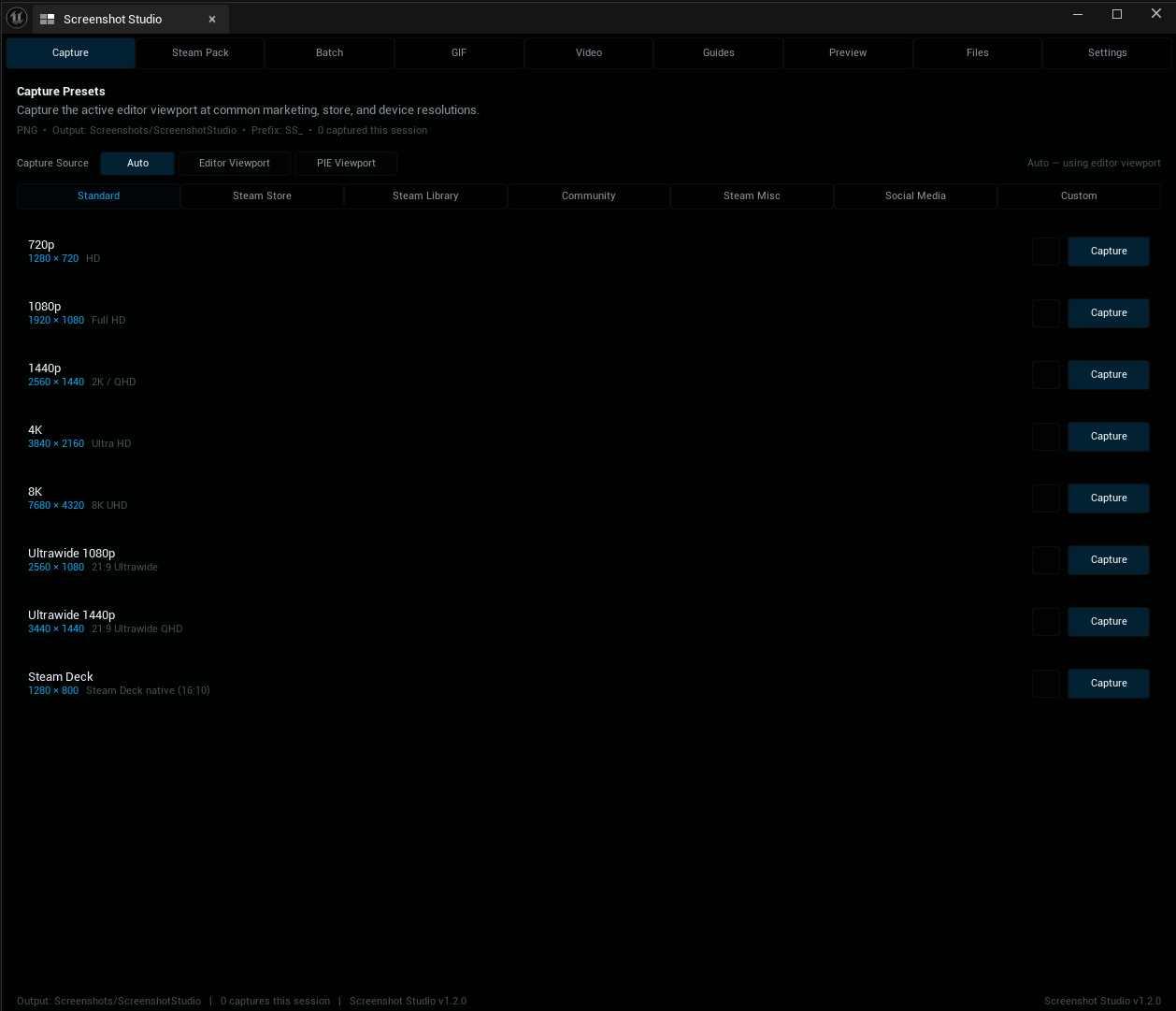
Capture screenshots in common marketing and platform resolutions, including:
- 720p, 1080p, 1440p, 4K, and 8K
- Ultrawide presets
- Steam Deck resolution
- Steam Store assets
- Steam Library assets
- Steam Community assets
- Social media formats
- Custom resolutions
Each preset row shows the name, dimensions, description, preview-frame toggle, and capture button.
Steam Pack
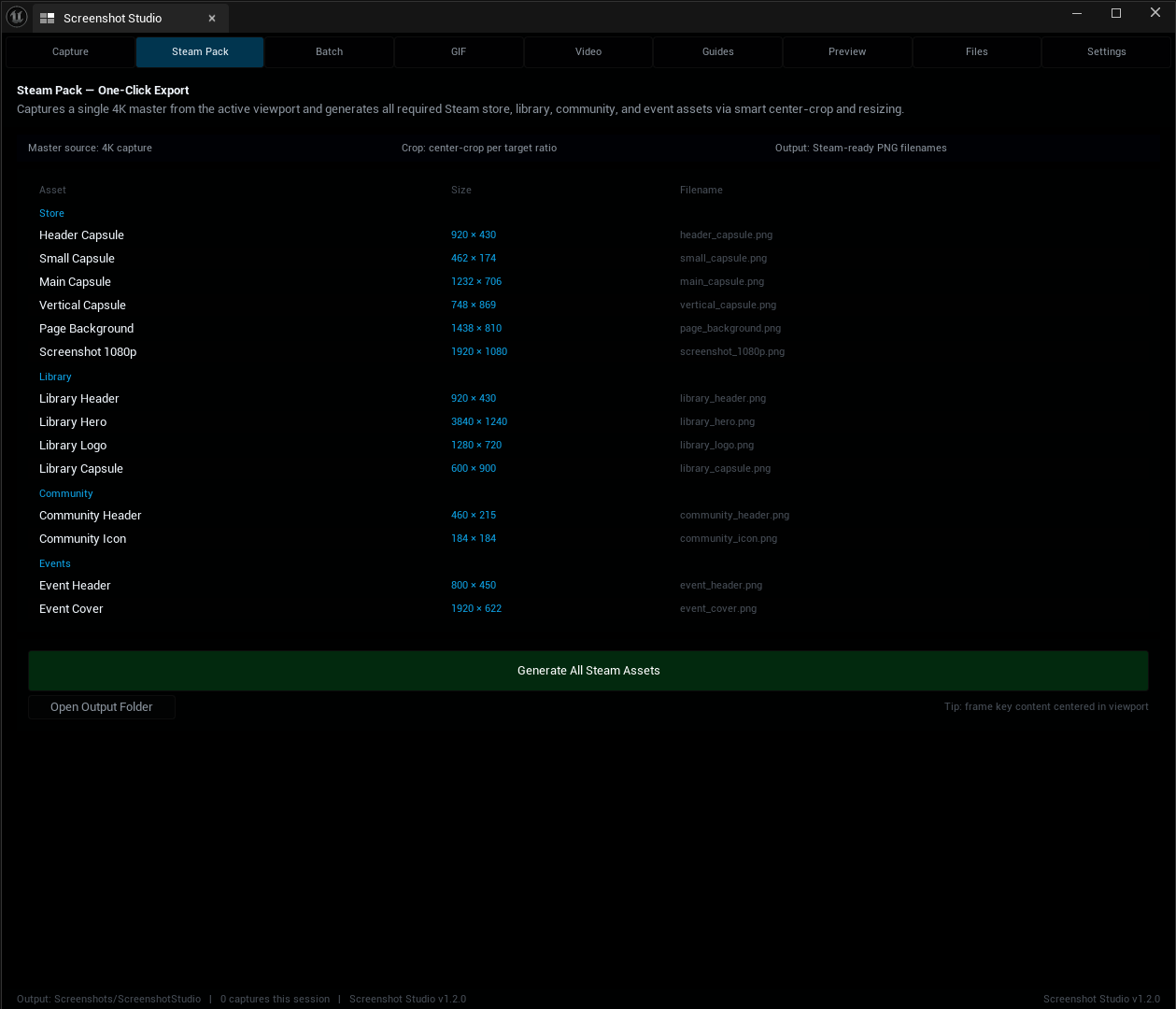
Steam Pack generates a complete set of Steam-ready images from a single source frame.
Generated assets include:
- Header Capsule
- Small Capsule
- Main Capsule
- Vertical Capsule
- Page Background
- Screenshot 1080p
- Library Header
- Library Hero
- Library Logo
- Library Capsule
- Community Header
- Community Icon
- Event Header
- Event Cover
Note
Keep your most important subject near the center of the frame. Steam Pack creates multiple aspect ratios from the same source image, so edge content can be cropped in narrow formats.
GIF Recorder
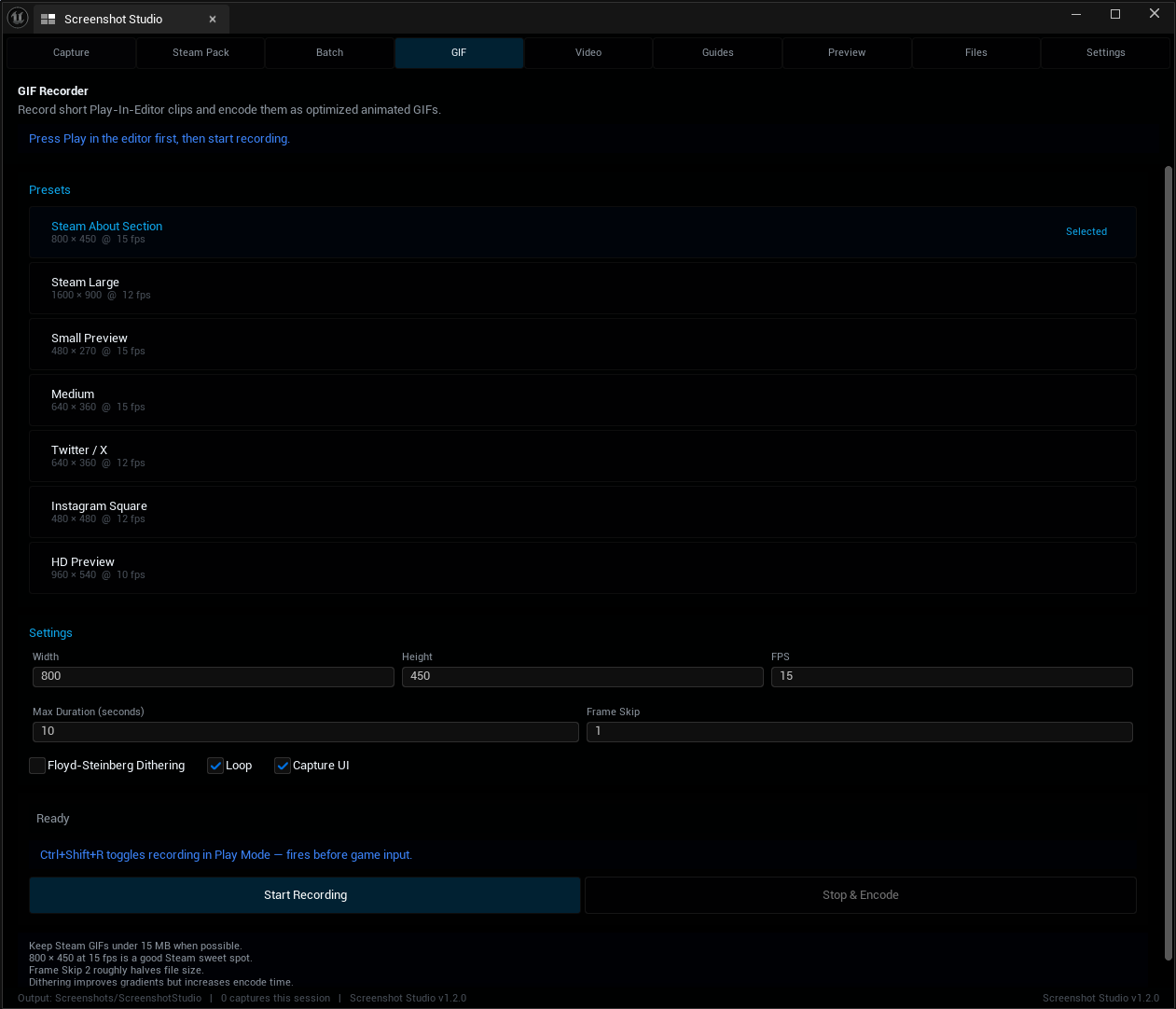
The GIF recorder captures PIE footage and encodes animated GIFs directly inside Unreal.
Highlights:
- Pure C++ GIF89a encoder
- No external dependency
- Optional UI capture
- Background encoding
Ctrl+Shift+Rhotkey- Presets for Steam, Discord, Twitter/X, Instagram, and general previews
Video Recorder
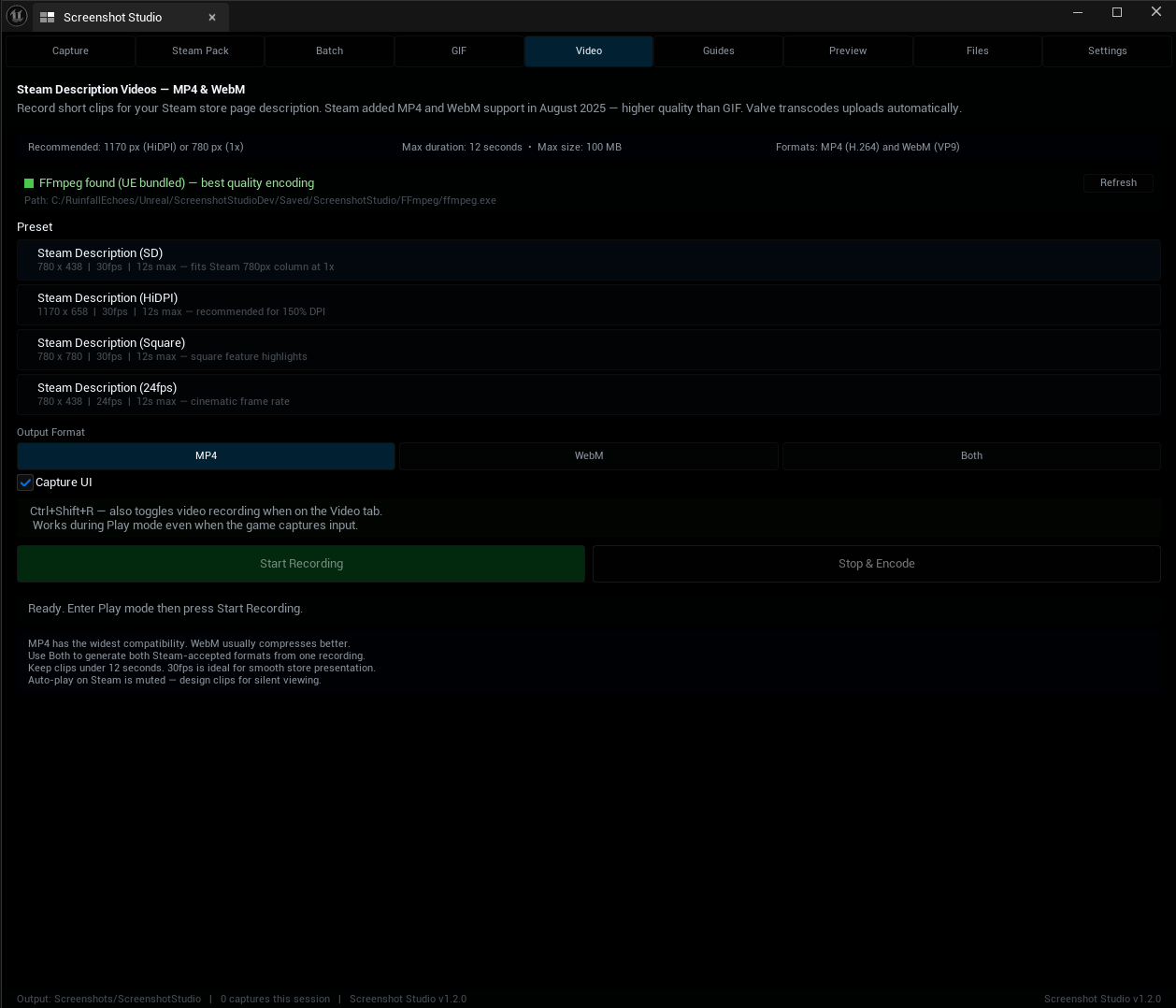
The Video Recorder creates short MP4 and WebM clips for Steam store descriptions and marketing use.
Highlights:
- MP4, WebM, or Both
- Optional FFmpeg auto-download
- Optional UI capture
- Steam-friendly presets
- Automatic stop at 12 seconds
- Fallback to PNG frame sequence if no encoder is available
Steam Store Preview
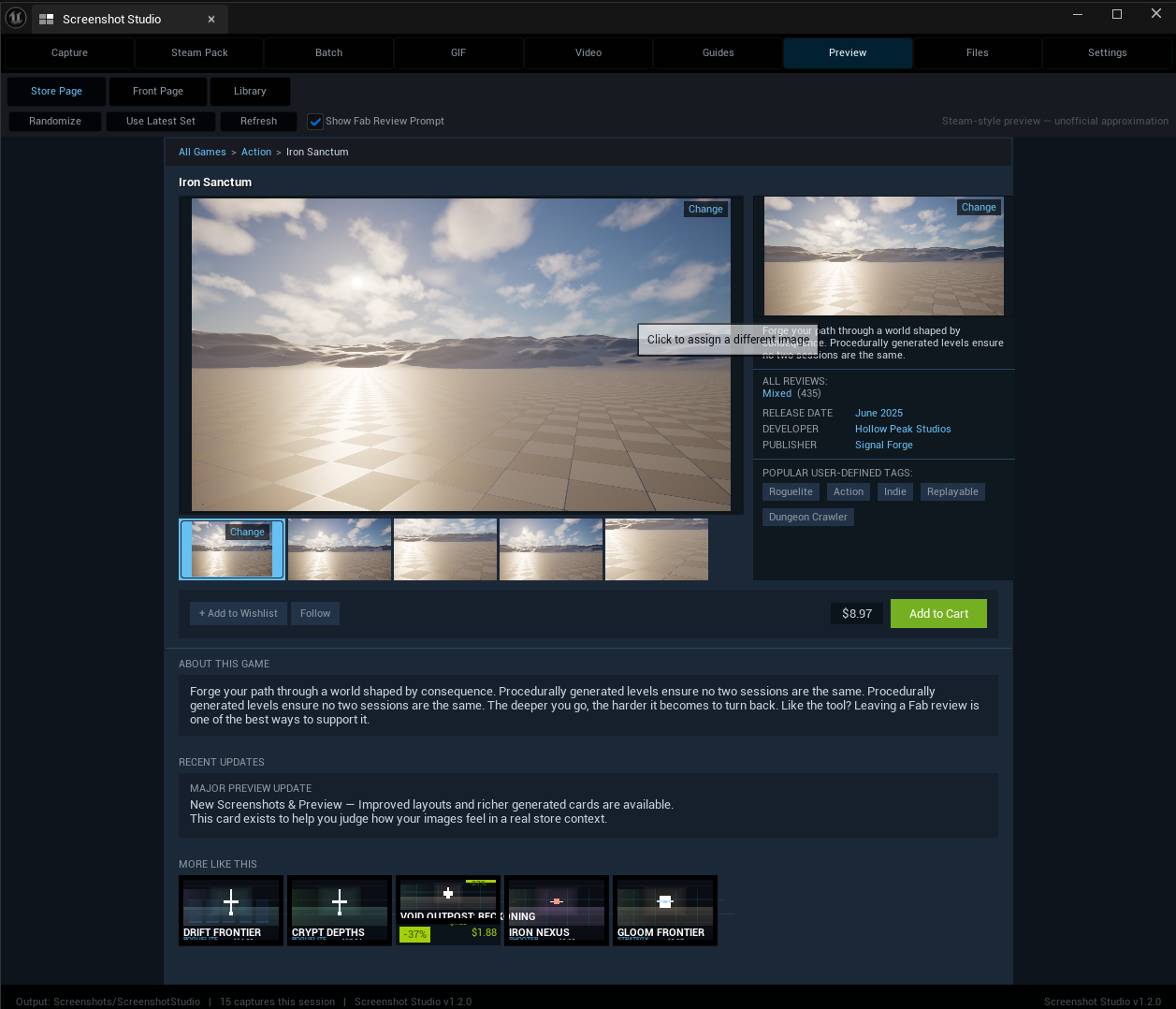
Steam Preview shows how your images look inside Steam-style layouts.
Available pages:
- Store Page
- Front Page
- Library Page
The preview uses fixed layout sizes, Steam-style colors, locked image ratios, and crop-to-fill scaling so your images do not stretch or distort.
Your captures are stored in a persistent image library, so they remain available after restarting Unreal. You can click any image slot and assign a different capture from the picker.
Composition Guides
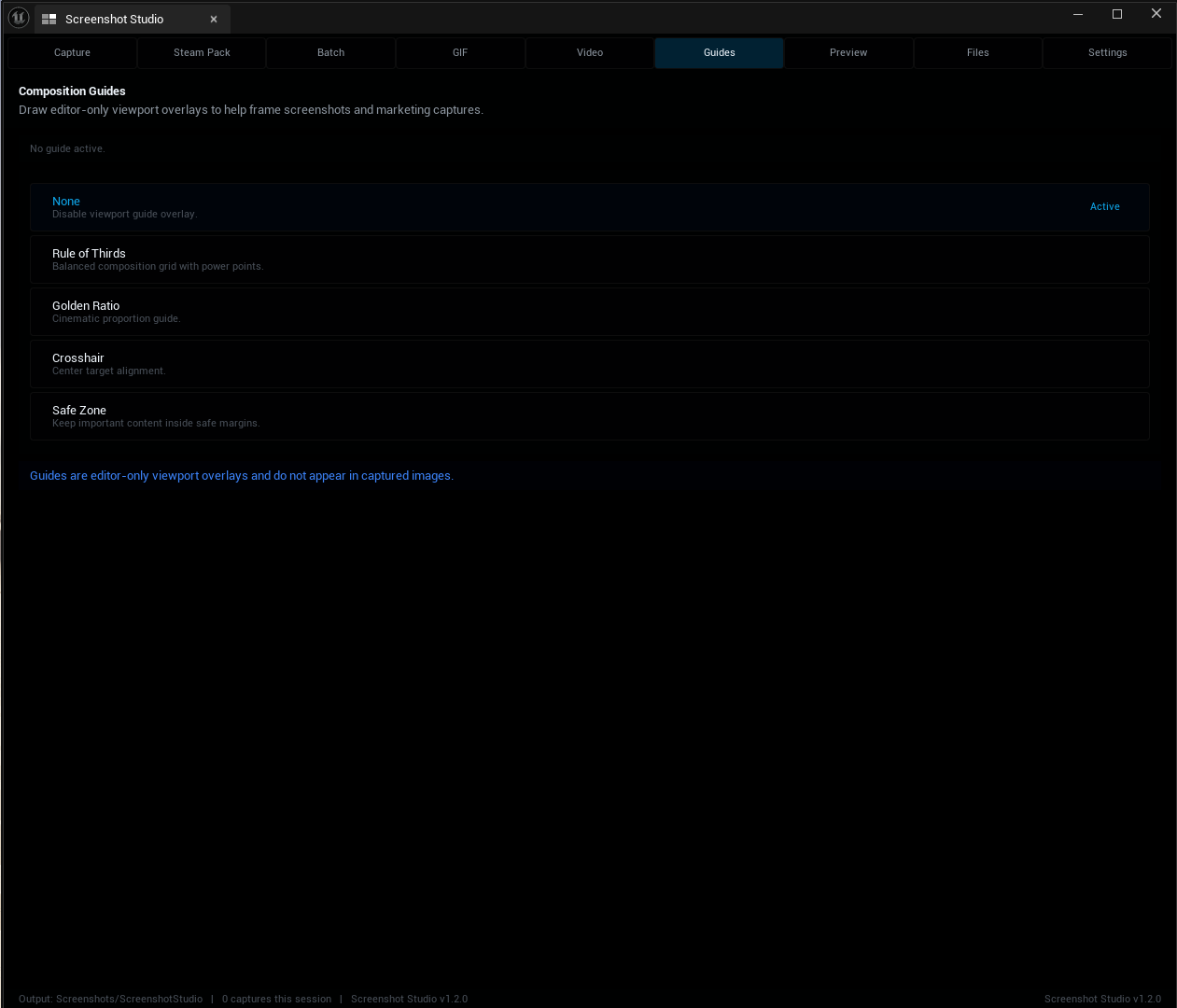
Composition guides help you frame cleaner marketing shots.
Available guides:
- Rule of Thirds
- Golden Ratio
- Crosshair
- Safe Zone
These overlays are editor-only and never appear in captured images.
Batch Rename and Organize
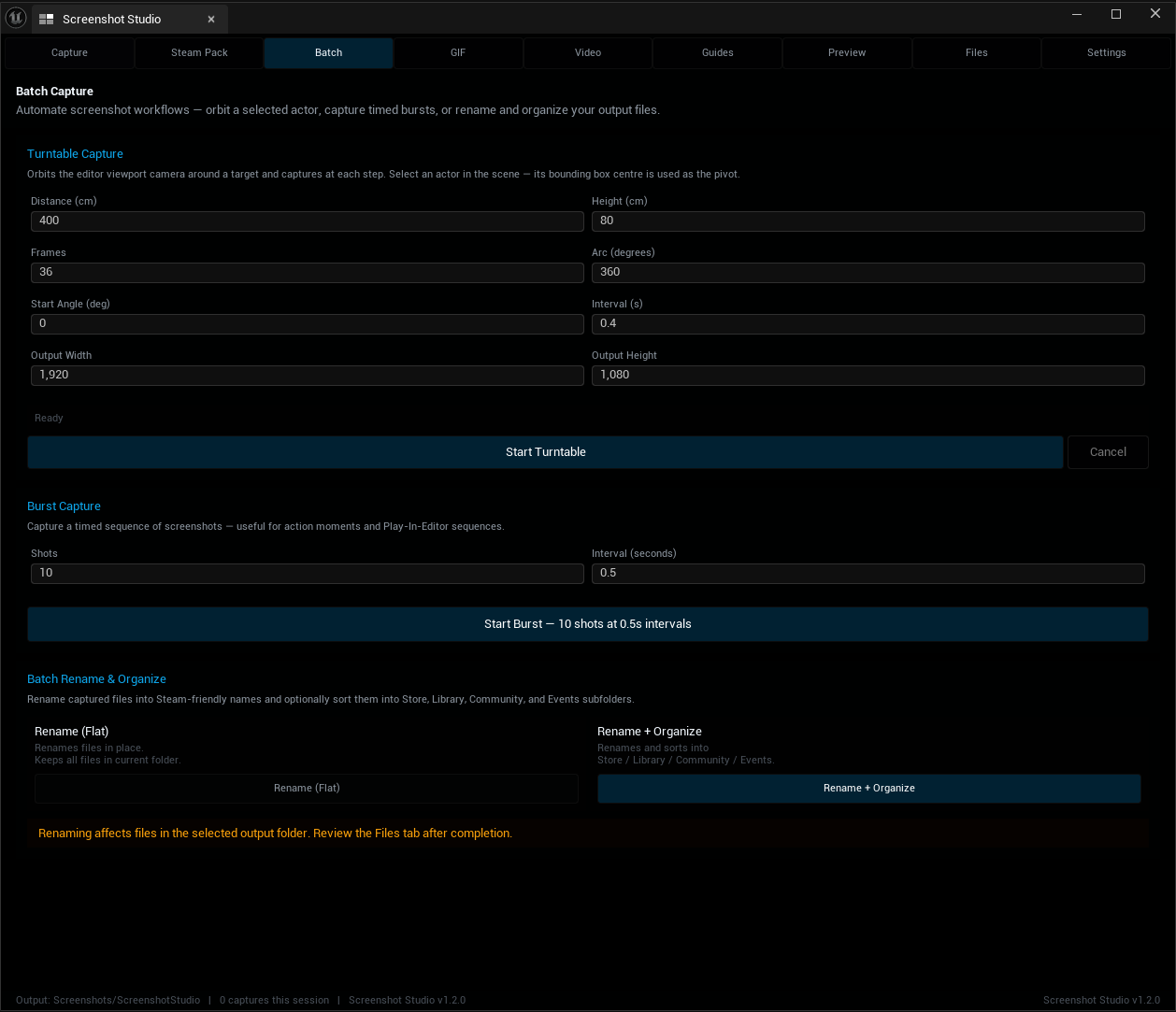
Batch Rename scans your output folder and renames recognized Steam asset sizes into cleaner Steam-friendly names.
You can either:
- Rename files in place
- Rename and organize them into Store, Library, Community, and Events folders
Settings
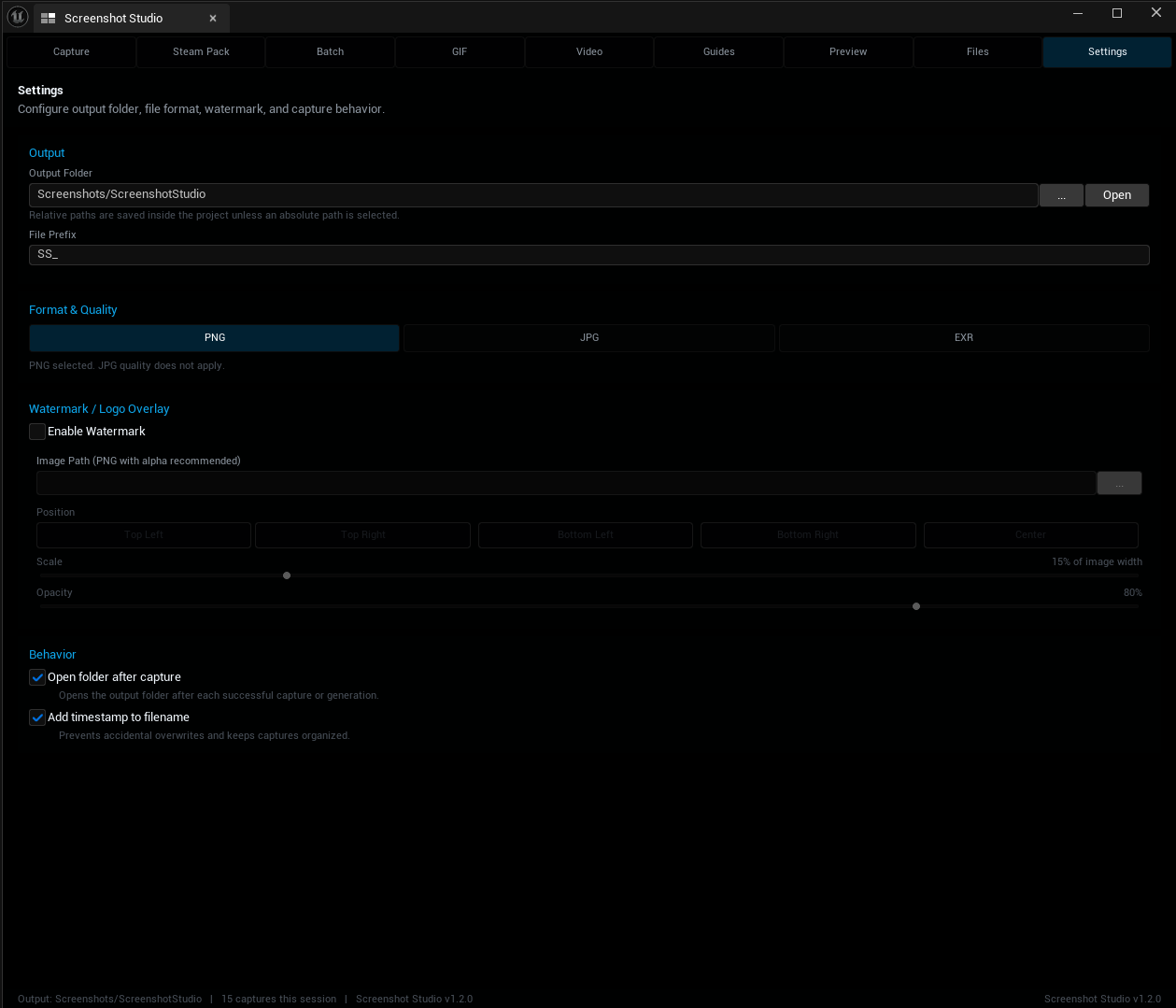
The Settings tab includes:
- Output folder
- File prefix
- Timestamp toggle
- PNG, JPG, and EXR formats
- JPG quality
- Watermark image path
- Watermark position
- Watermark scale
- Watermark opacity
- Open folder after capture
Keyboard shortcuts
| Shortcut | Action |
|---|---|
Ctrl+Shift+S |
Open Screenshot Studio |
Ctrl+Shift+R |
Toggle GIF or video recording while in PIE |
Alt+P |
Start PIE in Unreal Engine |
Output folders
Default screenshot output:
[ProjectRoot]/Screenshots/ScreenshotStudio/
Steam Pack output example:
[ProjectRoot]/Screenshots/ScreenshotStudio/SteamPack_001/
Persistent image library:
[ProjectRoot]/Saved/ScreenshotStudio/ImageLibrary.json
Optional local FFmpeg install:
[ProjectRoot]/Saved/ScreenshotStudio/FFmpeg/
Documentation
For the complete guide, open:
MANUAL.md
The manual includes:
- Full installation guide
- Blueprint-only project setup
- Capture source behavior
- PIE capture details
- Steam Pack workflow
- GIF and video setup
- Steam Preview usage
- FFmpeg fallback behavior
- Troubleshooting
- File structure reference
Troubleshooting
Screenshot Studio does not appear in the editor
Check that the plugin is installed here:
YourProject/Plugins/ScreenshotStudio/ScreenshotStudio.uplugin
Then regenerate project files and rebuild the project in Development Editor configuration.
I get many linker errors, such as LNK2001 or LNK2019
Your project path may contain spaces. Move the project to a path without spaces, then delete Binaries and Intermediate from both the project and the plugin.
After that, regenerate project files and rebuild.
My Blueprint-only project does not build
Add one empty C++ class from Tools > New C++ Class. Select None (Empty Class) as the parent.
This creates the C++ build structure Unreal needs for editor plugins.
My PIE capture does not show UMG, CommonUI, or HUD
Make sure the Capture Source is set to Auto or PIE Viewport. Then enter Play mode before capturing.
Editor Viewport captures the clean 3D scene only, without screen-space UI.
GIF or video recording is greyed out
GIF and video recording require PIE. Press Alt+P to enter Play mode first.
FFmpeg is not found
Open the Video tab and click Download FFmpeg Automatically.
You can also install FFmpeg manually and add it to your system PATH.
More troubleshooting steps are available in MANUAL.md.
Compatibility notes
- Screenshot Studio is an editor-only plugin.
- It does not add runtime code to packaged builds.
- UE 5.5, 5.6, and 5.7 are supported.
- Screenshots and GIFs do not require external tools.
- Video encoding can use FFmpeg, Windows Media Foundation, or PNG frame sequence fallback.
- Steam Preview is an unofficial visual approximation and is not affiliated with Valve Corporation.
Suggested workflow
Build or open your scene
Build your scene or open your menu in PIE.
Frame the shot
Use Composition Guides to frame the shot.
Capture screenshots
Capture a few strong 16:9 screenshots.
Generate Steam assets
Run Steam Pack from your best frame.
Preview the results
Open Steam Preview and assign the best images to each slot.
Record short media
Record a short GIF or MP4 for your store description.
Organize assets
Use Batch Rename and Organize before uploading assets.
Version
Screenshot Studio 1.2.0 Compatible with Unreal Engine 5.5, 5.6, and 5.7.