RedirectCheck User Guide
Welcome to RedirectCheck.
This guide explains what the tool does, how to use it, what the different warnings mean, and how to solve the most common issues.
RedirectCheck is designed to be simple enough for beginners, but still useful for developers who want a cleaner project before packaging, migration, or Fab submission.
Fab listing: Open RedirectCheck on Fab
What Are Redirectors?
When you move or rename an asset in Unreal Engine, the engine may leave a small helper asset behind at the old location. This helper asset is called a redirector.
The redirector tells Unreal:
“This asset used to be here, but now it lives over there.”
That is useful because it prevents broken references while you are reorganizing your project. The downside is that redirectors can build up over time.
A few redirectors are normal. A lot of redirectors can make your project harder to maintain, harder to review, and messier before release.
Opening RedirectCheck
Open the tool from:
Tools > ECal Studios > RedirectCheck
The tool opens in an empty state. Nothing is scanned and nothing is changed until you click Scan Project.
Interface Overview
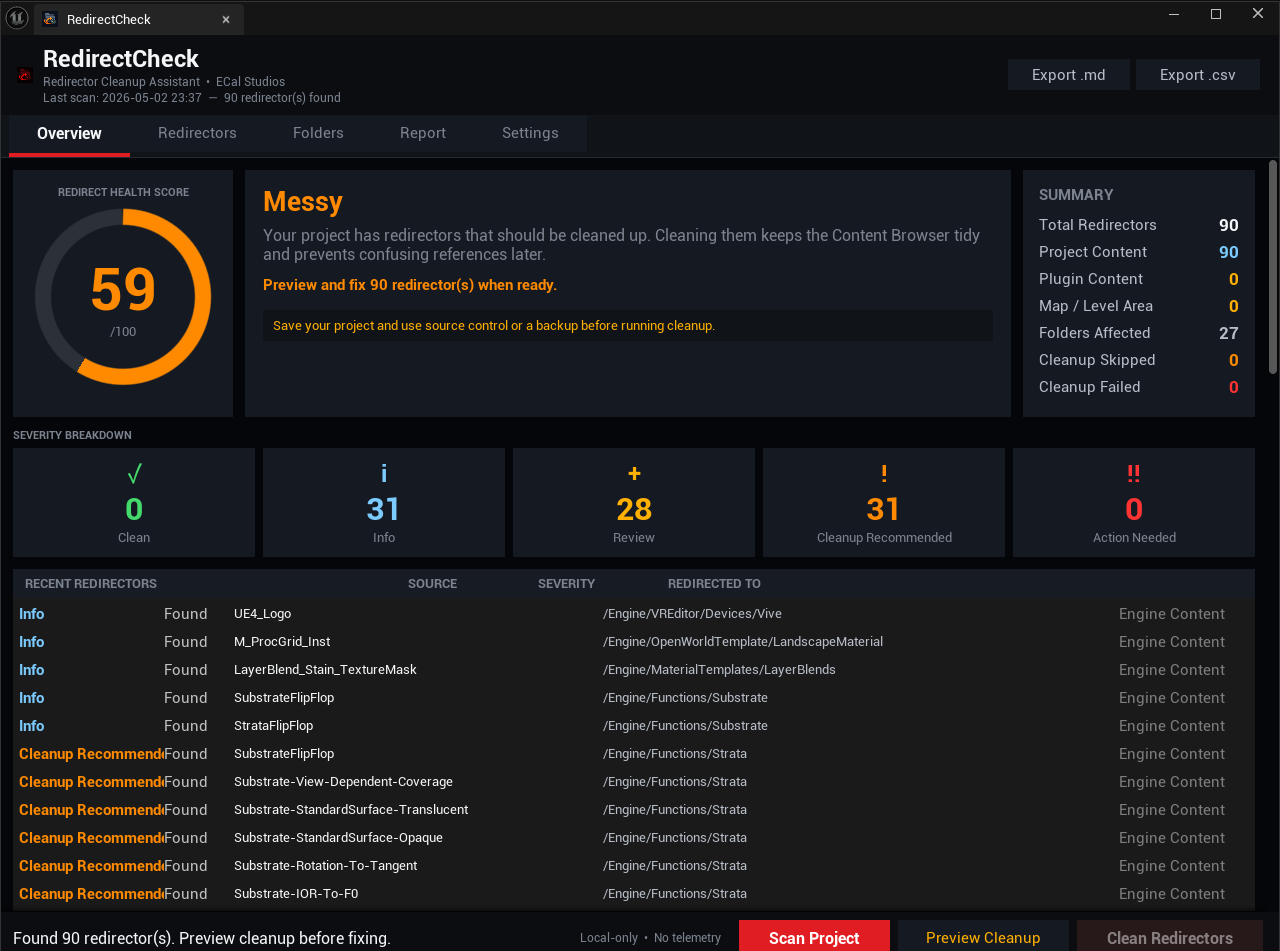
RedirectCheck is split into five main tabs.
| Tab | Purpose |
|---|---|
| Overview | Main dashboard with score, status, summary, severity cards, and recent redirectors |
| Redirectors | Full redirector table with filters and search |
| Folders | Redirectors grouped by folder |
| Report | Before and after cleanup results with export options |
| Settings | Local project preferences |
The bottom action bar stays visible so the main workflow is always easy to reach:
- Scan Project
- Preview Cleanup
- Clean Redirectors
Step 1: Scan Your Project
Click Scan Project.
The scan uses Unreal Engine’s Asset Registry. This means the plugin checks for redirectors without modifying your project.
After the scan finishes, the Overview tab shows:
- Redirect Health Score
- Current status
- Recommended next action
- Redirector counts
- Severity breakdown
- Recent redirectors
The score is only shown after a scan because it is calculated from the scan results.
Step 2: Understand the Health Score
RedirectCheck uses a score from 0 to 100.
| Score Range | Meaning |
|---|---|
| 90–100 | Very clean |
| 70–89 | Mostly healthy, minor cleanup may help |
| 40–69 | Needs review |
| 1–39 | Cleanup strongly recommended |
| 0 | Serious redirector issues or failed cleanup state |
The score starts at 100 and loses points for redirectors and risky cleanup results.
Common deductions include:
- Project redirectors
- Plugin content redirectors
- Redirectors in map folders
- Many affected folders
- Skipped cleanup items
- Failed cleanup items
- Very large redirector counts
- Stale scan results
The score is not meant to scare you. It is there to help you quickly understand the state of the project.
Step 3: Review Redirectors
Open the Redirectors tab.
This tab shows every redirector found during the scan. Each row includes information such as:
- Severity
- Status
- Asset name
- Folder path
- Source type
You can use the filter chips and search box to narrow the list.
Double-clicking a row syncs the Content Browser to that redirector, which makes it easier to inspect the asset manually.
Step 4: Check Folder Impact
Open the Folders tab.
This tab groups redirectors by folder. It helps you quickly see where the project is messy.
This is useful when:
- You recently reorganized folders
- You migrated content from another project
- You imported marketplace content
- You want to clean one area of the project before touching everything else
Folders with many redirectors or more sensitive content may receive stronger severity labels.
Step 5: Understand Severity Labels
RedirectCheck uses severity labels to make the results easier to read.
| Severity | Meaning |
|---|---|
| Clean | No action needed or already fixed |
| Info | Normal project-content redirector, usually safe to clean |
| Review | Needs a closer look, often because it is plugin content, map content, or a dense folder |
| Cleanup Recommended | The redirector situation is large enough that cleanup is recommended |
| Action Needed | Something failed or needs attention before the project can be considered clean |
Step 6: Preview Cleanup
Click Preview Cleanup before running cleanup.
This step is required on purpose. It gives you a moment to review the scope before anything is changed.
The preview reminds you to:
- Save your project
- Use source control
- Review plugin content carefully
- Confirm that you are ready to modify package files
Clicking Continue marks the current scan as previewed. It does not change files yet.
Step 7: Clean Redirectors
After previewing, click Clean Redirectors.
RedirectCheck loads each redirector and uses Unreal Engine’s own FixupReferencers process. After cleanup, the plugin automatically scans again so you can see what changed.
Some redirectors may be cleaned successfully. Others may be skipped or failed if files are locked, unsaved, read-only, or still referenced in a way Unreal cannot fix automatically.
Step 8: Read the Report
Open the Report tab after cleanup.
The report shows the before and after state, including:
- Previous redirector count
- Current redirector count
- Health score
- Cleanup status
- Failed or skipped items
- Severity breakdown
You can export reports as:
- Markdown
- CSV
By default, reports are saved to:
Saved/RedirectCheckReports/
Settings
RedirectCheck settings are stored locally per project in:
EditorPerProjectUserSettings.ini
They are not intended to be shared through source control.
| Setting | Default | Description |
|---|---|---|
| Include Plugin Content | On | Includes plugin and marketplace folders in scans |
| Include Engine Content | Off | Includes /Engine/ paths, rarely needed |
| Auto-Rescan After Cleanup | On | Runs a fresh scan after cleanup |
| Export Report After Cleanup | Off | Automatically exports a report after cleanup |
| Include Score in Reports | On | Adds health score details to exported reports |
| Show Health Score | On | Shows the score gauge on the Overview tab |
| Show Beginner Explanations | On | Shows extra help text for newer users |
| Show Advanced Package Names | Off | Shows full package paths in the table |
| Show Score Impact Column | Off | Shows per-item score impact |
FAQ
What is a redirector?
A redirector is a small helper asset Unreal Engine creates when you move or rename an asset. It keeps old references working until they are properly updated.
Is cleanup safe?
For normal project content, it is usually safe when you save first and use source control.
RedirectCheck uses Unreal Engine’s own FixupReferencers workflow, which is the same general cleanup path used by the Content Browser.
Still, cleanup modifies files on disk, so you should always commit or back up your project first.
Does RedirectCheck delete my assets?
No. RedirectCheck processes UObjectRedirector assets through Unreal’s cleanup API. It does not delete normal assets.
Can I undo cleanup with Ctrl+Z?
No. Redirector cleanup modifies package files on disk and is not part of Unreal’s normal editor undo stack.
Use source control if you need to roll back.
Why did some items get skipped?
Skipped means the redirector could not be loaded at cleanup time.
Common reasons include:
- The asset is open and unsaved
- The file is locked by source control
- The file is read-only
- The package path could not be resolved
Save everything, check source control locks, and try again.
Why did some items fail?
Failed means the redirector loaded, but Unreal’s fix-up process did not complete.
Common reasons include:
- Read-only files
- Source control locks
- Broken or complex reference chains
- Plugin content that should not be modified
Check the Output Log for more detail.
Should I clean plugin content redirectors?
It depends.
If the redirectors are inside plugin content that you imported, moved, or reorganized yourself, cleanup may be fine.
If they belong to an actively installed third-party plugin, be careful. The plugin may expect content to remain in specific paths. RedirectCheck labels plugin content clearly so you can review it before cleanup.
Can I use this before packaging or Fab submission?
Yes. That is one of the best times to use it.
Redirectors are not automatically dangerous, but a clean project is easier to package, easier to review, and more professional to share.
Does RedirectCheck upload anything?
No. RedirectCheck is fully local. It does not upload data, use telemetry, require accounts, or make network connections.
Why does the score show -- before scanning?
The score is calculated from scan results. Before the first scan, there is no data to score.
Does it work on Mac or Linux?
The plugin uses cross-platform Unreal Engine APIs, so it may work. However, for this version, Windows is the primary supported and tested platform.
Troubleshooting
The Plugin Does Not Appear in the Tools Menu
Try the following:
- Go to Edit > Plugins.
- Search for RedirectCheck.
- Make sure it is enabled.
- Restart the editor.
- Open the Output Log and search for
LogRedirectCheck.
If the plugin still does not appear:
- Close Unreal Engine.
- Delete these folders inside the plugin folder:
Plugins/RedirectCheck/Binaries/
Plugins/RedirectCheck/Intermediate/
- Regenerate project files.
- Recompile the project.
- Open Unreal Engine again.
Scan Finds Zero Redirectors
If you expected redirectors to exist:
- Save the project after recent asset moves
- Refresh the Content Browser
- Enable Filters > Show Redirectors in the Content Browser
- Wait for the Asset Registry to finish updating
- Run the scan again
Sometimes Unreal needs a moment to register recent asset changes.
Cleanup Fails or Skips Items
| Possible Cause | What To Do |
|---|---|
| Asset is open or unsaved | Use File > Save All before cleanup |
| Source control lock | Check out or unlock the file |
| Read-only file | Check file permissions on disk |
| Plugin content reference | Exclude plugin content or inspect it first |
| Asset Registry not updated | Refresh the Content Browser and scan again |
After fixing the issue, run another scan and try cleanup again.
Report Export Fails
Check the following:
- The folder
Saved/RedirectCheckReports/exists or can be created - The folder is writable
- The project is not in a protected location
- Your antivirus or file permissions are not blocking writes
You can also change the default report folder in Settings to a known writable location, such as your desktop.
Double-Click Does Not Locate the Asset
The Content Browser sync needs the asset to be registered by Unreal.
Try this:
- Refresh the Content Browser.
- Run a fresh scan.
- Double-click the row again.
If the Asset Registry was still loading during the scan, some rows may not sync correctly until the next scan.
Plugin Compiles But Crashes on Startup
Check the Output Log after this line:
LogRedirectCheck: RedirectCheck started.
If the issue mentions duplicate style registration or duplicate plugin symbols, remove duplicate plugin copies and rebuild.
A clean rebuild often helps:
- Close Unreal Engine.
- Delete
BinariesandIntermediateinside the plugin folder. - Regenerate project files.
- Recompile.
Plugin Fails to Compile
| Error Type | Suggested Fix |
|---|---|
| Missing module | Regenerate project files |
| Duplicate symbol | Make sure only one copy of RedirectCheck is installed |
| Slate header not found | Confirm you are using UE 5.5, 5.6, or 5.7 |
| Build fails after update | Delete plugin Binaries and Intermediate, then rebuild |
Getting Help
Documentation: RedirectCheck Documentation
Website: ecalstudios.com
Support: [email protected]
When contacting support, please include:
- Unreal Engine version
- RedirectCheck version
- Whether the plugin came from Fab or source zip
- What you were doing when the issue happened
- Relevant Output Log lines, especially anything containing
LogRedirectCheck
Copyright
Copyright
Copyright (c) 2026 ECal Studios. All Rights Reserved.