Asset Shelf README
Asset Shelf is a visual shortcut shelf for Unreal Engine. It lets you pin the assets and folders you use every day, organize them into shelves, and access them from a dockable editor panel instead of repeatedly digging through the Content Browser.
It is designed for solo developers, level designers, environment artists, marketplace sellers, tutorial creators, and anyone who works with the same Unreal assets again and again.
Editor-only plugin
Asset Shelf is an editor-only plugin. It has no runtime module, no gameplay code, no telemetry, and no effect on packaged builds.
At a glance
| Feature | What it does |
|---|---|
| Main Asset Shelf | Full visual dashboard for organizing pinned project assets. |
| Side Shelf | Compact dockable panel for fast access while building levels. |
| Custom shelves | Create named shelves with accent colors for different workflows. |
| Drag in | Add assets, folders, and multi-selections from the Content Browser or Content Drawer. |
| Drag out | Drag supported pinned assets into the level viewport. |
| Search and filter | Find pinned items by name, path, or type. |
| Safe shortcuts | Stores references only. It does not move, rename, delete, or edit project assets. |
Compatibility
| Item | Support |
|---|---|
| Unreal Engine | 5.5, 5.6, 5.7 |
| Platforms | Windows, macOS, Linux |
| Module type | Editor-only module |
| Runtime impact | None |
Installation
- Close Unreal Engine.
- Copy the
AssetShelfplugin folder into your project'sPluginsfolder. - If your project does not already have a
Pluginsfolder, create one next to your.uprojectfile. - Reopen your project.
- When Unreal asks to rebuild modules, choose Yes.
- Enable the plugin if needed under Edit → Plugins.
- Restart the editor if Unreal asks for it.
After installation, open the plugin from:
Tools → ECal Studios → Asset Shelf
Quick start
- Open Tools → ECal Studios → Asset Shelf.
- Drag one or more assets from the Content Browser or Content Drawer into the shelf.
- Switch shelves using the chips along the top.
- Click Add Shelf to create a new shelf for a workflow or asset group.
- Click Side Shelf when you want a compact dockable version beside the viewport.
- Drag supported assets from either panel into the level viewport.
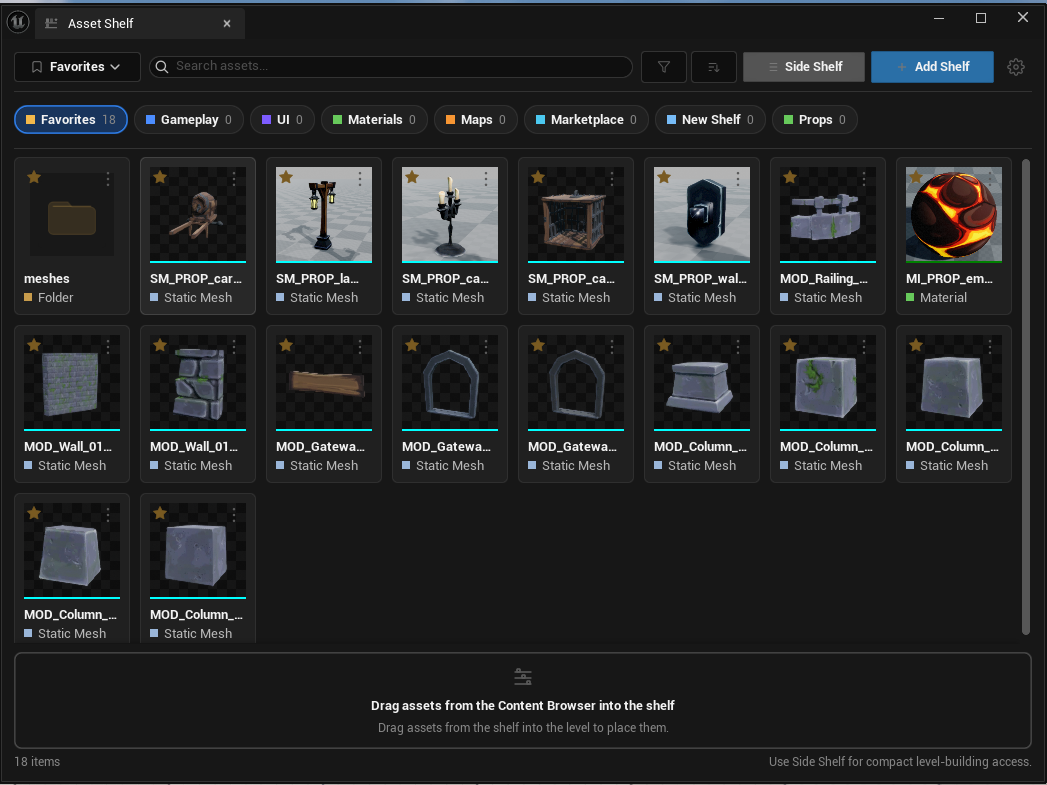
Default shelves
On first use, Asset Shelf creates a small set of starter shelves:
- Favorites
- Gameplay
- UI
- Materials
- Maps
- Marketplace
These are only starter shelves. You can rename, duplicate, reorder, delete, or replace them with your own structure.
Common workflows
Keep level-building assets close
Create a shelf for props, modular pieces, lights, decals, or environment sets. Dock the Side Shelf beside the viewport and drag supported items straight into the level.
Keep project folders one click away
Pin folders such as /Game/UI, /Game/Characters, /Game/Maps, or /Game/Marketplace. Double-click or right-click a folder shortcut to browse there in the Content Browser.
Separate marketplace packs
Create shelves for imported marketplace packs so you can keep useful assets visible while testing what belongs in your project.
Avoid Content Browser repetition
Pin the assets you always search for: your main character Blueprint, test map, core materials, UI widgets, item Data Assets, VFX, and prototype meshes.
Safety
Asset Shelf stores shortcut data in your project Saved folder. Removing an item from Asset Shelf removes only the shortcut. It does not delete the real asset.
Asset Shelf does not:
- Modify asset files.
- Move assets.
- Rename assets.
- Delete assets.
- Add runtime systems.
- Send data anywhere.
Saved data
Per-project shelf data is saved to:
<YourProject>/Saved/AssetShelf/AssetShelfData.json
This keeps shelves local to the project and easy to reset if you ever want to start fresh.
Troubleshooting
I cannot see the menu item
Make sure the plugin is enabled under Edit → Plugins, then restart Unreal Engine.
Unreal asks to rebuild modules
This is normal for C++ editor plugins. Close Unreal, build the project with your normal Unreal workflow, then reopen the project.
Dragging an item into the level does nothing
Asset Shelf uses Unreal's standard drag-to-level behavior. If the Content Browser cannot place that asset type directly into the viewport, Asset Shelf cannot place it either.
A pinned item is marked as missing
The asset was likely moved, renamed, or deleted outside Asset Shelf. Remove the old shortcut and add the asset again from its current location.
The Content Drawer opens after dropping an asset
Asset Shelf reopens the Content Drawer after successful drops so you can keep adding assets quickly. If you were dragging from a docked Content Browser, the drawer may still open. You can close it normally.
FAQ
Does Asset Shelf change my actual assets?
No. Asset Shelf stores shortcuts only.
Can I use it in packaged builds?
No. Asset Shelf is an editor workflow tool and is excluded from packaged builds.
Can I dock it like other Unreal tabs?
Yes. Both the main Asset Shelf and the Side Shelf are standard dockable Unreal editor tabs.
Does it scan my whole project?
No. Search and filtering work on pinned items only.
Does it work with folders?
Yes. Folders can be pinned and used for quick Content Browser navigation. Folders cannot be dragged into the level viewport.
Support
For support, email [email protected] and include the plugin version, Unreal Engine version, operating system, and steps to reproduce the issue.