RefCheck User Manual
This manual covers the main RefCheck workflow, every screen, recommended scan setups, troubleshooting, and known behavior.
RefCheck is an editor-only, read-only tool. It reports reference-health risks but never modifies your project.
1. Overview
RefCheck helps you answer a practical Unreal Engine question:
Can this asset, folder, level, or project be packaged, migrated, shared, or submitted without hidden reference problems?
It scans references that Unreal exposes through editor and Asset Registry data, classifies common risks, gives them severity levels, and presents the results in a dashboard, a detailed issue table, dependency-chain view, and exportable reports.
2. Important safety behavior
RefCheck version 1.0.0 is read-only.
It does not:
- Delete assets.
- Move assets.
- Rename assets.
- Reimport assets.
- Fix redirectors automatically.
- Change Blueprint graphs.
- Add runtime systems to your packaged game.
- Upload your project data.
The only files it writes are:
- Reports you explicitly export.
- RefCheck editor settings for your project.
3. Installation
Install from Fab or a plugin ZIP
- Close Unreal Engine.
- Install the plugin through Fab, or copy the
RefCheckfolder into your project'sPluginsfolder.
YourProject/
  Plugins/
    RefCheck/
      RefCheck.uplugin
      Source/
      Resources/
      ...
- Reopen the project.
- If Unreal asks to rebuild modules, allow the rebuild.
- Open Edit → Plugins and confirm RefCheck is enabled.
- Restart the editor if Unreal asks you to.
RefCheck is a code plugin. On source builds, macOS, or Linux, Unreal may compile it from the included source using your normal engine toolchain.
4. Opening the plugin
Open RefCheck from:
Tools → ECal Studios → RefCheck
You can also open it from the Content Browser:
Right-click selected assets or a folder → ECal Studios → Scan References with RefCheck
The Content Browser action opens RefCheck and preloads your selection as the scan scope. It does not start the scan automatically; you still choose your options and click Start Scan.
5. Welcome screen
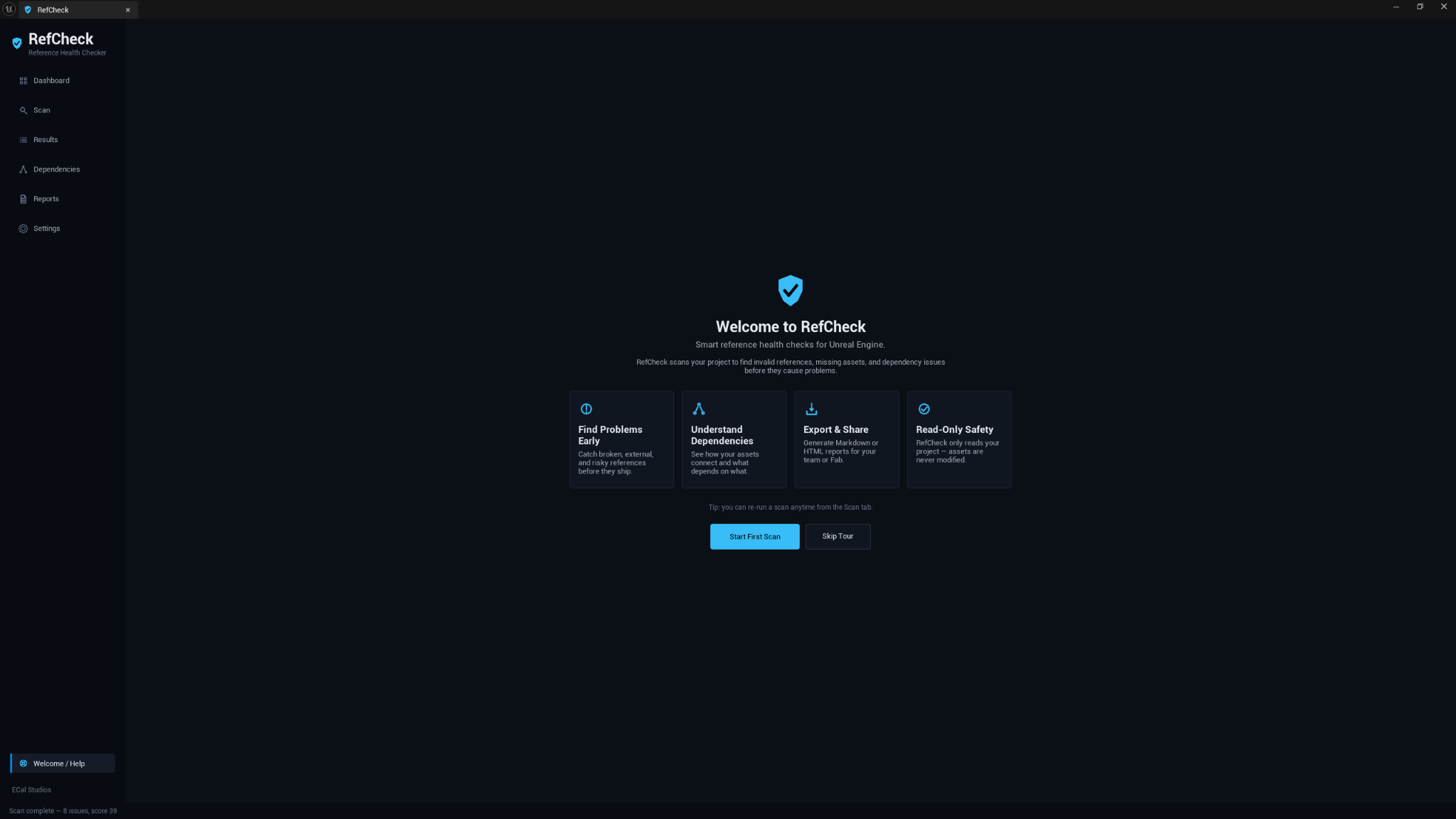
The first launch shows a short Welcome screen with the basic idea of the tool. Click Start First Scan to go straight to the Scan page, or Skip Tour to open the normal dashboard.
You can reopen this screen later from Welcome / Help in the sidebar.
6. Scan page
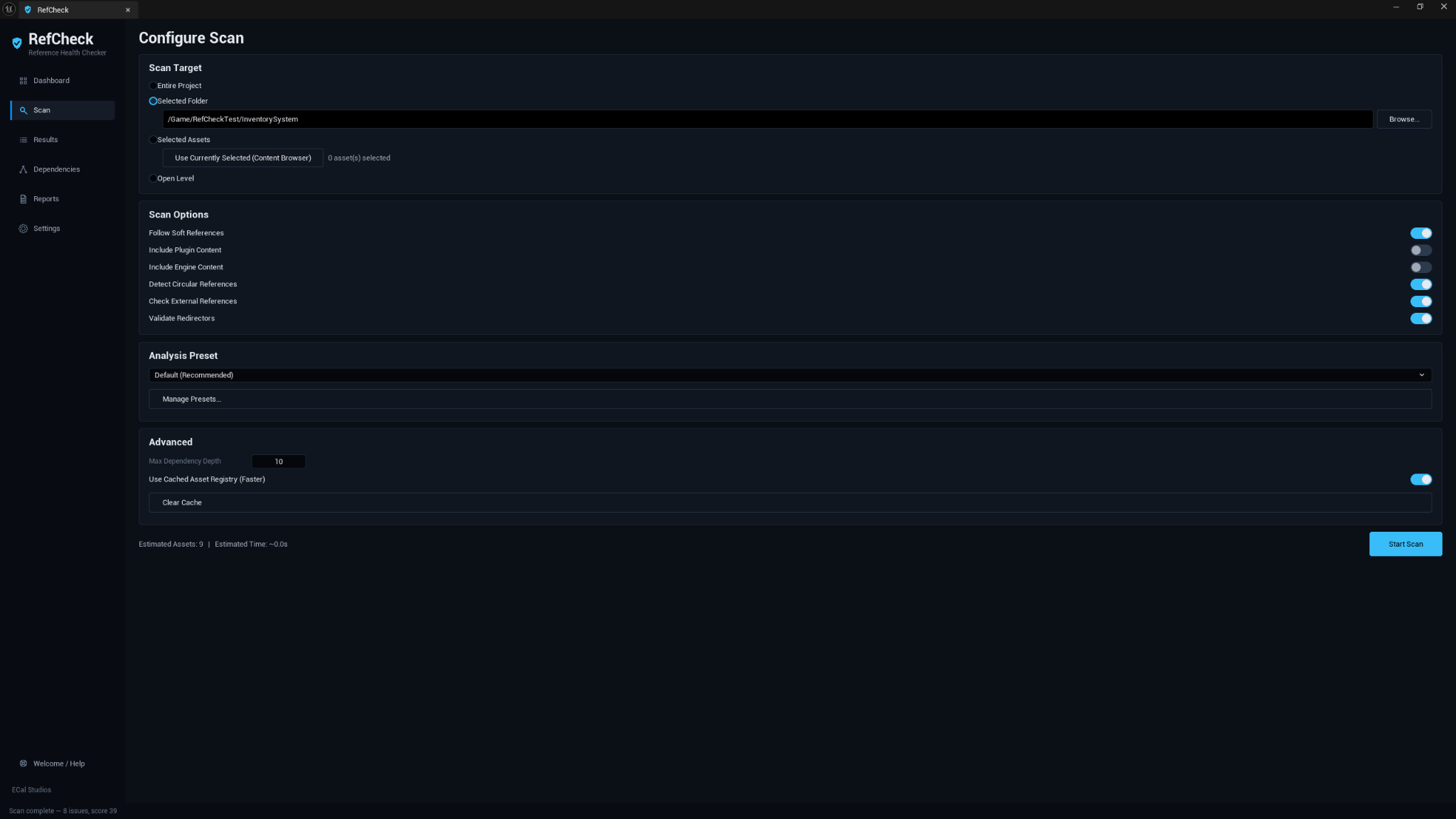
The Scan page controls what RefCheck will inspect.
Scan targets
| Target | Use it when |
|---|---|
| Entire Project | You want a broad reference-health pass across /Game/.... |
| Selected Folder | You are checking a content pack, Blueprint system, feature folder, or folder you plan to migrate. |
| Selected Assets | You only want to inspect a few assets from the Content Browser. |
| Open Level | You want to review the references used by the currently open map. |
Content Browser workflow
- Select a folder or one or more assets in the Content Browser.
- Right-click the selection.
- Choose ECal Studios → Scan References with RefCheck.
- RefCheck opens with the scope already filled in.
- Confirm the preset and options.
- Click Start Scan.
7. Scan presets
The Analysis Preset dropdown applies practical defaults.
| Preset | Best for |
|---|---|
| Default (Recommended) | Balanced everyday scanning. |
| Fab Seller / Package Readiness | Preparing content for packaging, migration, or Fab review. Plugin dependencies are treated more seriously. |
| Blueprint System | Checking whether a Blueprint system stays inside its intended folder. |
| Fast Scan | A faster first pass with shallower dependency walking. |
| Deep Scan | A broader scan with deeper dependency walking and more included content. |
Preset Manager
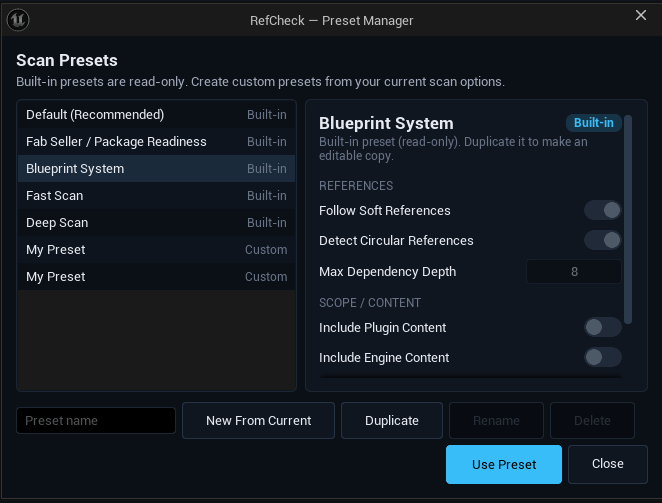
Click Manage Presets... to open the Preset Manager.
You can:
- Create a custom preset from the current scan options.
- Duplicate a built-in preset so you can edit your own version.
- Rename custom presets.
- Delete custom presets with confirmation.
Built-in presets are read-only and always remain available.
8. Scan options
| Option | What it does |
|---|---|
| Follow Soft References | Walks soft references such as TSoftObjectPtr paths where possible. |
| Include Plugin Content | Includes references into plugin content. Useful for Fab/package checks. |
| Include Engine Content | Includes references into /Engine/... as informational dependencies. |
| Detect Circular References | Runs bounded cycle detection over the dependency graph. |
| Check External References | Flags references that leave the selected folder scope. |
| Validate Redirectors | Reports redirector-related risks exposed through Unreal's Asset Registry. |
Advanced options
- Max Dependency Depth controls how far RefCheck walks dependency chains.
- Use Cached Asset Registry Data keeps repeat scans faster for normal work.
- Clear Cache forces RefCheck to refresh cached registry data on the next scan.
9. Dashboard
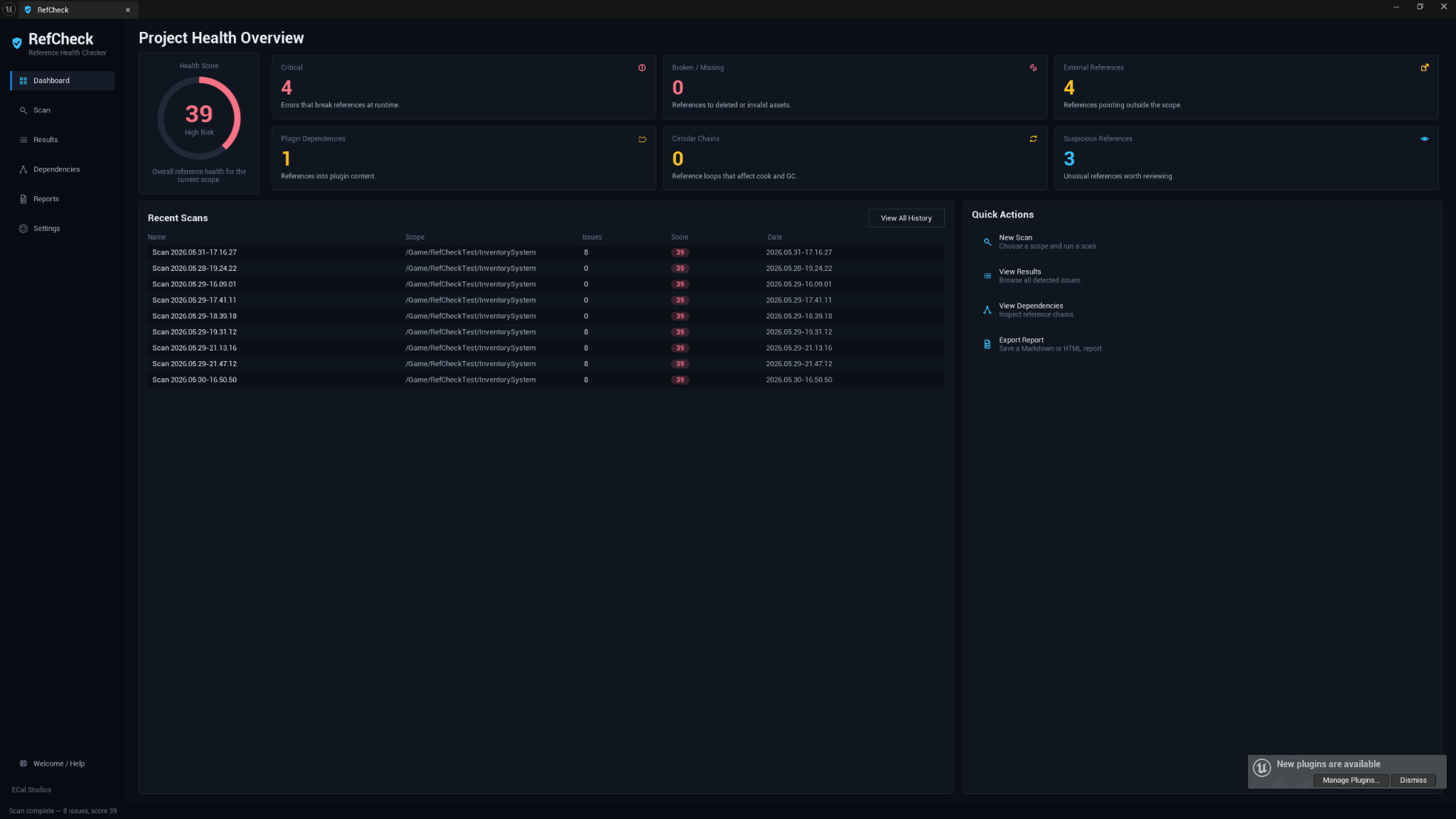
The Dashboard summarizes the latest scan.
Health score
The score is a quick risk indicator from 0 to 100. A higher score means fewer serious reference-health issues were found. It is a guide for review, not a guarantee that the project is perfect.
Issue cards
Dashboard cards summarize common problem groups:
- Critical issues
- Broken or missing references
- External references
- Plugin dependencies
- Circular chains
- Suspicious references
Recent scans
Recent scan history stores the scan name, scope, issue count, score, and date. This makes it easier to compare cleanup passes across editor sessions.
Quick actions
The Quick Actions panel lets you jump to a new scan, results, dependency chains, or reports without hunting through the sidebar.
10. Results page
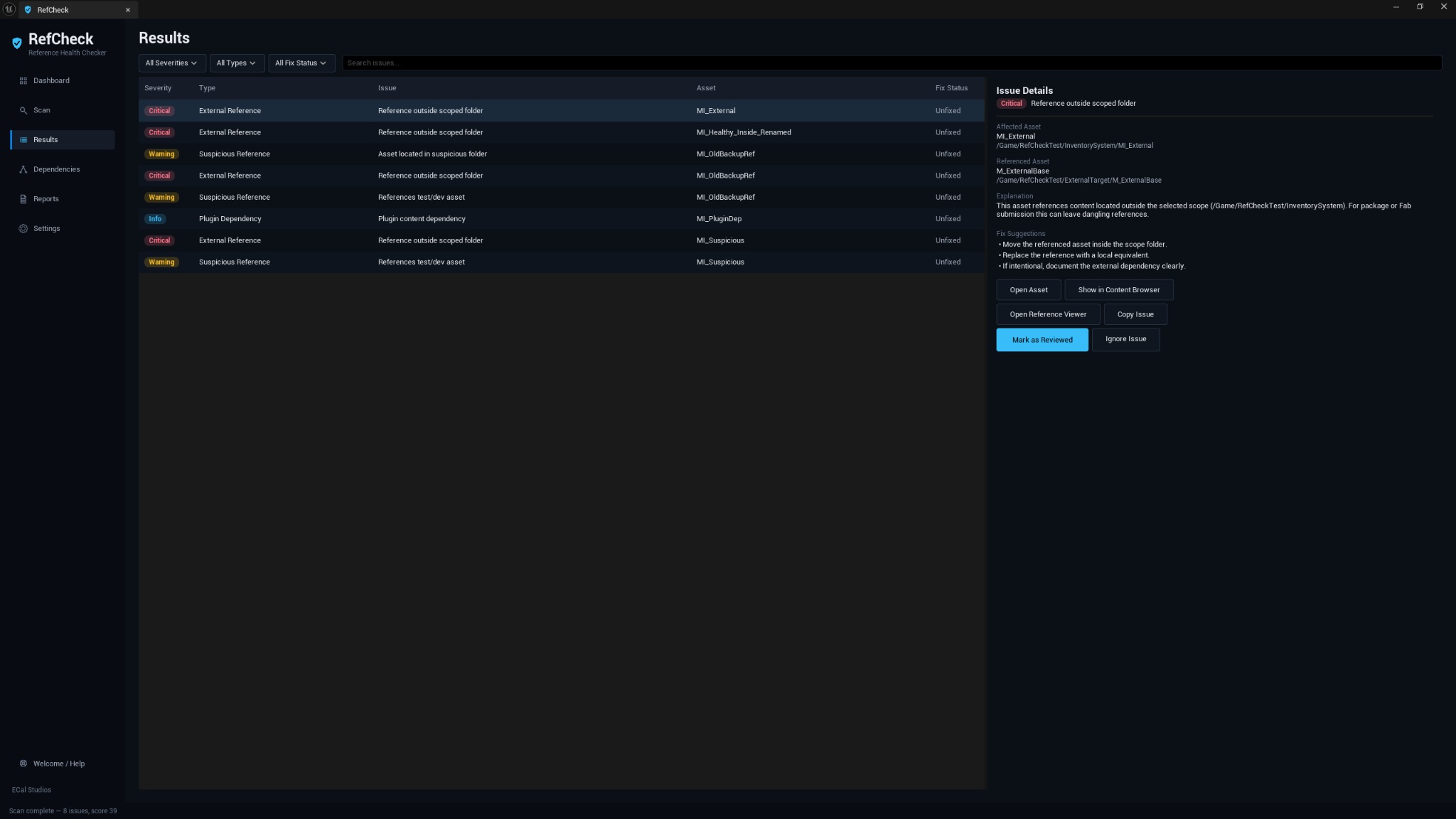
The Results page is where most review work happens.
Filtering and search
You can filter by:
- Severity
- Issue type
- Fix status
The search box matches asset names, paths, and issue text.
Selecting an issue
Single-click a row to update the detail panel on the right. The detail panel shows:
- Severity and issue title.
- Affected asset.
- Referenced asset or path.
- Explanation.
- Dependency chain when available.
- Suggested actions.
- Navigation and tracking buttons.
Navigation buttons
Depending on the issue, RefCheck can help you:
- Open Asset in the editor.
- Show in Content Browser.
- Open Reference Viewer.
- Copy Issue as a formatted summary.
- Mark as Reviewed.
- Ignore Issue.
If the source asset no longer exists, the affected navigation buttons are disabled.
11. Severity levels
| Severity | Meaning |
|---|---|
| Critical | Likely to break packaging, migration, cook, or submitted content if ignored. |
| Warning | Probably not immediately broken, but worth reviewing before shipping or sharing. |
| Info | A dependency or condition worth knowing about. |
| Passed | No issue detected for that item. |
12. Issue types
| Type | Default severity | Meaning |
|---|---|---|
| Missing Reference | Critical | A hard dependency cannot be resolved. |
| Soft Reference Missing | Critical | A soft reference points at a path that no longer exists. |
| External Reference | Critical | A reference leaves the selected scope folder. |
| Plugin Dependency | Info / Warning in Fab preset | A reference points into another plugin's content. |
| Engine Content Dependency | Info | A reference points into /Engine/.... |
| Circular Dependency | Warning | A bounded cycle was detected through Asset Registry data. |
| Suspicious Reference | Warning | A reference uses a risky test/dev/temp/old path or name. |
| Redirector Related | Warning | A redirector package appears to be involved. |
| Large Dependency | Info | An asset has an unusually large dependency footprint. |
| Skipped Asset | Info | A package could not be resolved and was skipped. |
13. Dependency chains
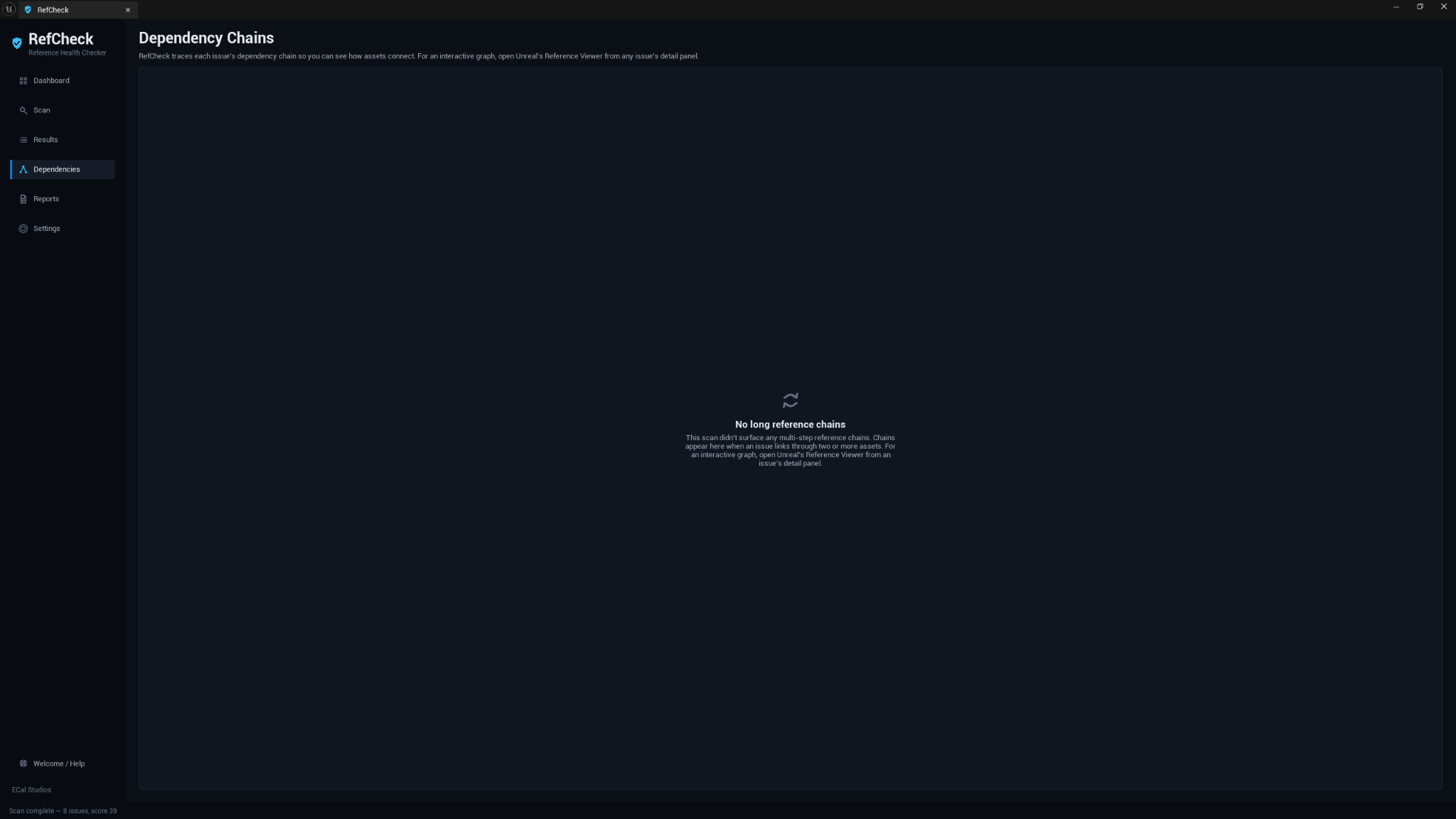
The Dependencies page shows readable chains for findings that need context. This is useful when the actual problem is several assets away from the item you started with.
RefCheck version 1.0.0 does not draw its own interactive graph. For graph exploration, select an issue and click Open Reference Viewer to use Unreal's built-in Reference Viewer.
14. Reports
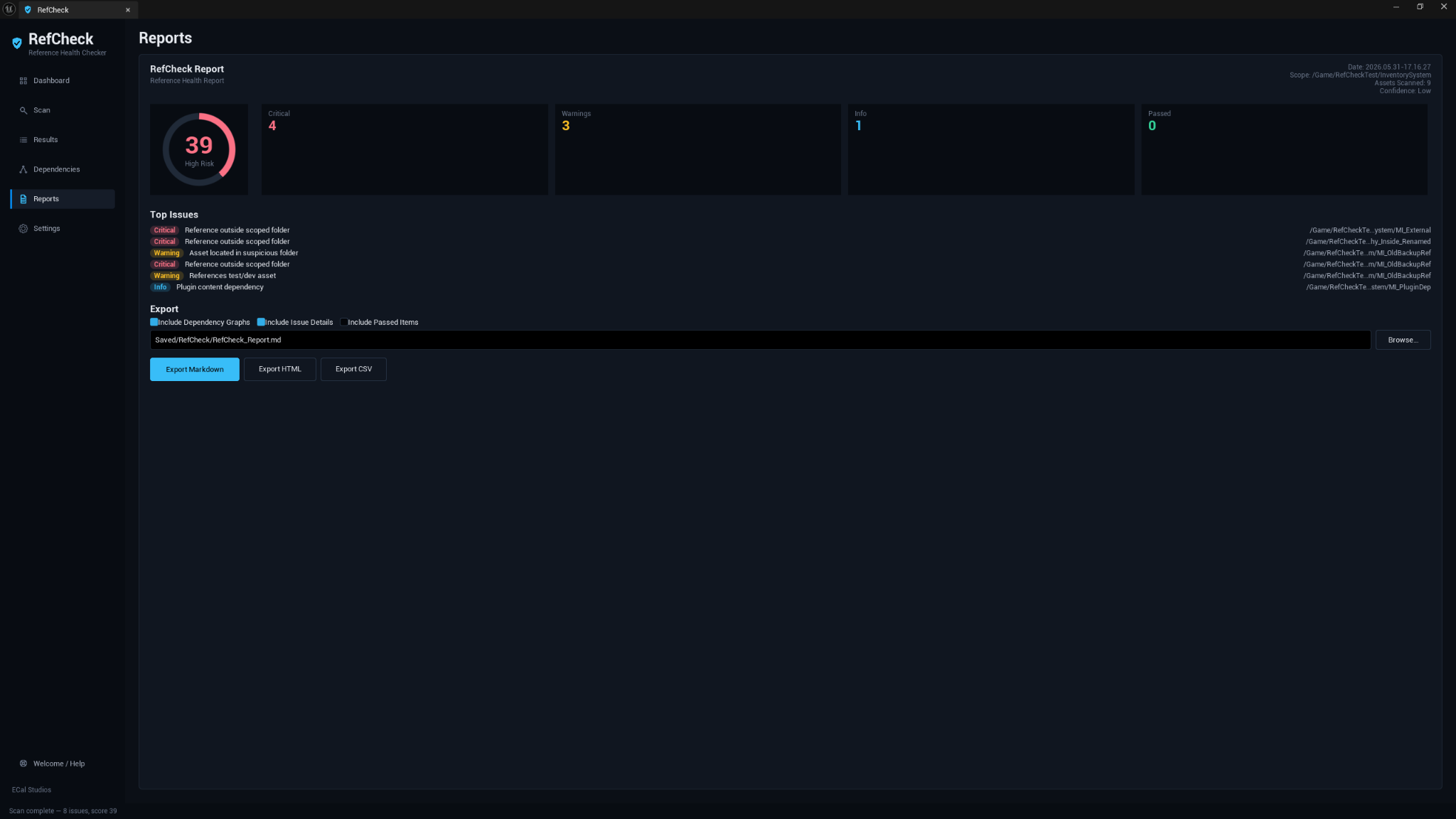
Open the Reports page after running a scan.
- Choose whether to include dependency chains, full issue details, and passed items.
- Set the output path or click Browse....
- Click Export Markdown, Export HTML, or Export CSV.
- Confirm overwrite if a file already exists.
Report formats
| Format | Best for |
|---|---|
| Markdown | Cleanup notes, documentation, pull requests, and simple review records. |
| HTML | Self-contained offline report that opens in a browser. |
| CSV | Spreadsheet filtering, sorting, tracking, and handoff lists. |
CSV export is written as UTF-8 with a BOM and standard comma-separated quoting so Excel, LibreOffice, and Google Sheets can open it cleanly.
15. Settings
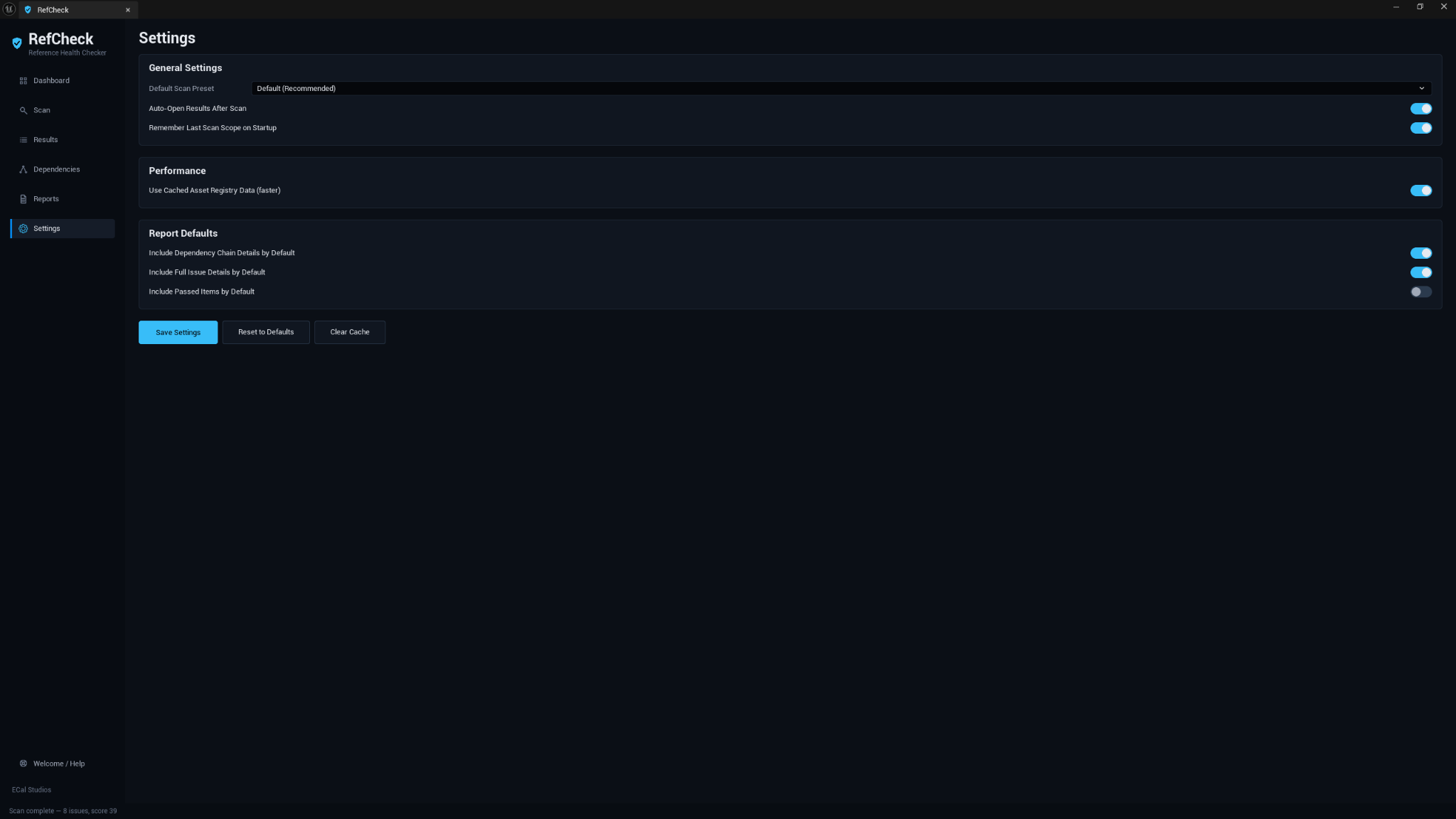
The Settings page stores project-specific preferences.
General settings
- Default scan preset.
- Auto-open results after scan.
- Remember last scan scope on startup.
Performance
- Use cached Asset Registry data for faster repeat scans.
Report defaults
- Include dependency-chain details by default.
- Include full issue details by default.
- Include passed items by default.
The Clear Cache button refreshes cached data on the next scan.
16. Recommended workflows
Everyday check
Use Default (Recommended) on the folder you are actively working in. Fix Critical issues, review Warnings, and treat Info items as context.
Fab or package readiness
- Select the exact folder you intend to ship or migrate.
- Choose Fab Seller / Package Readiness.
- Enable Include Plugin Content if your content may depend on plugin assets.
- Run the scan.
- Review every External Reference and Plugin Dependency.
- Export an HTML or CSV report for your submission notes or cleanup record.
Blueprint system review
- Choose Selected Folder.
- Select the folder containing the Blueprint system.
- Choose Blueprint System.
- Treat external references as content that may not travel with the system unless you include it.
- Use Open Reference Viewer on uncertain issues before moving or packaging the system.
Whole-project audit
Use Entire Project when you want a broad health pass before a release milestone. This can produce more findings, so start with Critical issues first.
17. Troubleshooting
RefCheck does not appear in the Tools menu
Confirm the plugin is enabled in Edit → Plugins, then restart the editor. The menu entry is registered at startup and appears under Tools → ECal Studios → RefCheck.
The Content Browser action is not visible
Confirm the plugin is enabled and restart the editor. The action appears under ECal Studios in the right-click menu for both folders and selected assets.
A scan shows no results
The scope may be clean, empty, or hidden by filters. Check that the selected folder contains assets and that the Results filters are not excluding rows.
Export fails
Make sure the output path is writable and the parent folder is not read-only. Export buttons are disabled until a scan has run.
The CSV opens strangely in Excel
Open the file normally first. If you use a manual import wizard, choose Comma as the delimiter. Fields wrapped in quotes are valid CSV behavior.
Results differ from Unreal's Reference Viewer
RefCheck scopes, classifies, scores, and explains reference data. Unreal's Reference Viewer shows a raw graph for one asset. Use both together when you need deeper inspection.
A plugin dependency is flagged
A plugin dependency is not always an error. It matters most when selling, sharing, or migrating content. The Fab Seller / Package Readiness preset raises plugin dependencies so they are easier to review.
Redirector results are missing or unexpected
Redirectors only remain while something still points at an old path. If Unreal already fixed references, there may be no redirector left to report.
18. FAQ
Does RefCheck fix issues automatically?
No. Version 1.0.0 is read-only. It reports and explains issues so you can fix them deliberately.
Does RefCheck replace Unreal's Reference Viewer?
No. RefCheck is a triage and reporting layer. Use Open Reference Viewer when you need Unreal's full graph view.
Can RefCheck guarantee Fab approval?
No. It helps find common reference-health problems that can affect packaging, migration, and marketplace preparation, but Fab review can include requirements outside RefCheck's scope.
Does RefCheck affect packaged builds?
No. RefCheck is editor-only and does not add gameplay systems or runtime behavior.
Does RefCheck upload project data?
No. RefCheck is local-only and does not use telemetry, accounts, API keys, or online services.
19. Known limitations
- RefCheck detects common reference-health risks where visible through Unreal editor data.
- Dynamic or runtime-only references may require manual inspection.
- Circular dependency detection is bounded for editor responsiveness.
- Redirector-related results depend on what Unreal exposes through the Asset Registry.
- The Dependencies page shows readable chains, not a custom interactive graph.
- Version 1.0.0 does not automatically fix references.
20. Support
For support, email [email protected] and include:
- RefCheck version.
- Unreal Engine version.
- Operating system.
- Scan scope and preset used.
- A screenshot if the issue is visual.
- Relevant Output Log lines containing
LogRefCheck.
21. Compatibility
| Item | Support |
|---|---|
| Unreal Engine | 5.5, 5.6, 5.7 |
| Platforms | Windows, macOS, Linux |
| Product type | Unreal Engine editor plugin |
| Runtime impact | None |
| Version | 1.0.0 |