PerfCheck User Manual
This manual covers the complete PerfCheck 1.0.0 workflow: installation, scanning, findings, ignores, presets, history, comparisons, report exports, settings, troubleshooting, and common questions.
PerfCheck is an editor-only static review tool. It does not run the game, measure FPS, or change project content.
1. Install and enable PerfCheck
Fab installation
- Install PerfCheck from its Fab listing for the Unreal Engine version used by the project.
- Open the project.
- Open Edit → Plugins.
- Search for PerfCheck under ECal Studios.
- Enable it if required and restart the editor.
Manual installation
Place the plugin at:
YourProject/Plugins/PerfCheck/
The folder should contain PerfCheck.uplugin, Source, and Resources. Allow Unreal Engine to rebuild the plugin if prompted.
Supported versions
PerfCheck 1.0.0 supports Unreal Engine 5.5, 5.6, 5.7, and 5.8. It is listed for the Windows, macOS, and Linux editors and has no packaged-build target because it is editor-only.
2. Open the plugin
Open:
Tools → ECal Studios → PerfCheck
The tool opens as a dockable editor tab. The header shows the plugin name, a Static Scan label, and the installed version.
3. Five-minute quick start
- Open PerfCheck.
- Choose PC / Console from the preset dropdown.
- Click Scan Project.
- Read the overall score and category cards.
- Open Findings and select a row.
- Review the measured value, threshold, explanation, and suggested fix.
- Run a second scan after making your own changes.
- Open History and choose Compare Latest vs Previous.
- Open Reports and export HTML or PDF for a readable summary.
The complete loop is:
preset → scan → review → adjust → scan → compare → export
4. Dashboard
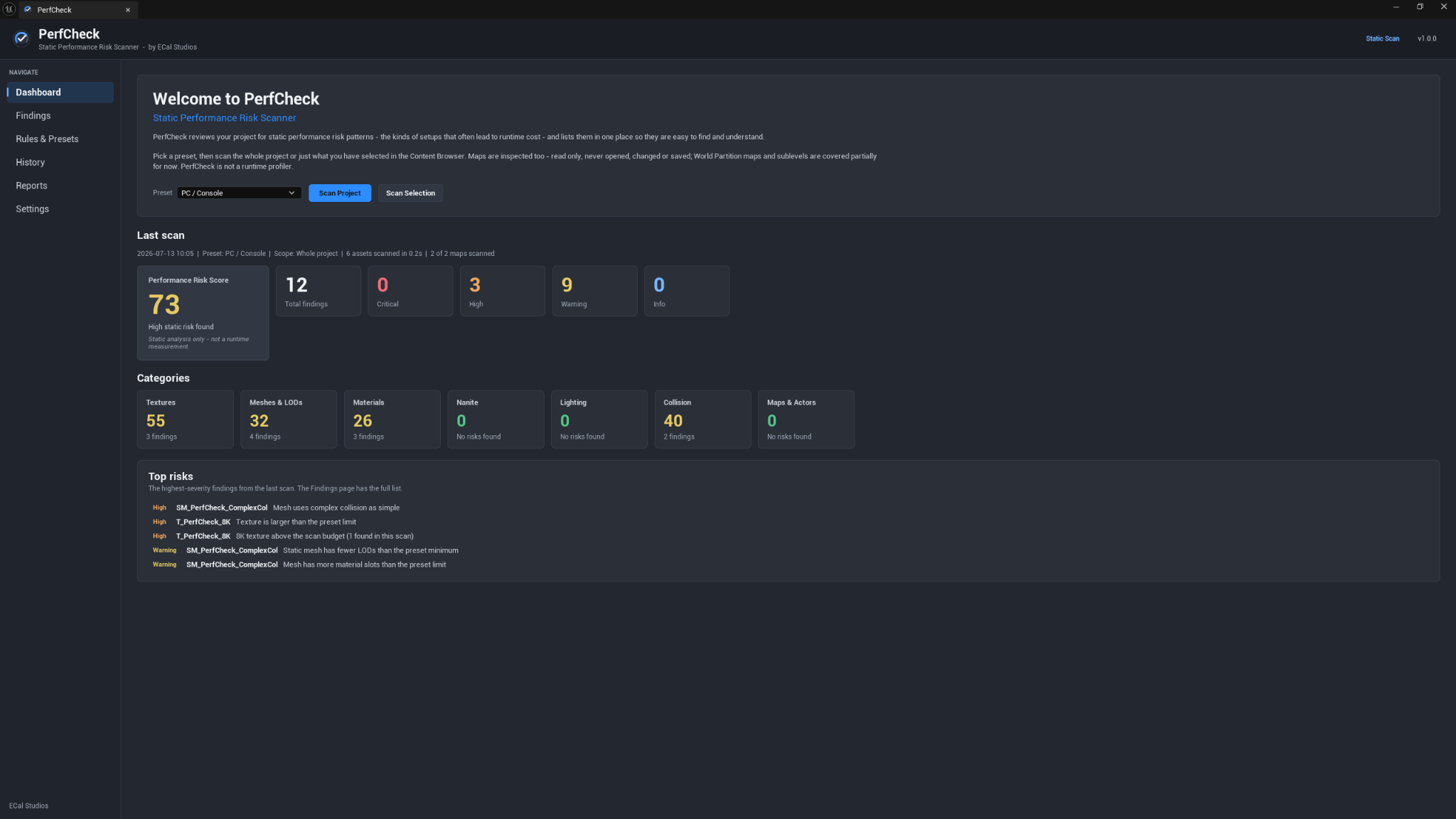
The Dashboard is the home page and the normal starting point for every review.
Choose a preset
The Preset dropdown controls which rules run and how strict they are. The selected preset is remembered across editor restarts.
The default PC / Console preset is a balanced starting point. Other built-in presets are described in Rules and presets.
Scan Project
Scan Project reviews eligible content under /Game and discovered maps.
Maps are inspected read-only. PerfCheck does not open, change, or save maps during the scan. The currently open map can be inspected in place.
Scan Selection
Use Scan Selection after selecting assets or folders in the Content Browser.
Supported selection scopes are:
- Individual selected assets.
- Everything inside selected folders.
- Mixed selections where supported by the Content Browser.
This is useful for testing a folder, reviewing a marketplace pack, or checking only the content changed during a cleanup pass.
Scan progress and cancellation
Progress appears while a scan is running. You can cancel at any time.
- Findings collected before cancellation remain visible.
- A cancelled scan is not saved as a completed history snapshot.
- The Dashboard records partial or skipped-scan notes where relevant.
Last scan summary
After a scan, the Dashboard shows:
- Date and time.
- Preset.
- Scope.
- Duration.
- Assets and maps scanned.
- Total findings.
- Severity counts.
- Overall and category scores.
- Highest-severity findings.
Performance Risk Score
The score is calculated from active findings using severity and rule score weight.
- More findings raise the score.
- Higher-severity findings contribute more.
- Rules with larger weights contribute more.
- Ignored findings are excluded by default.
The score is not a runtime measurement. It does not show FPS, frame time, memory usage, or guaranteed cost.
Categories
PerfCheck groups findings into:
- Textures
- Meshes & LODs
- Materials
- Nanite
- Lighting
- Collision
- Maps & Actors
A category can show Not scanned when no enabled rule applied to the scan.
Severity levels
| Severity | Meaning |
|---|---|
| Critical | Strongly recommended to review |
| High | Likely worth addressing |
| Warning | Worth a look |
| Info | Informational; action may not be needed |
Severity is advisory. Custom presets can tune severity in Advanced mode.
5. Findings page
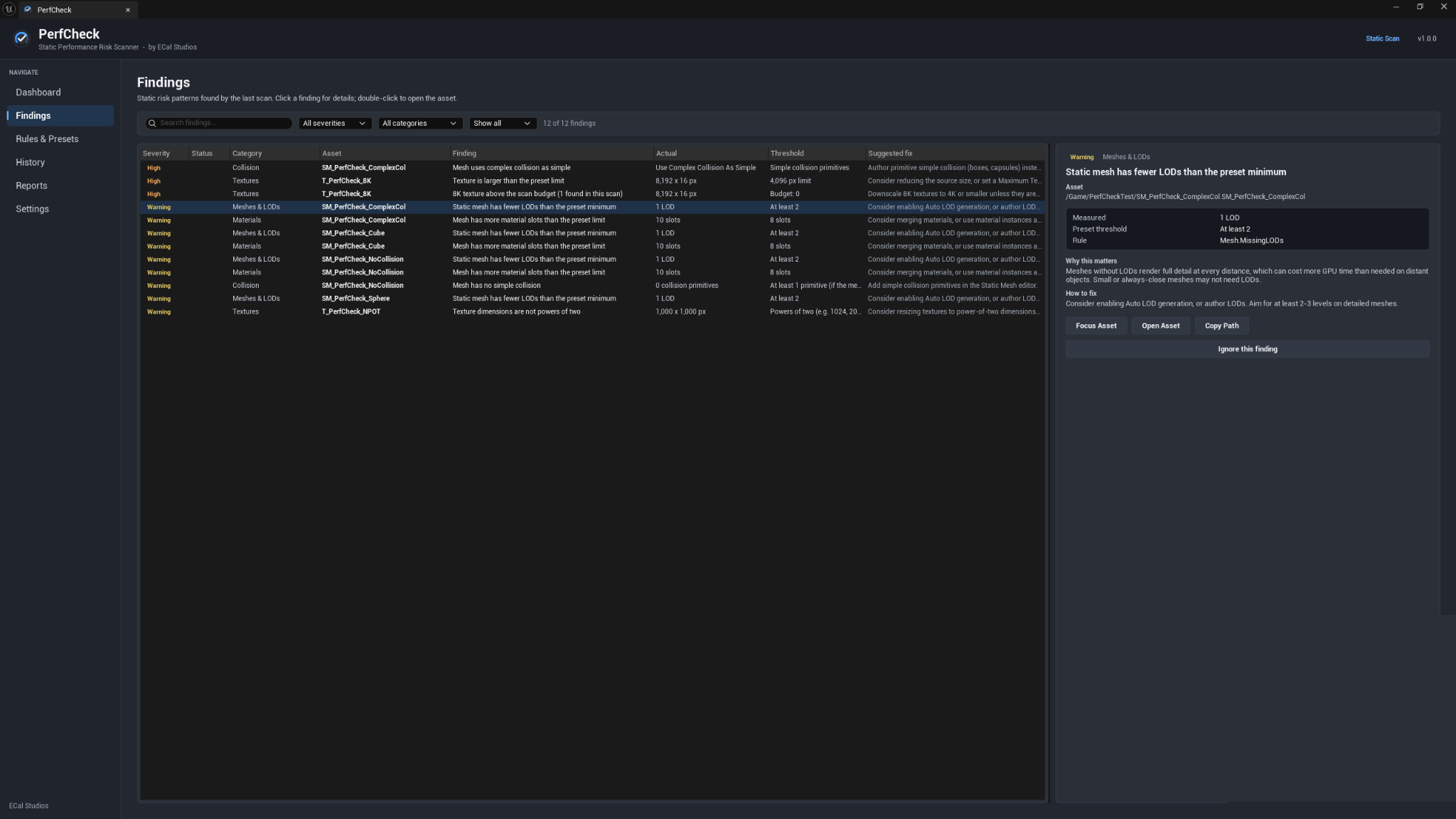
The Findings page lists one row per rule-and-asset result.
Table columns
Typical columns include:
- Severity
- Status
- Category
- Asset
- Finding
- Actual measured value
- Preset threshold
- Suggested fix
Click a row to open its details. Double-click a row to open the affected asset when the action is available.
Filters
Use the toolbar to narrow the result list:
- Search matches asset name, path, rule ID, and finding title.
- Severity shows all severities or one selected level.
- Category shows all categories or one selected category.
- Ignore filter switches between Show all, Hide ignored, and Only ignored.
The counter shows visible results, the total result count, and ignored counts where applicable.
Details panel
The selected finding shows:
- Severity and category.
- Asset path.
- Measured value.
- Preset threshold.
- Rule ID.
- Why this matters.
- How to fix.
The explanation describes a pattern that often carries runtime cost. It does not claim that the project is broken or that the cost has been measured.
Finding actions
Depending on the finding, actions can include:
- Focus Asset — reveal it in the Content Browser.
- Open Asset — open the asset editor.
- Open Map — open a map after normal save confirmation when required.
- Copy Path — copy the asset path.
- Ignore this finding — move the result out of the active set.
- Unignore — restore an ignored result.
6. Ignoring findings
A finding may be intentional: an 8K hero texture, an archviz mesh with high detail, or dynamic lights required for a cinematic.
Ignoring a finding:
- Does not change the asset or map.
- Hides the finding from active results.
- Persists across later scans for the same rule and asset path.
- Removes it from the active score by default.
A finding identity is based on the rule ID and /Game asset path.
Include ignored findings in the score
Open Settings and enable Ignored findings affect the risk score when you want ignored items to remain included in score calculations.
Clear all ignored findings
Use Settings → Clear All Ignored Findings. This restores every ignored result to the active set after confirmation and never changes content.
Ignore-list storage
The ignore list is stored locally under:
<Project>/Saved/PerfCheck/IgnoredFindings/
It contains rule IDs and /Game paths, not machine or user information.
7. Rules and presets
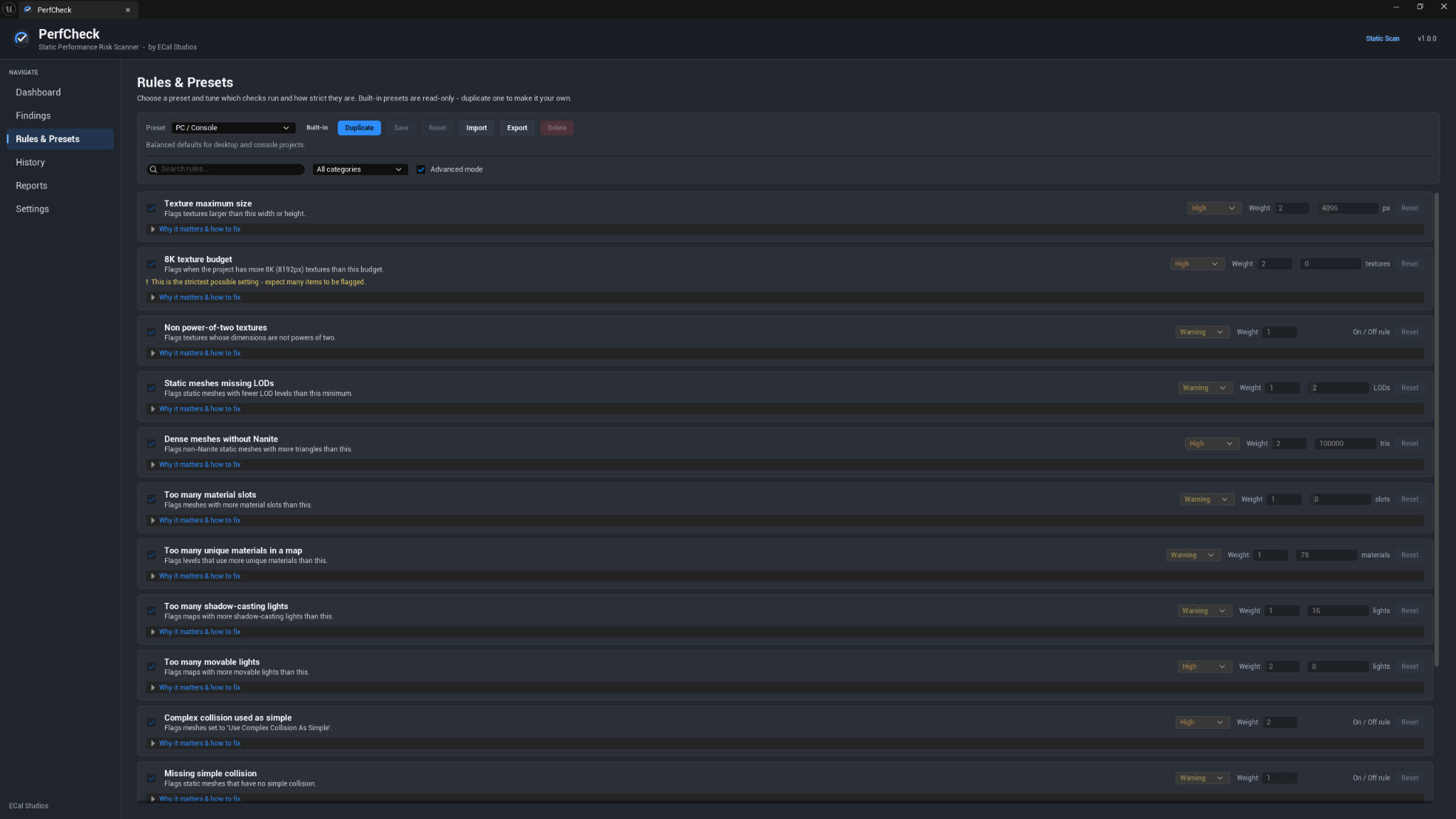
A rule describes one pattern to check. A preset is a collection of enabled rules, thresholds, severities, and score weights.
Built-in presets
| Preset | Best for | Character |
|---|---|---|
| Beginner Safe | New Unreal users | Gentle thresholds; focuses on clear, high-impact patterns |
| PC / Console | Desktop and console projects | Balanced default configuration |
| Mobile / Low Spec | Mobile and lower-spec hardware | Tighter budgets and stronger warnings |
| Marketplace Seller | Fab and marketplace content | Emphasizes LODs, collision, texture size, and asset-quality review |
| Cinematic / Archviz | High-detail non-realtime work | More tolerant of detail while still flagging extremes |
Built-in presets are read-only.
Create a custom preset
- Select the built-in preset closest to the project.
- Click Duplicate.
- Name the custom copy.
- Change thresholds as needed.
- Enable Advanced mode to edit severity and score weight.
- Click Save.
An unsaved indicator appears while a custom preset contains pending changes.
Preset controls
- Duplicate — create an editable copy.
- Save — write changes to a custom preset.
- Reset — restore a custom preset to its defaults.
- Import — load a
.perfcheckpreset.jsonfile. - Export — save a custom preset for another project or teammate.
- Delete — remove a custom preset.
- Reset rule — restore one rule.
Built-in presets cannot be edited or deleted.
Advanced mode
Advanced mode:
- Reveals advanced-only rules.
- Allows severity editing.
- Allows score-weight editing from 1 to 10.
A larger score weight makes that rule contribute more strongly to the total and category scores.
Rule reference
The following values describe the default PC / Console preset.
| Rule | Category | Default threshold | Severity | Advanced |
|---|---|---|---|---|
| Texture maximum size | Textures | 4096 px | High | No |
| 8K texture budget | Textures | 0 textures | High | No |
| Non power-of-two textures | Textures | Enabled | Warning | No |
| Static meshes missing LODs | Meshes & LODs | Minimum 2 LODs | Warning | No |
| Dense meshes without Nanite | Meshes & LODs | 100,000 triangles | High | No |
| Too many material slots | Materials | 8 slots | Warning | No |
| Too many unique materials in a map | Materials | 75 materials | Warning | Yes |
| Nanite suggested | Nanite | 50,000 triangles | Info | No |
| Too many shadow-casting lights | Lighting | 16 lights | Warning | No |
| Too many movable lights | Lighting | 8 lights | High | No |
| Complex collision used as simple | Collision | Enabled | High | No |
| Missing simple collision | Collision | Enabled | Warning | No |
| High actor count | Maps & Actors | 5,000 actors | Warning | No |
| High Blueprint actor count | Maps & Actors | 1,000 Blueprint actors | Warning | Yes |
What the rules mean
Textures
Texture maximum size flags textures larger than the configured width or height. Large textures may be valid for hero assets, but they increase memory and bandwidth requirements.
8K texture budget flags scans containing more 8192-pixel textures than the preset allows.
Non power-of-two textures flags dimensions that may not mip, stream, or compress as efficiently. UI textures may be intentionally non-power-of-two.
Meshes & LODs
Static meshes missing LODs flags meshes with fewer LOD levels than the configured minimum.
Dense meshes without Nanite flags high-triangle static meshes where Nanite is disabled. Nanite may not be appropriate for every material or asset type.
Materials
Too many material slots flags static meshes with more slots than the threshold. Each slot can contribute additional draw work.
Too many unique materials in a map is an advanced rule for levels with a large number of unique materials.
Nanite
Nanite suggested is an informational recommendation for dense static meshes. It is not a requirement and may not fit transparent, deforming, or otherwise unsupported content.
Lighting
Too many shadow-casting lights flags maps containing more shadow casters than the preset threshold.
Too many movable lights flags maps with a large number of fully dynamic lights.
Collision
Complex collision used as simple flags meshes using per-triangle collision for simple queries.
Missing simple collision flags static meshes with no simple collision primitives.
Maps & Actors
High actor count flags maps above the configured actor threshold.
High Blueprint actor count is an advanced rule for levels containing many Blueprint actors.
8. History and comparisons
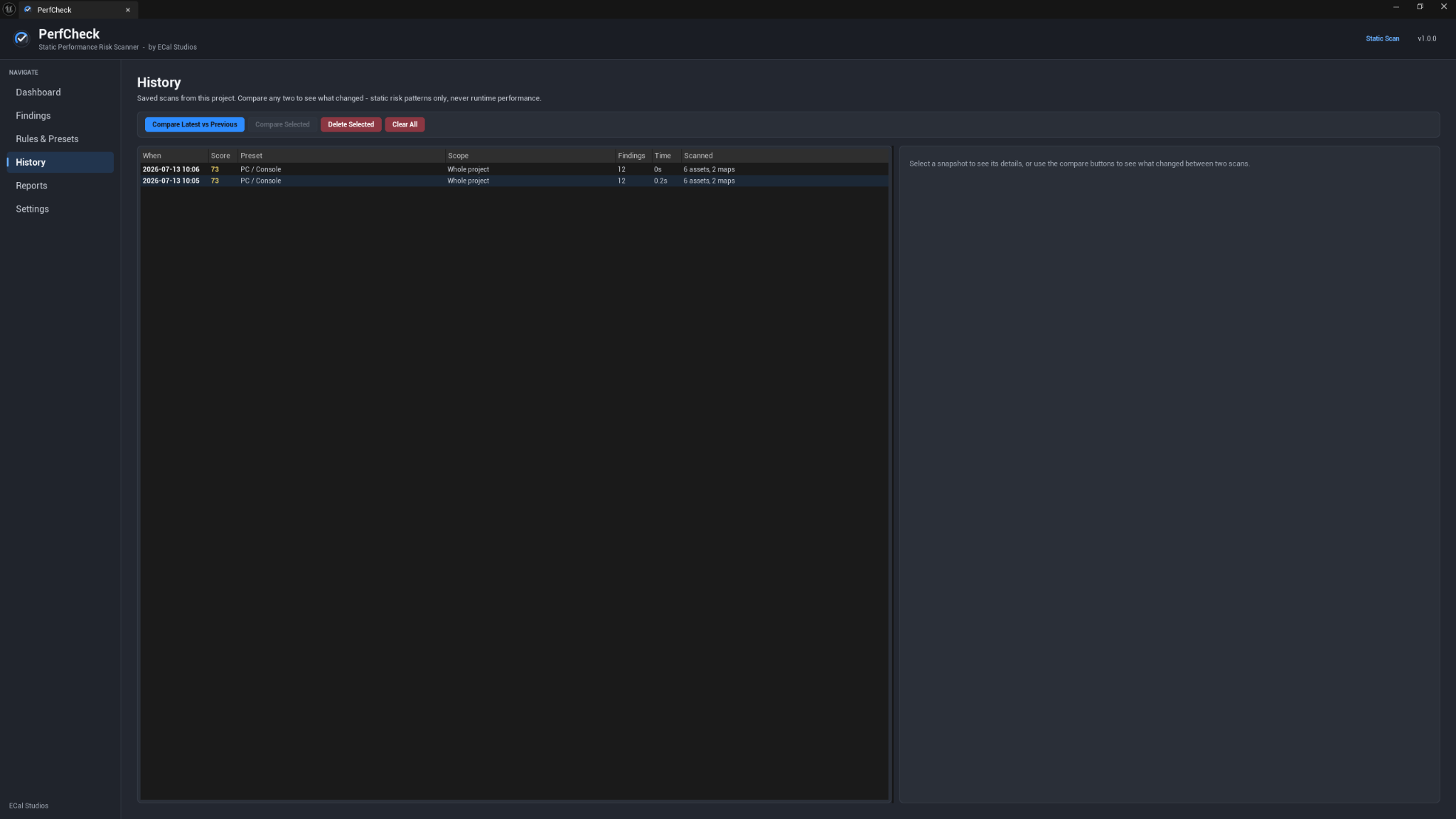
Every completed scan can be saved automatically as a local snapshot. Cancelled scans are not saved.
Snapshot information
The History table shows:
- Date and time.
- Score.
- Preset.
- Scope.
- Finding count.
- Duration.
- Assets and maps scanned.
Select one snapshot to review its details.
Compare scans
- Compare Latest vs Previous compares the two newest snapshots.
- Compare Selected compares exactly two Ctrl-selected snapshots.
For the clearest before/after result, use the same preset and scan scope in both scans.
Comparison contents
A comparison can show:
- Score before and after, with delta.
- Total findings before and after.
- Severity deltas.
- Category score changes.
- New findings.
- Resolved findings.
- Changed measured values.
- Persisting findings.
- A short direction-of-change verdict.
If presets or scopes differ, PerfCheck warns that the comparison is not like-for-like.
A lower score or fewer findings shows that configured static risks changed. It does not prove a runtime speed-up.
Manage history
- Delete Selected removes chosen snapshots after confirmation.
- Clear All removes all saved snapshots after confirmation.
Unreadable snapshots are skipped with a quiet note instead of blocking the rest of the history.
History storage and limit
Snapshots are readable JSON under:
<Project>/Saved/PerfCheck/ScanHistory/
The default maximum is 25 snapshots. Settings allows a value from 5 to 100. When the limit is reached, the oldest snapshots are removed first.
9. Report exports
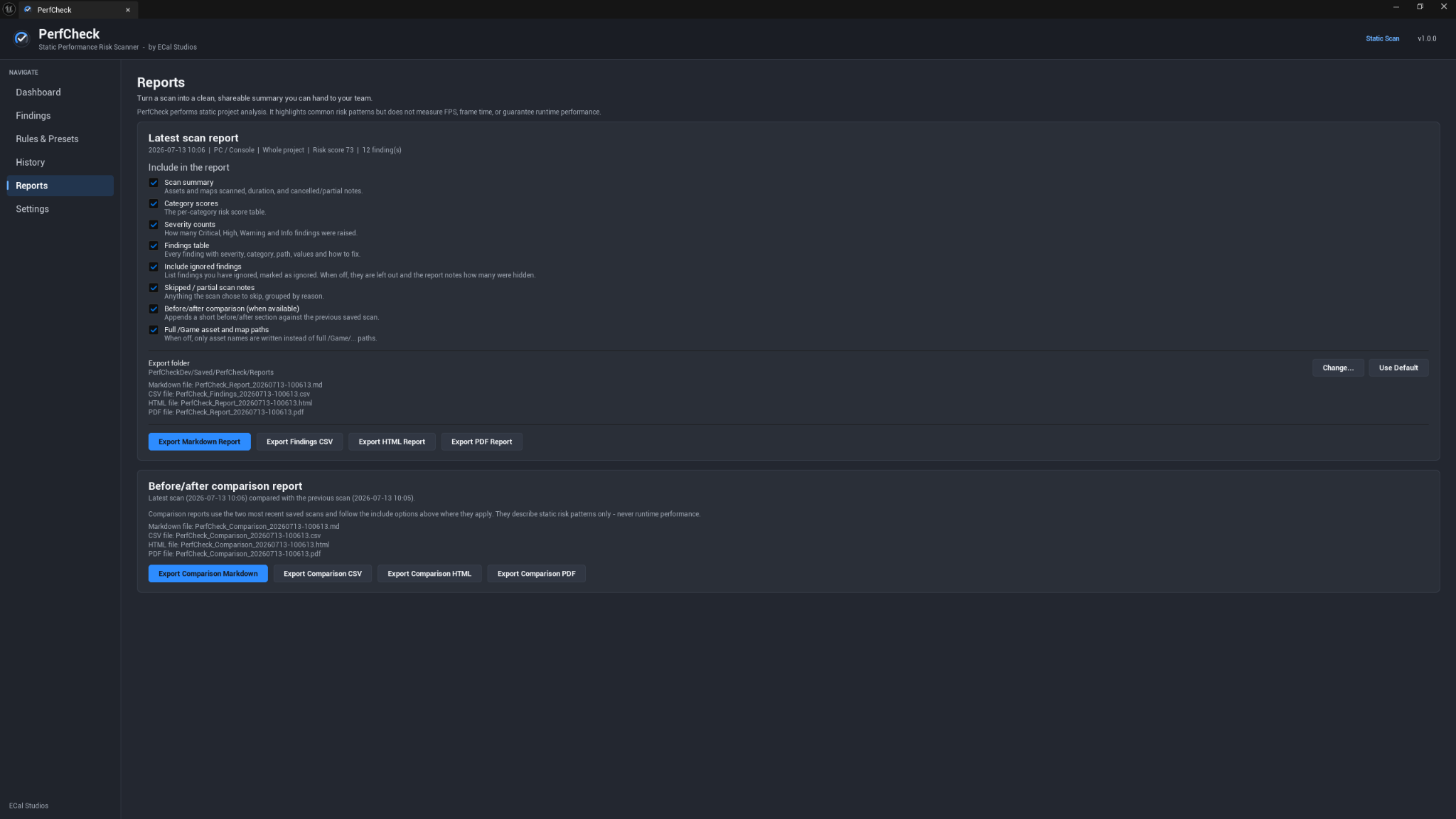
PerfCheck exports both single-scan reports and before/after comparisons.
Formats
| Format | Best for |
|---|---|
| Markdown | Documentation, pull requests, wikis, and plain-text review |
| CSV | Spreadsheet filtering and custom tooling |
| HTML | Clean, readable offline report sharing |
| Compact summaries for QA, review, and handoff |
Latest scan report
The latest-scan section exports the most recent scan and can include:
- Scan summary.
- Category scores.
- Severity counts.
- Full findings table.
- Ignored findings.
- Skipped or partial-scan notes.
- A comparison against the previous scan when available.
- Full
/Gamepaths or asset names only.
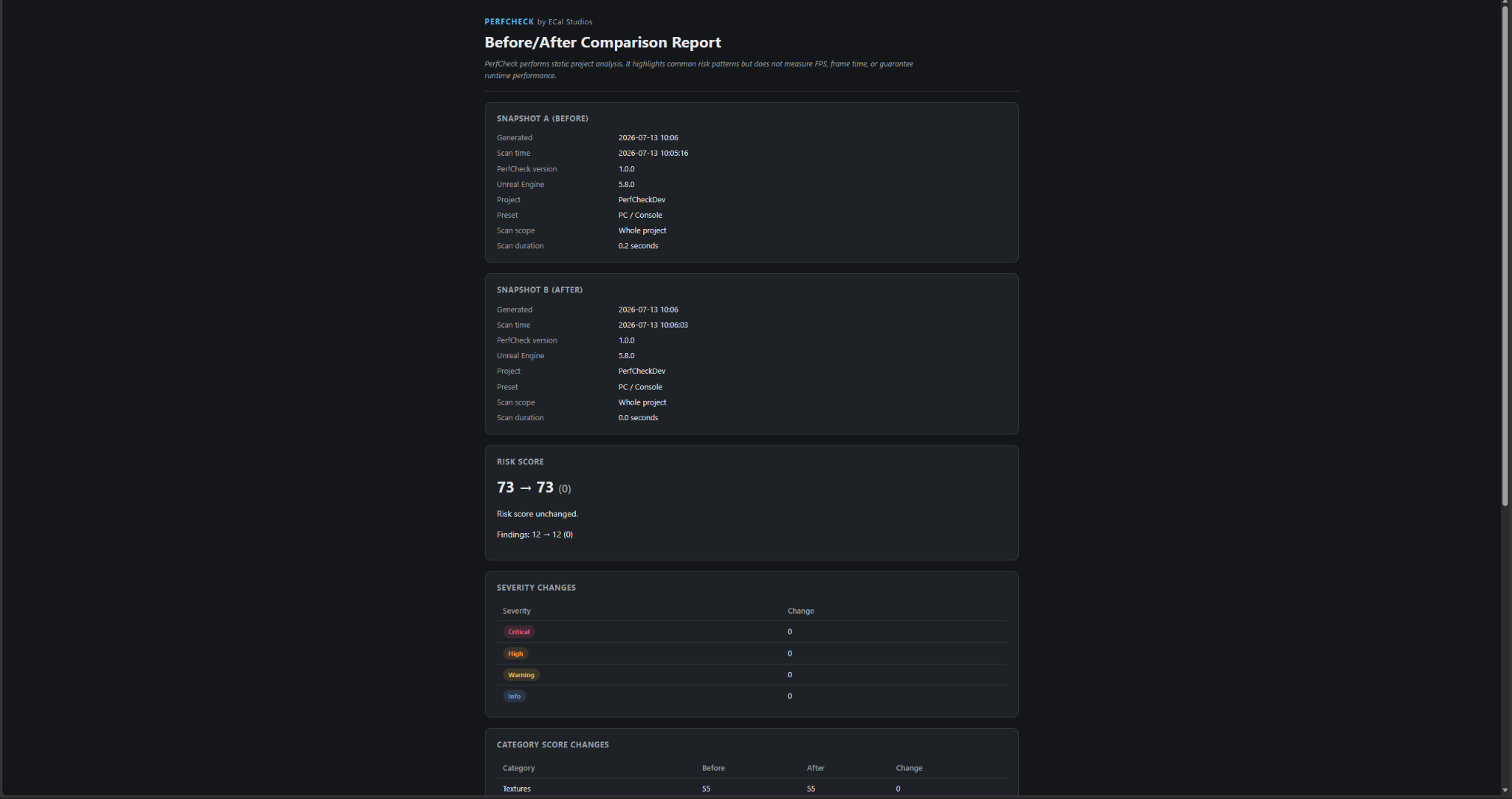
Before/after comparison report
The comparison section exports the two most recent snapshots with score, severity, category, and finding changes.
Export folder
The default folder is:
<Project>/Saved/PerfCheck/Reports/
Use Change... to select another writable folder, or Use Default to return to the project-local location.
Filenames contain a timestamp. When a filename already exists, PerfCheck adds a numeric suffix.
Open the exported file location
Enable Show exported reports in the file browser to open Explorer or Finder with the new report selected after a successful export.
Report privacy
Reports describe project content. They do not include machine names, user names, or absolute local paths. They contain /Game paths or asset names, rule IDs, preset names, project name, and version strings.
PDF character limitation
The PDF exporter uses standard font encoding. Common Latin text is preserved. Unsupported characters may be replaced with a safe placeholder so the PDF still opens correctly.
Use HTML or Markdown for the best fidelity with non-Latin scripts or unusual symbols.
10. Settings
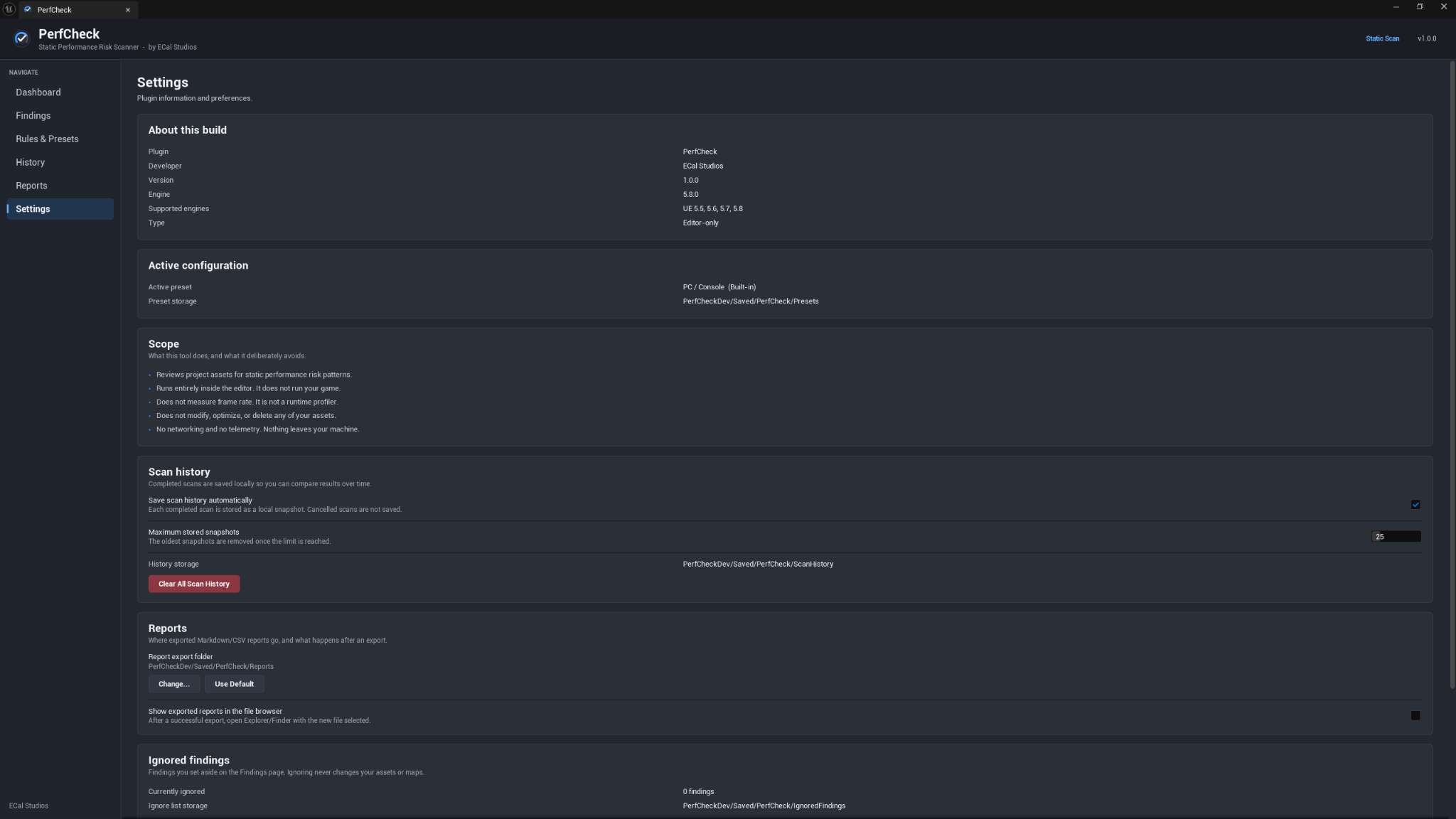
The Settings page collects plugin information and local preferences.
About this build
Shows:
- Plugin and developer name.
- PerfCheck version.
- Current Unreal Engine version.
- Supported Unreal Engine versions.
- Editor-only plugin type.
Active configuration
Shows the active preset and the project-local preset storage location.
Scope
Summarizes what PerfCheck does and deliberately avoids:
- Reviews project assets for static risk patterns.
- Runs only inside the editor.
- Is not a runtime profiler.
- Does not modify, optimize, or delete content.
- Has no networking or telemetry.
Scan history
Settings include:
- Save completed scan history automatically.
- Maximum stored snapshots.
- Current history storage path.
- Clear all history.
Reports
Settings include:
- Report export folder.
- Return to the default folder.
- Open the file browser after export.
Ignored findings
Settings include:
- Current ignored-finding count.
- Ignore-list storage path.
- Whether ignored findings affect the score.
- Clear all ignored findings.
Settings are also available under Edit → Editor Preferences → Plugins → PerfCheck where applicable.
11. Data safety and local files
PerfCheck has no networking, account, API key, online service, or telemetry requirement.
| Location | Contents |
|---|---|
<Project>/Saved/PerfCheck/ScanHistory/ |
Local JSON scan snapshots |
<Project>/Saved/PerfCheck/Presets/ |
Custom preset files |
<Project>/Saved/PerfCheck/IgnoredFindings/ |
Local ignored-finding identities |
<Project>/Saved/PerfCheck/Reports/ |
Exported Markdown, CSV, HTML, and PDF reports |
Removing these local folders resets the corresponding PerfCheck data. It does not affect project assets.
12. Known limitations
- Static analysis only: PerfCheck does not execute gameplay.
- No runtime measurements: it does not measure FPS, frame time, memory, or draw-call cost.
- No automatic fixes: all content changes are made manually by the user.
- World Partition: closed World Partition maps are covered only partially and may be skipped; an open World Partition map is inspected in place with partial coverage.
- Sublevels: sublevel coverage is partial.
- PDF text: unsupported characters may be replaced with a safe placeholder.
- Advisory findings: a flagged pattern can be intentional and correct for the project.
13. Troubleshooting
The plugin does not appear
- Confirm
PerfCheckis insideYourProject/Plugins/for a manual install. - Open Edit → Plugins, search for PerfCheck, enable it, and restart.
- Confirm the project uses Unreal Engine 5.5, 5.6, 5.7, or 5.8.
The Tools menu entry is missing
- Look under Tools → ECal Studios → PerfCheck.
- Restart the editor after enabling the plugin so the menu can register cleanly.
A scan finds no results
This can be a valid result. The current content may not exceed any active threshold.
- Try Mobile / Low Spec for a stricter test.
- For Scan Selection, confirm assets or folders are selected.
- Confirm the selected preset has enabled rules for the scanned content type.
Some maps were skipped
Closed World Partition maps and sublevels have partial coverage. Read the Dashboard scan notes for the reason.
A scan takes longer than expected
- Large first-time whole-project scans naturally take longer.
- Use Scan Selection on a folder for a quicker focused pass.
- Cancel safely when needed; partial findings remain visible.
Report export failed
- Use Use Default to return to
<Project>/Saved/PerfCheck/Reports/. - Confirm the selected folder exists and is writable.
- Avoid restricted operating-system folders.
PDF text contains placeholders
Export HTML or Markdown for text outside the PDF exporter's supported character set.
A custom preset will not load
- Presets must be valid
.perfcheckpreset.jsonfiles. - Re-import a known-good export.
- Duplicate a built-in preset and recreate the settings when a hand-edited file is invalid.
A history snapshot was skipped
A damaged or incomplete snapshot is skipped so other history remains usable. Use Clear All to remove all snapshots and start again.
Ignored findings do not look correct
- Check the Findings ignore filter.
- Check whether ignored findings affect the score in Settings.
- Use Clear All Ignored Findings to restore the active list.
14. Frequently asked questions
Is PerfCheck a profiler?
No. It is a static risk scanner. It does not run the game or measure runtime performance.
Does PerfCheck improve FPS automatically?
No. PerfCheck does not change content. It highlights patterns for you to review. Any performance change depends on the edits you choose to make and must be measured with normal profiling tools.
Does it modify assets or maps?
No. Assets are never optimized, deleted, or changed. Maps are inspected read-only by the scanner.
Does it run in packaged builds?
No. PerfCheck is editor-only and adds no runtime code to the game.
Does it use telemetry or networking?
No. All plugin data remains local.
Can the rules be customized?
Yes. Duplicate a built-in preset, edit thresholds, and enable Advanced mode for severity and weight controls.
Can findings be ignored?
Yes. Ignoring changes only PerfCheck's local result state. It does not change the asset.
Which report formats are supported?
Markdown, CSV, HTML, and PDF for both latest-scan and comparison reports.
Why can a warning be intentional?
Rules identify patterns, not defects. A high-resolution hero texture or movable cinematic light can be the right choice. PerfCheck makes it visible for deliberate review.
Which preset fits marketplace content?
Use Marketplace Seller as the starting point. It emphasizes asset-quality patterns such as texture sizing, LODs, and collision.
15. Support
Email [email protected] and include:
- Plugin name: PerfCheck
- PerfCheck version
- Unreal Engine version
- Operating system
- Active preset
- Whole-project or selection scan scope
- A screenshot or exported report when useful
- Relevant
LogPerfCheckOutput Log lines
Copyright © ECal Studios 2026. All rights reserved.