Editor Modes
MkLume gives you three ways to work with your content: Markdown Mode, Visual Mode, and Preview Mode. You can also combine an editor with a preview in Split View for a side-by-side workflow.
Each mode is designed for a different kind of task. You can switch between them freely without losing your work.
Markdown Mode
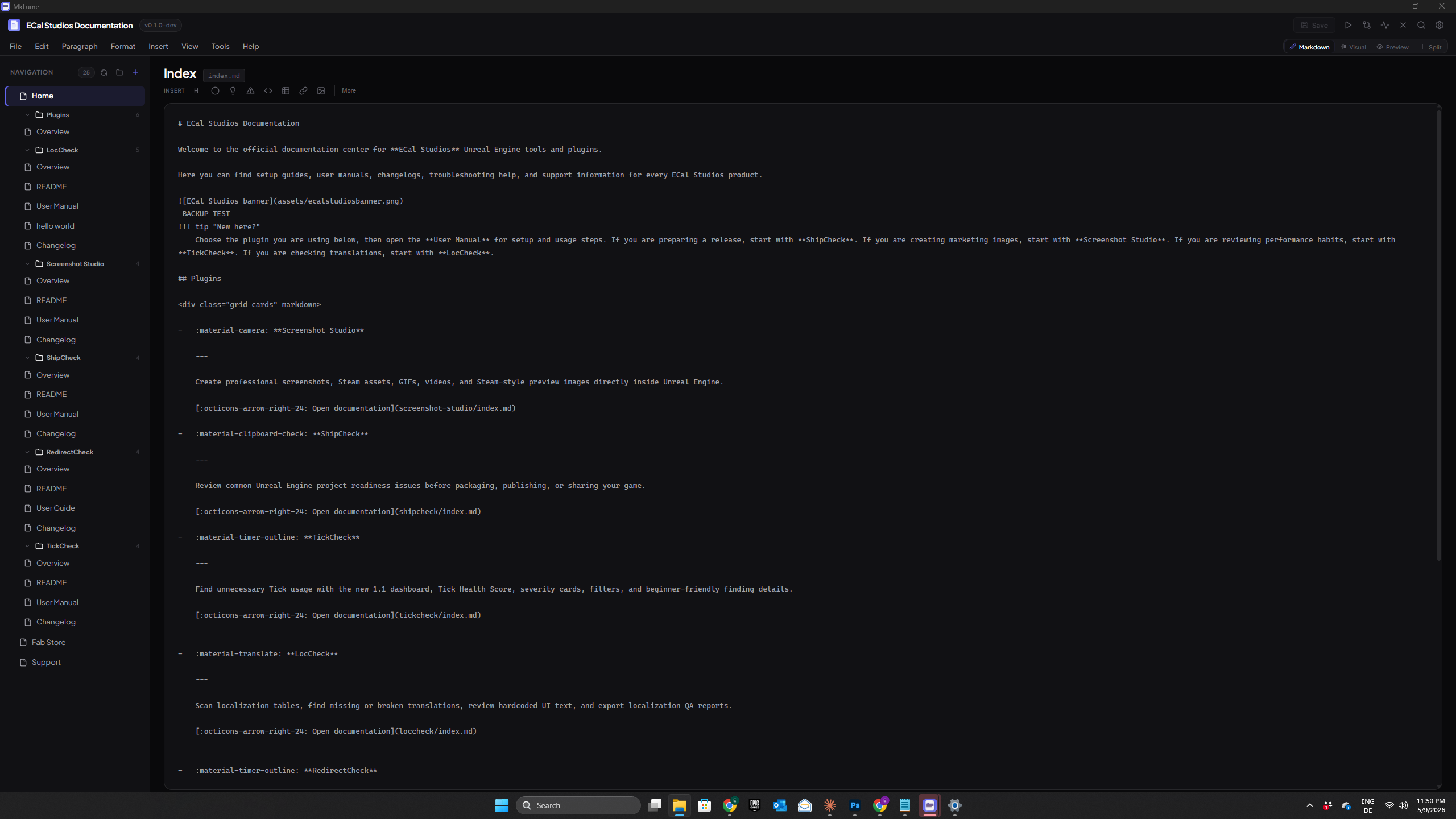
Markdown Mode gives you a plain text editor where you write raw Markdown directly. This is the most flexible way to work — you have full control over every character in the file.
The editor includes:
- A toolbar for inserting common Markdown elements (headings, lists, code blocks, admonitions, and more)
- An Insert menu for Material-specific components like content tabs, grid cards, and buttons
- Keyboard shortcuts for formatting (bold, italic, code, etc.)
- Find and Replace
- Smart internal link autocomplete
This is the mode to use when you need precision, when you're comfortable with Markdown, or when you're working with complex syntax that the Visual editor doesn't fully support.
Visual Mode

Visual Mode presents your page as a series of editable blocks — headings, paragraphs, images, admonitions, tables, and more. You edit content inline without writing Markdown syntax yourself.
It supports 18+ block types, including Material-specific ones like admonitions, content tabs, grid cards, and buttons. You can add new blocks, reorder them by dragging, and edit their content directly.
Visual Mode is a good fit when you want a more document-editor-like experience, or when you're less familiar with Markdown syntax. Your edits are synced back to the underlying Markdown file automatically.
Limitations
Some complex or deeply nested Markdown structures may appear as Raw Markdown blocks in Visual Mode. You can still edit these as plain text — they just won't have a rich visual representation.
Preview Mode
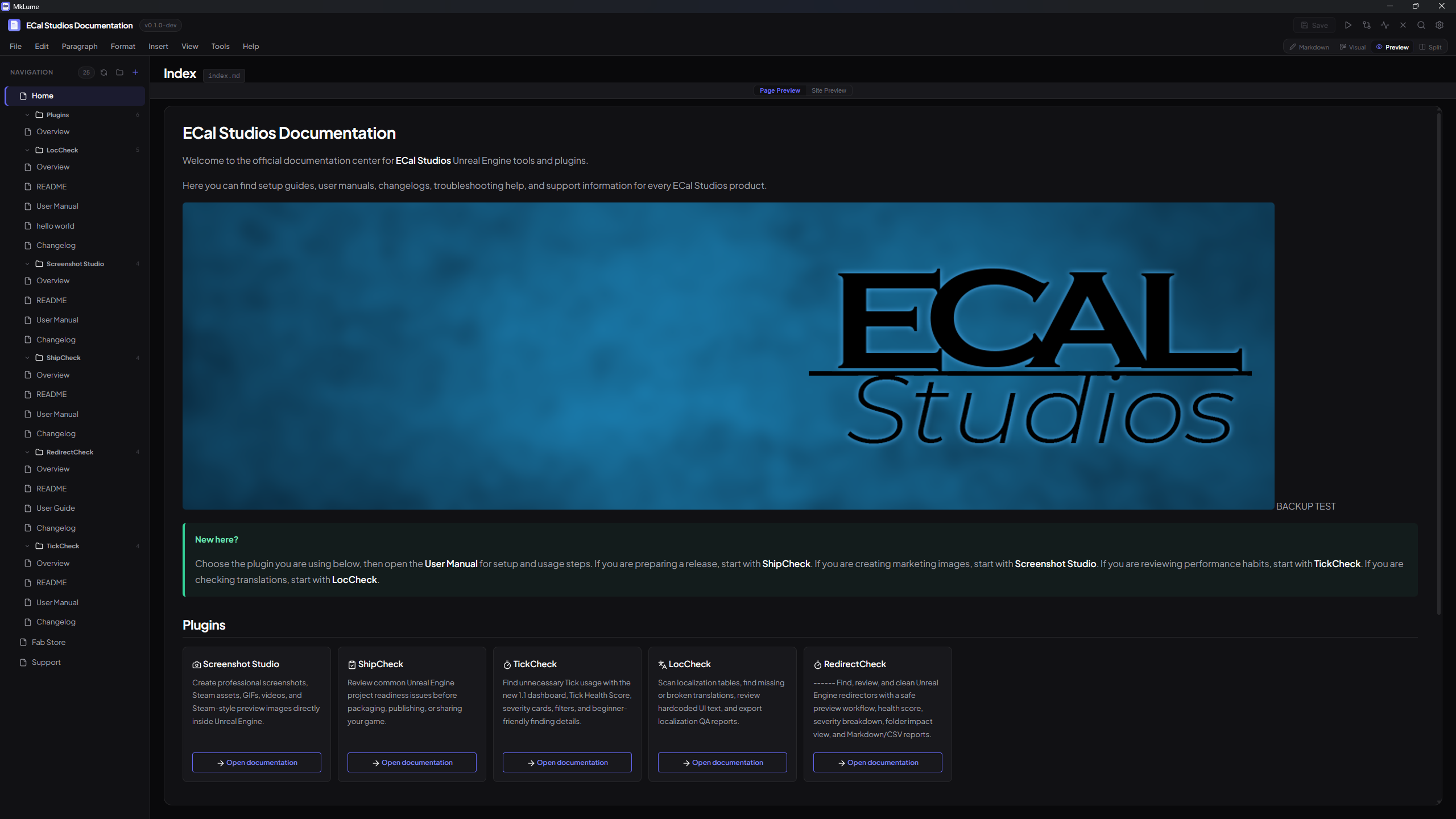
Preview Mode shows you a read-only rendering of the current page. There are two preview types:
- Page Preview — renders the Markdown content with images, admonitions, tables, code highlighting, and other formatting, similar to how it would appear on a published site.
- Site Preview — wraps the page content in an approximate MkDocs Material site layout, including the header, navigation sidebar, table of contents, and footer. This gives you a feel for how the full site will look.
Preview Mode is useful for checking your work, reviewing formatting, or presenting content to someone else.
Preview and Site Preview in detail
Split View
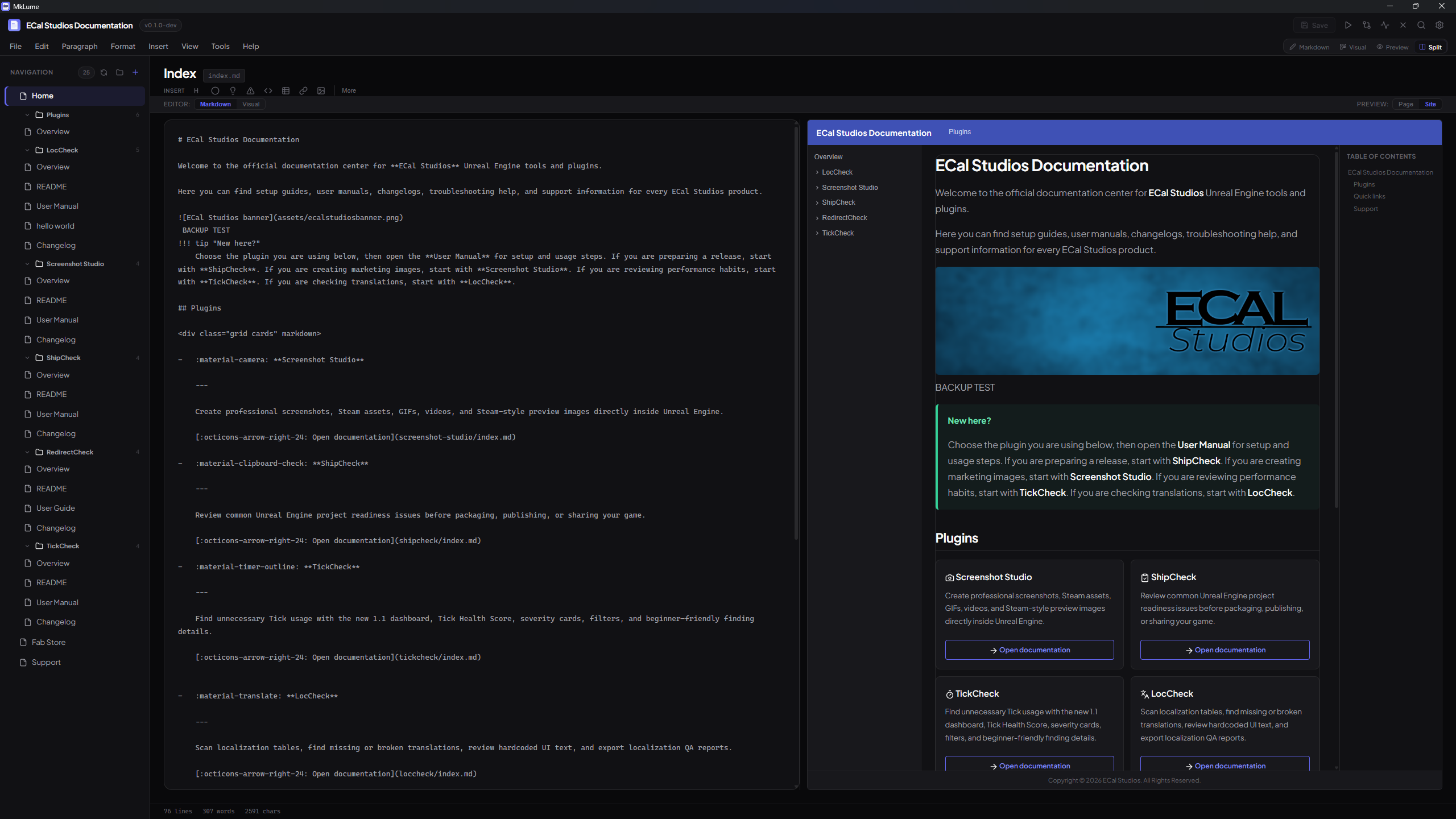
Split View places an editor and a preview side by side. There are four combinations:
| Left (Editor) | Right (Preview) |
|---|---|
| Markdown Mode | Page Preview |
| Markdown Mode | Site Preview |
| Visual Mode | Page Preview |
| Visual Mode | Site Preview |
The preview updates live as you type, so you can see the result of your changes immediately.
Use the split controls bar to toggle between Markdown and Visual on the left, and between Page Preview and Site Preview on the right. You can enter Split View with the keyboard shortcut ++ctrl+4++.
Quick Comparison
| Markdown Mode | Visual Mode | Preview Mode | |
|---|---|---|---|
| Best for | Precision editing, complex syntax | Quick edits, less Markdown experience | Reviewing, checking layout |
| Editing | Raw text | Inline block editing | Read-only |
| Material features | Full support via Insert menu | Most common block types | Full rendering |
| Keyboard shortcuts | Yes | Limited | N/A |
| Find and Replace | Yes | No | No |
Tip
You don't need to pick one mode and stick with it. Many users write in Markdown Mode, check their work in Split View, and use Site Preview to verify navigation before building.