OmniPivot Pro User Manual
This manual explains how to use OmniPivot Pro inside Unreal Engine.
OmniPivot Pro is designed to keep common pivot work fast, visual, and safe. You can make quick actor-level pivot changes while building a level, or use the Batch Fixer and audit tools when you need a more structured asset cleanup workflow.
Opening OmniPivot Pro
Open the plugin from the Unreal Editor main menu:
Tools → ECal Studios → OmniPivot Pro
The plugin opens as a dockable Unreal Editor tab. You can dock it beside the viewport, Content Browser, Details Panel, or any other editor panel.
Dashboard overview
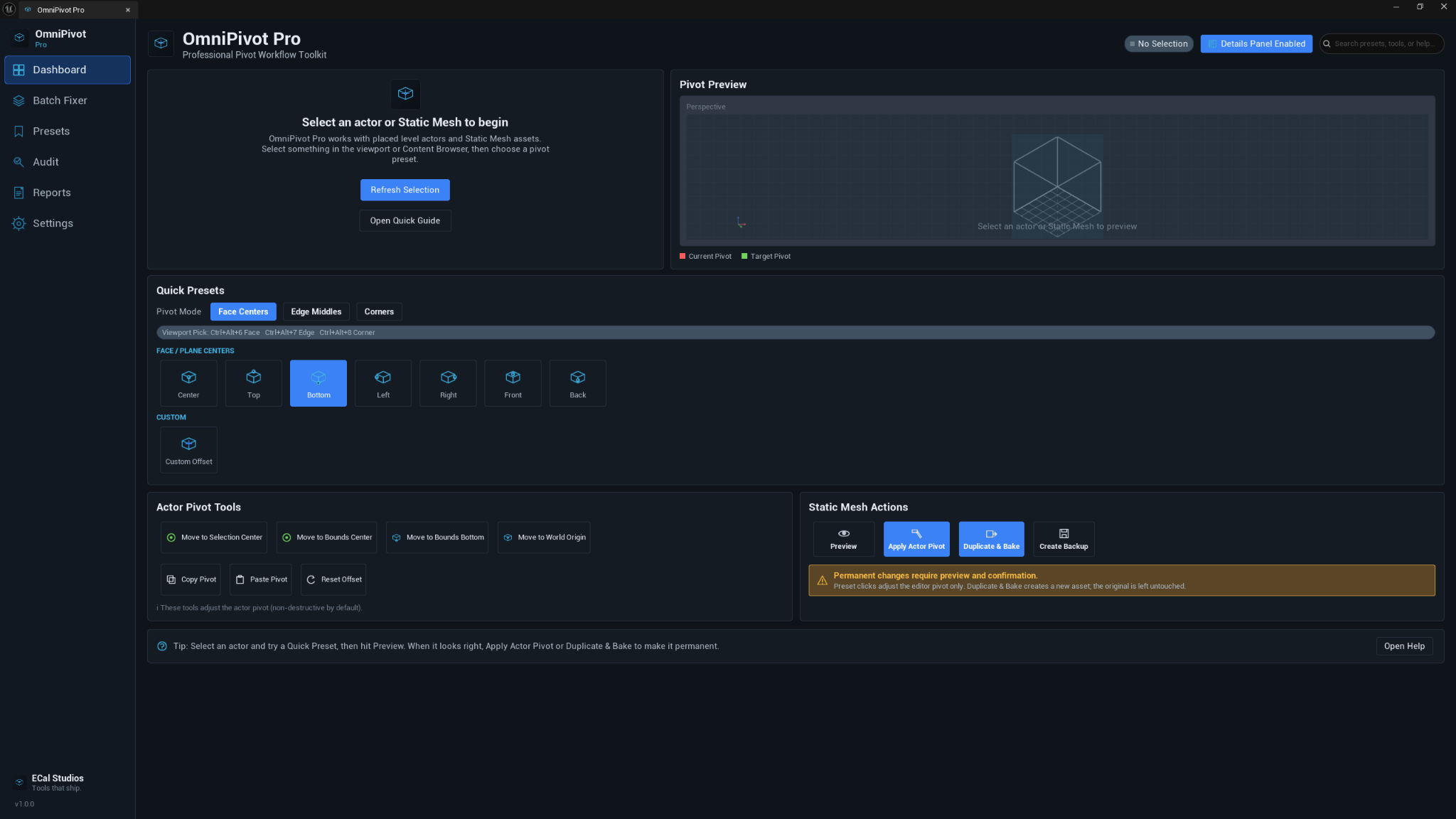
The dashboard is the main everyday workspace.
It includes:
| Area | Purpose |
|---|---|
| Selection summary | Shows the selected actor or asset state. |
| Pivot preview | Displays a stylized preview of the current and target pivot. |
| Quick presets | Lets you apply face, edge, and corner pivot positions. |
| Actor Pivot Tools | Provides common actor pivot actions like bounds center, bottom, copy, paste, and reset. |
| Static Mesh Actions | Provides preview, apply, duplicate-and-bake, and backup actions for mesh workflows. |
| Bottom tip bar | Gives quick guidance while working. |
Selecting something to work on
OmniPivot Pro supports two main selection workflows.
| Selection type | Used for |
|---|---|
| Viewport actor selection | Quick pivots, viewport picking, Details Panel controls, actor pivot tools, preview. |
| Content Browser Static Mesh selection | Batch Fixer, duplicate-and-bake workflows, audit-style asset review. |
For the cleanest results, select a Static Mesh Actor in the level when using dashboard presets, or select Static Mesh assets in the Content Browser when using Batch Fixer.
Pivot modes
OmniPivot Pro groups pivot positions into three simple modes.
Face Centers
Face Centers are the most common presets.
They include:
- Center
- Top
- Bottom
- Left
- Right
- Front
- Back
Use these for props, crates, furniture, floor pieces, walls, doors, pickups, and many normal level-editing tasks.
Edge Middles
Edge Middles place the pivot on one of the 12 bounding-box edges.
Use these when you need a pivot between two sides, for example a hinge-like point, modular alignment point, or a specific rotation edge.
Corners
Corners place the pivot on one of the 8 bounding-box corners.
Use these for modular kits, snapping workflows, blockout pieces, or assets where a corner needs to be the rotation or placement reference.
Applying a quick pivot preset
- Select a supported actor in the viewport.
- Open the Dashboard.
- Choose Face Centers, Edge Middles, or Corners.
- Click the preset you want.
- The actor remains in place and the pivot moves.
Good first test
Select a cube or simple prop and click Bottom. This is one of the easiest ways to confirm the pivot is moving correctly because the transform gizmo should jump to the bottom center of the actor.
Viewport pivot picking
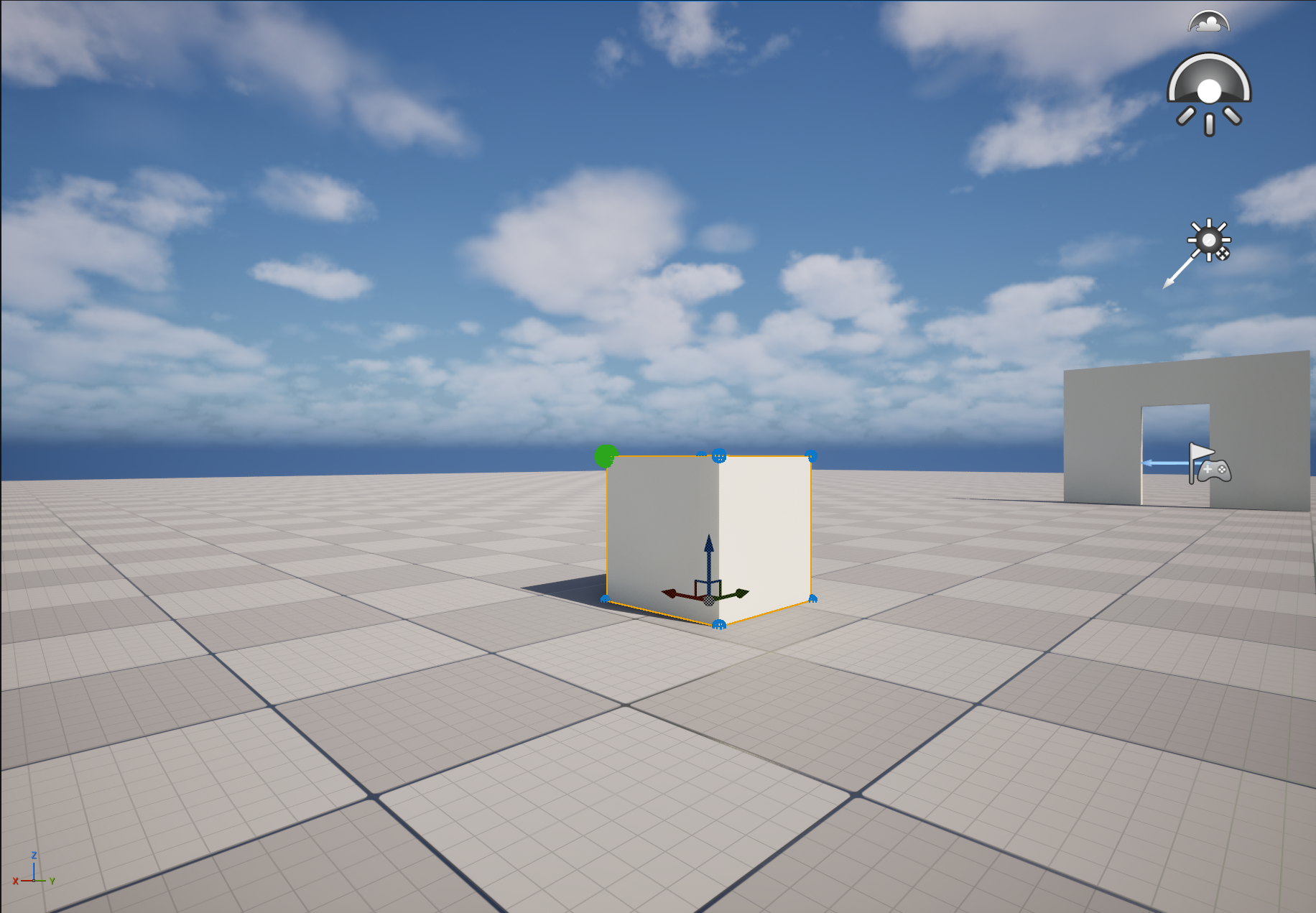
Viewport picking lets you choose the pivot point visually on the actor itself.
Default hotkeys
| Hotkey | Mode |
|---|---|
| Ctrl + Alt + 6 | Face center picking |
| Ctrl + Alt + 7 | Edge middle picking |
| Ctrl + Alt + 8 | Corner picking |
How to use viewport picking
- Select a supported actor in the viewport.
- Press the hotkey for the mode you want.
- Visual snap indicators appear on the actor.
- Move the mouse near the point you want.
- Left-click to apply the highlighted pivot.
- Press Escape or right-click to cancel.
Changing the hotkeys
Open Edit → Editor Preferences → Keyboard Shortcuts and search for OmniPivot. Unreal lets you reassign the shortcuts if your project or workflow already uses those keys.
Actor Pivot Tools
The Actor Pivot Tools section is for quick operations on the selected actor or actors.
| Tool | What it does |
|---|---|
| Move to Selection Center | Places the pivot at the center of the current selection. |
| Move to Bounds Center | Places the pivot at the selected actor bounds center. |
| Move to Bounds Bottom | Places the pivot at the bottom center of the actor bounds. |
| Move to World Origin | Places the pivot at world origin. |
| Copy Pivot | Copies the current pivot offset. |
| Paste Pivot | Pastes the copied pivot offset to another compatible actor. |
| Reset Offset | Resets the actor pivot offset. |
Static Mesh Actions
Static Mesh Actions are used when you want to work with the mesh asset rather than only the selected actor's editor pivot.
| Action | Purpose |
|---|---|
| Preview | Shows what the selected pivot change would do before applying it. |
| Apply Actor Pivot | Applies the selected pivot to the actor workflow. |
| Duplicate & Bake | Creates a new Static Mesh asset with the chosen pivot baked into the duplicated mesh. |
| Create Backup | Creates a backup before permanent work. |
Permanent changes need care
Baking a pivot into a Static Mesh asset is a permanent asset workflow. Use preview and backups, and prefer duplicate-first when preparing production assets.
Details Panel integration

The Details Panel integration adds compact pivot controls to supported actors.
This is useful when you are already working in the Unreal Details Panel and do not want to keep the full OmniPivot Pro dashboard open.
Enable it
- Open OmniPivot Pro.
- Go to Settings.
- Enable the Details Panel option.
- Select a supported Static Mesh Actor.
- The OmniPivot Pro section appears in the Details Panel.
What the compact panel includes
- Face / Edge / Corners mode selector
- quick pivot buttons
- Preview
- Apply
- Reset
- Open Full
- Copy Pivot
- Paste Pivot
Batch Fixer
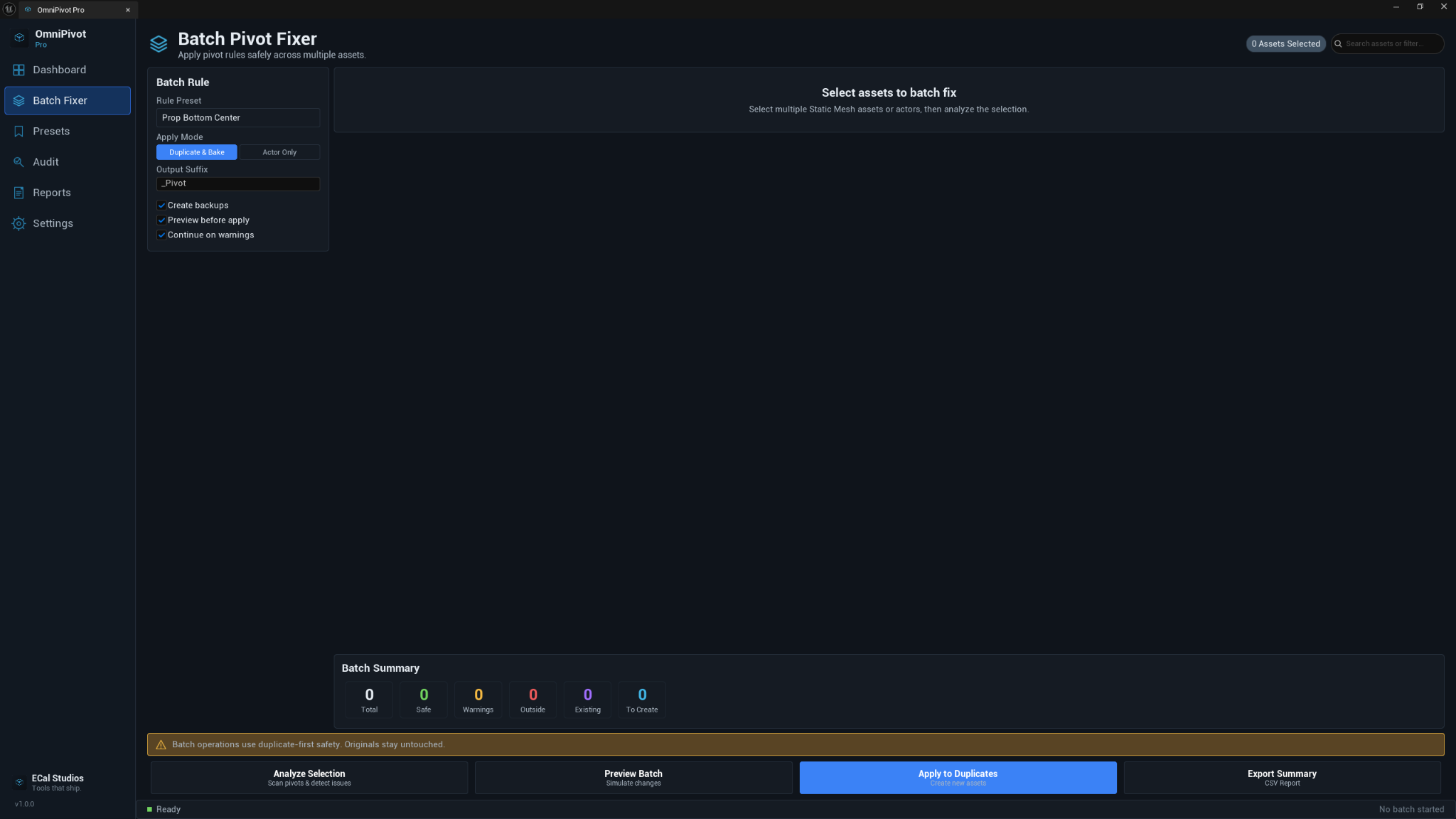
The Batch Fixer is made for processing multiple Static Mesh assets with the same pivot rule.
Typical batch workflow
- Select Static Mesh assets in the Content Browser.
- Open Batch Fixer.
- Choose a Rule Preset.
- Choose the apply mode.
- Click Analyze Selection.
- Review the summary counts.
- Click Preview Batch.
- If everything looks correct, click Apply to Duplicates.
- Export a summary if you need a record of the work.
Batch summary cards
| Card | Meaning |
|---|---|
| Total | Total selected assets included in the batch review. |
| Safe | Assets that can be processed without expected issues. |
| Warnings | Assets that need attention but may still be usable. |
| Outside | Assets where the pivot target may be outside expected bounds. |
| Existing | Duplicates that already exist with the selected suffix. |
| To Create | New duplicated assets that will be created. |
Duplicate-first safety
The recommended batch mode is Apply to Duplicates. This keeps original assets untouched and creates fixed copies using the configured output suffix.
Presets page
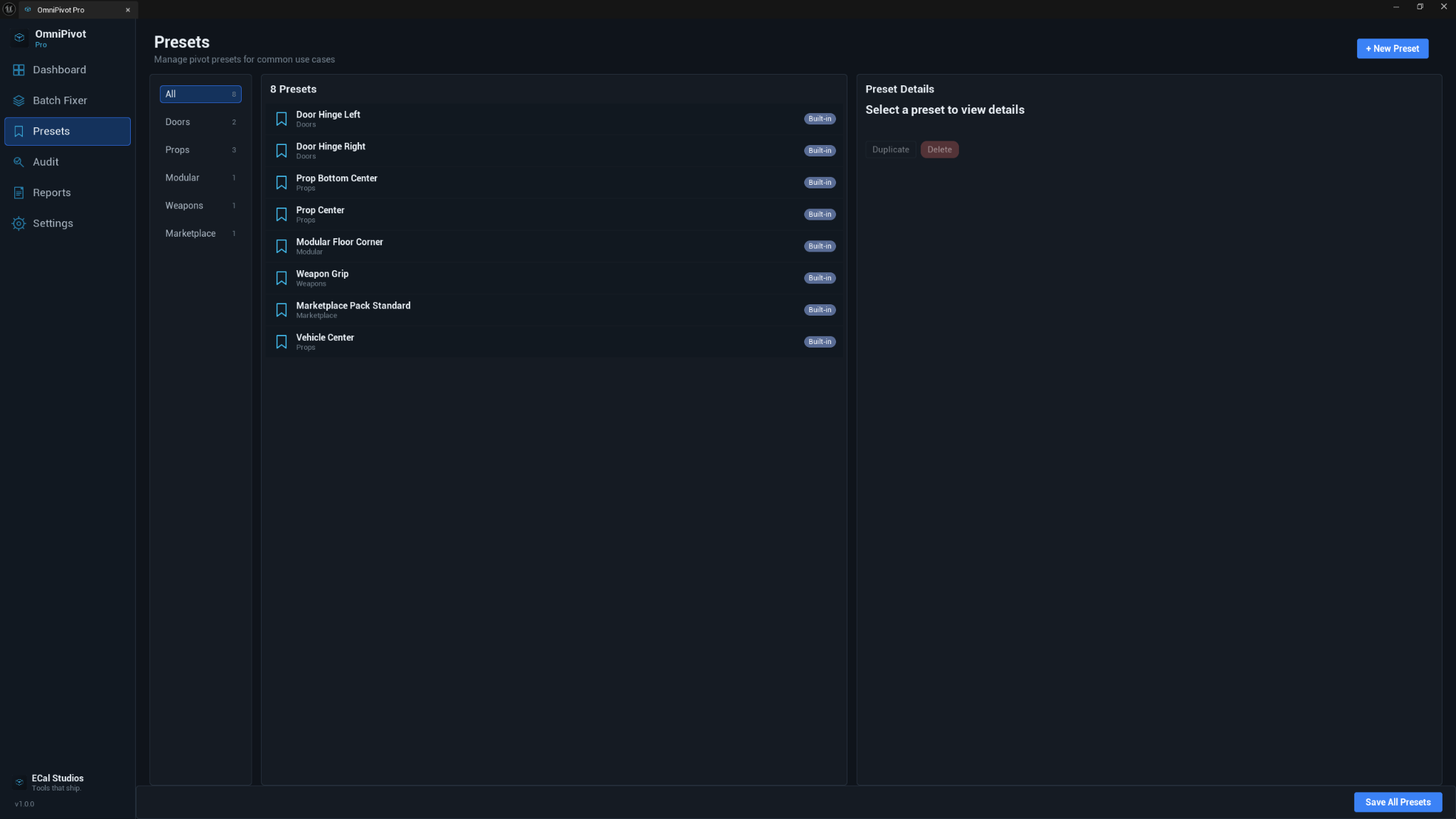
The Presets page lets you organize and reuse common pivot setups.
Built-in examples include:
- Door Hinge Left
- Door Hinge Right
- Prop Bottom Center
- Prop Center
- Modular Floor Corner
- Weapon Grip
- Marketplace Pack Standard
- Vehicle Center
You can use these as starting points and add project-specific presets for your own asset standards.
Pivot Audit
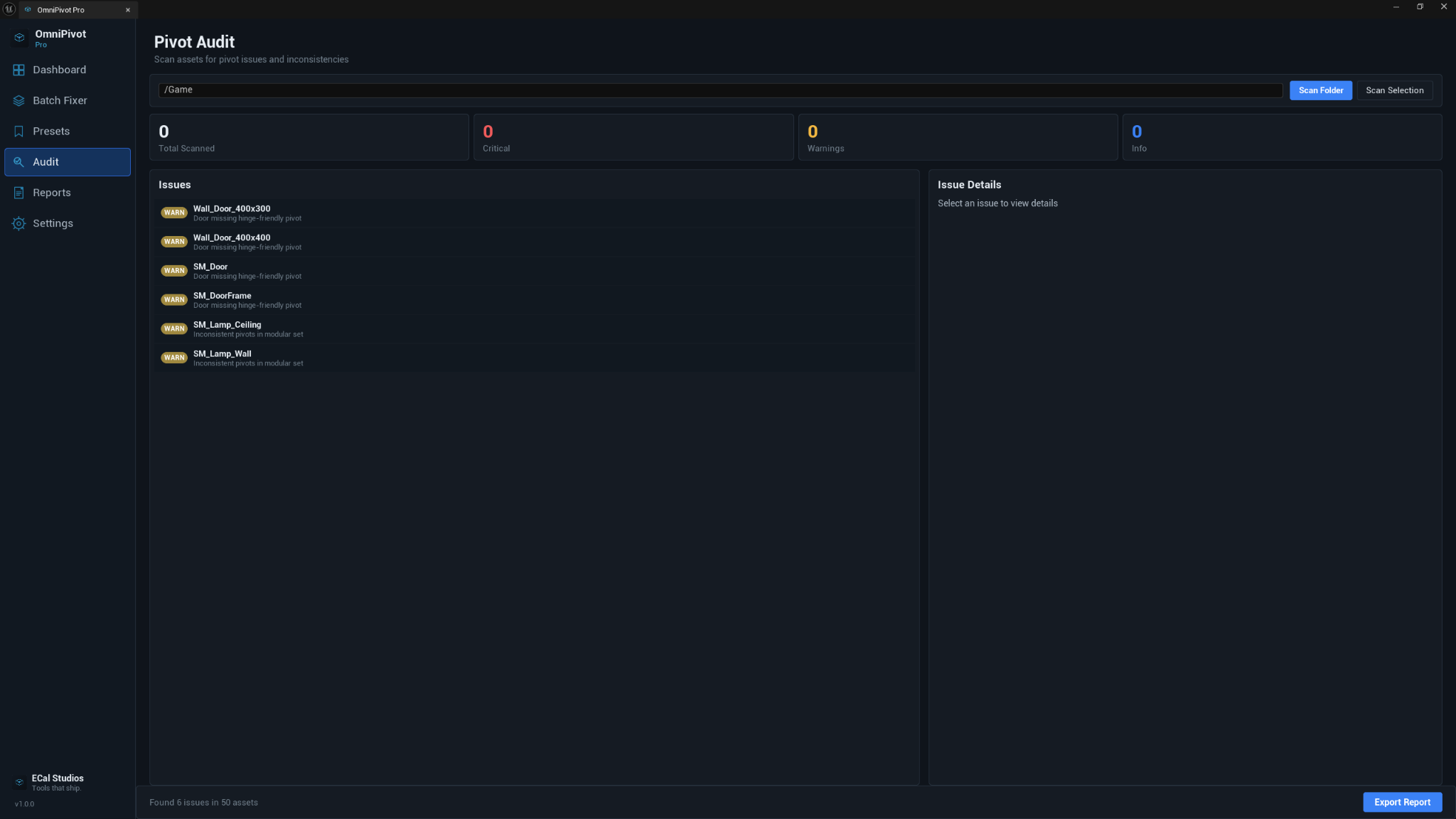
Pivot Audit helps you find assets that may need pivot cleanup.
Use it when:
- preparing a marketplace asset pack
- reviewing imported content
- checking a modular kit
- cleaning a project before handoff
- documenting asset issues for a team or client
Running an audit
- Open Audit.
- Choose the folder to scan.
- Click Scan Folder or scan the current selection.
- Review the issue list.
- Select an issue to view more detail.
- Export the report if needed.
Example issue types
| Issue type | Meaning |
|---|---|
| Door missing hinge-friendly pivot | A door-like asset may not rotate from a useful hinge edge. |
| Inconsistent pivots in modular set | Assets in a modular group do not appear to follow the same pivot rule. |
| Suspicious offset | The pivot is far enough from the mesh that it may be an import or setup issue. |
| Outside bounds | The pivot appears outside the expected mesh bounds. |
Reports
OmniPivot Pro includes report/export workflows for batch and audit work. Reports are useful when you want to keep a record of what was scanned, what was changed, or what still needs review.
Supported report formats can include CSV, Markdown, and HTML depending on the page and workflow.
Settings
Settings are saved per project.
Common settings include:
| Category | Examples |
|---|---|
| Safety | require preview, create backups, warn on outside bounds, confirm batch apply |
| Preview | show grid, show bounds, show pivot markers, auto-preview |
| Batch | output suffix, backup folder, auto-save behavior, skip already-correct assets |
| Interface | compact mode, tooltips, bottom tips, Details Panel integration |
| Audit | distance thresholds and warning behavior |
Troubleshooting
OmniPivot Pro does not appear in the menu
Open Edit → Plugins, search for OmniPivot Pro, enable it, and restart the editor.
The pivot does not move after clicking a preset
Make sure you selected a supported Static Mesh Actor in the viewport. If the viewport does not refresh immediately, click in the viewport or reselect the actor.
Viewport hotkeys do not activate picking mode
Click inside the viewport first so it has keyboard focus. Also check Editor Preferences → Keyboard Shortcuts and search for OmniPivot to confirm the shortcuts are assigned.
The Details Panel controls do not appear
Enable the Details Panel option in OmniPivot Pro settings, then deselect and reselect the actor. The controls are shown only for supported actor types.
Batch Fixer does not see my selection
Batch Fixer expects Static Mesh assets selected in the Content Browser. If you selected placed actors in the viewport, switch to the dashboard workflow instead.
A batch operation warns about existing duplicates
A duplicated asset with the configured suffix may already exist. Change the suffix, remove the old duplicate, or skip that asset.
I baked a pivot and want to go back
Use Unreal undo immediately if available. If the asset was saved already, restore from the backup created by OmniPivot Pro or from your source control.
FAQ
Is OmniPivot Pro runtime code?
No. It is editor-only and does not add runtime gameplay systems.
Does it support Unreal Engine 5.5, 5.6, and 5.7?
Yes. The documentation and compatibility target Unreal Engine 5.5, 5.6, and 5.7.
Does it work on Windows, macOS, and Linux?
Yes. It is intended for Windows, macOS, and Linux, as long as the Unreal Editor is available on that platform.
Can I change the viewport picking shortcuts?
Yes. Search for OmniPivot in Unreal's Keyboard Shortcuts settings.
Should I use actor pivot offsets or duplicate-and-bake?
Use actor pivot offsets for fast level editing. Use duplicate-and-bake when you want a new Static Mesh asset with the pivot permanently changed.
Does duplicate-and-bake change my original mesh?
The duplicate-first workflow keeps the original untouched and creates a new asset using the configured suffix.
Support
For support, email [email protected].
Please include:
- OmniPivot Pro version
- Unreal Engine version
- operating system
- the asset or actor type you were working with
- screenshots if the issue is visual
- the steps needed to reproduce the problem