OmniPivot Free User Manual
Overview
OmniPivot Free is a focused Unreal Engine editor plugin for adjusting the pivot offset of selected placed actors.
The plugin is intentionally simple. It is not trying to replace a full DCC pivot workflow. It is there for the everyday Unreal Editor moments where you need a better working pivot for placement, rotation, snapping, modular building, or quick scene cleanup.
Compatibility
| Item | Support |
|---|---|
| Unreal Engine | 5.5, 5.6, 5.7 |
| Platforms | Windows, macOS, Linux |
| Plugin type | Editor-only |
| Main workflow | Placed actor pivot offset editing |
Installation guide
Install from Fab or the Epic Games Launcher
- Install OmniPivot Free to the engine or project you want to use.
- Open your Unreal Engine project.
- Go to Edit → Plugins if Unreal does not enable it automatically.
- Search for OmniPivot Free.
- Enable the plugin.
- Restart Unreal Editor if prompted.
Install manually into a project
- Close Unreal Editor.
- Copy the
OmniPivotFreefolder into your projectPluginsfolder. - Reopen the project.
- Let Unreal rebuild the plugin if it asks.
- Enable the plugin under Edit → Plugins if needed.
- Restart Unreal Editor after enabling it.
Opening OmniPivot Free
Open the main panel from:
Tools → ECal Studios → OmniPivot Free
The tool opens as a normal dockable Unreal Editor tab, so you can keep it floating, dock it beside the viewport, or close it when you only want to use the Details Panel addon.
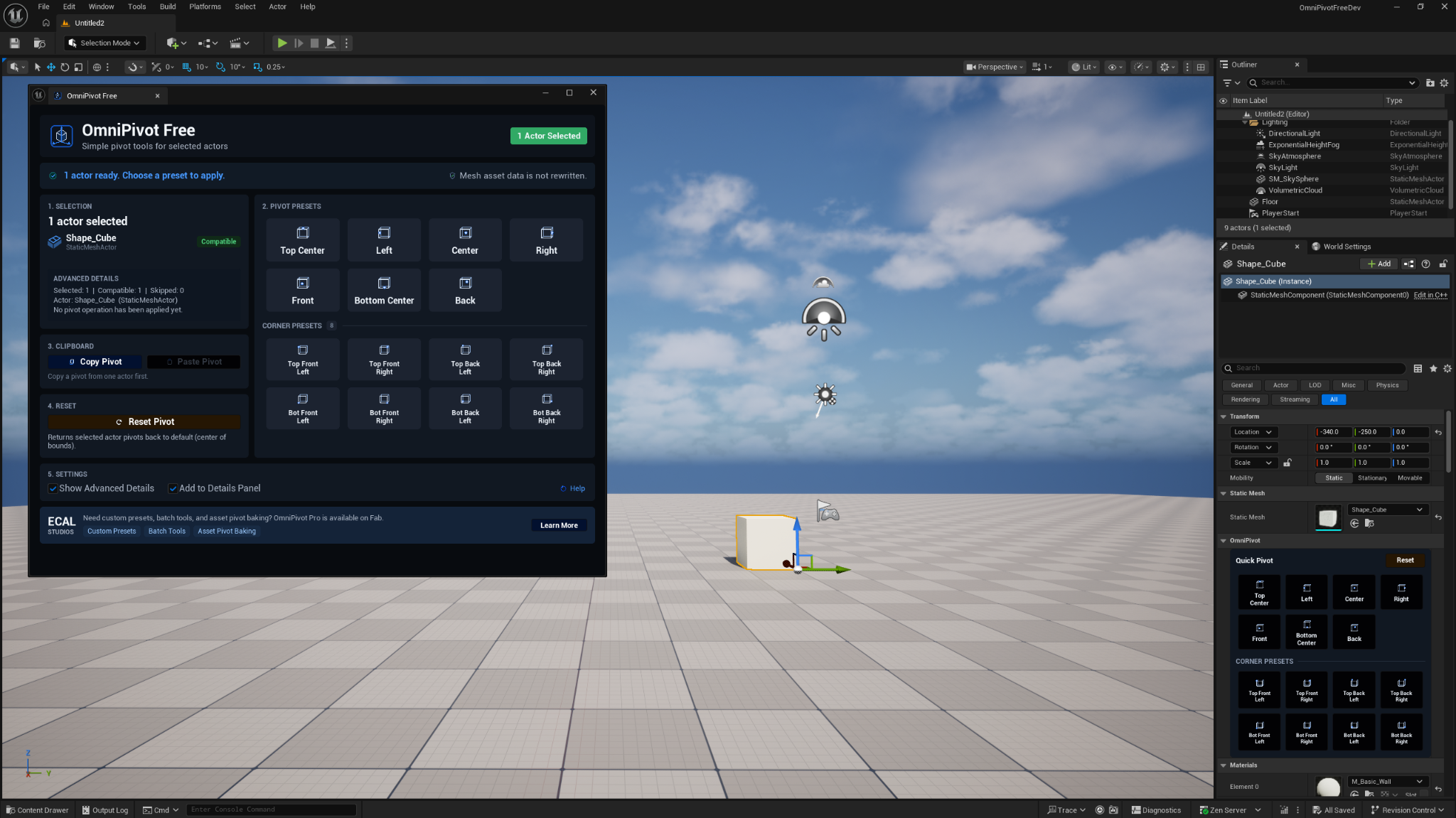
Quick start guide
- Select a compatible actor in the level.
- Open Tools → ECal Studios → OmniPivot Free.
- Check the status banner. It should say the actor is ready.
- Click a preset such as Center, Bottom Center, Top Center, Left, Right, Front, or Back.
- Use Corner Presets for one of the 8 bounds corners.
- Use Reset Pivot to return the actor to the default pivot offset.
Main panel walkthrough

Header
The header shows the plugin name, short description, and selection badge.
The badge updates based on the current selection, for example:
- No Selection
- 1 Actor Selected
- 3 Actors Selected
Status banner
The status banner gives quick feedback about what the plugin can do right now.
Common messages include:
- no actor selected
- actor ready, choose a preset
- pivot set successfully
- unsupported actors skipped
- mesh asset data is not rewritten
Selection section
The selection section shows the selected actor count, primary selected actor, actor class, and compatibility state.
When Show Advanced Details is enabled, the panel can also show extra operation context such as compatible count, skipped count, the current actor type, and last pivot operation information.
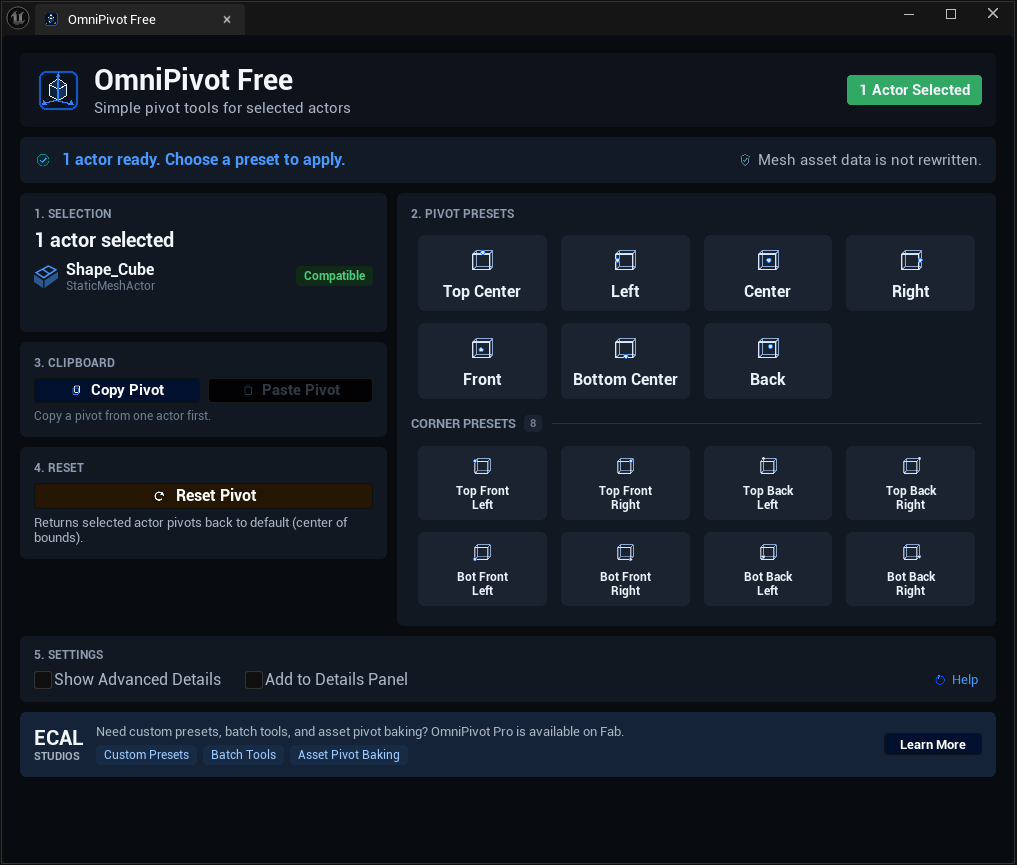
Pivot Presets
The main preset buttons move the pivot to common positions on the selected actor bounds.
| Preset | Use it when |
|---|---|
| Top Center | You want the pivot at the top of the actor bounds. |
| Left | You want the pivot on the left side of the actor bounds. |
| Center | You want the pivot in the middle of the actor bounds. |
| Right | You want the pivot on the right side of the actor bounds. |
| Front | You want the pivot on the front side of the actor bounds. |
| Bottom Center | You want the pivot at the bottom of the actor bounds. This is useful for props and modular pieces. |
| Back | You want the pivot on the back side of the actor bounds. |
Corner Presets
Corner presets move the pivot to one of the 8 actor bounds corners:
- Top Front Left
- Top Front Right
- Top Back Left
- Top Back Right
- Bot Front Left
- Bot Front Right
- Bot Back Left
- Bot Back Right
These are useful for modular kits, doors, furniture, wall pieces, props, hinge-like placement, and assets that need to rotate or snap from a specific corner.
Clipboard
The Clipboard section contains Copy Pivot and Paste Pivot.
Copy Pivot
Select one compatible actor and click Copy Pivot to store its current pivot offset.
Paste Pivot
Select one or more compatible target actors and click Paste Pivot to apply the stored pivot offset.
A typical workflow looks like this:
- Select an actor that already has the pivot offset you want.
- Click Copy Pivot.
- Select the target actor or actors.
- Click Paste Pivot.
Reset
Reset Pivot returns selected compatible actors to the default pivot offset.
Use this when a pivot adjustment is no longer useful, or when you want to return to the normal actor pivot behavior.
Settings
Show Advanced Details
Shows more selection and operation details in the main panel. This is helpful when testing, checking mixed selections, or understanding why some actors were skipped.
Add to Details Panel
Adds a compact OmniPivot section to the Unreal Details Panel for supported actors.
Details Panel addon

The Details Panel addon is one of the fastest ways to use OmniPivot Free during normal level editing.
When enabled, supported actors show an OmniPivot category with:
- Quick Pivot main presets
- Corner Presets
- Reset
This lets you keep pivot tools beside normal actor properties such as Location, Rotation, Scale, Static Mesh, Materials, and other Details Panel settings.
Multi-selection behavior
OmniPivot Free can process multiple compatible actors at the same time.
When you apply a preset to multiple actors, each actor uses its own bounds. The plugin does not force every actor to share one world-space pivot point.
If the selection includes unsupported actors, the compatible actors are processed and unsupported actors are skipped. The status banner reports the result.
Undo and redo
Pivot operations are intended to use Unreal Editor transactions, so preset changes, paste operations, and reset actions should work with the normal Unreal undo/redo workflow.
Known limitations
OmniPivot Free is designed as a free, focused tool. It has a few intentional limits:
- It changes placed actor pivot offsets, not permanent Static Mesh asset pivots.
- It does not bake pivot changes into mesh assets.
- It does not include custom preset libraries.
- It does not include batch asset processing.
- It is not intended for landscapes, BSP/brush actors, or every possible actor class.
For advanced workflows such as custom presets, batch tools, and asset-level pivot baking, see OmniPivot Pro on Fab.
Best practices
- Use Bottom Center for props and objects that should sit naturally on the floor.
- Use Center when you need predictable rotation around the middle of the actor.
- Use corner presets for modular placement, hinge-style rotation, or quick alignment work.
- Enable Add to Details Panel if you use pivot tools often while editing actors.
- Use Show Advanced Details when testing compatibility or checking why actors were skipped.
Troubleshooting
The plugin says no actors are selected
Select one or more actors in the level viewport or World Outliner.
The actor is selected, but the plugin does nothing
The actor may not be supported. OmniPivot Free is mainly built for StaticMeshActor and actors with a StaticMeshComponent root.
Some selected actors are skipped
Your selection probably contains a mix of compatible and unsupported actors. The plugin applies the operation to compatible actors and reports skipped ones.
The Details Panel addon does not appear
Check these points:
- Add to Details Panel is enabled in OmniPivot Free.
- A supported actor is selected.
- The Details Panel is showing the selected actor.
- The actor type is compatible with OmniPivot Free.
The mesh pivot did not permanently change
That is expected. OmniPivot Free changes the placed actor pivot offset. It does not rewrite the Static Mesh asset pivot.
I changed the pivot, but I expected the mesh asset to update everywhere
OmniPivot Free is actor-level. If you need permanent mesh pivot baking across the asset itself, that belongs to an asset-level workflow, not the free actor-offset workflow.
FAQ
Is OmniPivot Free free?
Yes. OmniPivot Free is the lightweight free version of the OmniPivot workflow.
Does it work at runtime?
No. OmniPivot Free is an editor-only plugin.
Does it affect packaged games?
No runtime module is required. The plugin is intended for editor workflows.
Does it permanently change Static Mesh assets?
No. It changes the pivot offset on placed actors only.
Can I use it on multiple actors?
Yes, as long as the selected actors are compatible.
Can I copy a pivot from one actor to another?
Yes. Use Copy Pivot on the source actor, then Paste Pivot on the target actor or selection.
Where do I open it?
Open it from Tools → ECal Studios → OmniPivot Free.
Why does the status banner say mesh asset data is not rewritten?
Because OmniPivot Free intentionally avoids permanent mesh asset editing. It changes the working pivot offset of placed actors.
Support
For support, email [email protected].
Please include your Unreal Engine version, operating system, OmniPivot Free version, and a short description of what happened.