OmniPivot Pro README
OmniPivot Pro is an editor-only pivot workflow toolkit for Unreal Engine. It helps you adjust actor pivots, choose pivot positions visually in the viewport, save and reuse presets, batch-fix Static Mesh assets, audit pivot consistency, and export reports.
Compatibility
| Item | Support |
|---|---|
| Unreal Engine | 5.5, 5.6, 5.7 |
| Platforms | Windows, macOS, Linux |
| Type | Editor-only plugin |
| Runtime code | No runtime gameplay systems. The plugin is for Unreal Editor workflows. |
Installation
Fab installation
- Add OmniPivot Pro to your project from Fab or the Epic Games Launcher.
- Open your Unreal Engine project.
- Enable the plugin if Unreal asks for confirmation.
- Restart the editor if required.
- Open the tool from Tools → ECal Studios → OmniPivot Pro.
Manual installation
- Close Unreal Engine.
- Copy the
OmniPivotProfolder into your projectPluginsfolder. - The final path should look like this:
YourProject/
  Plugins/
    OmniPivotPro/
      OmniPivotPro.uplugin
- Open the project again.
- Enable the plugin if prompted.
- Restart the editor if Unreal requests it.
Quick start
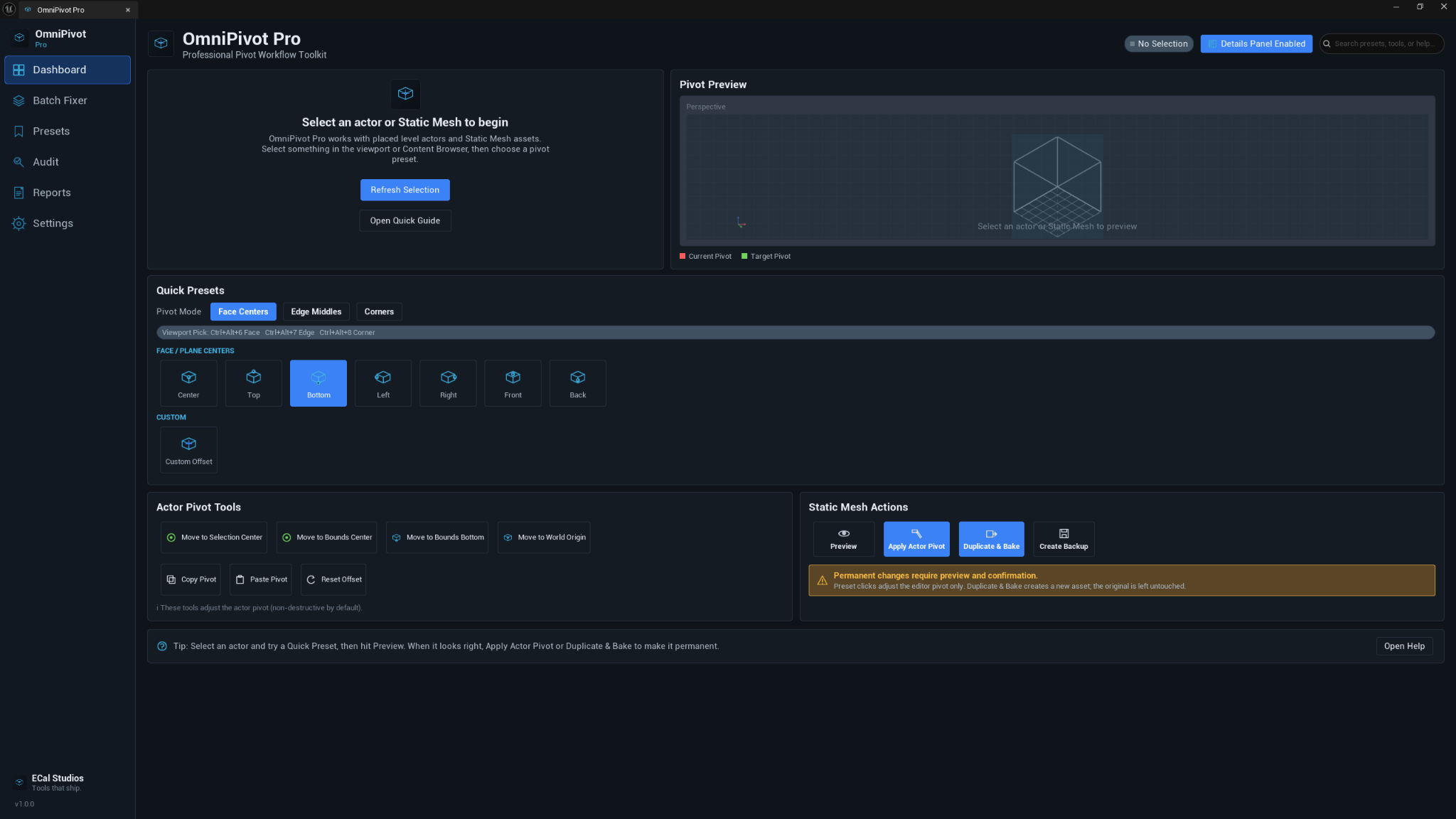
Change an actor pivot
- Select a supported Static Mesh Actor in the level viewport.
- Open Tools → ECal Studios → OmniPivot Pro.
- Choose a pivot mode: Face Centers, Edge Middles, or Corners.
- Click a preset such as Bottom, Center, Top, or one of the corner positions.
- The actor stays in place while the editor pivot moves to the selected position.
Pick a pivot in the viewport
- Select a supported actor.
- Press one of the default viewport picking hotkeys:
| Hotkey | Mode |
|---|---|
| Ctrl + Alt + 6 | Face centers |
| Ctrl + Alt + 7 | Edge middles |
| Ctrl + Alt + 8 | Corners |
- Move the mouse over the visual snap point.
- Left-click to apply the highlighted pivot.
- Press Escape or right-click to cancel.
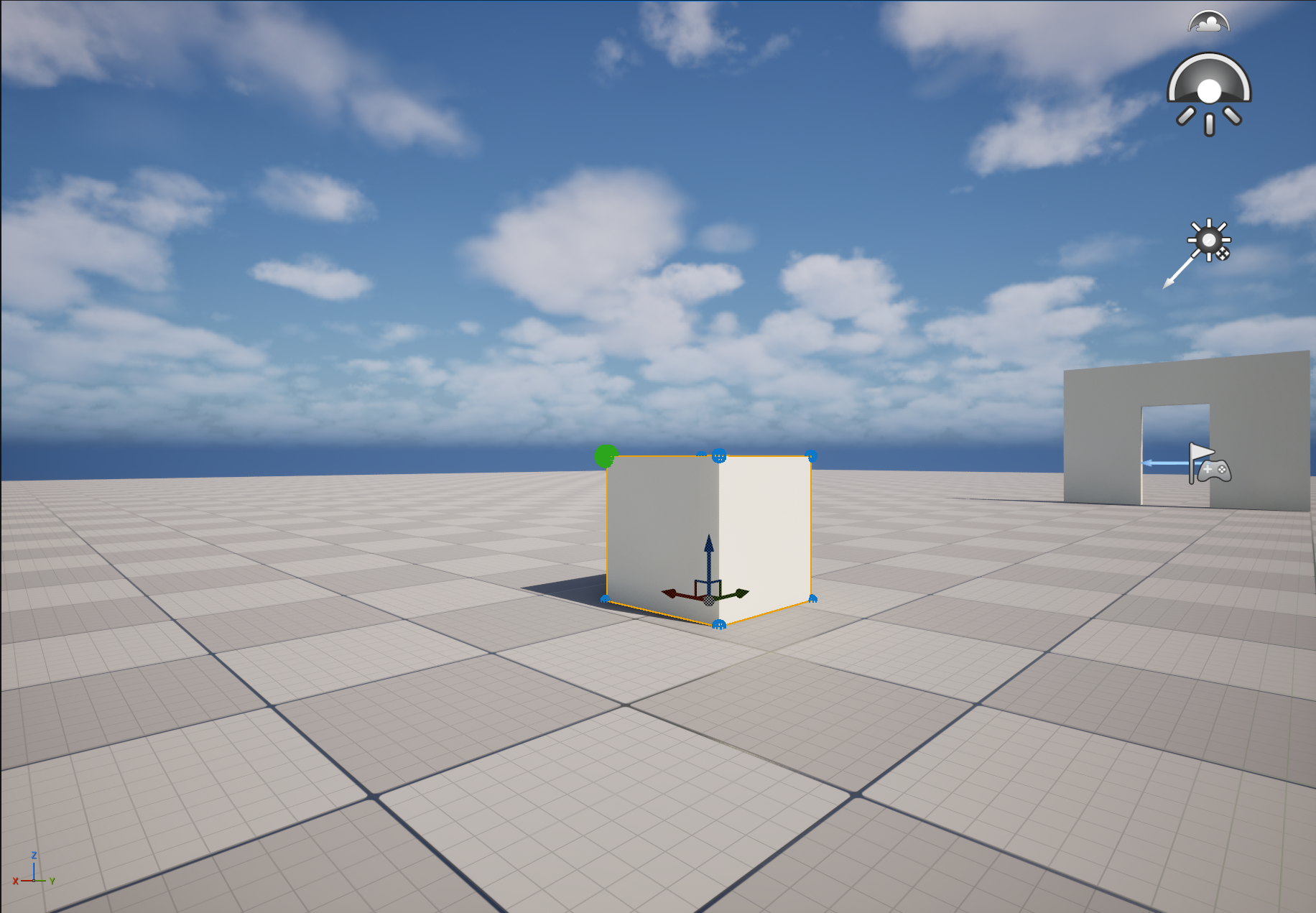
The hotkeys can be changed in Edit → Editor Preferences → Keyboard Shortcuts. Search for OmniPivot.
Use the Details Panel controls
Enable the Details Panel integration in OmniPivot Pro settings, then select a supported actor. A compact OmniPivot Pro section appears in the actor Details Panel with common pivot controls.

Batch-fix Static Mesh assets
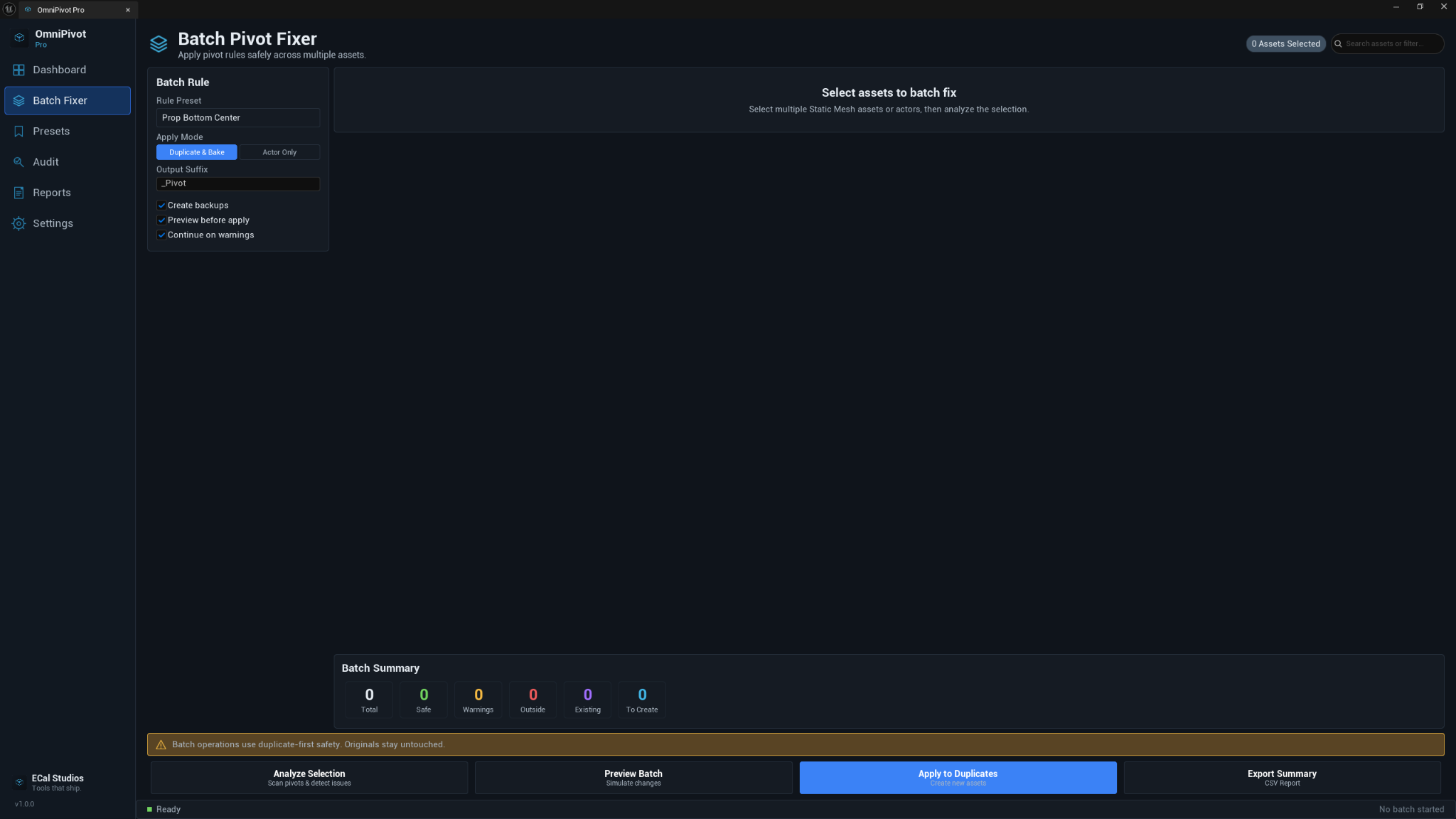
- Select one or more Static Mesh assets in the Content Browser.
- Open the Batch Fixer page.
- Choose a rule preset and mode.
- Click Analyze Selection.
- Click Preview Batch to simulate the changes.
- Click Apply to Duplicates when the summary looks correct.
Main features
Dashboard
- Selection-aware dashboard for actors and Static Mesh assets.
- Live pivot preview with current and target pivot indicators.
- Quick preset buttons for face centers, edge middles, and corners.
- Actor tools for bounds center, bounds bottom, world origin, copy, paste, and reset.
- Static Mesh actions for preview, apply actor pivot, duplicate and bake, and backup.
Presets
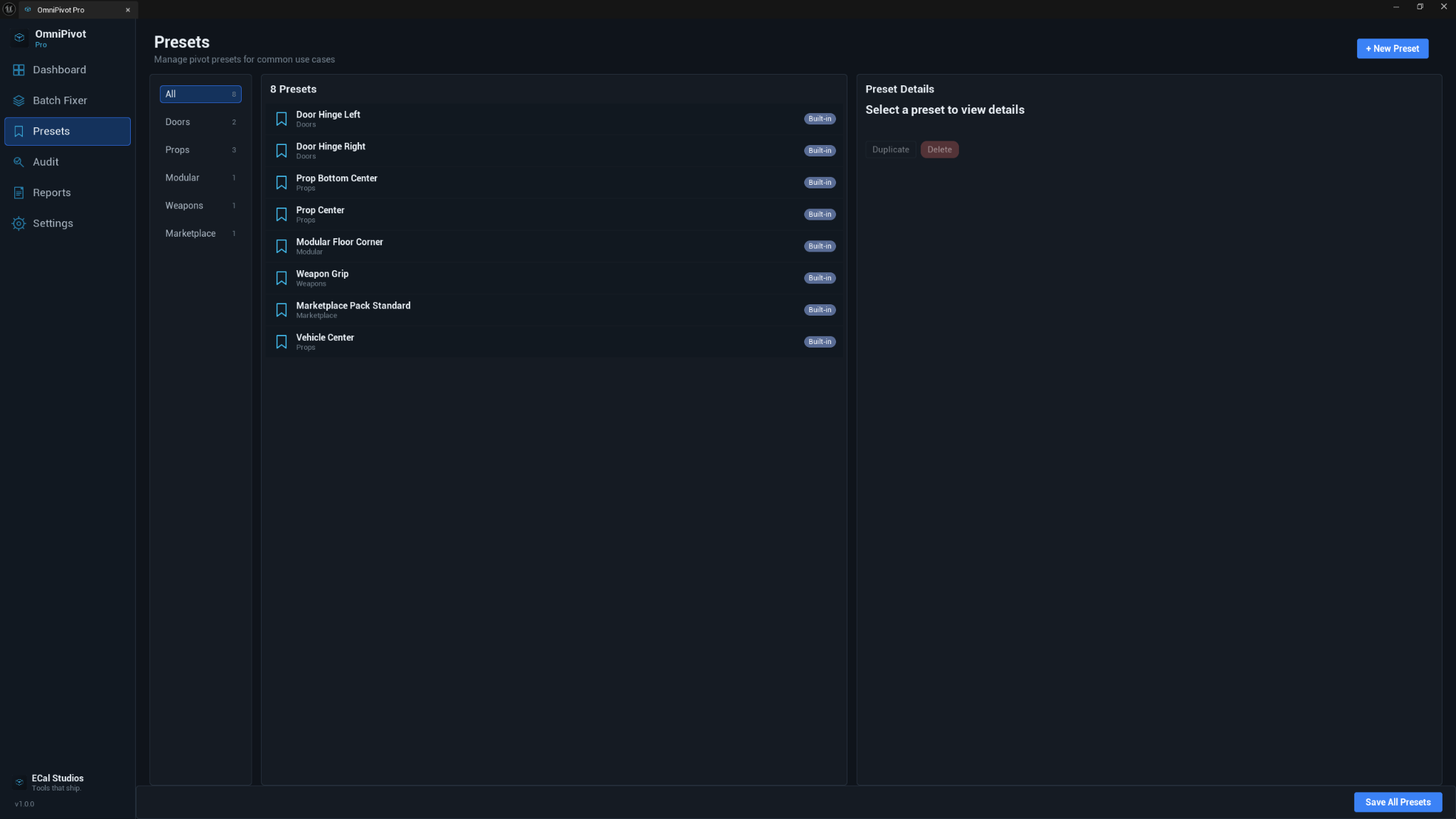
- Built-in preset categories for common workflows.
- Example categories include doors, props, modular pieces, weapons, marketplace packs, and vehicles.
- New presets can be created for project-specific pivot standards.
Batch Fixer
- Multi-asset Static Mesh batch workflow.
- Duplicate-first safety mode so originals remain untouched.
- Optional backups.
- Preview-before-apply flow.
- Summary counts for total, safe, warnings, outside bounds, existing, and to create.
- CSV summary export.
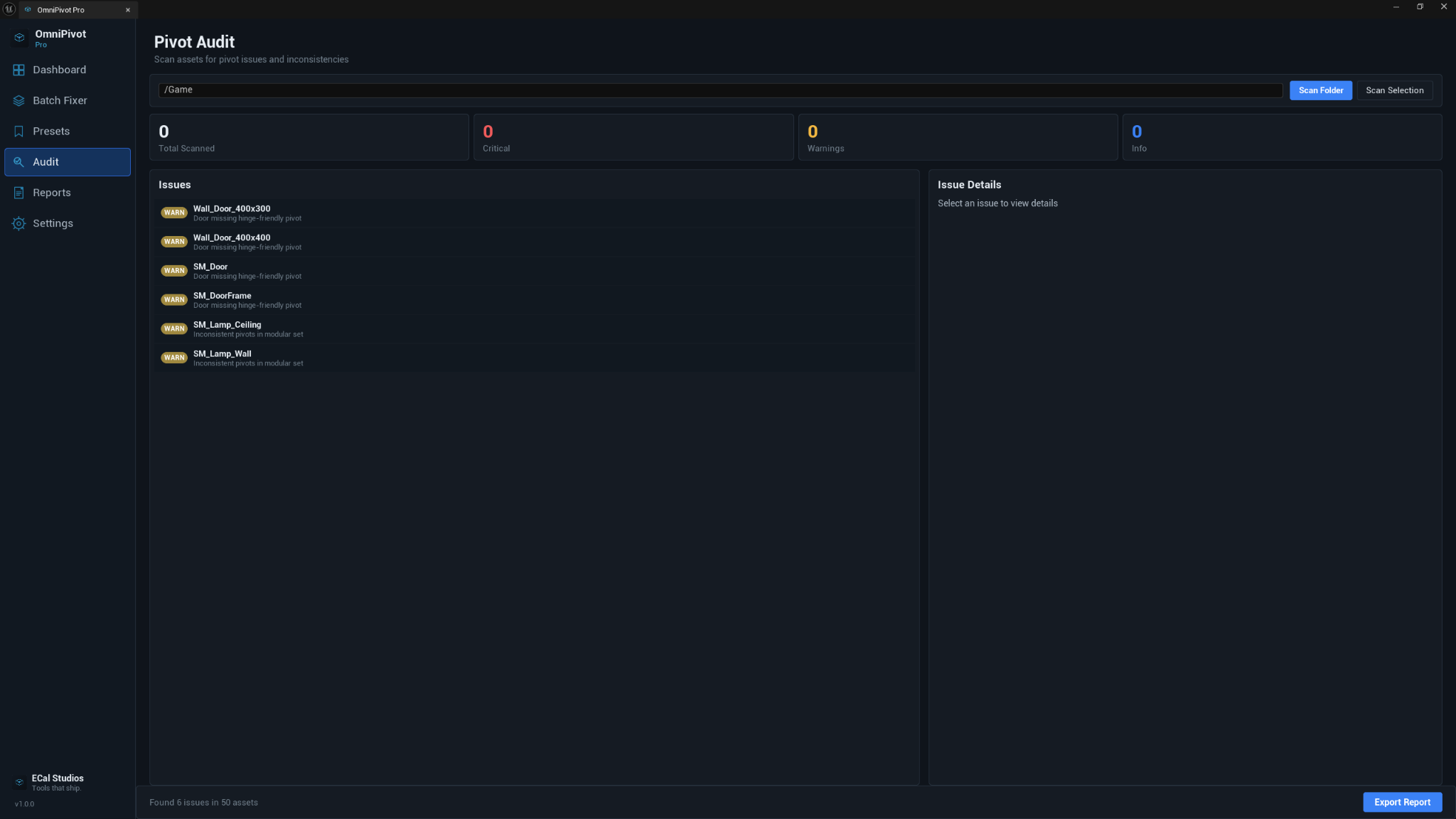
Pivot Audit
- Folder scanning for pivot issues and inconsistent pivot standards.
- Issue categories for common asset production problems.
- Exportable reports for handoff, cleanup, or marketplace preparation.
How actor pivots and baking differ
OmniPivot Pro separates quick actor pivots from permanent asset changes.
| Workflow | What it changes | Best for |
|---|---|---|
| Actor pivot offset | The selected actor's editor pivot offset | Fast level editing and temporary placement fixes |
| Duplicate and bake | A duplicated Static Mesh asset | Permanent mesh pivot cleanup while keeping the original safe |
This keeps everyday pivot work fast while making permanent changes more intentional.
Settings
Settings are managed inside OmniPivot Pro and saved per project.
Common settings include:
- require preview before apply
- create backups before baking
- warn on outside-bounds pivots
- confirm batch operations
- show or hide Details Panel controls
- default batch output suffix
- audit thresholds
FAQ
Does OmniPivot Pro move my actor in the level?
No. The normal actor pivot workflow moves the editor pivot offset while keeping the actor in place.
Does it permanently change my mesh?
Only when you use a bake or duplicate-and-bake workflow. Permanent mesh changes are separate from quick actor pivot operations.
Are batch operations destructive?
The recommended workflow is duplicate-first. That means the original asset stays untouched and the fixed version is created as a new asset with the configured suffix.
Can I change the hotkeys?
Yes. Open Edit → Editor Preferences → Keyboard Shortcuts and search for OmniPivot.
Does this affect packaged builds?
No. OmniPivot Pro is editor-only and has no runtime impact on packaged games.
Troubleshooting
The plugin does not appear in the Tools menu
Check Edit → Plugins, search for OmniPivot Pro, enable it, and restart the editor.
The Details Panel controls are not visible
Make sure the Details Panel integration is enabled in OmniPivot Pro settings. Then deselect and reselect a supported Static Mesh Actor.
Viewport hotkeys do not work
Click inside the level viewport first so it has keyboard focus. Also check that the shortcuts were not changed in Unreal's Keyboard Shortcuts settings.
Batch Fixer shows no assets selected
The Batch Fixer works with Static Mesh assets selected in the Content Browser. Actor selection in the viewport is used by the dashboard and actor pivot tools.
Support
For support, email [email protected].
Please include the plugin version, Unreal Engine version, operating system, and a screenshot or short description of what happened.