DataForge README
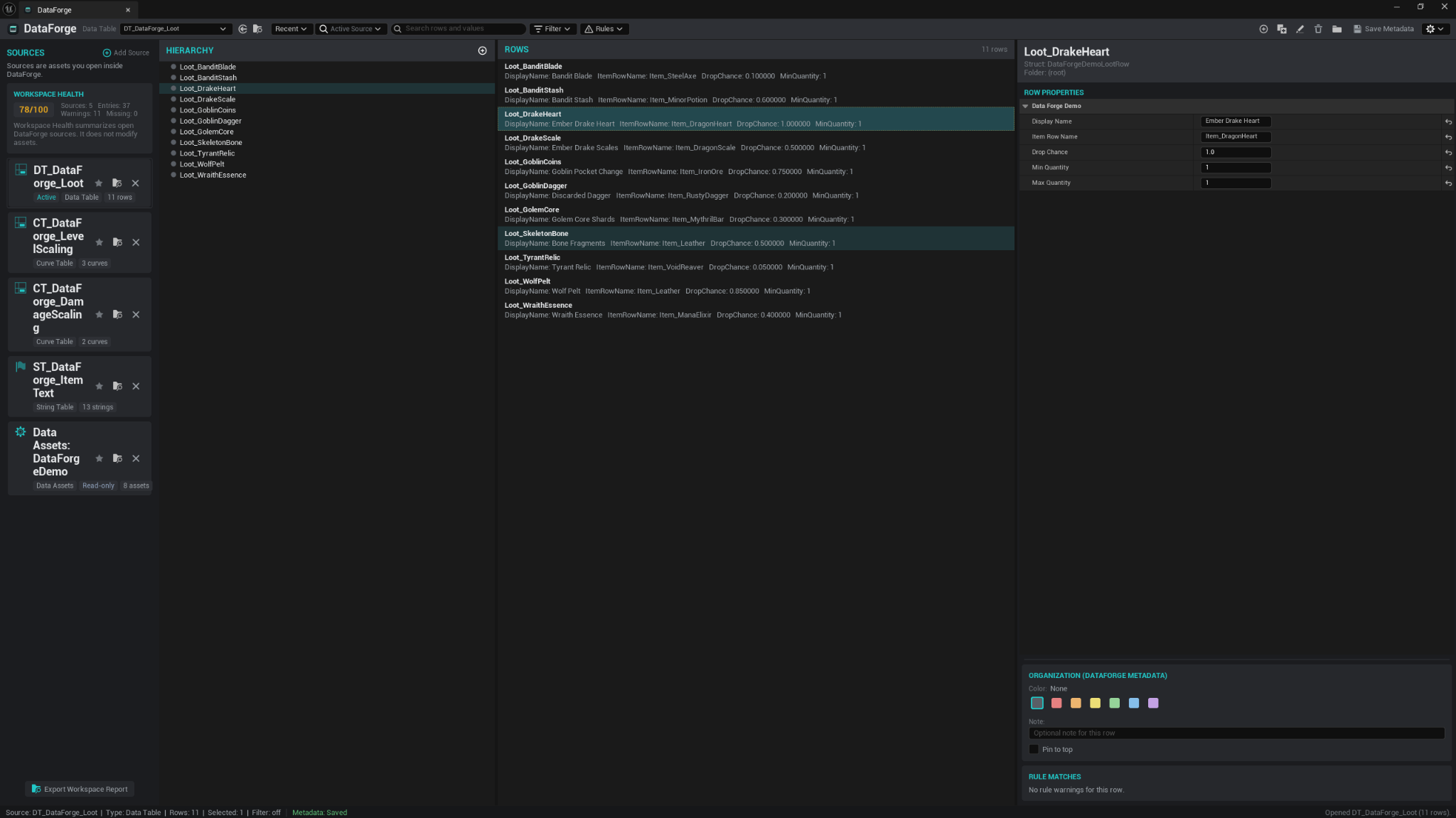
DataForge is an editor-only Unreal Engine gameplay data workbench. It brings Data Tables, Curve Tables, String Tables, and Data Asset Collections into one workspace so you can organize, edit, search, validate, back up, and report on project data without leaving the editor.
Use it when your project has more data than is comfortable to manage one asset at a time.
Compatibility
| Item | Support |
|---|---|
| Plugin version | 1.0.0 |
| Unreal Engine | 5.5, 5.6, 5.7 |
| Module type | Editor-only |
| Runtime impact | None |
| External services | None required |
| Fab listing | Open DataForge on Fab |
Installation
- Install DataForge from its Fab listing, or copy the
DataForgefolder into your project'sPluginsfolder. - Close Unreal Engine before copying a local plugin build.
- The folder structure should look like this:
YourProject/
  Plugins/
    DataForge/
      DataForge.uplugin
      Source/
      Resources/
      ...
- Reopen the project.
- If Unreal asks to rebuild or enable the plugin, follow the prompt for your project setup.
- Confirm DataForge is enabled in Edit → Plugins.
Opening DataForge
Open the workbench from the Unreal Editor menu:
Tools → ECal Studios → DataForge
DataForge opens as a dockable editor tab. It restores your previous workspace where possible, including sources, favorites, and the active source.
Quick start
- Open Tools → ECal Studios → DataForge.
- Click Add Source and choose a supported source type.
- Add a Data Table, Curve Table, String Table, or Data Asset Collection.
- Select the source in the left panel.
- Review, edit, organize, search, and validate entries from the central workbench.
- Use Create Backup, Export Current View, or Export Report when you want a snapshot of the current data.
Demo workspace
DataForge includes an optional demo workspace for learning the workflow.
Open the gear/options menu and choose Create Demo Workspace. This creates sample content under:
/Game/DataForgeDemo
The demo includes examples for supported source types. Re-running the demo action only adds missing demo content; it does not intentionally overwrite your edits.
Supported source types
| Source type | What you can do |
|---|---|
| Data Tables | Edit rows, add/duplicate/rename/delete rows, organize entries into virtual folders, batch edit shared fields, use rules, review health, export reports. |
| Curve Tables | Edit curve rows and Time/Value keys, add/remove keys, manage curve rows, review curve warnings, export curve reports. |
| String Tables | Add, edit, rename, duplicate, and delete keys/source strings with an explicit Apply workflow and string health warnings. |
| Data Asset Collections | Browse selected or folder-based Data Assets, preview simple properties, search, add editor-only notes/colors/pins, and export collection reports. |
Workspace search
The search box can work in two scopes:
- Active Source filters the selected source only.
- Workspace searches across every open source.
Workspace search is useful when you remember a row name, item ID, string key, or value but not which table or collection contains it.
Metadata and saving
DataForge uses two kinds of data:
| Data type | Where it is saved |
|---|---|
| Real asset data | Your normal Unreal assets, such as Data Tables, Curve Tables, and String Tables. Save these as usual with Ctrl+S or Save All. |
| DataForge organization metadata | Local sidecar JSON under Config/DataForge/, such as folders, notes, colors, pins, ordering, rules, workspace roster, and favorites. |
The metadata is editor-only. It is there to make the workbench easier to use, not to change how your game reads its gameplay data.
Backups, exports, and reports
When a source is active, DataForge can create local output files:
- Create Backup writes a timestamped snapshot under
Saved/DataForge/Backups/. - Export Current View exports the current view to
Saved/DataForge/Exports/. - Export Report creates a readable Markdown report under
Saved/DataForge/Reports/. - Export Workspace Report creates a Markdown summary across all open sources.
Generated output is local and can be deleted when you no longer need it.
Source control recommendations
Commit Config/DataForge/*.dataforge.json if you want the workspace organization to be shared with the project.
Usually ignore Saved/DataForge/ unless you intentionally want to keep an exported report or backup snapshot.
Limitations in 1.0.0
- Data Asset property editing is read-only.
- Data Asset class-based collections do not have a dedicated class-picker UI yet.
- Curve tangent and interpolation editing are read-only.
- There is no data compare/diff workflow.
- There is no dependency/reference graph checking.
- It is not a localization-readiness replacement for LocCheck.
- Renaming a row or key does not update external references automatically.
Support
Email [email protected] and include the plugin version, Unreal Engine version, operating system, source type, and any useful screenshots or Output Log lines.