NamingCheck User Manual
Version 1.0.0
ECal Studios
Table of Contents
- Installation
- Getting Started
- Dashboard (Overview)
- Running a Scan
- Results Table
- Detail Panel
- Rename Preview
- Rule Profiles
- Rule Editor
- Reports
- Settings
- Content Browser Integration
- Issue Type Reference
- Severity Reference
- Built-in Presets Reference
- Naming Score Formula
- FAQ
- Troubleshooting
1. Installation
From Fab
- Purchase NamingCheck from the Fab Marketplace.
- In the Epic Games Launcher or Fab Manager, install the plugin to your engine version.
- Open your Unreal project. Go to Edit > Plugins.
- Search for NamingCheck (listed under the Editor category).
- Confirm it is enabled. Restart the editor if prompted.
From Source
- Copy the
NamingCheckfolder intoYourProject/Plugins/. - Right-click your
.uprojectfile and choose Generate Visual Studio project files (Windows) or runGenerateProjectFiles.sh(Mac/Linux). - Open the solution and build the editor target.
- Launch the editor. The plugin loads automatically.
Verifying Installation
After the editor opens, check: - Tools > ECal Studios > NamingCheck appears in the main menu bar. - Edit > Project Settings > Plugins > NamingCheck shows the settings page.
If neither appears, confirm the plugin is enabled in Edit > Plugins.
2. Getting Started
Opening NamingCheck
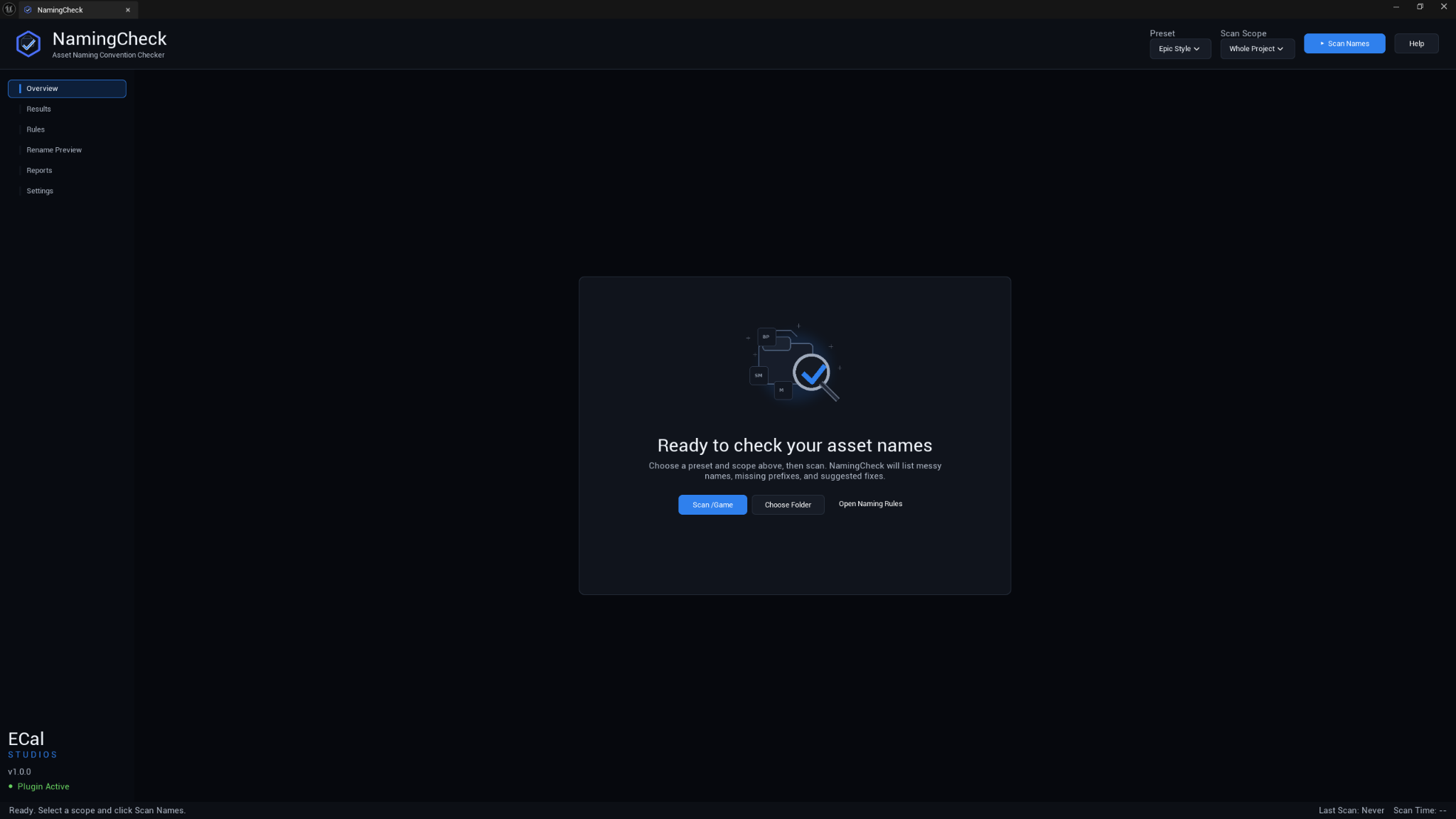
Go to Tools > ECal Studios > NamingCheck. The NamingCheck window opens as a dockable editor tab.
Your First Scan
- On the Overview dashboard, click Scan Whole Project.
- Wait for the scan to complete (progress is shown in the status bar).
- Review the score ring, metric cards, and severity breakdown.
- Click View All Results or switch to the Results tab in the sidebar.
Recommended Workflow
- Scan to find issues.
- Review results, filter by severity, and understand each issue.
- Fix rules if your project uses non-standard prefixes (Rules tab).
- Re-scan to see the updated score.
- Preview renames for the issues you want to fix.
- Apply renames with the confirmation dialog.
- Export a report for your records or team review.
3. Dashboard (Overview)
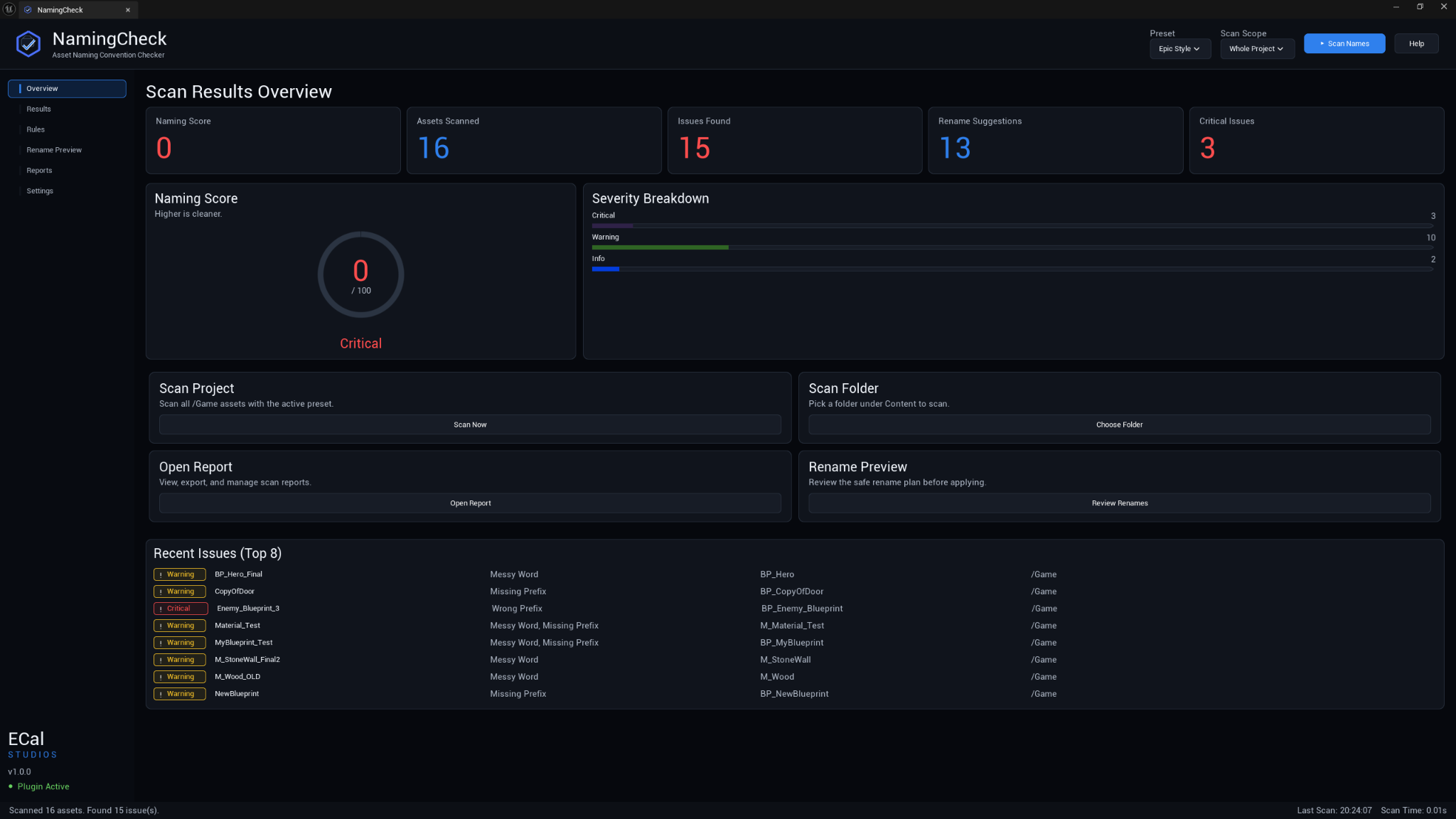
The Overview tab is the landing page when you open NamingCheck. It shows a summary of the most recent scan.
Score Ring
The large circular ring in the center displays your naming score from 0 to 100:
- 80-100 (Green): Project naming is in good shape.
- 50-79 (Amber): Notable issues that should be addressed.
- 0-49 (Red): Significant naming problems.
The score updates after every scan.
Metric Cards
Four cards below the score ring show:
- Assets Scanned — total number of assets evaluated.
- Issues Found — total number of naming violations.
- Rename Suggestions — how many issues have a safe auto-suggestion.
- Score — the numeric naming score.
Severity Breakdown
Horizontal bars show the distribution of issues by severity (Critical, Warning, Info). Each bar is proportional to the total issue count.
Quick Actions
A 2x2 grid of buttons for common operations:
- Scan Whole Project — runs a full project scan.
- Scan Folder — opens a folder picker, then scans the chosen folder.
- Export Report — exports the current results (requires a completed scan).
- Open Rules — jumps to the Rule Editor tab.
Recent Issues
A compact list of the most severe issues from the last scan. Click any row to jump to its entry in the Results table.
4. Running a Scan
Scan Scopes
NamingCheck supports three scan scopes:
| Scope | What it scans | How to trigger |
|---|---|---|
| Whole Project | All assets under /Game (excluding engine/plugin content by default) |
Dashboard "Scan Whole Project" button |
| Selected Folder | All assets within a chosen folder and its subfolders | Dashboard "Scan Folder" button, or right-click a folder in Content Browser |
| Selected Assets | Only the specific assets you have selected in the Content Browser | Right-click selected assets in Content Browser |
What Gets Scanned
By default, NamingCheck scans all assets under /Game. It skips:
- Engine content (/Engine/...) unless Include Engine Content is enabled in Settings.
- Plugin content (/PluginName/...) unless Include Plugin Content is enabled.
- Redirector packages (resolved and skipped automatically).
- Derived data / transient paths.
- Asset classes listed in the active profile's Ignored Asset Classes.
- Folder paths matching the active profile's Ignored Paths patterns.
During the Scan
- The status bar at the bottom of the window shows scan progress.
- You can continue using the editor while the scan runs.
- When the scan completes, the dashboard updates with new results.
After the Scan
- The score ring, metric cards, and severity breakdown refresh.
- The Results tab populates with the full issue list.
- The Rename Preview tab rebuilds its suggestion table.
- The Reports tab's preview updates with the new data.
5. Results Table
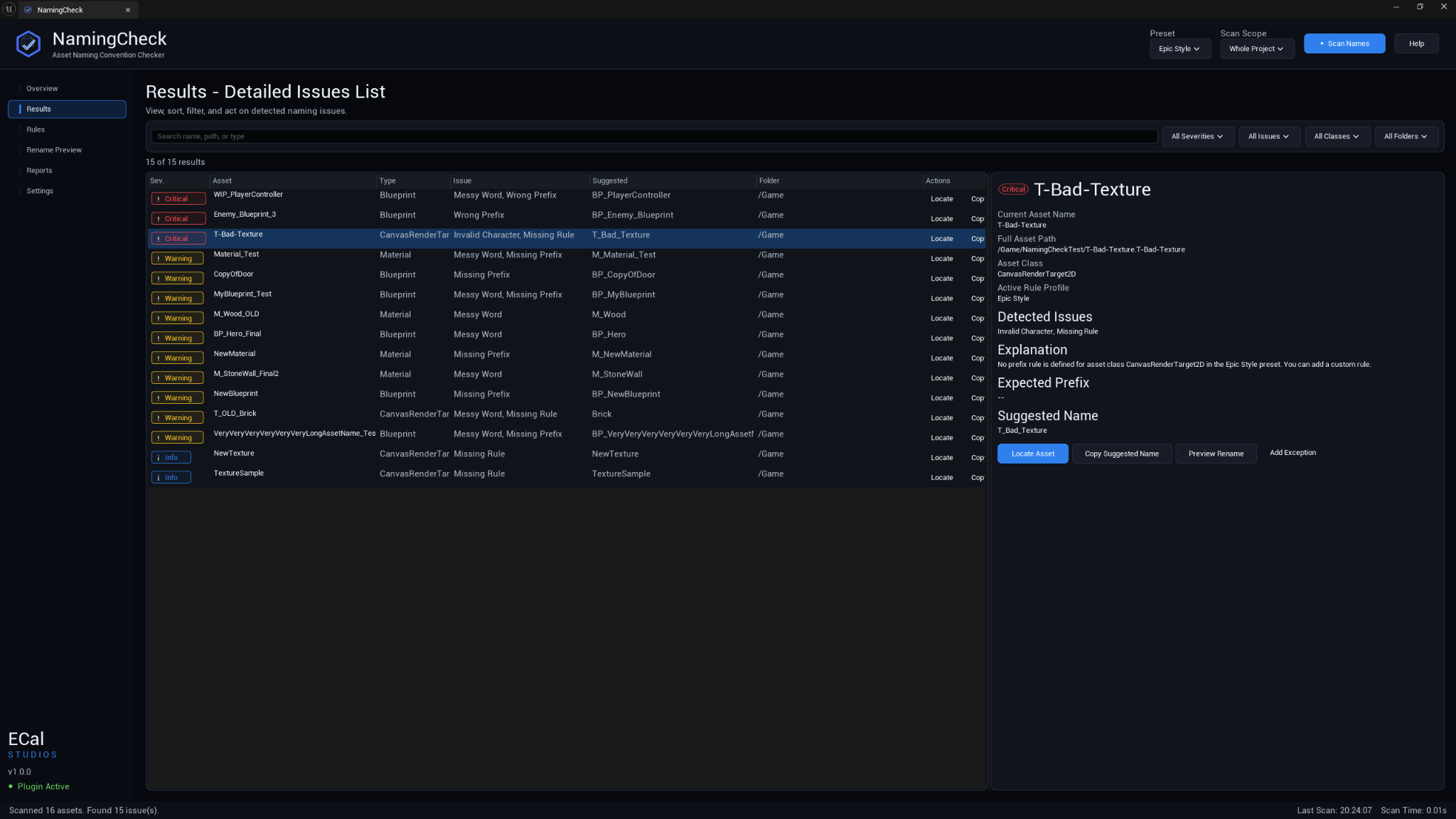
Switch to the Results tab in the sidebar to see the full issue list.
Columns
| Column | Width | Description |
|---|---|---|
| Sev. | 110px (fixed) | Severity badge: Critical (red), Warning (amber), or Info (blue). |
| Asset | Flex | The asset name as it appears in the Content Browser. |
| Type | 130px (fixed) | The asset's class (Blueprint, StaticMesh, Material, Texture2D, etc.). |
| Issue | Flex | Comma-separated list of issue types detected on this asset. |
| Suggested | Flex | The suggested corrected name, if one could be generated. |
| Folder | Flex | The content path where the asset lives. |
| Actions | 110px (fixed) | Quick-action buttons for the row. |
Sorting
Click any column header to sort by that column. Click again to reverse the sort direction. The current sort column and direction are indicated in the header.
Filtering
Above the table, you can filter results using:
- Search box — type any keyword to filter by asset name, path, or issue text.
- Severity filter — show only Critical, Warning, or Info issues.
- Issue type filter — show only specific issue types (e.g., only Wrong Prefix).
- Class filter — show only assets of a specific class.
- Path filter — show only assets under a specific folder.
Filters combine (AND logic) — enabling multiple filters narrows the results further.
Row Interactions
- Single-click a row to select it and populate the Detail Panel on the right.
- Double-click a row to locate the asset in the Content Browser (the Content Browser navigates to and highlights the asset).
6. Detail Panel
When you select a row in the Results table, the Detail Panel on the right side shows:
- Asset name and full content path.
- Asset class and severity.
- Issue breakdown — each issue type with a full explanation of what was detected and why.
- Current prefix and expected prefix (if a prefix issue was detected).
- Suggested name (if available).
Quick Actions
The Detail Panel includes buttons for:
- Locate — navigates to the asset in the Content Browser.
- Copy Path — copies the asset's full object path to the clipboard.
- Preview Rename — switches to the Rename Preview tab and highlights this asset.
- Add Exception — adds this asset's class or path to the active profile's ignore list and saves the profile. A confirmation notification appears.
7. Rename Preview
Review before applying renames
NamingCheck previews changes and checks for conflicts, but renaming assets can still affect references and source control workflows. Review the list carefully before applying a batch rename.
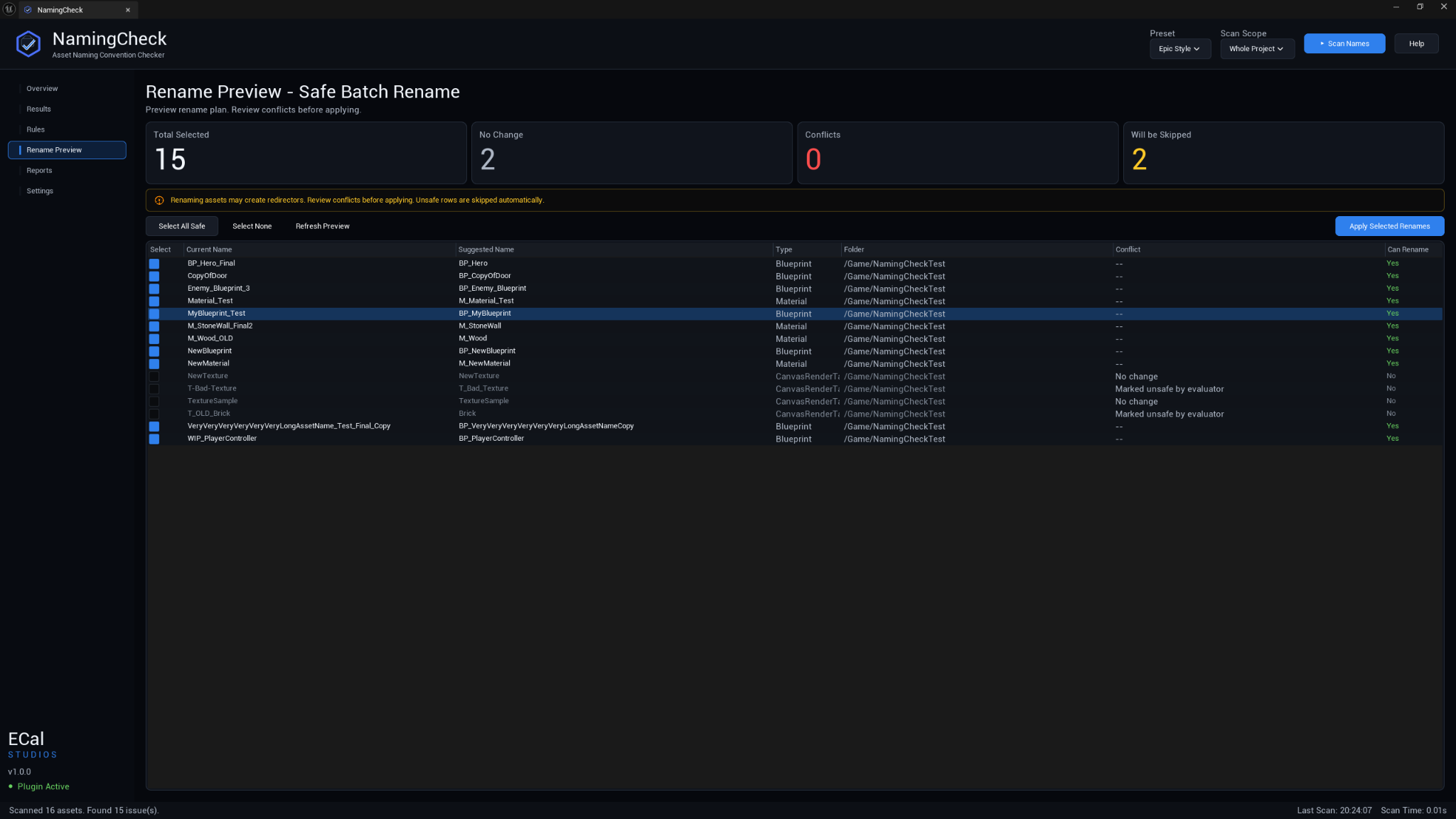
The Rename Preview tab shows every asset that has a rename suggestion, along with safety information.
Summary Cards
At the top of the tab:
- Total Selected — how many assets are checked for renaming.
- Safe to Rename — assets with no conflicts.
- Conflicts — assets whose suggested name collides with an existing asset or another suggestion in the batch.
- Will Be Skipped — assets that are unchecked or have unresolvable conflicts.
The Rename Table
Each row shows:
| Column | Description |
|---|---|
| Checkbox | Select/deselect this asset for renaming. |
| Current Name | The asset's current name. |
| Suggested Name | The proposed new name. |
| Status | Safe (green), Conflict (red), or No Change (gray). |
| Conflict Reason | If conflicted, explains what the collision is. |
Unsafe rows are dimmed and cannot be selected. Tooltips on each cell provide additional context.
Actions
- Select All Safe — checks every row that has no conflicts.
- Select None — unchecks all rows.
- Refresh — regenerates suggestions (useful after rule changes).
- Apply — opens a confirmation dialog showing how many assets will be renamed, then executes the batch rename.
Rename Safety
When you click Apply:
- A confirmation dialog lists the count of assets to rename.
- If Confirm Before Rename is enabled in Settings (on by default), you must click OK to proceed.
- The rename executes inside a scoped Undo transaction (
FScopedTransaction). - You can press Ctrl+Z immediately after to revert all renames.
What the Suggestion Engine Does
The suggestion engine is conservative by design:
- It only strips prefixes that are defined as known prefixes in the active rule profile.
- It preserves all other tokens in the name — it never removes content it doesn't recognize.
- If the suggested name would consist only of a prefix plus a generic class word (e.g.,
SM_Mesh,T_Texture), the suggestion is rejected. - The suggestion must pass a re-validation check (valid characters, not too long, has expected prefix, core name is at least 2 characters).
8. Rule Profiles
NamingCheck evaluates assets against a rule profile — a collection of prefix rules, character constraints, messy tokens, and ignore lists.
Active Profile
The active profile is shown in the sidebar and used for all scans. You can switch profiles in Settings > Profile > Active Preset.
Built-in Presets
NamingCheck includes three factory presets (see Built-in Presets Reference):
- Epic Style — standard Epic Games naming conventions.
- Fab Seller — strict rules for Fab marketplace submissions.
- Solo Project Simple — relaxed rules for personal projects.
Built-in presets cannot be modified directly. To customize, switch to Custom Rules and edit from there.
Custom Profile
When you select the Custom Rules preset, NamingCheck loads the last saved custom profile (or starts from a copy of the active built-in preset if no custom profile exists). Changes to custom rules are saved automatically when you click Save Changes in the Rule Editor.
Custom profiles are serialized as JSON and stored in your EditorPerProjectUserSettings config. They are per-user and per-project, so each team member can have their own custom rules without affecting others.
9. Rule Editor
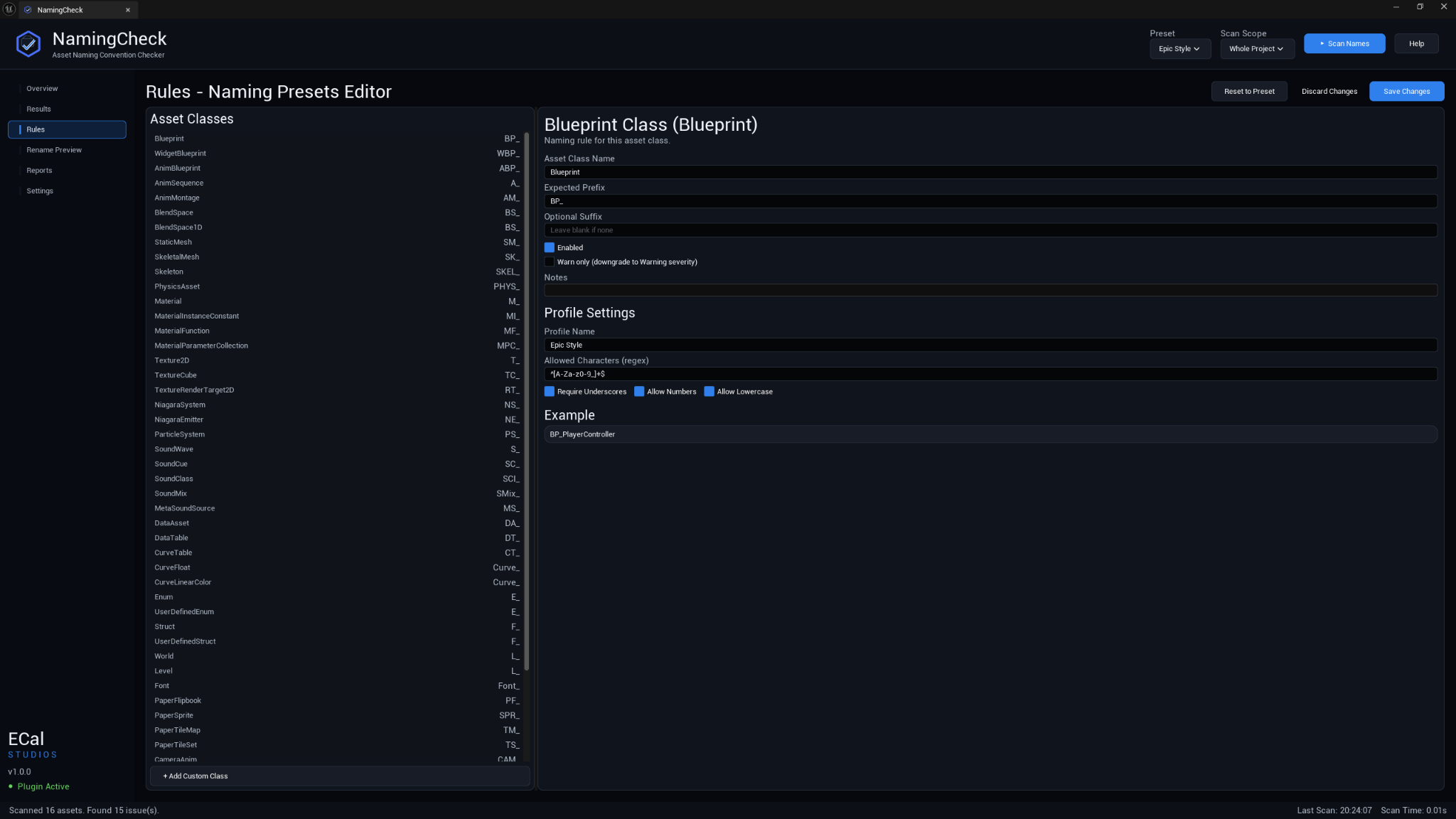
Open the Rules tab in the sidebar to access the Rule Editor.
Layout
- Left panel: a scrollable list of all asset classes that have prefix rules in the current profile. Click a class to select it.
- Right panel: the rule editor form for the selected class.
Editing a Rule
For each asset class rule, you can configure:
| Field | Description |
|---|---|
| Asset Class Name | The UClass name this rule applies to (e.g., Blueprint, StaticMesh, Material). |
| Expected Prefix | The prefix that assets of this class should have (e.g., BP_, SM_, M_). |
| Optional Suffix | An optional suffix convention (informational, not currently enforced in scan). |
| Enabled | Whether this rule is active during scans. |
| Warn Only | If checked, violations produce Warning severity instead of Critical. |
| Notes | Free-text notes for this rule (e.g., "Only for game-specific blueprints"). |
Profile-Level Settings
Below the per-class rules, you can configure:
- Max Name Length — maximum allowed characters in an asset name (default: 64).
- Allowed Characters Pattern — regex pattern for valid characters (default:
^[A-Za-z0-9_]+$). - Messy Tokens — list of words that trigger Messy Word warnings (e.g., New, Test, Final, Copy, Temp, WIP, Backup, Old, Sample, Demo).
- Ignored Paths — path patterns to exclude from scans.
- Ignored Asset Classes — class names to exclude from scans.
Saving and Resetting
- Save Changes — persists the current rule set as your custom profile.
- Reset to Preset — discards custom changes and rebuilds from the selected built-in factory preset.
10. Reports
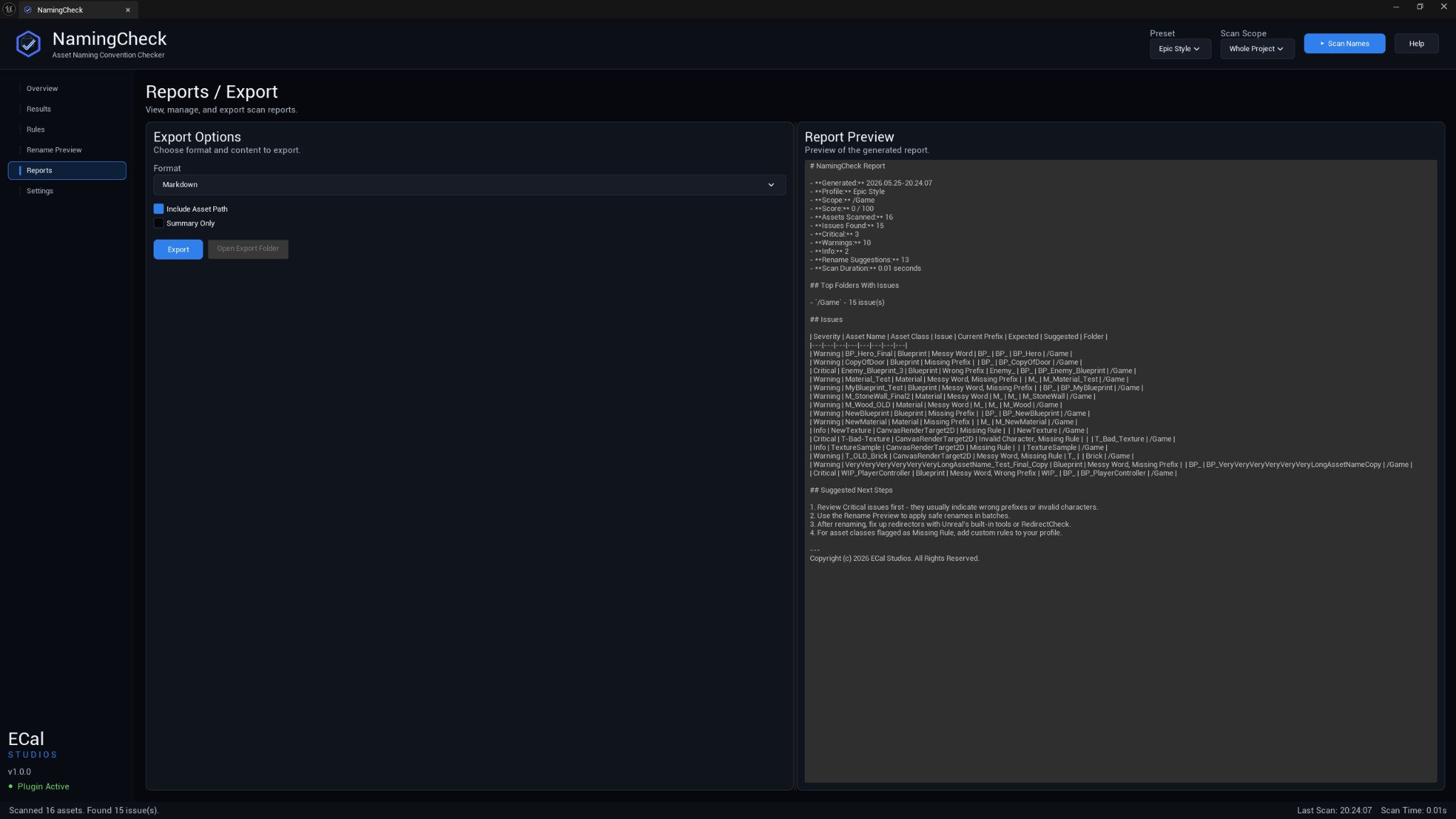
The Reports tab lets you export scan results as documentation.
Export Formats
| Format | Best For |
|---|---|
| Markdown | Wikis, pull request descriptions, documentation sites, team reviews. |
| CSV | Spreadsheets, Jira imports, automated pipelines, data analysis. |
Markdown Report Contents
- Header with project name, scan date, active profile, and scan scope.
- Summary with total assets, total issues, severity counts, and naming score.
- Top Offending Folders table ranked by issue count.
- Full Issue Table with all columns (severity, asset, class, issues, suggested name, path).
- Next Steps section with recommended actions.
CSV Report Contents
- Header row with column names.
- One row per issue with all fields: asset name, object path, package path, class name, severity, issue types, current prefix, expected prefix, suggested name, explanation.
- Values are properly CSV-escaped (quotes and commas handled).
Export Workflow
- Select the desired format (or use both).
- Preview the report content in the live preview area.
- Click Export. A save dialog opens.
- Choose the output directory and filename.
- The file is written and the path is remembered for future exports.
Open Export Folder
After exporting at least once, the Open Export Folder button becomes active and opens the last-used export directory in your file manager.
11. Settings
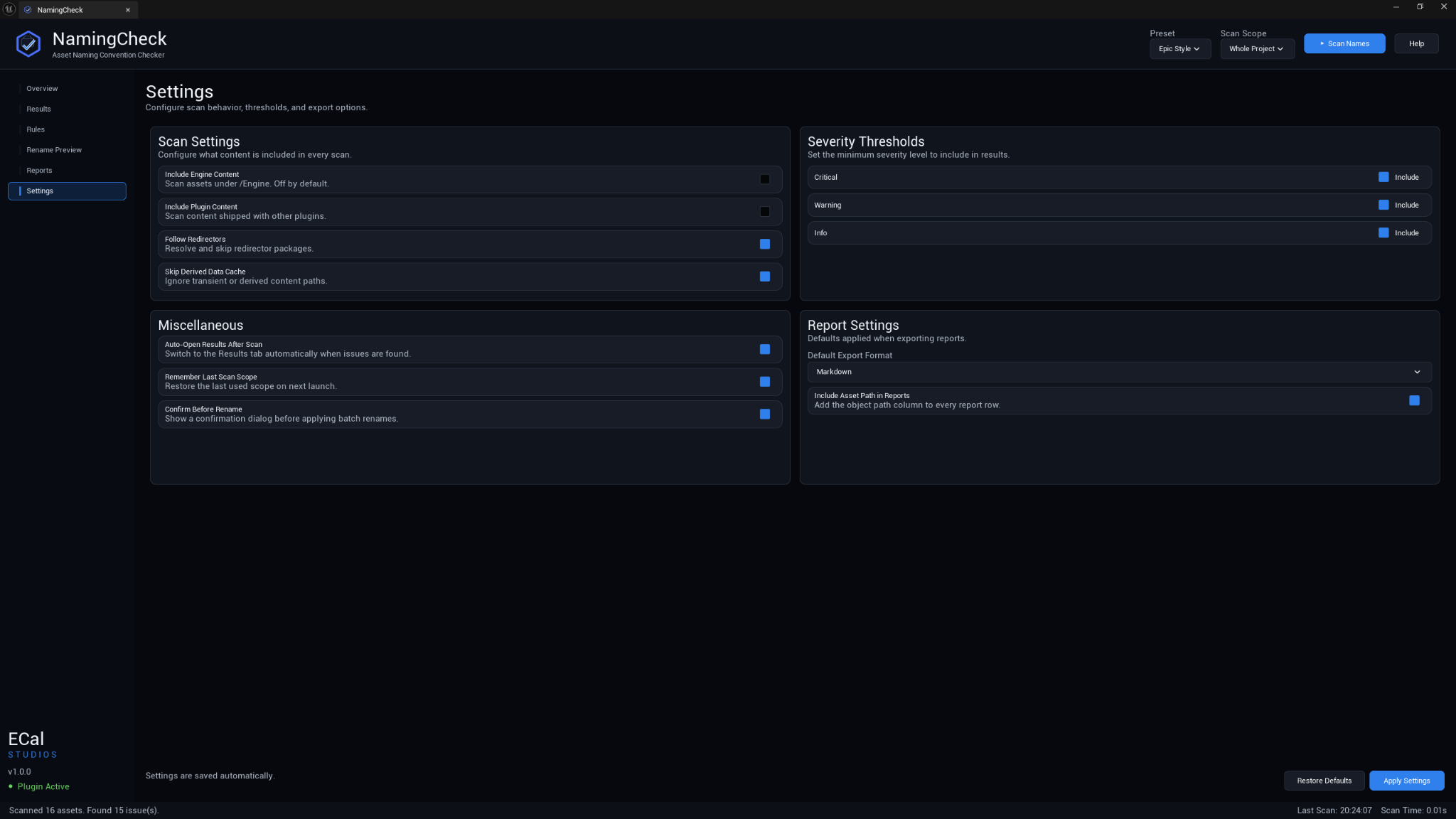
Open the Settings tab in the sidebar, or go to Edit > Project Settings > Plugins > NamingCheck.
Scan Settings
| Setting | Default | Description |
|---|---|---|
| Include Engine Content | Off | Scan assets under /Engine. Usually off. |
| Include Plugin Content | Off | Scan other plugins' content directories. |
| Follow Redirectors | On | Skip redirector packages and resolve through them. |
| Skip Derived Data Cache | On | Skip transient/DDC paths from results. |
Severity Settings
| Setting | Default | Description |
|---|---|---|
| Critical | Include | Whether Critical-severity issues appear in results. |
| Major (Warning) | Include | Whether Warning-severity issues appear in results. |
| Minor (Info) | Include | Whether Info-severity issues appear in results. |
Workflow Settings
| Setting | Default | Description |
|---|---|---|
| Auto-Open Results After Scan | Off | Automatically switch to the Results tab after a scan completes. When off, the dashboard stays in view. |
| Remember Last Scan Scope | On | Remember the last-used scan scope and folder between sessions. |
| Confirm Before Rename | On | Show a confirmation dialog before executing batch renames. |
Report Settings
| Setting | Default | Description |
|---|---|---|
| Default Export Format | Markdown | Pre-selected format in the Reports tab. |
| Include Asset Path in Reports | On | Include the full content path column in exported reports. |
Profile Settings
| Setting | Default | Description |
|---|---|---|
| Active Preset | Epic Style | The rule profile used for scans. Choices: Epic Style, Fab Seller, Solo Project Simple, Custom Rules. |
12. Content Browser Integration
NamingCheck adds two context menu entries to the Content Browser:
Folder Context Menu
Right-click any folder in the Content Browser's folder tree. The context menu includes:
Scan Naming with NamingCheck
This opens the NamingCheck window (if not already open) and runs a folder-scoped scan on the selected folder and all its subfolders.
Asset Context Menu
Select one or more assets in the Content Browser, then right-click. The context menu includes:
Check Selected Asset Names
This opens the NamingCheck window and runs a selected-assets scan on just the chosen assets.
Both context menu actions respect the Auto-Open Results After Scan setting.
13. Issue Type Reference
Wrong Prefix (Critical)
The asset has a prefix, but it does not match the expected prefix for its class according to the active rule profile.
Example: A StaticMesh named M_Chair (has Material prefix M_ instead of StaticMesh prefix SM_).
Fix: Rename to use the correct prefix. The suggestion engine will propose the corrected name.
Missing Prefix (Critical)
The asset has no prefix at all (no text followed by an underscore before the main name).
Example: A Blueprint named PlayerCharacter instead of BP_PlayerCharacter.
Fix: Add the expected prefix. The suggestion engine will propose the prefixed name.
Invalid Character (Critical)
The asset name contains characters that are not in the allowed character set.
Example: SM_Chair (2) — contains spaces and parentheses.
Fix: Rename to use only allowed characters (default: A-Z, a-z, 0-9, underscore).
Messy Word (Warning)
The asset name contains a placeholder or temporary token that suggests it was never properly named.
Default messy tokens: New, Test, Final, Copy, Temp, WIP, Backup, Old, Sample, Demo.
Example: T_Wood_Final_v2 or BP_Enemy_test_COPY.
Fix: Remove the messy token and use a clean, descriptive name.
Too Long (Warning)
The asset name exceeds the configured maximum length.
Default maximum: 64 characters.
Example: A 78-character asset name like SM_EnvironmentModularBuildingWallSection_Industrial_Large_Variant03.
Fix: Shorten the name while keeping it descriptive.
Missing Rule (Info)
No prefix rule is defined for this asset's class in the active rule profile. NamingCheck cannot verify whether the prefix is correct.
Example: A SoundCue asset when the active profile has no rule for SoundCue.
Fix: Add a prefix rule for this class in the Rule Editor, or add the class to the Ignored Asset Classes list.
Duplicate-like Name (Info)
The asset name is suspiciously similar to another asset in the same folder, suggesting a possible accidental copy or inconsistent naming.
Example: T_Wood_01 and T_Wood_1 in the same folder.
Fix: Determine which is the canonical version and rename or delete the duplicate.
14. Severity Reference
| Severity | Color | Weight | When Used |
|---|---|---|---|
| Critical | Red | 3x | Wrong prefix, missing prefix, invalid characters. These are definite violations of naming rules. |
| Warning | Amber | 1x | Messy tokens, name too long. These indicate likely problems that should be reviewed. |
| Info | Blue | 0.25x | Missing rule, duplicate-like name. These are informational and may not require action. |
Weights are used in the naming score formula (see below).
15. Built-in Presets Reference
Epic Style
The standard naming convention used internally at Epic Games and recommended in the Unreal Engine documentation.
Common rules include:
| Asset Class | Prefix |
|---|---|
| Blueprint | BP_ |
| StaticMesh | SM_ |
| SkeletalMesh | SK_ |
| Material | M_ |
| MaterialInstance | MI_ |
| Texture2D | T_ |
| ParticleSystem | PS_ |
| NiagaraSystem | NS_ |
| SoundCue | SC_ |
| SoundWave | SW_ |
| AnimSequence | AS_ |
| AnimMontage | AM_ |
| AnimBlueprint | ABP_ |
| WidgetBlueprint | WBP_ |
| DataTable | DT_ |
Plus many more. See the Rule Editor for the full list.
Fab Seller
Based on Epic Style but with stricter enforcement for Fab marketplace submissions. Fewer rules are marked as warn-only, and additional classes may be covered.
Solo Project Simple
A relaxed set for personal or prototype projects. Covers the most common asset types with shorter prefixes. Some classes that are strict in Epic Style are relaxed or missing here.
16. Naming Score Formula
The naming score is calculated as:
WeightedIssues = (CriticalCount x 3) + (WarningCount x 1) + (InfoCount x 0.25)
Score = max(0, 100 - WeightedIssues)
- A perfect score of 100 means zero issues.
- Critical issues have the most impact (3 points each).
- Info issues have minimal impact (0.25 points each).
- The score cannot go below 0.
17. FAQ
Q: Does NamingCheck modify any assets automatically? A: No. NamingCheck only reads asset metadata during scans. Renames are never applied without your explicit action in the Rename Preview tab.
Q: Can I undo a batch rename? A: Yes. All renames execute inside a scoped Undo transaction. Press Ctrl+Z immediately after the rename completes to revert all changes.
Q: Does NamingCheck work at runtime? A: No. NamingCheck is an editor-only plugin. It is not compiled into packaged builds.
Q: Can I share my custom rules with my team?
A: Custom profiles are stored in EditorPerProjectUserSettings, which is per-user. To share rules, export them from the Rule Editor (the JSON is stored in the config) and share the JSON string. A teammate can paste it into their config. Future versions may add direct import/export buttons.
Q: Why does an asset show "Missing Rule" instead of a prefix violation? A: The active rule profile does not have a prefix rule for that asset's class. NamingCheck cannot tell if the prefix is right or wrong without a rule. Add a rule in the Rule Editor, or add the class to the ignored list.
Q: Why was my rename suggestion rejected? A: The suggestion engine validates every proposed name. It rejects suggestions that would: have invalid characters, exceed the max length, be missing the expected prefix, have a core name shorter than 2 characters, or consist only of a prefix plus a generic class word.
Q: Can I scan only specific asset types? A: Not directly as a scan scope, but you can filter the Results table by class type after scanning, or add unwanted classes to the Ignored Asset Classes list in the Rule Editor.
18. Troubleshooting
NamingCheck menu doesn't appear
- Confirm the plugin is enabled: Edit > Plugins, search for "NamingCheck".
- If you installed from source, ensure the build succeeded without errors.
- Check the Output Log for any NamingCheck-related errors (filter by
LogNamingCheck).
Scan shows 0 assets
- Check that the scan scope includes your project content. By default, only
/Gameis scanned. - If scanning a folder, verify the folder path is correct and contains assets.
- Check Settings: Include Engine Content and Include Plugin Content may need to be enabled if your assets are in those directories.
Score doesn't update after fixing names
- NamingCheck does not auto-rescan. After renaming assets, run a new scan to see the updated score.
Rename Preview shows all rows as conflicts
- This can happen if multiple assets would be renamed to the same name. Review the Conflict Reason column for each row.
- Try fixing one or two assets manually, then refresh the preview.
Custom rules aren't being saved
- Ensure you are on the Custom Rules preset (Settings > Profile). Built-in presets cannot be modified.
- Click Save Changes in the Rule Editor. A confirmation appears in the status bar.
Export button is grayed out
- A scan must be completed before exporting. Run a scan first.
Copyright (c) 2026 ECal Studios. All Rights Reserved.
Documentation: https://www.ecalstudios.com/namingcheck/ Support: [email protected]