AccessCheck User Manual
This manual covers AccessCheck 1.0.0 for Unreal Engine 5.5, 5.6, 5.7, and 5.8.
AccessCheck is an editor-only accessibility auditing tool. It reviews authored Widget Blueprint data, records optional Play-In-Editor evidence, organizes manual review, and creates local reports and baselines. It is not included in packaged builds.
Important
AccessCheck provides technical guidance and accessibility-readiness information. It does not provide legal advice, certify compliance, or replace evaluation by accessibility specialists and players with disabilities.
Requirements
- Unreal Engine 5.5, 5.6, 5.7, or 5.8.
- Windows, macOS, or Linux editor.
- A project containing UMG Widget Blueprints.
- A working C++ toolchain when compiling the source package.
- CommonUI only when CommonUI-specific analysis is needed.
Use the plugin package built for the project's Unreal Engine version. Precompiled binaries are not interchangeable between engine versions.
Installation
- Close Unreal Engine.
- Copy the complete plugin folder to:
YourProject/Plugins/AccessCheck/
- Confirm the folder contains
AccessCheck.uplugin,Source, andResources. - For a source package, regenerate project files and allow Unreal Engine to compile the plugin.
- Open the project.
- In Edit → Plugins, search for AccessCheck.
- Enable the plugin if required and restart the editor when prompted.
AccessCheck is editor-only and is not compiled into the packaged game.
Opening AccessCheck
Open:
Tools → ECal Studios → AccessCheck
The main window contains:
- Profile and Scope controls in the top toolbar.
- The scan action and Settings shortcut.
- Left-side navigation for Dashboard, Issues, Navigation Map, Manual Review, Runtime Inspector, Visual Preview, Reports, and Settings.
- A bottom status bar showing the AccessCheck version, Unreal Engine version, active profile, and scope.
Quick start
- Select Quick Scan.
- Select Project.
- Click Scan.
- Review the Dashboard score, coverage, and scan summary.
- Open Issues and select a finding.
- Read the evidence and recommendation, then open the affected source when available.
- Review the Navigation Map for focus-flow problems.
- Complete required Manual Review items.
- Record a runtime session when you need evidence from actual Play-In-Editor behavior.
- Open Reports, create a snapshot, and save a baseline.
The everyday workflow is:
profile → scope → scan → review → improve → rescan → report
You can also right-click supported assets or folders in the Content Browser and choose Scan with AccessCheck.
Profiles and scopes
Built-in profiles
| Profile | Best for | Manual review |
|---|---|---|
| Quick Scan | Fast, high-confidence everyday checks | Not required by default |
| Full Accessibility Audit | The broadest implemented static pass | Expected |
| Controller & Keyboard | Focus, navigation, and input-related review | As configured |
| Screen Reader Readiness | Accessible metadata, hierarchy, and focus prerequisites | As configured |
| Visual Accessibility | Contrast, text size, color reliance, and focus appearance | As configured |
| Shipping Gate | Release and CI policy checks | Required by default in the gate |
Rule membership is dynamic. CommonUI rules appear only when CommonUI is enabled, and the exact rule count is shown in the toolbar and analysis details.
Editor scan scopes
- Current Asset — the open or selected Widget Blueprint.
- Selection — selected assets in the Content Browser.
- Folder — one content folder and its eligible descendants.
- Project — all eligible project UI assets.
- Content Browser action — right-click a supported asset or folder and use Scan with AccessCheck.
Headless scopes
The commandlet supports:
ProjectFolderAsset
A headless run has no editor selection, so folder and asset scopes require explicit paths.
Dashboard
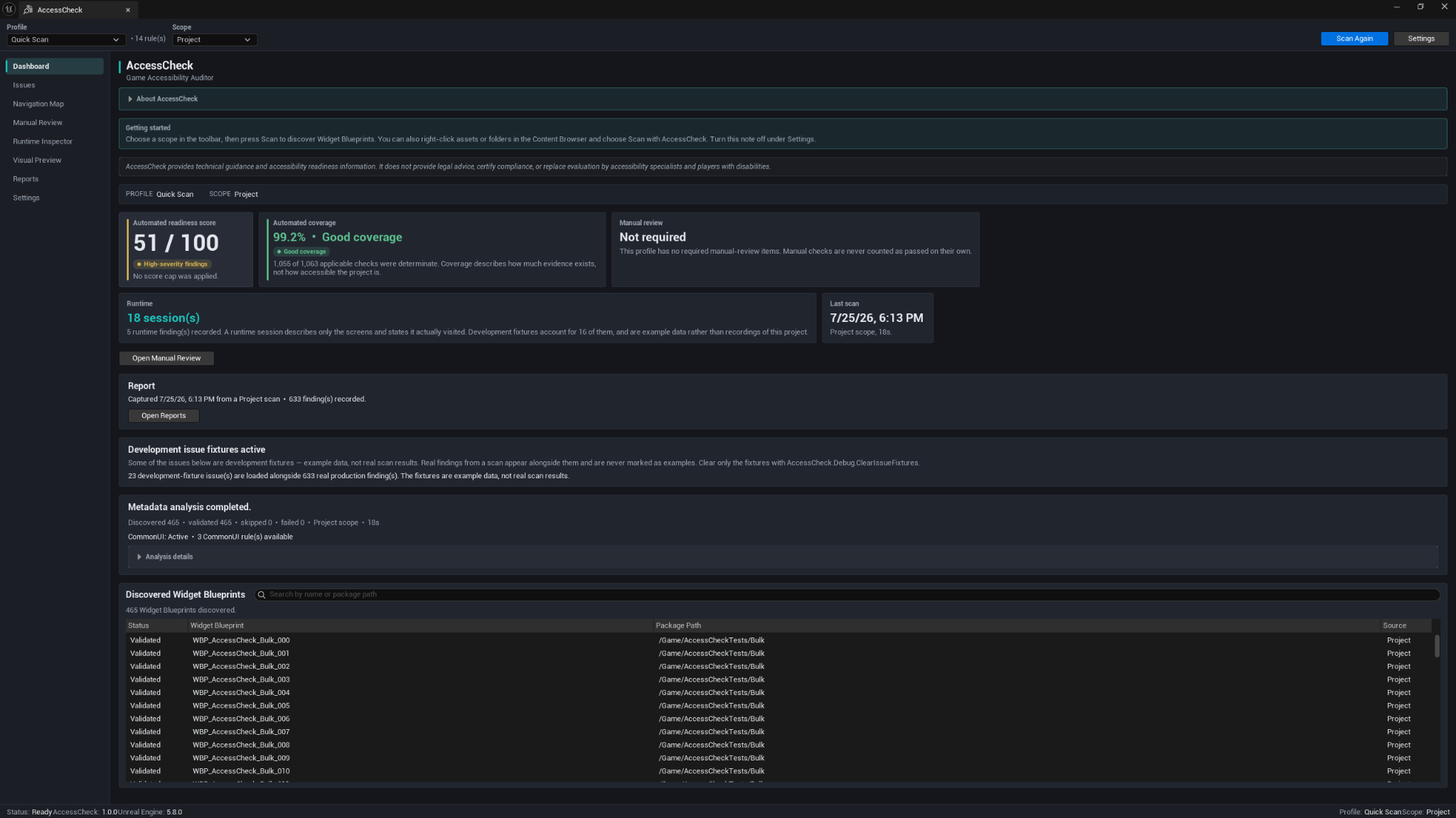
The Dashboard is the main scan overview. It shows:
- The active profile and scope.
- Automated readiness score.
- Automation coverage.
- Manual-review status.
- Runtime session and runtime-finding summary.
- Last completed scan information.
- Current report status.
- Live scan progress and analysis details.
- The inventory of discovered Widget Blueprints.
Automated readiness score
The score summarizes active static findings according to the configured scoring model. Severity caps prevent a result with serious findings from appearing stronger than it should.
The score is a review signal. It is not a legal result, a certification, or proof that the user interface is accessible.
Automation coverage
Coverage describes how much applicable automated evidence was determinate. It helps you distinguish a strong result from one based on missing or inconclusive data.
High coverage does not mean high accessibility quality. It means AccessCheck was able to evaluate most applicable checks.
Manual review
Manual review is shown separately. It is never merged into the automated score or silently counted as passed.
Development fixtures
Development builds can include clearly marked example findings, sessions, and evidence used to demonstrate and test the tool. These are labeled Development fixture and are not real project findings. Released marketplace packages should not include those fixtures.
Issue Explorer
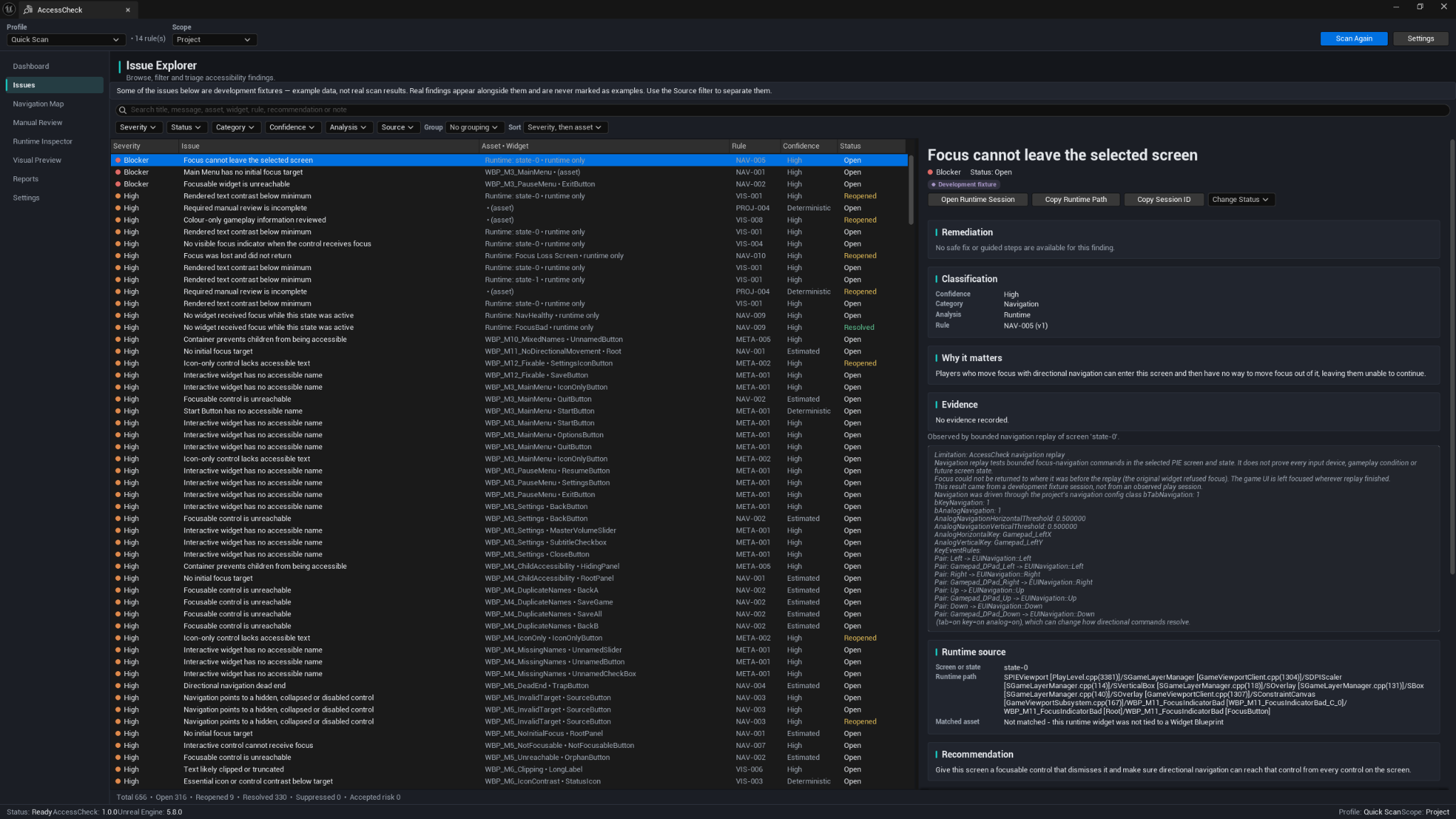
The Issue Explorer is used to inspect and triage findings.
Search and filters
You can filter by:
- Severity.
- Status.
- Category.
- Confidence.
- Analysis mode.
- Source.
You can also search, group, and sort the visible result set.
Finding details
Selecting a row can show:
- Severity and current status.
- Rule ID and category.
- Confidence and analysis mode.
- Why the issue matters.
- Static, runtime, or visual evidence.
- The affected asset, widget, screen state, or runtime path.
- Recommendation and remediation options.
- Decision and history information.
Use Open Source or the available asset actions to jump to the affected Widget Blueprint or widget when AccessCheck has a reliable source location.
Finding lifecycle
Findings can use the following states:
- Open
- Reopened
- Resolved
- Suppressed
- Accepted Risk
- Needs Manual Review
- Not Applicable
Resolution is evidence-driven. A finding resolves only when the same source is evaluated again with determinate evidence showing that the issue is no longer present.
Important rules:
- Indeterminate results do not resolve findings.
- Static scans do not resolve runtime findings.
- A runtime issue is not resolved simply because it was not observed in a later session.
- Automated scans do not resolve manual-review risks.
- Suppression and Accepted Risk decisions should include a reason.
- Optional owner, ticket, and expiry information can be recorded.
- An expired decision returns to active-risk treatment.
Navigation Map
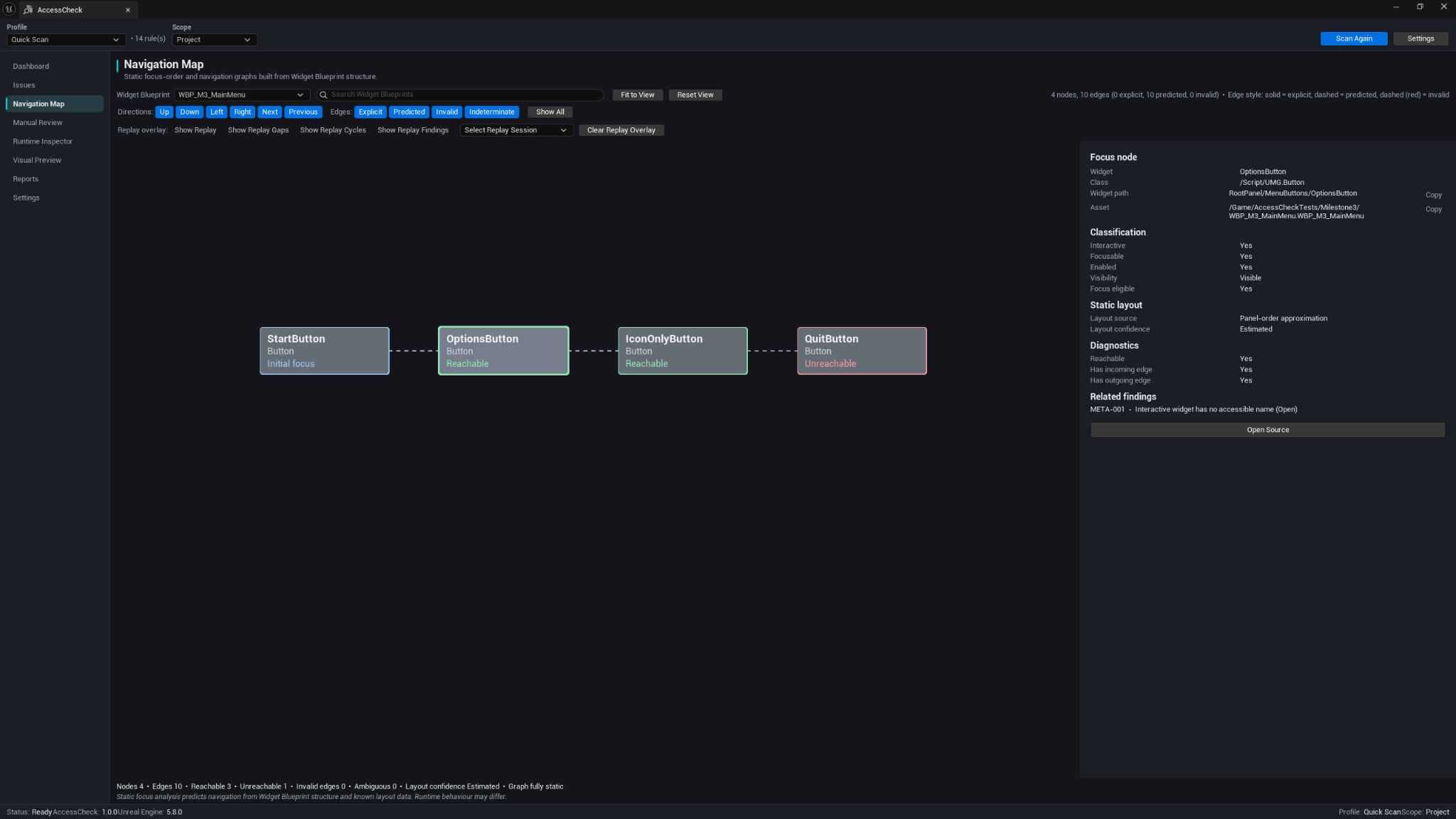
The Navigation Map visualizes static focus structure and predicted directional navigation.
It can help you find:
- Controls with no reachable focus path.
- Missing initial focus.
- Dead ends.
- Missing return paths.
- Navigation that points to hidden, collapsed, disabled, or non-focusable controls.
- Differences between explicit navigation and layout-based prediction.
Controls
- Choose the Widget Blueprint to inspect.
- Search Widget Blueprints.
- Filter by direction.
- Filter explicit, predicted, invalid, or indeterminate edges.
- Use Fit to View and Reset View.
- Select a node or edge for details.
- Open the related source or finding where available.
Line style and text are used alongside color so the graph does not depend on color alone.
The map is static analysis. Runtime layout, dynamic visibility, controller behavior, and gameplay state can still change the real navigation path.
Manual Review Centre
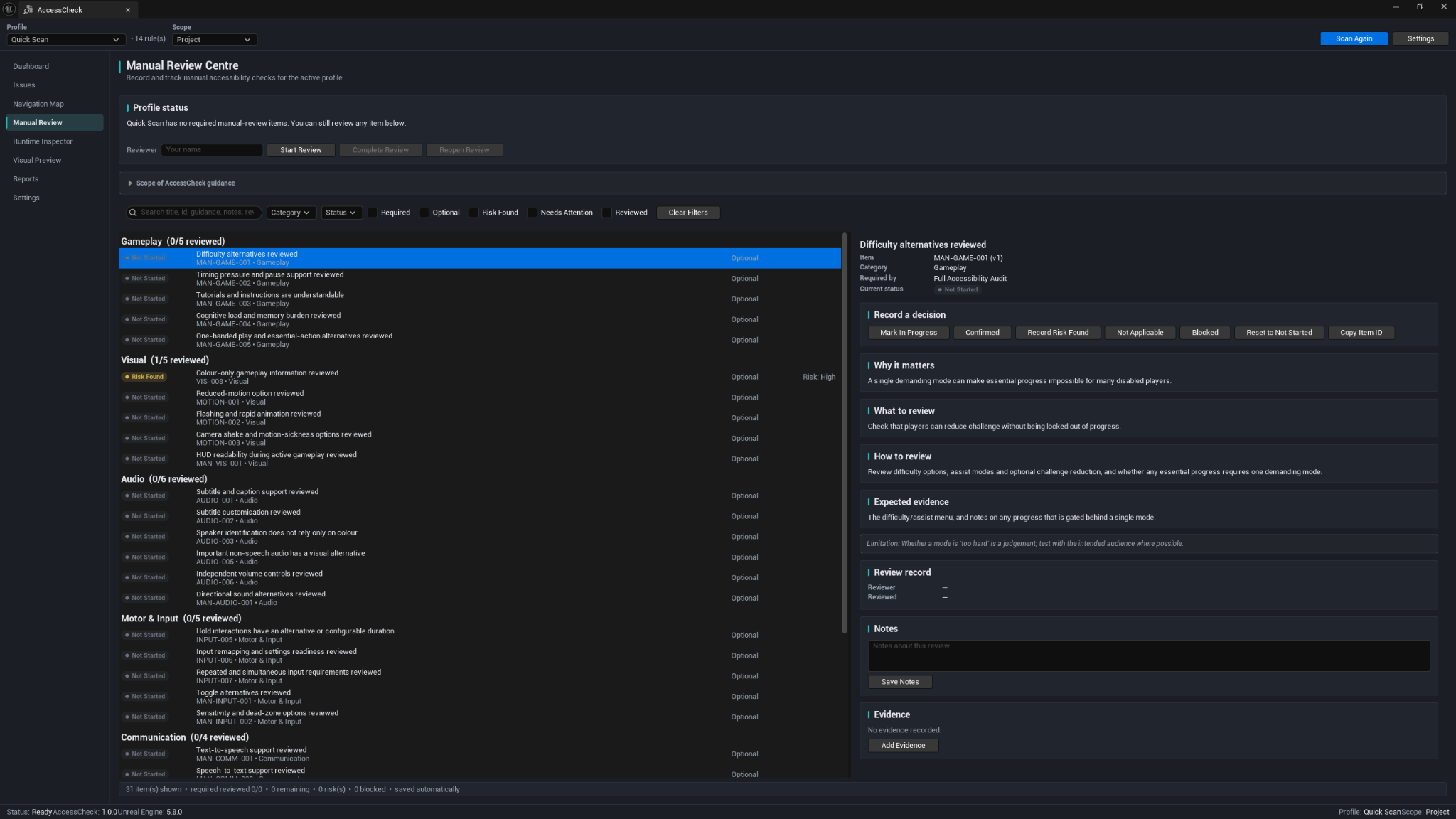
The Manual Review Centre covers questions that should not be answered automatically.
Typical categories include:
- Gameplay alternatives.
- Visual accessibility.
- Audio and subtitles.
- Motor and input options.
- Communication support.
Starting a review
- Enter the reviewer name.
- Click Start Review.
- Work through the required and optional checklist items.
- Read Why it matters, What to review, How to review, and Expected evidence.
- Record a decision.
- Add notes and evidence references where useful.
- Complete the review after all required items reach a terminal reviewed state.
Review decisions
- Mark In Progress
- Confirmed
- Record Risk Found
- Not Applicable
- Blocked
- Reset to Not Started
A completed review means every required item has been reviewed. It does not mean that every item passed or that no accessibility risks remain.
Runtime Inspector
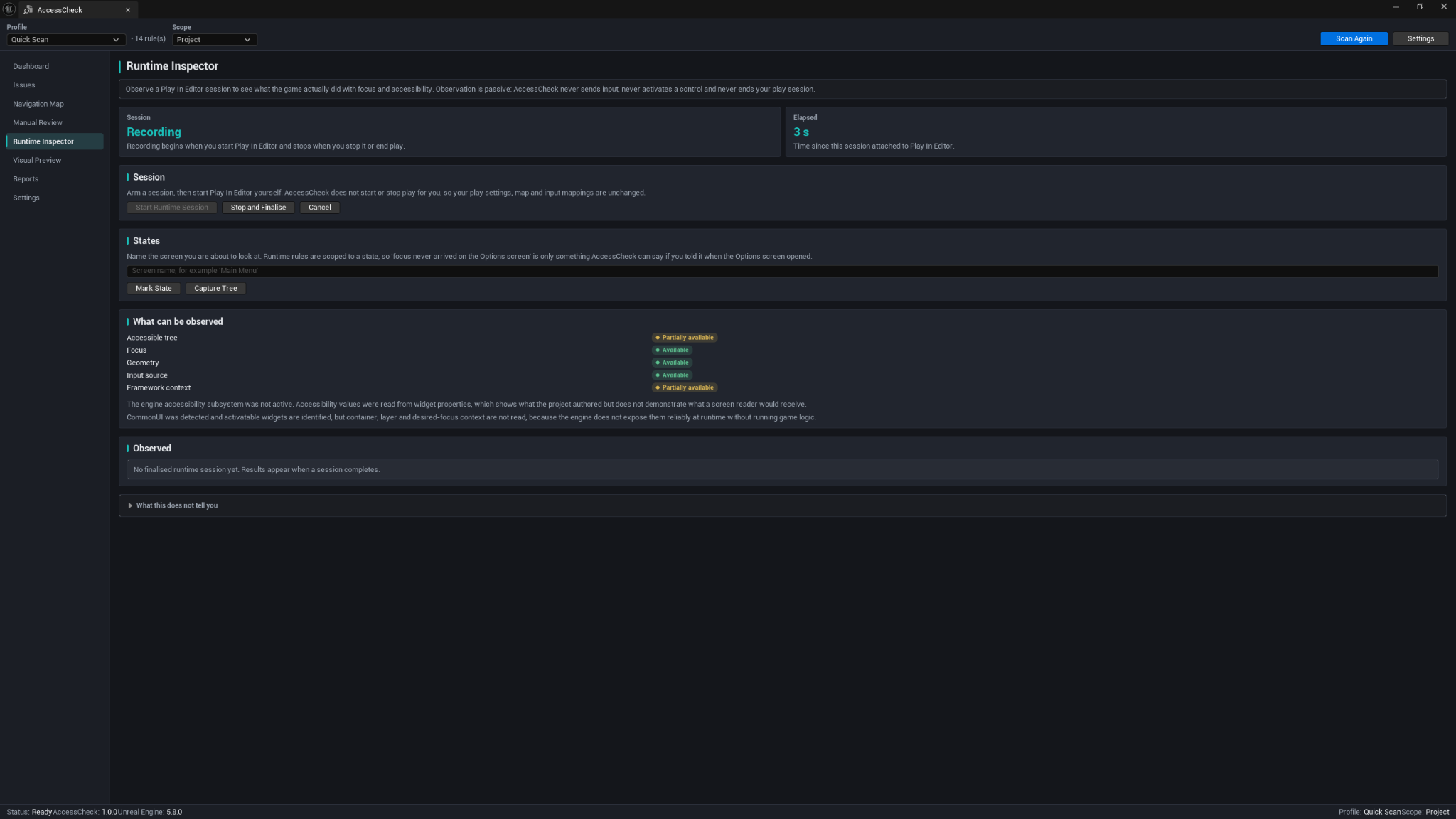
The Runtime Inspector passively observes a Play-In-Editor session.
AccessCheck does not start or stop play, send navigation commands, activate controls, or change the project's input configuration.
Recording a session
- Open Runtime Inspector.
- Arm a runtime session.
- Start Play-In-Editor yourself.
- Enter a useful state name such as
Main Menu,Pause Menu, orOptions. - Use Mark State and Capture Tree as needed.
- Navigate through the interface normally.
- Return to AccessCheck and choose Stop and Finalise.
Observed capabilities
AccessCheck records capabilities only when the engine and session make them available:
- Accessible tree.
- Focus.
- Widget geometry.
- Input source.
- Framework or context information.
A capability may be Available, Partially available, or unavailable. AccessCheck reports missing evidence honestly rather than treating it as a pass.
Runtime results describe only the screens, states, inputs, viewport, platform, and conditions actually observed in that session.
Visual Preview
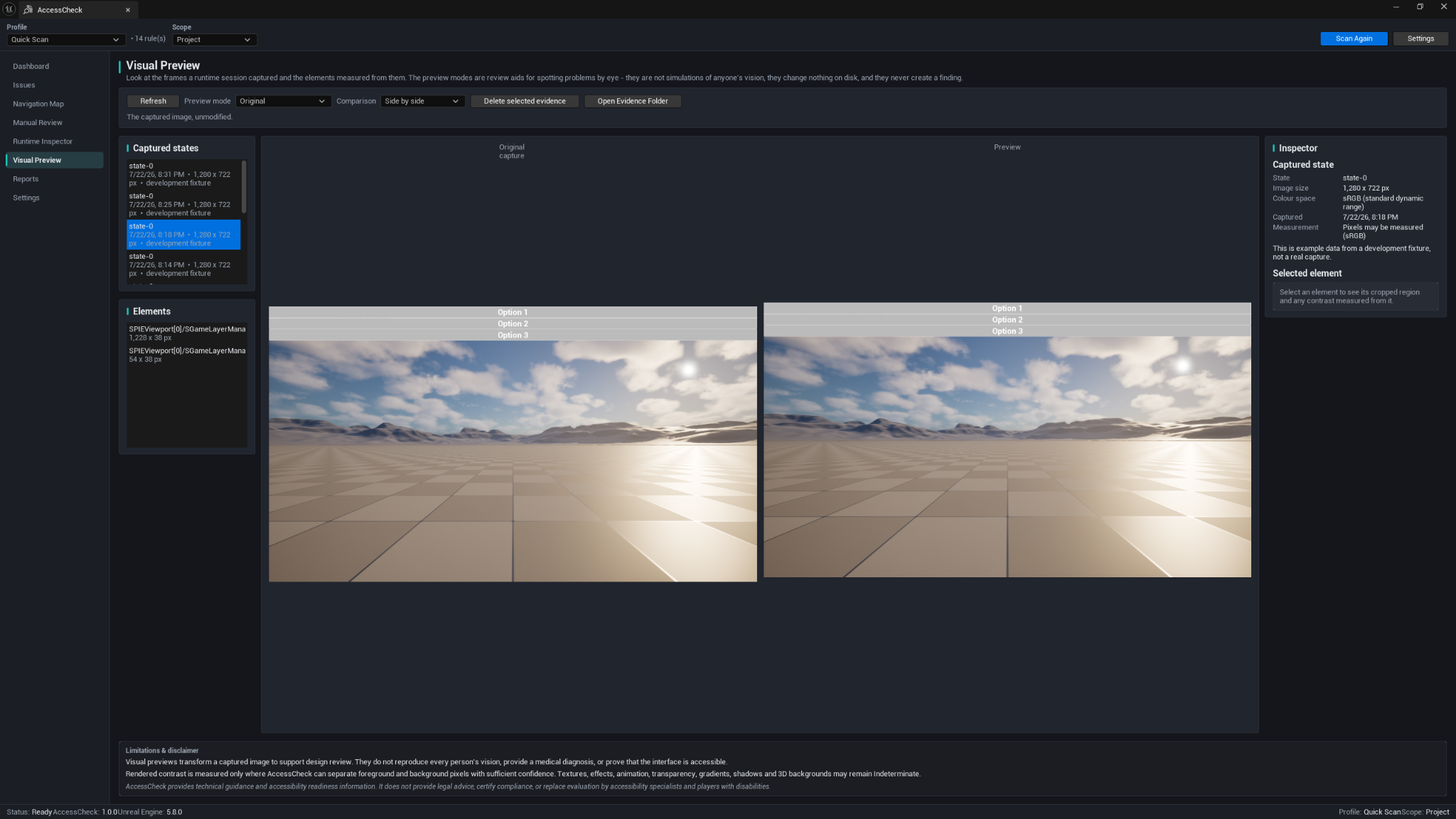
Visual Preview is used to inspect captured runtime frames and measured UI elements.
You can:
- Select a captured state.
- Select measured elements and crops.
- Compare the original frame with a review preview.
- Review rendered contrast measurements.
- Inspect focus pairs and runtime visual evidence.
- Open the local evidence folder.
- Remove selected evidence when it is no longer needed.
Full captures are not included in reports by default. Selected crops can be included when report settings allow it.
Preview limitations
Preview transforms support design review. They do not reproduce every person's vision, provide a medical diagnosis, or prove that the interface is accessible. Textures, effects, animation, transparency, gradients, shadows, and 3D backgrounds can remain indeterminate.
Reports and baselines
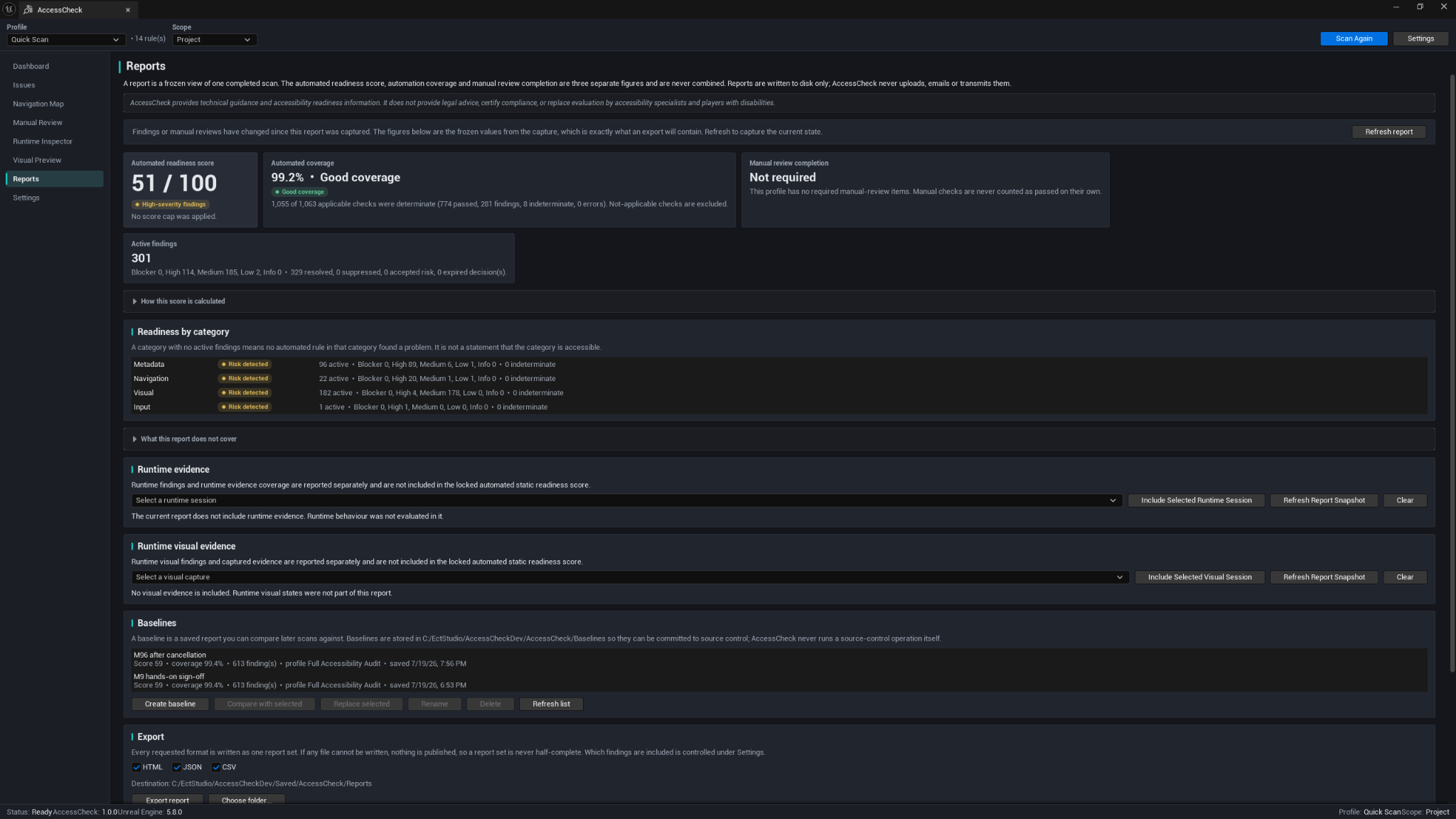
A report is a frozen snapshot of a completed scan. Refreshing creates a new snapshot rather than changing the previous one.
Reports keep the following areas separate:
- Automated static readiness score.
- Automation coverage.
- Manual-review completion.
- Runtime findings from a selected session.
- Runtime visual evidence from a selected capture set.
Report exports
Supported formats:
- HTML
- JSON
- CSV
You can choose the output folder and control which decision states, review notes, and evidence references are included through Settings.
Baselines
A baseline is a saved report used for later comparison.
Available baseline actions include:
- Create.
- Select.
- Compare.
- Replace.
- Rename.
- Delete.
- Refresh the baseline list.
Comparison classifications can include:
- New.
- Resolved.
- Reopened.
- Changed.
- Newly Evaluated.
- No Longer Evaluated.
- Not Comparable.
AccessCheck refuses incompatible comparisons when project, profile, scope, rule set, or scoring configuration does not match closely enough. Missing runtime or visual evidence is not automatically treated as resolved.
Baselines are saved under the project's AccessCheck/Baselines/ directory by default, outside Saved/, so a team can commit them to source control. AccessCheck does not perform source-control operations on baseline files.
Safe Fix and Guided Fix
Safe Fix
AccessCheck offers a Safe Fix only for narrowly defined changes that can be previewed and verified.
The workflow is:
- Open the Safe Fix preview.
- Review the exact widget, property, before value, and after value.
- Apply the fix manually from the preview dialog.
- AccessCheck performs one Unreal transaction.
- The Widget Blueprint is compiled when required.
- A targeted rescan verifies the result.
- Use normal Unreal Undo and Redo when needed.
The fix is refused when:
- The finding is stale and needs a rescan.
- The property is bound or dynamic.
- The source is missing or ambiguous.
- The asset is read-only.
- Source-control state prevents a safe edit.
Version 1.0.0 includes one Safe Fix provider for accessible-name repair. It can apply to more than one related metadata rule, but AccessCheck does not present broad design changes as automatic fixes.
Guided Fix
Guided Fix makes no automatic mutation. It opens the most reliable source available and provides practical steps and validation guidance that you can copy.
Runtime-only or ambiguous findings may not have an exact source action. In those cases, AccessCheck explains the limitation instead of pretending it can make a safe change.
Source control and Undo/Redo
Safe Fix respects Unreal transactions and source-control state.
- Writable files can be changed after preview and confirmation.
- When checkout is available, AccessCheck can prompt before applying.
- A file checked out by another user or otherwise read-only is refused.
- Unknown source-control state is treated cautiously.
- Reports and baselines remain under your source-control policy; AccessCheck does not submit or commit them.
Use Ctrl+Z and Ctrl+Y for normal editor Undo and Redo.
Settings
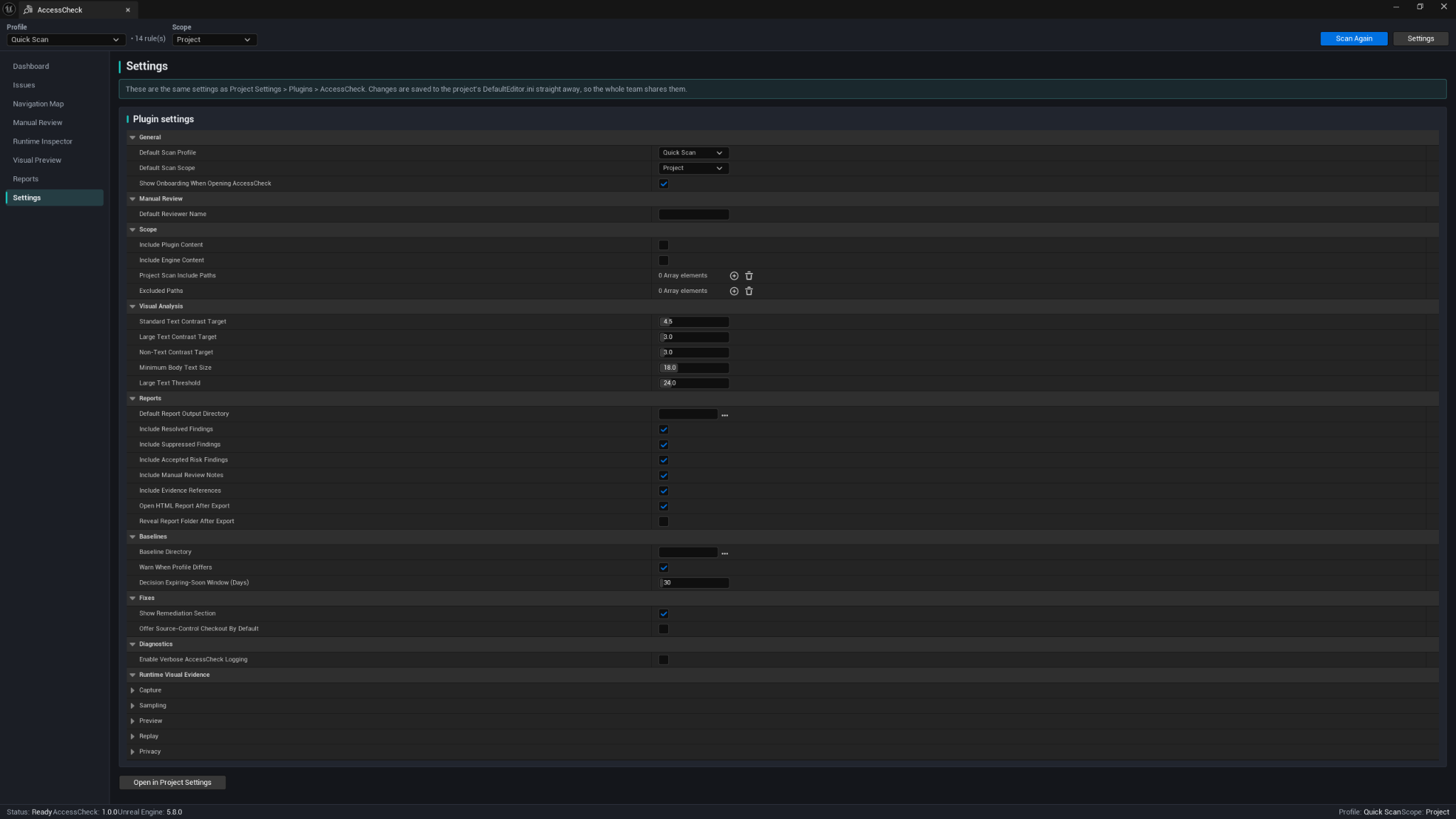
Settings are available inside AccessCheck and are mirrored under:
Project Settings → Plugins → AccessCheck
Settings are stored in the project's editor configuration so a team can share the intended setup.
General
- Default scan profile.
- Default scan scope.
- Show onboarding when AccessCheck opens.
Manual Review
- Default reviewer name.
Scope
- Include plugin content.
- Include engine content.
- Project scan include paths.
- Excluded paths.
Visual Analysis
- Standard text contrast target.
- Large-text contrast target.
- Non-text contrast target.
- Minimum body text size.
- Large-text threshold.
Reports
- Default report output directory.
- Include resolved findings.
- Include suppressed findings.
- Include accepted-risk findings.
- Include manual-review notes.
- Include evidence references.
- Open the HTML report after export.
- Reveal the report folder after export.
Baselines
- Baseline directory.
- Warn when profiles differ.
- Decision expiry window.
Fixes and diagnostics
- Show remediation section.
- Offer source-control checkout by default.
- Enable verbose AccessCheck logging.
Additional sections control runtime visual evidence, capture, sampling, preview, replay, and privacy behavior.
CommonUI
CommonUI support is optional.
When CommonUI is enabled in the project:
- The AccessCheck CommonUI module loads.
- CommonUI-specific rules become available where relevant.
- The Dashboard shows the CommonUI analysis state.
When CommonUI is not enabled:
- AccessCheck continues to work with standard UMG.
- CommonUI rules are omitted.
- No phantom or misleading rule count is shown.
Shipping Gate and CI
The AccessCheck commandlet runs a static scan, evaluates a policy, writes reports and a machine-readable result, and returns a process exit code. It does not modify assets.
Basic command
UnrealEditor-Cmd "<ProjectPath>" -run=AccessCheck -Profile=ShippingGate -Scope=Project -Output="<OutputPath>" -unattended -nop4 -nosplash -nullrhi
Help
UnrealEditor-Cmd "<ProjectPath>" -run=AccessCheck -Help -unattended -nop4 -nosplash -nullrhi
Folder scope
UnrealEditor-Cmd "<ProjectPath>" -run=AccessCheck -Scope=Folder -Folder=/Game/UI -Output="<OutputPath>" -unattended -nop4 -nosplash -nullrhi
Asset scope
UnrealEditor-Cmd "<ProjectPath>" -run=AccessCheck -Scope=Asset -Asset=/Game/UI/WBP_Options.WBP_Options -Output="<OutputPath>" -unattended -nop4 -nosplash -nullrhi
Use quotes around file-system paths and around -Key=Value arguments in batch scripts.
Policy options
Common policy options include:
-Profile=ShippingGate-MinScore=85-MinCoverage=90-FailOn=High-MaxIndeterminate=<number>-RequireManualReview=true-NoManualReview-FailOnScanErrors=true-Baseline=<path>-FailOnNew=High-NoHtml-NoJson-NoCsv-NoReports-IncludeResolved-IncludeDecisions-Verbose
Use -Help for the authoritative option list for the installed version.
Baseline regression example
UnrealEditor-Cmd "<ProjectPath>" -run=AccessCheck -Profile=ShippingGate -Scope=Project -Output="<OutputPath>" -Baseline="<OutputPath>/baseline.json" -FailOnNew=High -unattended -nop4 -nosplash -nullrhi
Incomplete required manual review is a normal gate-policy failure, not a tool crash. Use -NoManualReview only when the pipeline intentionally does not gate on manual completion.
CI helper scripts
The plugin includes:
CI/run_accesscheck_gate.ps1
CI/run_accesscheck_gate.bat
PowerShell example:
./run_accesscheck_gate.ps1 -Engine "<EngineRoot>" -Project "<ProjectPath>" -Output "<OutputPath>" -MinScore 85
Batch example:
run_accesscheck_gate.bat "<EngineRoot>" "<ProjectPath>" "<OutputPath>" "-MinScore=85"
The scripts stream the log, surface the ACCESSCHECK_RESULT line, and preserve the commandlet exit code.
Exit codes
| Code | Meaning |
|---|---|
| 0 | Gate passed; the report-grade scan met the configured policy. |
| 1 | Gate policy failed; the scan completed but a threshold or required review condition was not met. |
| 2 | Invalid arguments or configuration; the scan did not start. |
| 3 | Initialization or project-load failure. |
| 4 | Scan failed, was cancelled, remained partial, or timed out. |
| 5 | Report or output write failure. |
| 6 | Baseline load or comparison failure. |
| 7 | Reserved for an invalid manual-review state. |
| 8 | Unexpected internal error. |
The commandlet prints one machine-readable result line, for example:
ACCESSCHECK_RESULT status=passed exitCode=0 score=91 coverage=94 blockers=0 high=0 medium=2 manualReview=complete newFindings=0 output=".../AccessCheck_Report.html"
It also writes accesscheck_result.json to the output directory with the status, exit code, score, coverage, severity totals, effective policy, ordered reasons, report paths, and disclaimer.
Local files and privacy
AccessCheck runs locally and makes no network calls, telemetry requests, analytics requests, or uploads.
Typical storage locations:
| Location | Purpose |
|---|---|
<Project>/Saved/AccessCheck/ |
Reports, runtime sessions, visual evidence, and applied-fix records. |
<Project>/AccessCheck/Baselines/ |
Baseline files intended for optional source control. |
| Project editor config | Shared AccessCheck settings. |
Screenshots, crops, reports, and logs can contain private or unreleased project content. Review them before sharing and only share material you are authorized to provide.
Troubleshooting
| Problem | What to check |
|---|---|
| AccessCheck is missing from the Tools menu | Confirm the plugin is enabled, restart the editor, and verify the folder is at <Project>/Plugins/AccessCheck/. |
| Module compiled for a different engine | Install the package built for the project's Unreal Engine version. |
| Source package does not compile | Install the required C++ toolchain and regenerate project files. |
| Scan finds no Widget Blueprints | Confirm the selected scope contains UMG assets and review include/exclude paths in Settings. |
| CommonUI rules are missing | CommonUI is not enabled; standard UMG analysis still works. |
| Accessible-tree capability is partial or inactive | The engine accessibility subsystem may not be active in that build or session. AccessCheck reports this as missing evidence, not a pass. |
| No runtime session appears | Arm the session, start Play-In-Editor, mark states, and finalize the session. |
| Visual capture is unavailable | Make sure a stable game viewport is present and read the capability reason shown by the tool. |
| Report cannot be written | Check that the destination exists and is writable. |
| Baseline is incompatible | Create a new baseline for the current project, profile, scope, rule set, and scoring configuration. |
| Safe Fix is unavailable | Rescan the finding and check for bound properties, ambiguous sources, read-only files, or unsupported fix types. |
| Checkout or read-only warning | Make the file writable or check it out through the project's normal source-control workflow. |
| Shipping Gate returns exit code 1 | Review the policy reasons; a threshold or required manual review condition was not met. |
| Commandlet returns exit code 2 | Check -Help, required paths, option spelling, and quoting. |
| Evidence image is missing | The capture may have been removed or its local path cleared; record the evidence again. |
| Development-fixture banner is visible | The build contains example test data. Clear the fixtures; released packages should not include them. |
Limitations and common questions
Does AccessCheck certify accessibility or legal compliance?
No. It provides technical guidance and a repeatable readiness workflow. Legal requirements and accessibility quality still require appropriate human expertise and testing.
Does a score of 100 mean the game is accessible?
No. The score reflects the implemented automated rules and available evidence. It cannot judge every screen, gameplay mechanic, content type, platform, or lived player experience.
What does Indeterminate mean?
AccessCheck did not have enough trustworthy evidence to pass or fail that check. Indeterminate is not counted as a pass.
Does AccessCheck work without CommonUI?
Yes. Standard UMG analysis works without CommonUI. CommonUI-specific rules appear only when the plugin is enabled in the project.
Does AccessCheck change project content?
Normal scans, runtime recording, manual review, reports, and comparisons do not modify assets. A Safe Fix changes only the exact previewed property after confirmation and supports Undo/Redo.
Does it run in the packaged game?
No. AccessCheck is editor-only.
Does it upload reports or screenshots?
No. All output remains local until you choose to share it.
Can runtime evidence prove every screen works?
No. Runtime evidence covers only the states and conditions that were actually observed.
Are visual previews a color-blindness or low-vision simulator?
No. They are design-review aids and should not be treated as a medical simulation.
Support
Email [email protected] and include:
- AccessCheck version.
- Unreal Engine version.
- Operating system.
- Profile and scope.
- Whether CommonUI is enabled.
- Reproduction steps.
- Relevant logs.
- Report or CI result when useful.
Review attached reports and screenshots for private content before sending them.
Copyright © ECal Studios 2026. All rights reserved.