TickCheck
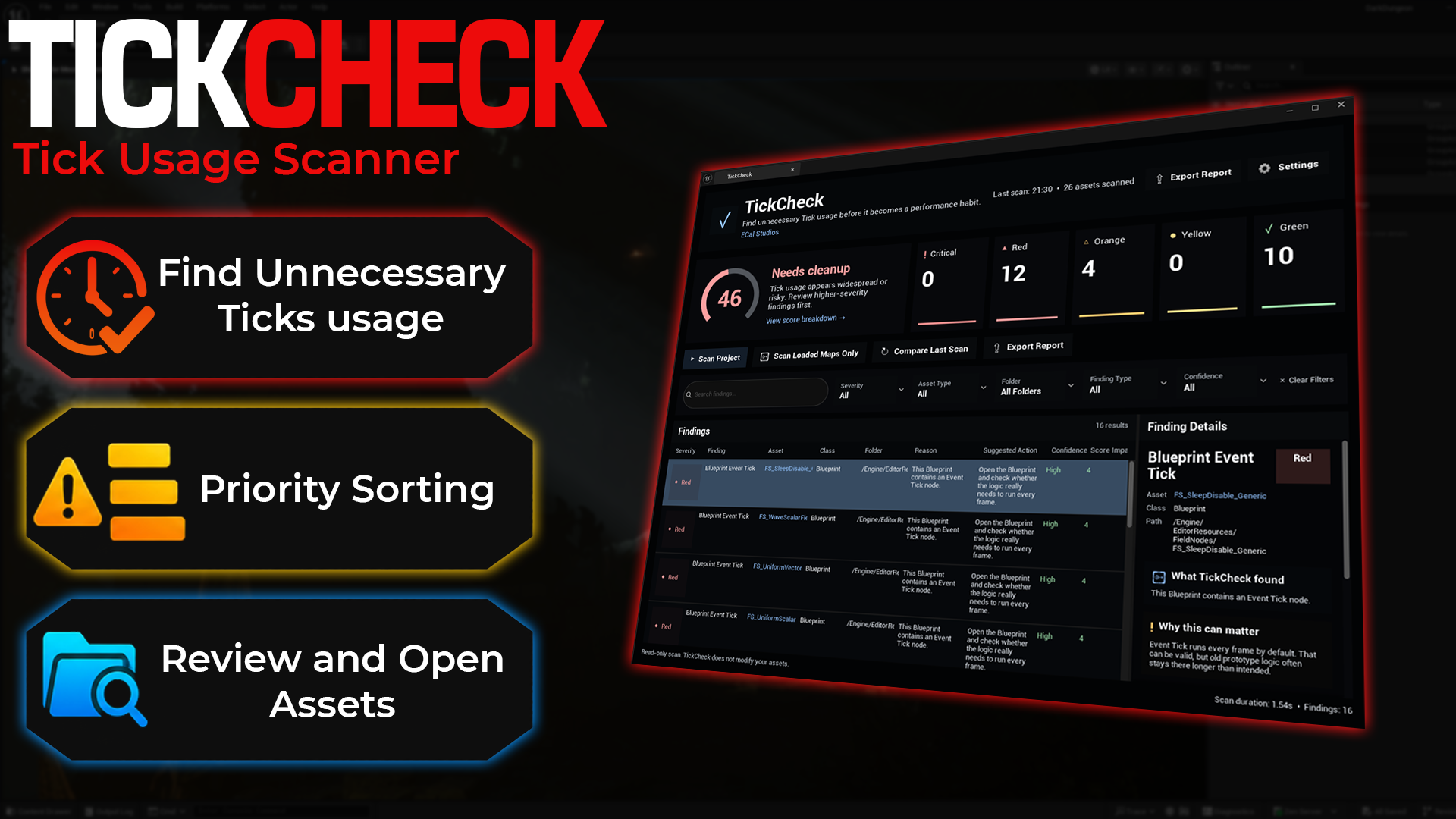
TickCheck is an editor-only Unreal Engine plugin by ECal Studios that helps developers find unnecessary or risky Tick usage before it becomes performance debt.
Tick is not always bad. Many systems need it. TickCheck is designed to make Tick usage easier to review, understand, and clean up safely.
Version
Current version: 1.1.0
Supported Unreal Engine versions: 5.5, 5.6, 5.7
Plugin type: Editor-only
Runtime impact: None
Blueprint support: No Blueprint nodes. The tool scans Blueprint assets and map actors from the editor UI.
Network replicated: No
What TickCheck does
TickCheck scans your Unreal project and highlights Tick-related patterns that may be worth reviewing.
It can detect:
- Blueprint Event Tick nodes
- Actors with Tick enabled
- Components with Tick enabled
- Tick Interval set to 0
- Hidden actors that still tick
- Tick-heavy classes and repeated Tick usage patterns
- Findings grouped by severity, confidence, and score impact
TickCheck also provides a project-level Tick Health Score from 0 to 100, so you can quickly understand how clean or risky your current Tick usage looks.
What changed in 1.1.0
Version 1.1.0 is a major UI and usability update.
The plugin now includes:
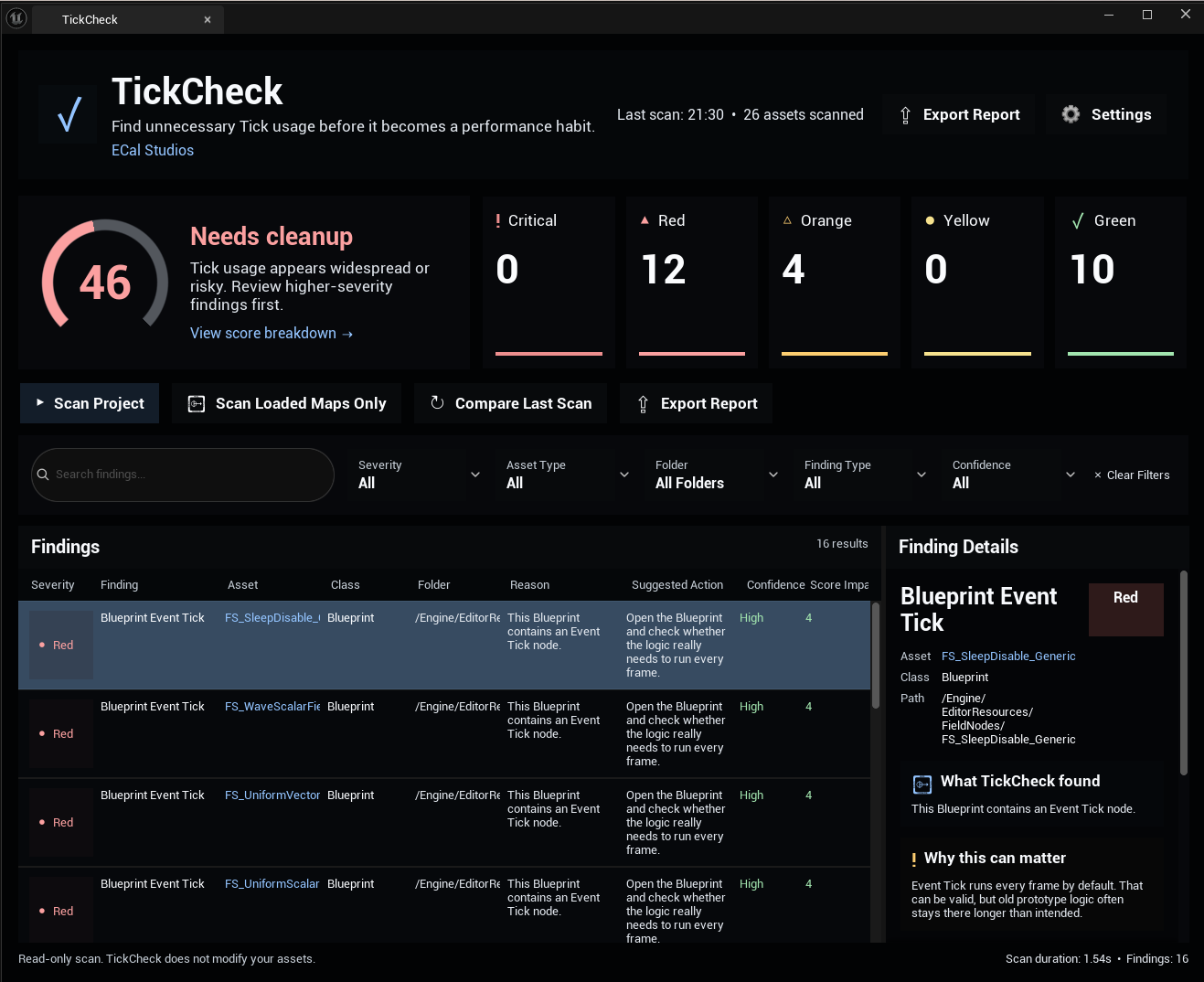
- Premium dark dashboard redesign
- Large Tick Health Score card
- Circular score ring
- Severity summary cards
- Improved scan actions
- Search and filter controls
- Cleaner findings list
- Better right-side finding details panel
- Built-in settings page inside the plugin window
- Scan duration and finding count display
- Improved beginner-friendly explanations
This update focuses on making the plugin easier to read, easier to understand, and more professional for Fab users.
Where to find TickCheck
After enabling the plugin, open it from:
Tools > ECal Studios > TickCheck
Quick start
- Open your Unreal project.
- Enable the TickCheck plugin.
- Restart the editor if Unreal asks you to.
- Open Tools > ECal Studios > TickCheck.
- Click Scan Project.
- Review the Tick Health Score.
- Click severity cards or use filters to narrow the findings.
- Select a finding to read the explanation and suggested next step.
- Use Open Asset or Browse to Folder to inspect the asset manually.
- Export a report if you want to keep a review record.
Important safety note
TickCheck is a read-only review tool.
It does not automatically remove Tick. It does not edit Blueprints. It does not modify actors. It does not save assets. It does not change project settings.
This is intentional. Tick can be valid and important, so TickCheck helps you review usage safely instead of making risky automatic changes.
Reports
TickCheck can export scan results as reports for documentation, QA review, or cleanup planning.
Reports are useful when:
- Preparing a project for release
- Reviewing performance risks
- Sharing cleanup tasks with a team
- Checking progress before and after optimization work
Suggested workflow
For best results:
- Run TickCheck before major milestones.
- Start with Critical and Red findings.
- Check whether the Tick is truly needed.
- Replace Tick with events, timers, state changes, or callbacks where appropriate.
- Re-run the scan after cleanup.
- Export a report for your records.
Limitations
TickCheck is not a runtime profiler.
It does not measure real frame time. It does not replace Unreal Insights. It does not know whether a specific Tick is gameplay-critical. It does not automatically fix assets.
TickCheck is designed to find review candidates, not to claim every Tick is bad.
Support
Documentation: TickCheck Documentation
Support: [email protected]