AccessCheck
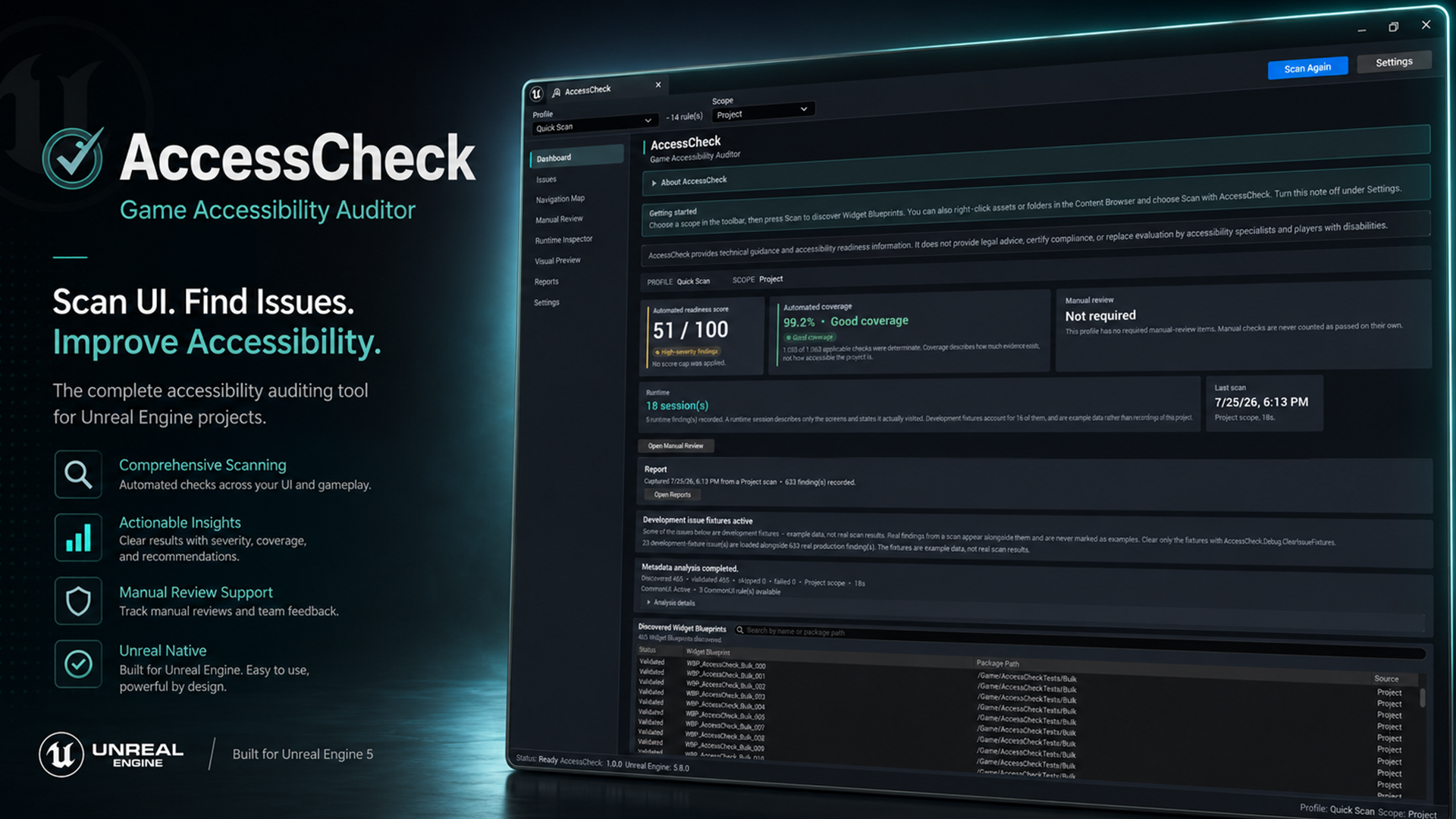
AccessCheck is an editor-only accessibility auditing tool for Unreal Engine. It scans Widget Blueprints for common UI accessibility risks, helps you inspect focus and navigation, records evidence from Play-In-Editor sessions, organizes manual review, and creates reports that can be compared over time.
It is designed to make accessibility work easier to start, easier to track, and easier to include in normal production and release workflows. AccessCheck does not claim that a project is fully accessible and does not replace testing with accessibility specialists or players with disabilities.
Version covered by this documentation
This documentation covers AccessCheck 1.0.0 for Unreal Engine 5.5, 5.6, 5.7, and 5.8. AccessCheck is an editor-only C++ plugin.
What AccessCheck helps with
-
Automated UI audits
Scan Widget Blueprints for accessible metadata, focus and navigation, visual risks, and optional CommonUI-specific checks.
-
Clear issue triage
Filter findings by severity, status, category, confidence, analysis type, and source, then open the affected widget directly.
-
Focus and navigation review
Inspect a visual navigation map that separates explicit, predicted, invalid, reachable, and unreachable focus paths.
-
Runtime evidence
Passively observe Play-In-Editor sessions to record focus, geometry, input source, accessible-tree information, and visited screen states.
-
Structured manual review
Work through checks that automation cannot judge, with reviewer names, decisions, notes, and evidence references.
-
Reports, baselines, and CI
Export HTML, JSON, and CSV reports, compare scans against saved baselines, and run a headless Shipping Gate in continuous integration.
Dashboard overview
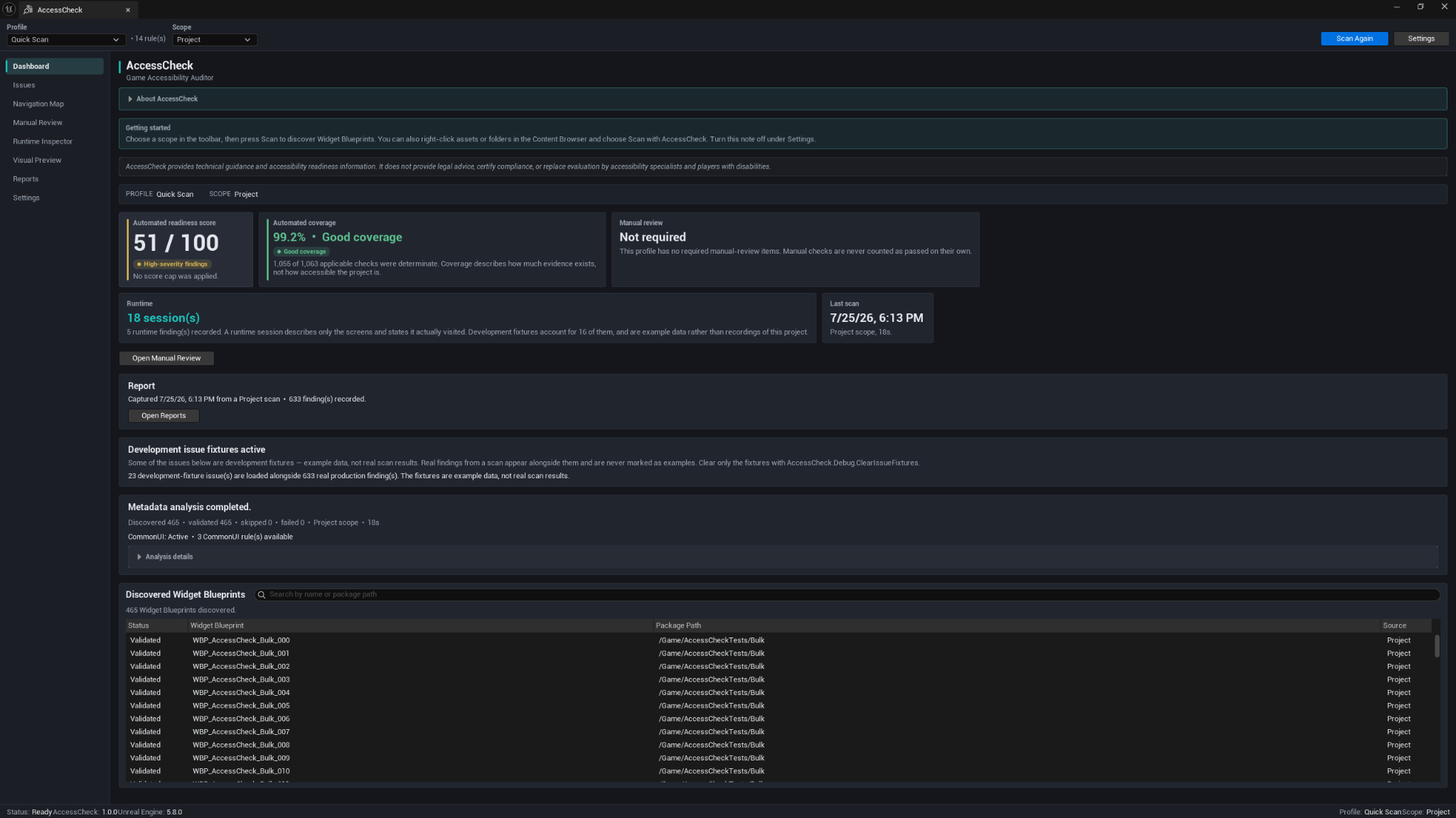
The Dashboard gives you the current accessibility-readiness picture in one place. It separates three important measurements instead of combining them into a misleading single result:
- Automated readiness score — the current static rule result.
- Automation coverage — how much of the applicable automated evidence was determinate.
- Manual review status — whether the required human checks have been completed.
You can also see runtime sessions, the latest completed scan, report status, analysis details, and the Widget Blueprints discovered in the selected scope.
Read the score as guidance
The score is a project-health signal, not a legal or compliance result. High coverage means AccessCheck had enough evidence to evaluate most applicable checks; it does not mean the interface is accessible.
Issue Explorer
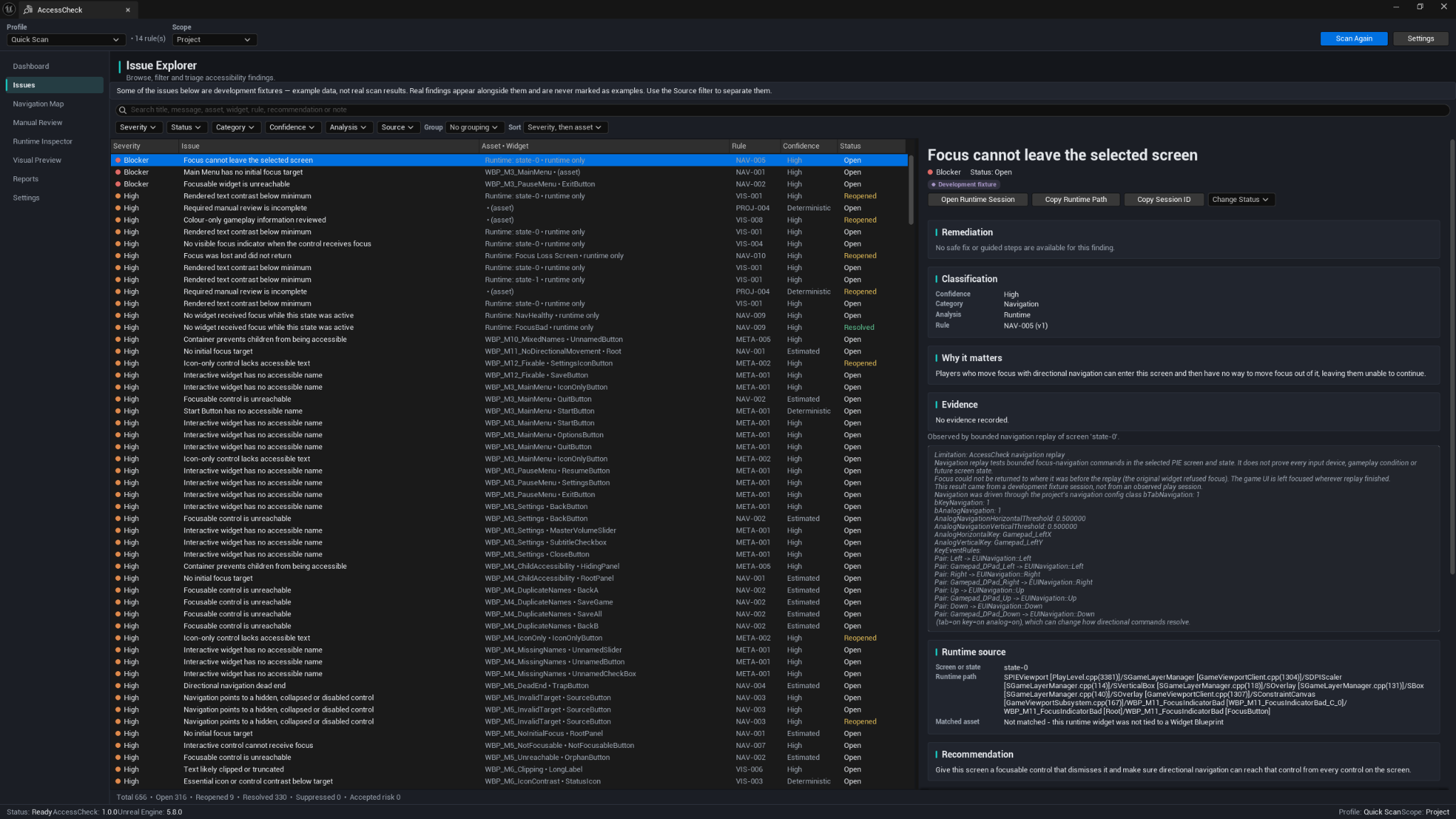
The Issue Explorer is where most day-to-day review happens. Findings can be searched, grouped, sorted, and filtered by severity, status, category, confidence, analysis mode, and source.
Selecting a finding opens its full context, including:
- Why the issue matters.
- The rule and classification.
- Static or runtime evidence.
- The affected asset, widget, or recorded state.
- Recommended next steps.
- Decision history and current status.
- Safe Fix or Guided Fix options when available.
Navigation Map
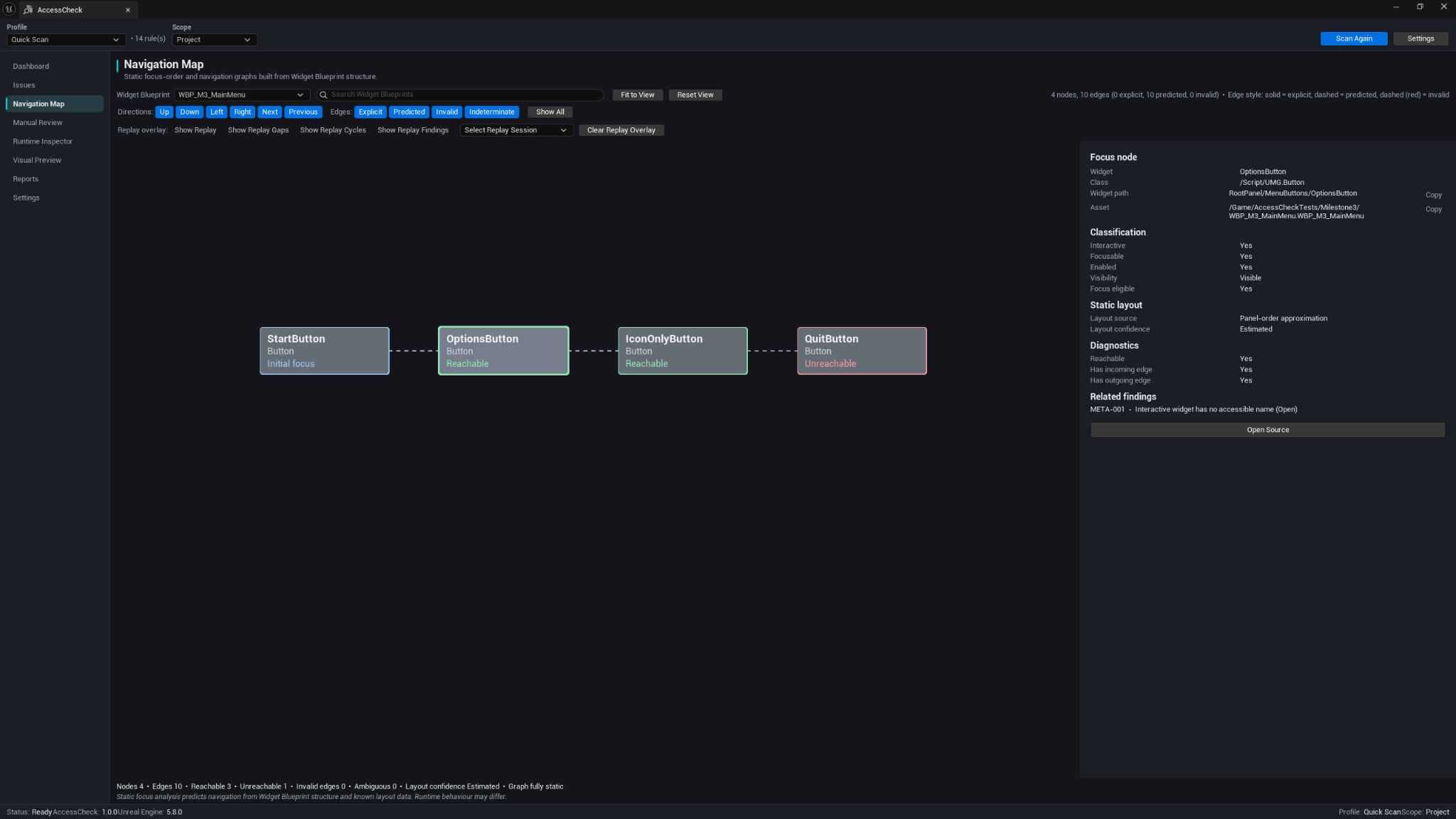
The Navigation Map turns Widget Blueprint focus structure into a readable graph. It helps you spot unreachable controls, dead ends, missing return paths, and navigation that depends on prediction rather than explicit setup.
The graph is a static analysis of authored structure and known layout. Runtime behavior can still differ, which is why AccessCheck keeps runtime validation as a separate workflow.
Manual Review Centre
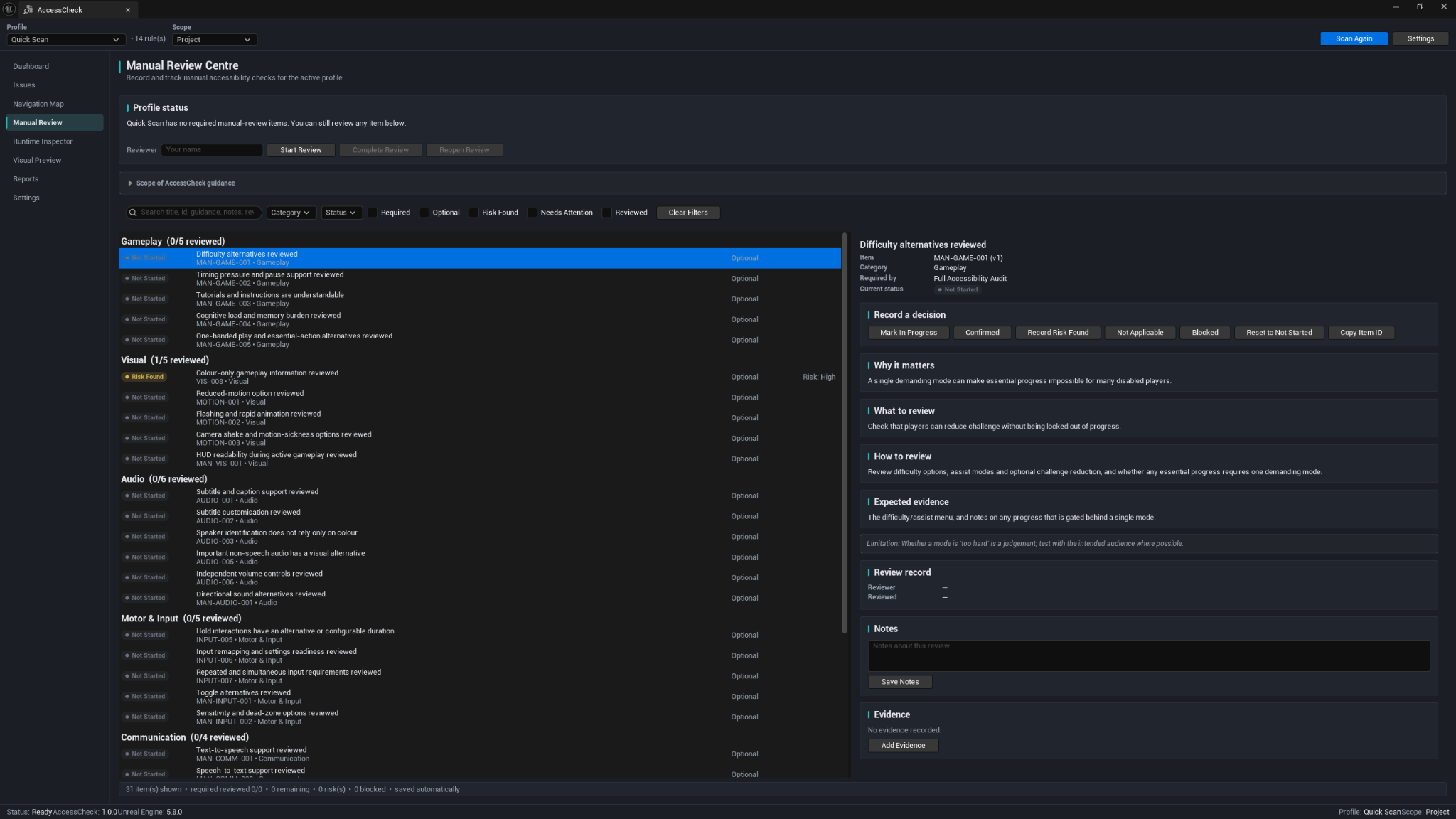
Some accessibility questions need human judgment. The Manual Review Centre provides a profile-driven checklist for areas such as gameplay alternatives, subtitles, audio cues, motion options, input requirements, and communication support.
A review is complete when every required item reaches a reviewed terminal state. Completion does not mean that no risks were found, and manual review is never quietly counted as an automated pass.
Runtime Inspector
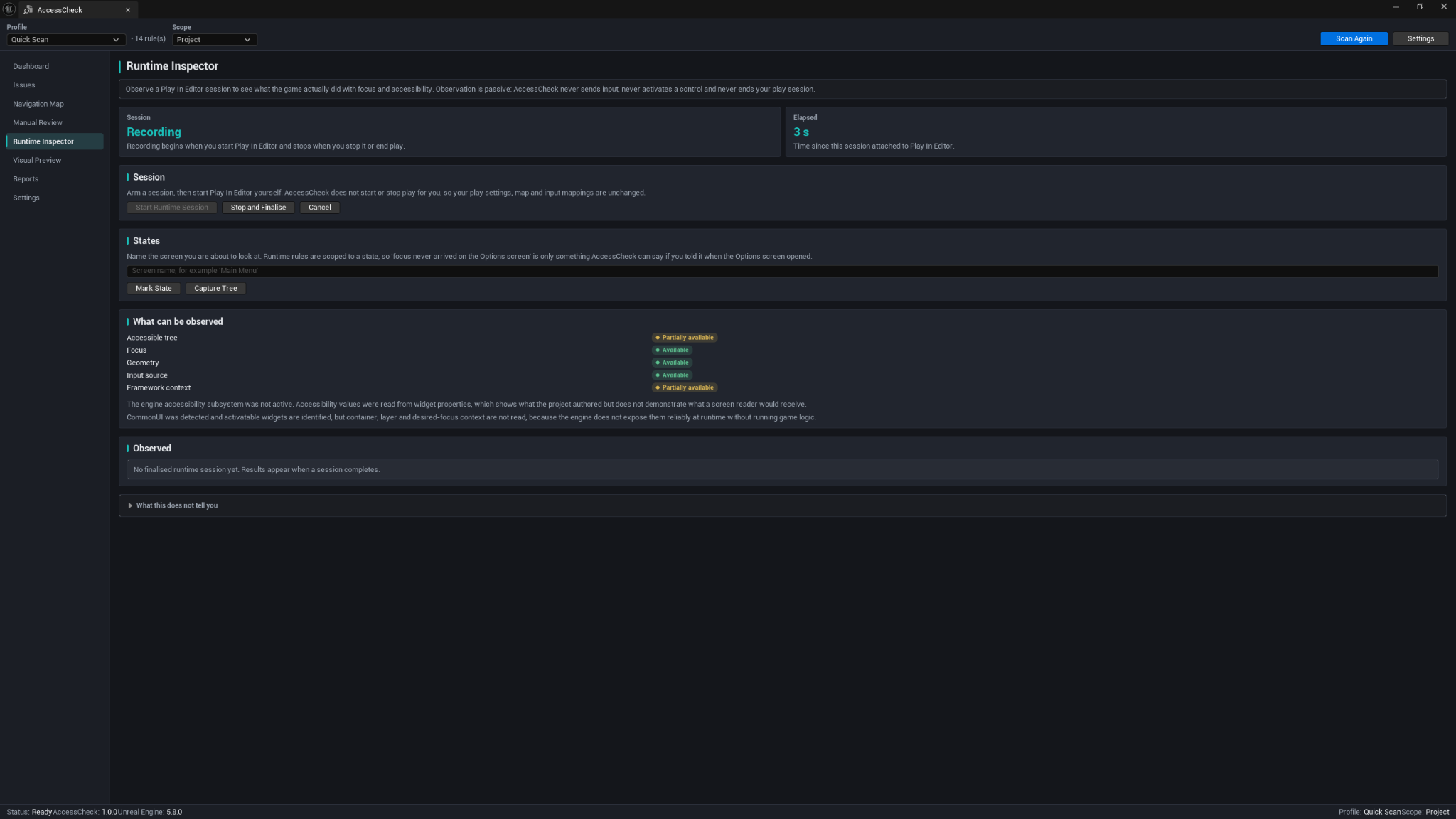
The Runtime Inspector passively records what happened during a Play-In-Editor session. You start and stop Play-In-Editor yourself; AccessCheck does not send input, activate controls, or change your play settings.
You can mark named states such as Main Menu, Options, or Pause Menu, then capture available evidence for focus, geometry, accessible-tree information, and input source. Results describe only the screens and states that were actually visited.
Visual Preview
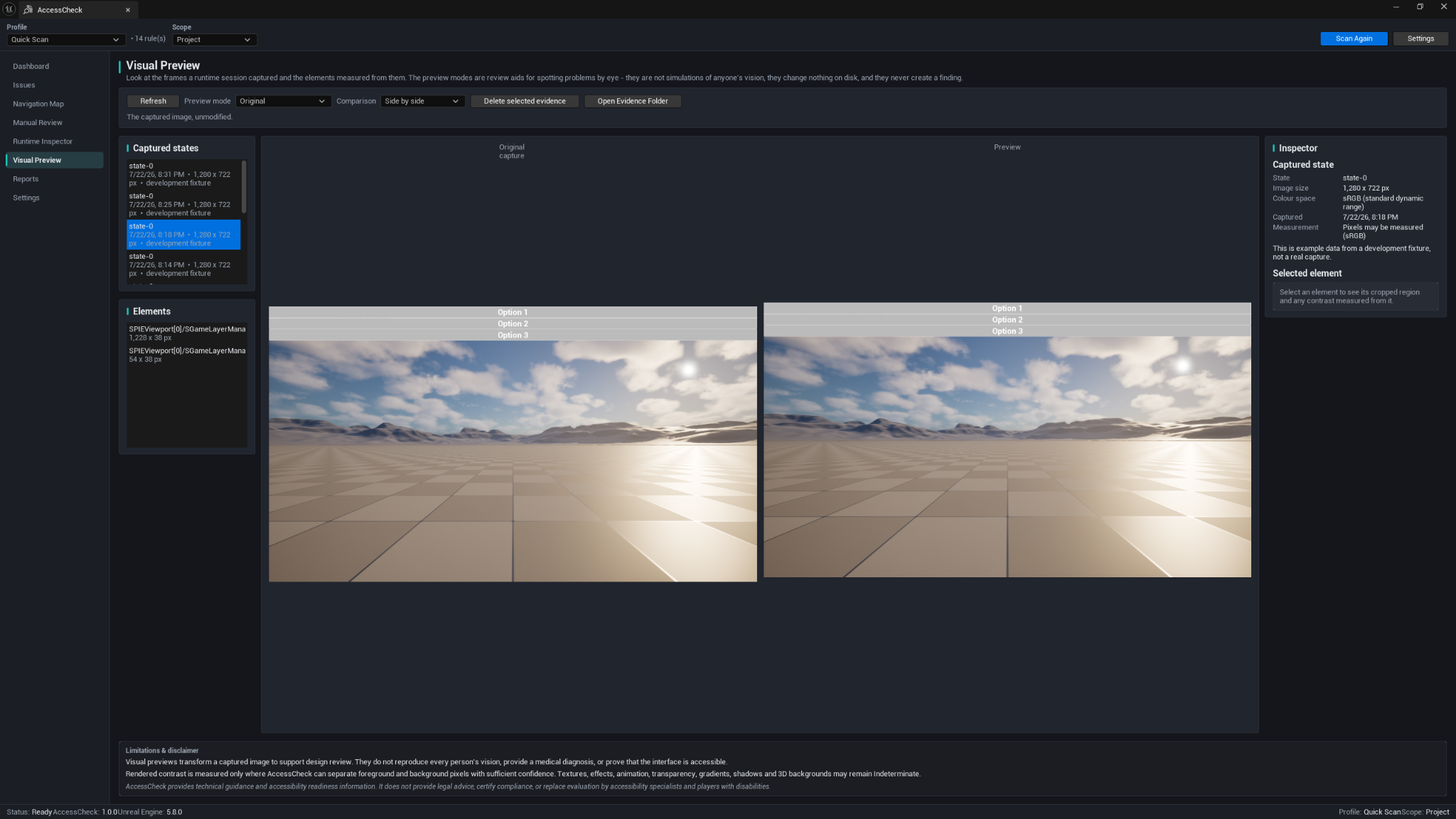
Visual Preview helps you inspect captured runtime frames, measured UI elements, contrast evidence, and design-review preview transforms. It is useful for spotting problems by eye and preparing evidence for a review or report.
Preview transforms are review aids. They do not simulate every person's vision, provide a medical diagnosis, or prove accessibility.
Reports and baselines
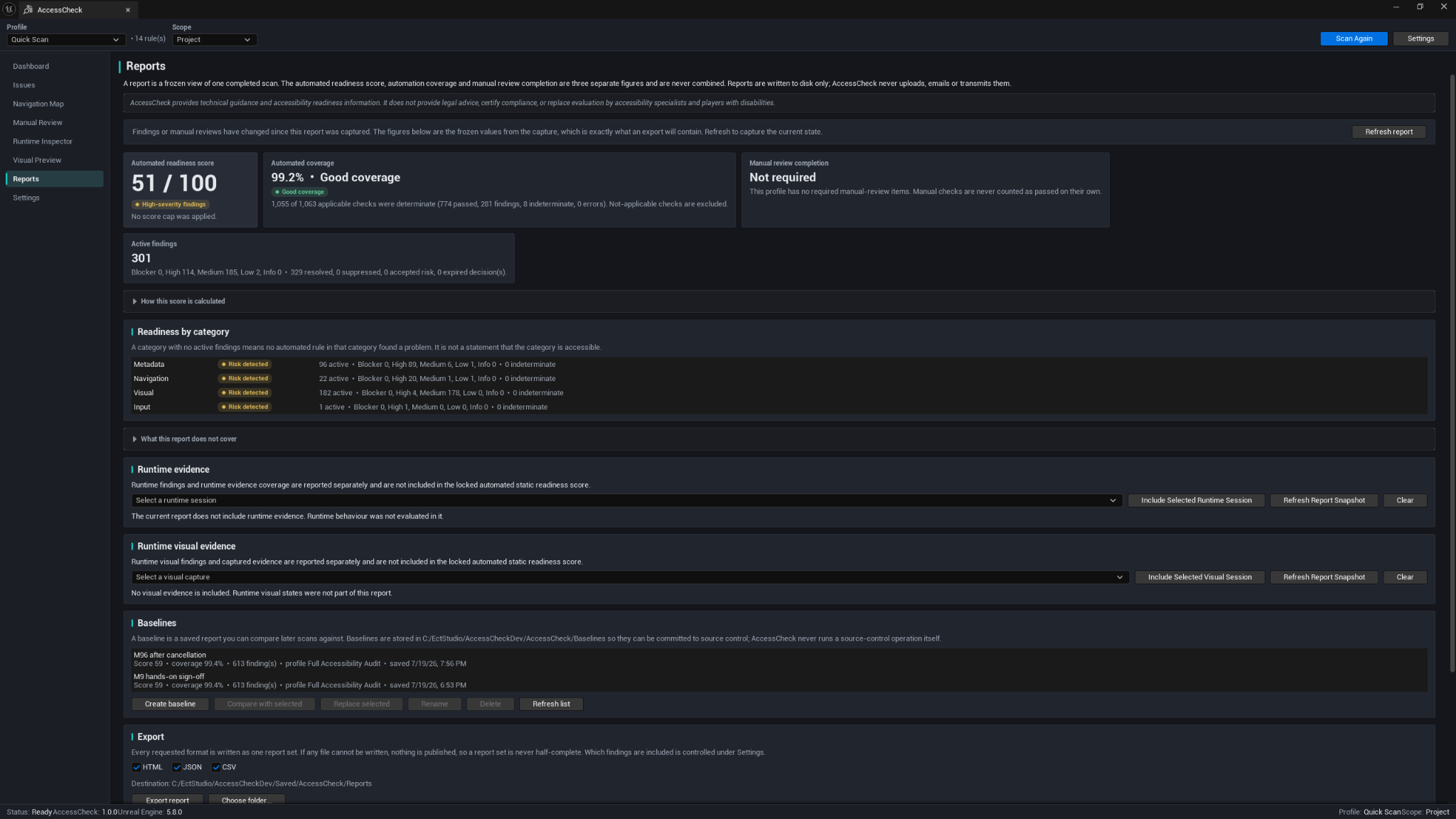
Reports are frozen snapshots of completed scans. They keep the automated score, coverage, manual review, and selected runtime evidence clearly separated. Reports can be exported as HTML, JSON, and CSV.
Baselines let you compare a later scan with a known point in time. AccessCheck can classify findings as new, resolved, reopened, changed, newly evaluated, no longer evaluated, or not comparable. Incompatible baselines are refused instead of producing a misleading comparison.
Main workflow
- Open Tools → ECal Studios → AccessCheck.
- Choose a Profile and Scope.
- Run the scan and review the Dashboard.
- Open important findings in the Issue Explorer.
- Inspect focus flow in the Navigation Map where relevant.
- Complete required Manual Review items.
- Record a Play-In-Editor session when runtime evidence is needed.
- Create a report and save a baseline.
- Run the Shipping Gate commandlet in CI when the project is ready.
Compatibility and product details
| Item | Details |
|---|---|
| Plugin | AccessCheck – Game Accessibility Auditor |
| Version | 1.0.0 |
| Developer | ECal Studios |
| Unreal Engine | 5.5, 5.6, 5.7, 5.8 |
| Type | Editor-only C++ plugin |
| Editor platforms | Windows, macOS, and Linux editors |
| Packaged-game impact | None; AccessCheck is not included in packaged builds |
| CommonUI | Optional; standard UMG works without it |
| Fab listing | Open AccessCheck on Fab |
Prebuilt Win64 binaries are included where provided. macOS and Linux use the included source and require a working C++ toolchain.
Safety and privacy
AccessCheck is designed to be transparent about what it can and cannot do.
- It performs no telemetry, analytics, uploads, or network calls.
- It does not silently modify project assets.
- Safe Fixes require a preview and use Unreal transactions with Undo/Redo.
- Most remediation remains guided or manual.
- Reports, runtime sessions, and visual evidence are stored locally.
- Baselines can be stored outside
Saved/so a team can commit them to source control.
Captured images and reports may contain private or unreleased project content. Review them before sharing.
Known limitations
- AccessCheck audits UI accessibility risks; it does not cover every accessibility concern.
- Static analysis cannot prove how every screen behaves during gameplay.
- Runtime evidence covers only visited sessions, states, devices, viewports, and platforms.
- An Indeterminate result is not a pass.
- Visual previews are design-review aids, not medical simulations.
- CommonUI-specific rules appear only when CommonUI is enabled.
- Version 1.0.0 includes one narrowly defined Safe Fix provider for accessible-name repair; other fixes are guided or manual.
Documentation pages
Support
For help, email [email protected] and include:
- Plugin version and Unreal Engine version.
- Operating system.
- Scan profile and scope.
- Whether CommonUI is enabled.
- Reproduction steps and useful log lines.
- A report or screenshot when it helps explain the issue.
Do not send private project content unless it is necessary and you are authorized to share it.
Copyright © ECal Studios 2026. All rights reserved.