PerfCheck README
PerfCheck is an editor-only static performance risk scanner for Unreal Engine. It checks project content for configurable risk patterns and presents the results through a score, category summaries, detailed findings, local scan history, comparisons, and reports.
Product information
| Item | Details |
|---|---|
| Version | 1.0.0 |
| Unreal Engine | 5.5, 5.6, 5.7, 5.8 |
| Plugin type | Editor-only C++ plugin |
| Editor platforms | Windows, macOS, and Linux editors |
| Fab listing | Open PerfCheck on Fab |
| Support | [email protected] |
Installation
Install from Fab
- Add PerfCheck to your library from the Fab listing.
- Install the plugin for the Unreal Engine version you use.
- Open the project.
- In Edit → Plugins, search for PerfCheck under ECal Studios.
- Enable the plugin if required and restart the editor.
Manual project installation
Copy the complete PerfCheck folder into the project's Plugins directory:
YourProject/
  Plugins/
    PerfCheck/
      PerfCheck.uplugin
      Source/
      Resources/
Open the project and allow Unreal Engine to rebuild the plugin if prompted.
Opening PerfCheck
Open the tool from:
Tools → ECal Studios → PerfCheck
PerfCheck opens as a dockable editor tab. It does not add a duplicate entry under the Window menu.
First scan
- Open PerfCheck.
- Keep the default PC / Console preset for a balanced first pass.
- Click Scan Project to scan eligible project content.
- For a smaller review, select assets or folders in the Content Browser and click Scan Selection.
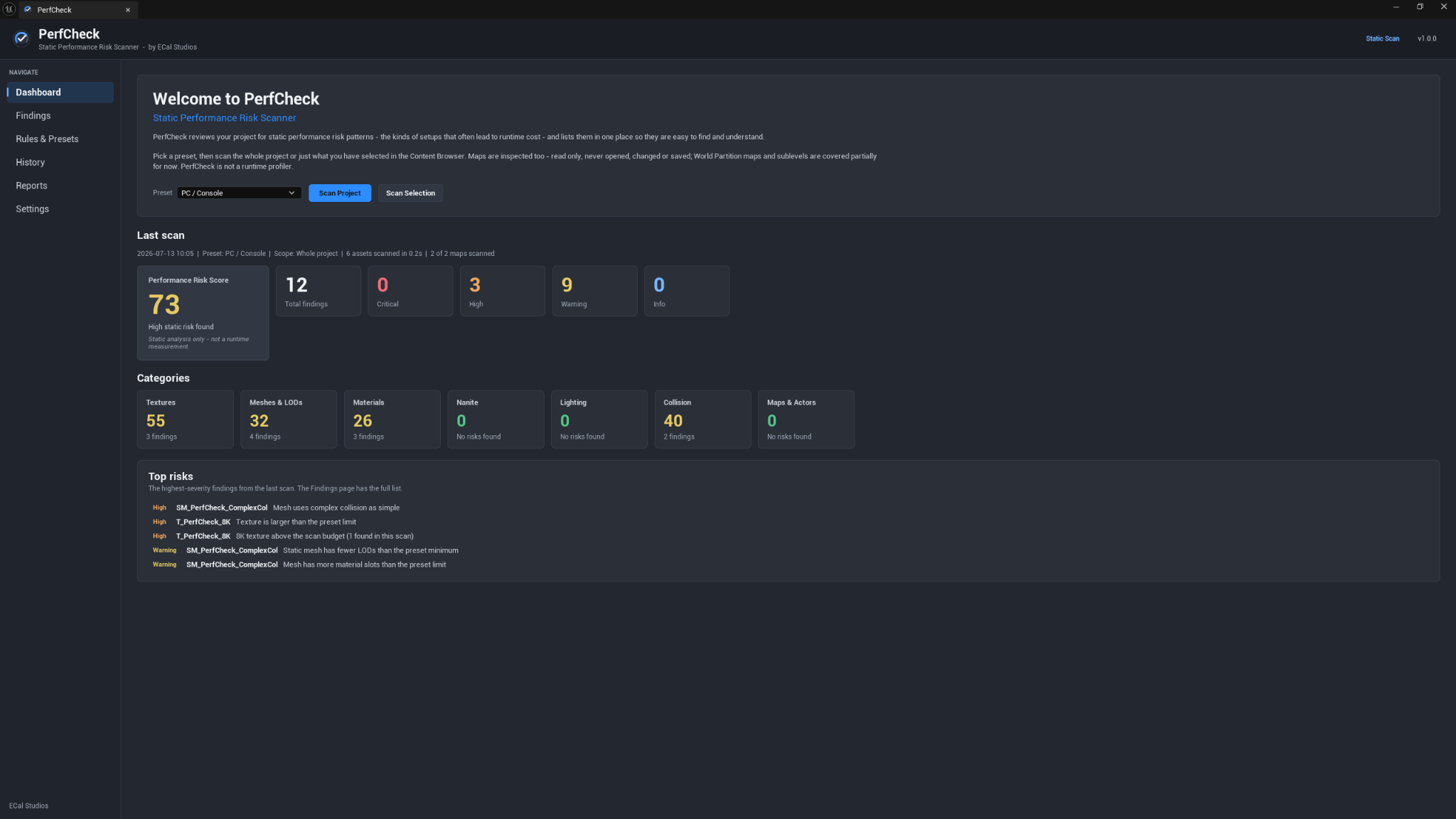
- Review the score and category cards on the Dashboard.
- Open Findings and select a row for the full explanation.
A scan can be cancelled. Findings collected before cancellation remain available, but cancelled scans are not saved to history.
Understanding the score
The Performance Risk Score summarizes configured findings according to their severity and rule weight.
- A higher score means more or stronger risk patterns were found.
- Category cards show where the score comes from.
- A score is not a benchmark and does not represent FPS, frame time, or measured runtime cost.
- A finding can be intentional. PerfCheck helps you confirm it rather than assuming it is wrong.
Findings and actions
On the Findings page you can:
- Search and filter by severity, category, or ignore status.
- Compare the measured value with the preset threshold.
- Read Why this matters and How to fix guidance.
- Focus or open an asset/map.
- Copy its path.
- Ignore an intentional finding and restore it later.
Ignoring a finding never changes the asset. By default, ignored findings stop contributing to the active score; this can be changed in Settings.
Rules and presets
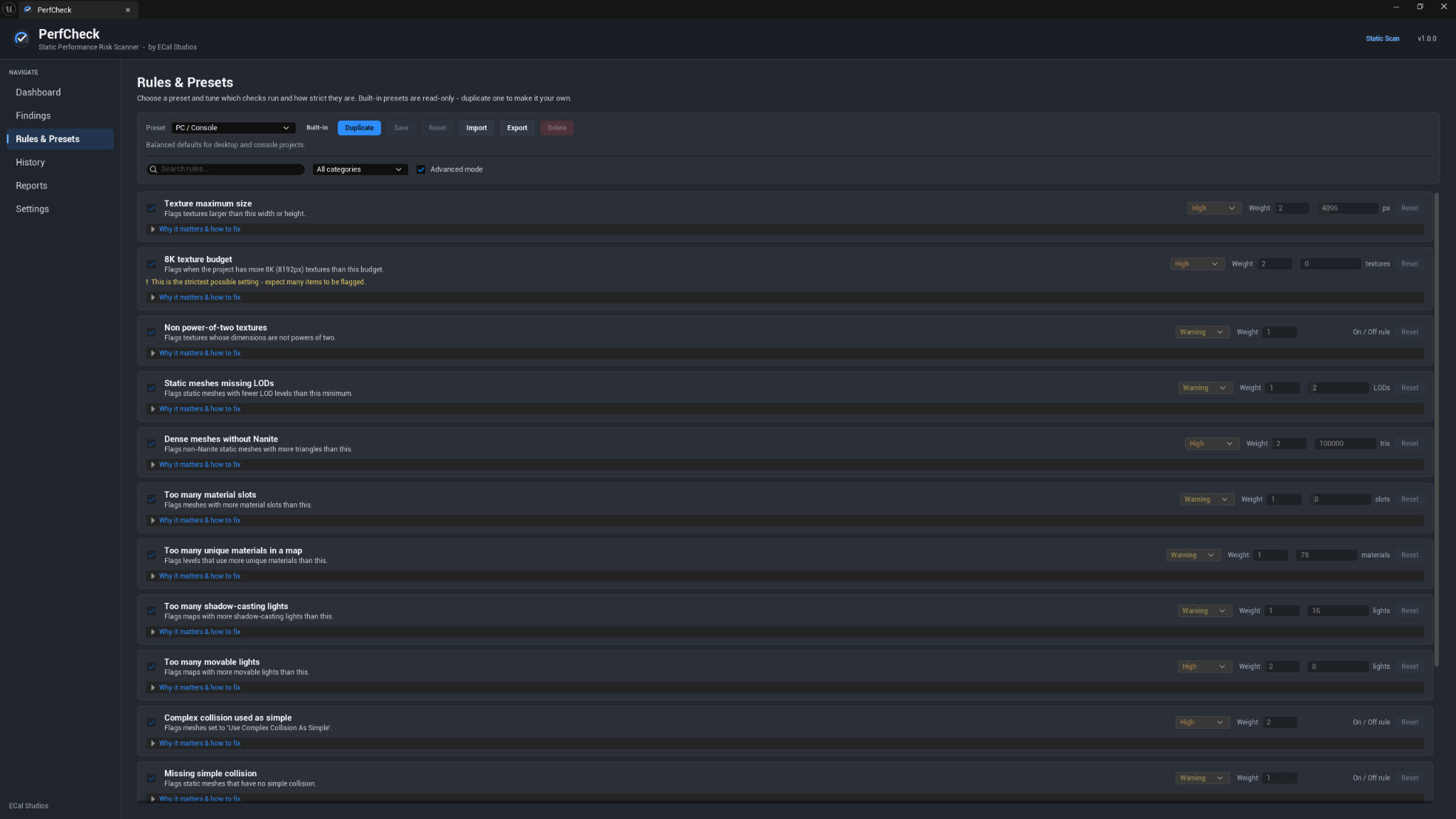
PerfCheck includes five read-only built-in presets:
- Beginner Safe
- PC / Console
- Mobile / Low Spec
- Marketplace Seller
- Cinematic / Archviz
Duplicate a built-in preset to make an editable copy. Custom presets can change thresholds, and Advanced mode also allows severity and score-weight changes.
History and reports
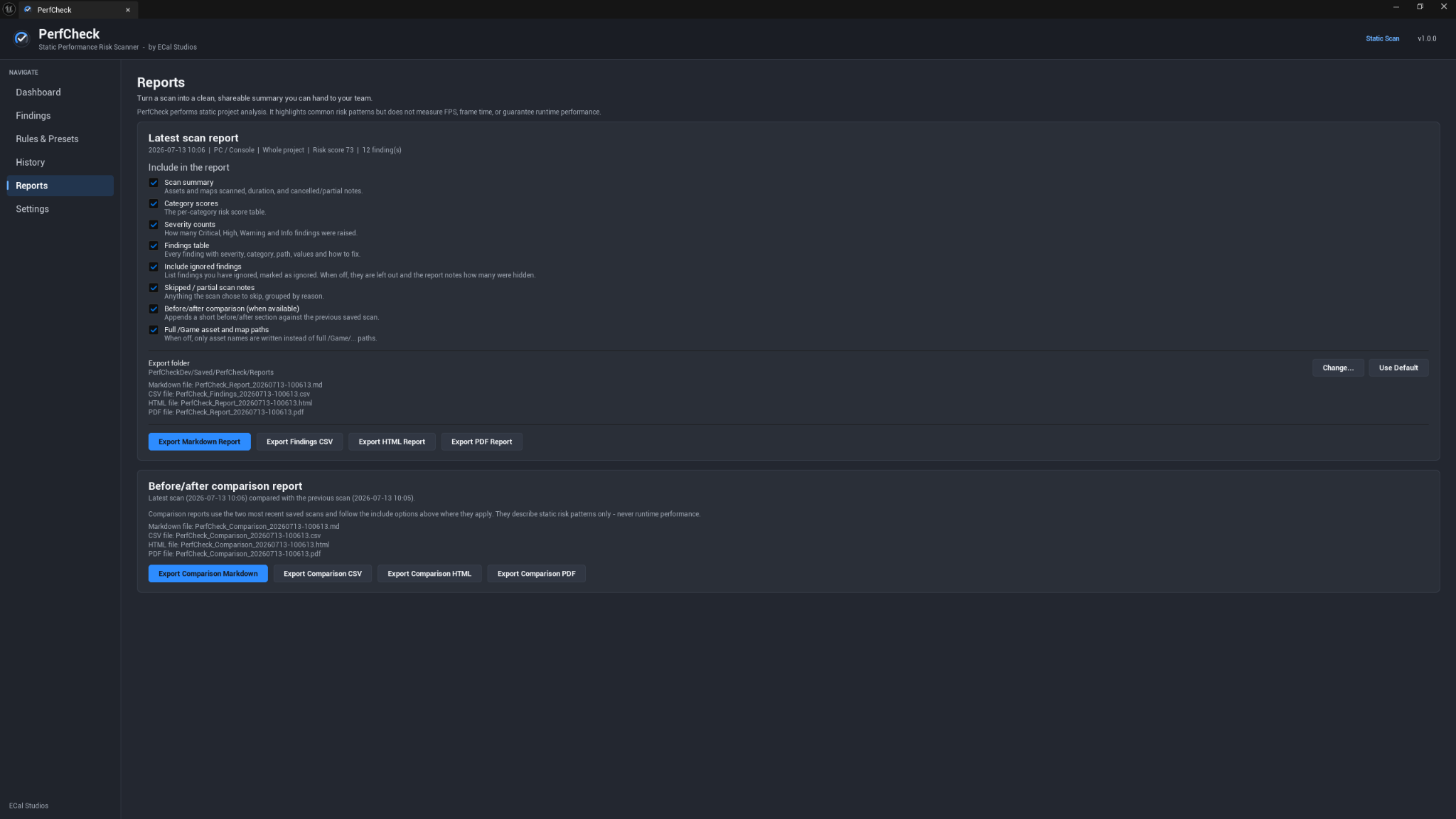
Each completed scan can be stored as a local snapshot. Use History to compare two scans, and Reports to export:
- Markdown
- CSV
- HTML
Both latest-scan reports and before/after comparison reports support these formats.
Local storage
PerfCheck stores local data under <Project>/Saved/PerfCheck/:
| Folder | Purpose |
|---|---|
ScanHistory/ |
Completed scan snapshots |
Presets/ |
Custom presets |
IgnoredFindings/ |
Ignored rule-and-asset identities |
Reports/ |
Exported reports |
Nothing is transmitted. Reports and snapshots avoid machine names, user names, and absolute local paths.
Important limitations
- PerfCheck is static analysis, not a runtime profiler.
- It does not measure or guarantee FPS improvements.
- It never modifies assets or applies fixes automatically.
- Closed World Partition maps may be skipped or only partially covered.
- Sublevel coverage is partial.
- PDF export may replace unsupported characters; HTML and Markdown preserve wider text ranges.
For every page and option, see the User Manual.
Support
Email [email protected] with:
- PerfCheck version
- Unreal Engine version
- Operating system
- Active preset
- Scan scope
- A screenshot or exported report when useful
- Relevant
LogPerfCheckOutput Log lines
Copyright © ECal Studios 2026. All rights reserved.