Asset Shelf User Manual
This manual covers the full Asset Shelf workflow: opening the plugin, creating shelves, adding shortcuts, using the Side Shelf, dragging assets into the level, changing settings, and understanding saved data.
1. What Asset Shelf is
Asset Shelf is a project-local shortcut manager for Unreal Engine editor assets. It gives you a clean place to pin the assets, folders, maps, Blueprints, widgets, materials, meshes, VFX, and other project items you use often.
It does not replace the Content Browser. It works beside it. The Content Browser remains the full project browser; Asset Shelf is your curated workspace for the things you want close at hand.
2. Opening Asset Shelf
Open the main panel from:
Tools → ECal Studios → Asset Shelf
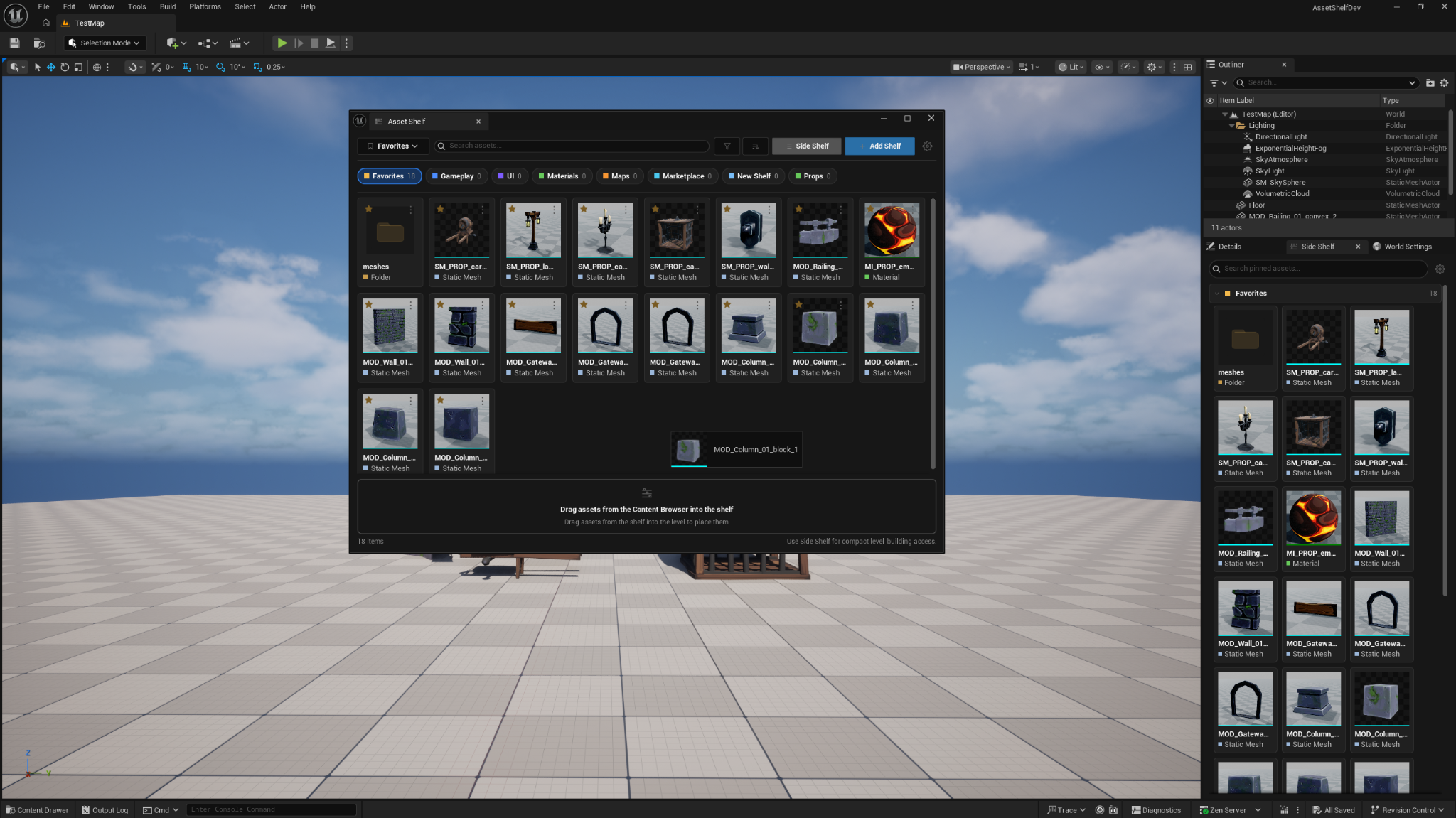
The plugin opens as a normal dockable Unreal Editor tab. You can keep it floating, dock it beside another panel, or place it anywhere Unreal allows editor tabs.
3. Main window overview
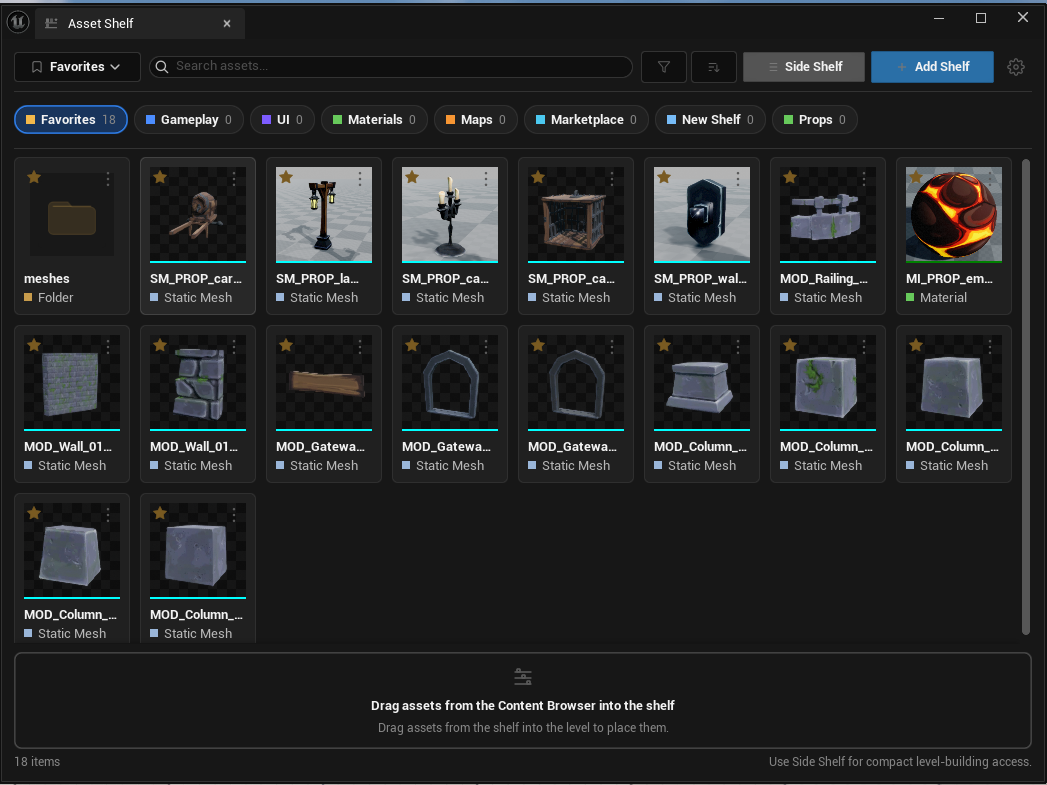
The main window has five important areas:
| Area | Purpose |
|---|---|
| Shelf dropdown | Switch the active shelf. |
| Search box | Search pinned items by name, path, or type. |
| Filter and sort buttons | Narrow pinned items by asset type or change display order. |
| Shelf chip bar | Quickly jump between shelves and see item counts. |
| Card grid | View pinned assets as large visual cards. |
| Footer drop zone | Drag assets or folders from the Content Browser into the active shelf. |
4. Default shelves
On first run, Asset Shelf creates these starter shelves:
| Shelf | Suggested use |
|---|---|
| Favorites | Your most-used project items. |
| Gameplay | Gameplay Blueprints, Data Assets, components, or test actors. |
| UI | Widget Blueprints, UI materials, icons, and interface assets. |
| Materials | Frequently used materials and material instances. |
| Maps | Levels and test maps you open often. |
| Marketplace | Imported assets you are reviewing or using from packs. |
You can keep these, rename them, or delete them and create your own.
5. Creating shelves
Click Add Shelf in the main toolbar.
The create shelf dialog lets you choose:
- Shelf name.
- Accent color.
Names must not be empty, and duplicate shelf names are blocked. Press Enter to confirm or Escape to cancel.
6. Managing shelves
Use the shelf management page from the main window when you need to organize your shelf structure.
Available shelf actions include:
- New — create another shelf.
- Rename — change the shelf display name.
- Duplicate — copy shelf structure and shortcuts into a new shelf.
- Move Up / Move Down — reorder shelves.
- Delete — remove a shelf and its shortcuts.
Deleting a shelf does not delete project assets
Deleting a shelf removes Asset Shelf organization data only. The actual Unreal assets remain in your project.
7. Adding assets and folders
You can add items from the Content Browser or Content Drawer.
Add one asset
Drag an asset onto the main panel or footer drop zone. It is added to the active shelf.
Add multiple assets
Select multiple assets in the Content Browser, then drag the selection into Asset Shelf. Accepted items are added together.
Add a folder
Drag a folder from the Content Browser folder tree into Asset Shelf. The folder becomes a shortcut for fast browsing.
Add directly to the Side Shelf
You can also drop assets onto a specific Side Shelf section. Asset Shelf adds the items to that section's shelf.
After a successful drop, Asset Shelf saves the shelf data and shows a small editor notification with the number of items added.
8. Asset cards
Each card shows useful shortcut information:
- Thumbnail or fallback icon.
- Pinned marker.
- Asset name.
- Asset type label.
- Asset type color.
- Missing state when the saved path no longer resolves.
Right-click a card to open the context menu:
| Action | What it does |
|---|---|
| Open | Opens the asset in its normal Unreal editor. |
| Browse in Content Browser | Selects the asset or folder in the Content Browser. |
| Copy Asset Path | Copies the saved path to the clipboard. |
| Remove Shortcut | Removes the item from Asset Shelf only. |
9. Side Shelf
The Side Shelf is a compact version made for daily production work.
Open it from the Side Shelf button in the main toolbar.
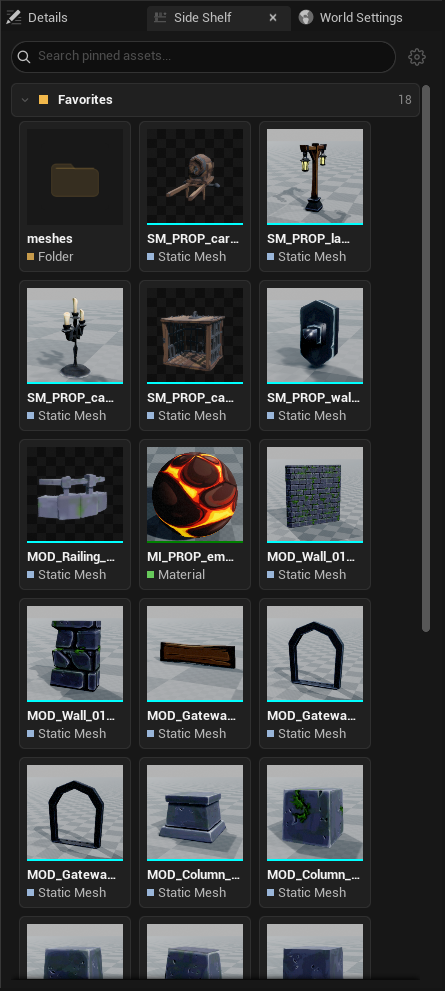
The Side Shelf includes:
- Search box for pinned items.
- Gear button to open the main Asset Shelf window.
- Collapsible shelf sections.
- Large thumbnail cards that reflow based on panel width.
- Drag-to-level support for compatible assets.
- Right-click card actions.
The Side Shelf intentionally does not include shelf management controls. Use the main window for adding, renaming, deleting, duplicating, and reordering shelves.
10. Dragging pinned assets into the level
Drag a card from the main panel or Side Shelf into the level viewport.
Asset Shelf uses Unreal's standard asset drag payload, so the same rules apply as dragging from the Content Browser.
Usually supported:
- Static meshes.
- Placeable Blueprints.
- Other asset types Unreal can already place directly in the viewport.
Usually not supported:
- Folders.
- Plain textures.
- Materials without a valid target surface.
- Asset types that Unreal does not place directly from the Content Browser.
You can disable this behavior in settings with Enable Drag-to-World.
11. Search, filter, and sort
Asset Shelf searches pinned shortcuts only. It does not scan the entire project.
Search
The search box matches:
- Display name.
- Saved asset path.
- Type label.
Filter
Filter pinned items by type, including common types such as Blueprints, Materials, Static Meshes, Levels / Maps, Widget Blueprints, Textures, Niagara, Sounds, Folders, and other assets.
Sort
Available sort modes include:
- Manual Order.
- Name.
- Type.
- Recently Added.
12. Settings
Open settings from the gear icon in the main toolbar.
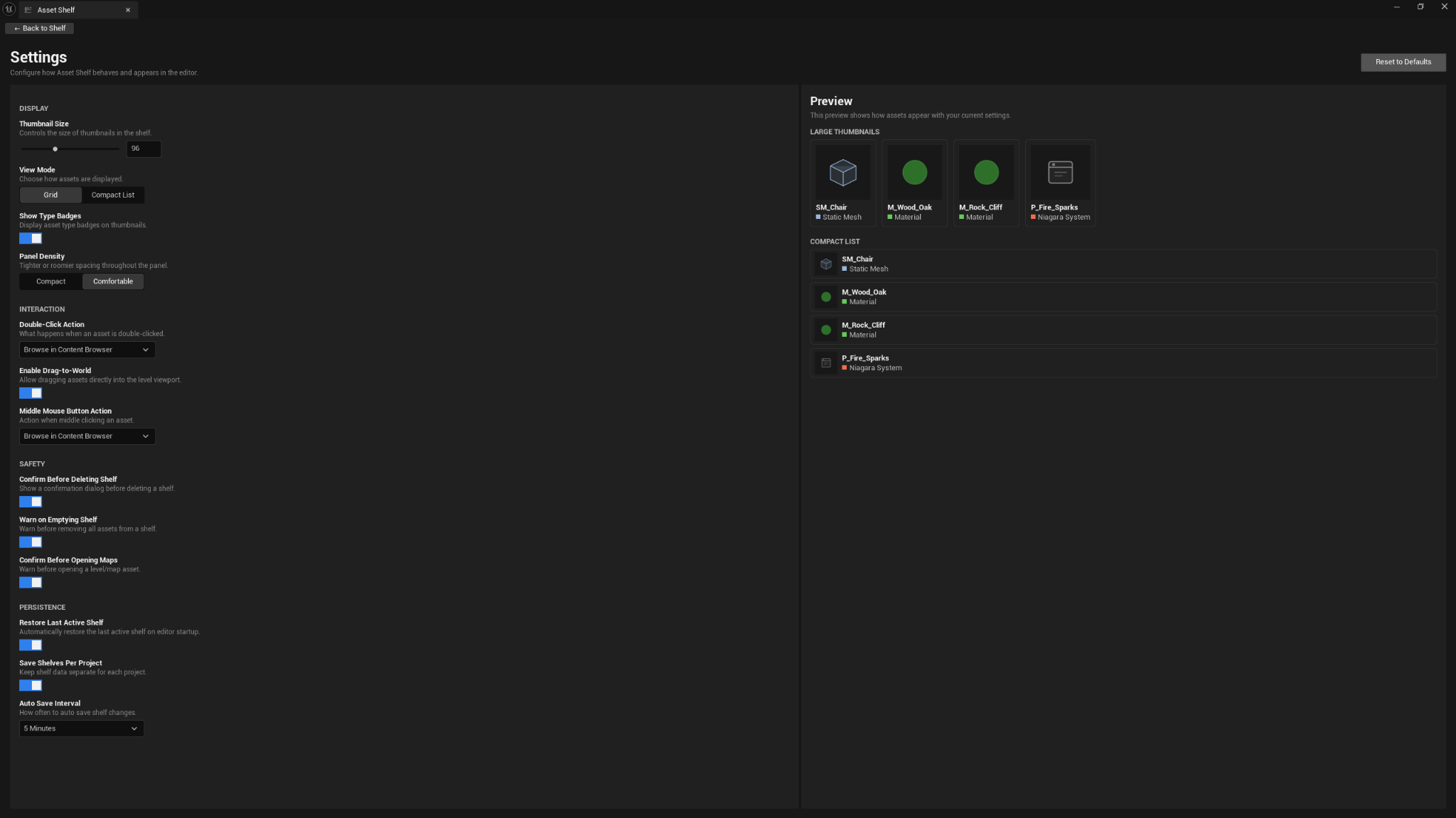
Display
| Setting | Purpose |
|---|---|
| Thumbnail Size | Controls the size of shelf thumbnails. |
| View Mode | Switches between Grid and Compact List. |
| Show Type Badges | Shows or hides asset type labels. |
| Panel Density | Changes spacing between compact and comfortable layouts. |
Interaction
| Setting | Purpose |
|---|---|
| Double-Click Action | Choose Browse, Open, or Copy Path. |
| Enable Drag-to-World | Allows supported cards to be dragged into the level. |
| Middle Mouse Button Action | Choose what middle-click does on a card. |
Safety
| Setting | Purpose |
|---|---|
| Confirm Before Deleting Shelf | Adds a confirmation step before deleting shelves. |
| Warn on Emptying Shelf | Warns before removing all shortcuts from a shelf. |
| Confirm Before Opening Maps | Warns before opening map assets from the shelf. |
Persistence
| Setting | Purpose |
|---|---|
| Restore Last Active Shelf | Reopens the last shelf you were using. |
| Save Shelves Per Project | Keeps shelf data local to each project. |
| Auto Save Interval | Controls how often shelf changes are saved. |
13. Saved data and privacy
Shelf data is saved locally to:
<YourProject>/Saved/AssetShelf/AssetShelfData.json
Asset Shelf stores shortcut paths and shelf organization data. It does not send data anywhere and does not include telemetry.
14. Missing assets
A shortcut becomes missing when its saved asset path no longer resolves. This can happen when an asset is renamed, moved, deleted, or migrated outside Asset Shelf.
When this happens:
- Use Copy Saved Path if you need to see the old path.
- Remove the missing shortcut.
- Re-add the asset from its new location.
Asset Shelf does not auto-repair missing shortcuts because guessing replacements can create wrong references.
15. Recommended workflow
For level building, a practical workflow is:
- Create a shelf for the current map, pack, or environment set.
- Drag the meshes, Blueprints, materials, and folders you use often into that shelf.
- Open the Side Shelf and dock it near the viewport.
- Use search when the shelf grows.
- Drag supported assets into the level directly from the Side Shelf.
- Use the main panel when you need to reorganize shelves.
16. FAQ
Is Asset Shelf safe for marketplace projects?
Yes. Asset Shelf stores local shortcut data and does not modify assets. It is useful while preparing, reviewing, or organizing project content.
Can I share shelf data with a team?
The saved JSON is project-local. Whether you commit it to source control is a team decision. For personal shelves, keep it untracked. For shared project shelves, you can version it if your team wants the same shortcuts.
Why does dragging into the viewport not work for every asset?
Unreal decides which asset types can be placed directly into a level. Asset Shelf follows the same rules.
Can I use Asset Shelf as a folder browser replacement?
No. Asset Shelf is better as a curated shortcut workspace. Use the Content Browser for full project browsing.
Does Asset Shelf affect cooked or packaged builds?
No. It is editor-only and has no runtime impact.
17. Troubleshooting
The plugin does not open
Check that the plugin is enabled under Edit → Plugins, then restart Unreal Engine.
I see missing shortcuts
The source asset path changed. Remove the shortcut and add the asset again.
A shelf looks empty after search
Clear the search box and check your active filter. You may be filtering out the items on that shelf.
I deleted a shortcut by mistake
Drag the asset from the Content Browser back into the shelf. The project asset itself was not deleted.
I need support
Email [email protected] and include your Unreal Engine version, Asset Shelf version, operating system, and a short reproduction description.