AssetCheck README
Fab listing: Open AssetCheck on Fab
AssetCheck is an editor-only project asset health scanner for Unreal Engine. It scans common asset and project-organization risks, turns the results into an easy-to-read health score, and lets you export reports for cleanup, handoff, migration, or marketplace preparation.
AssetCheck is made for developers who want a fast way to see what might need attention before they package, submit, migrate, sell, or share a project.
Compatibility
| Item | Support |
|---|---|
| Plugin version | 1.0.0 |
| Unreal Engine | 5.5, 5.6, 5.7 |
| Supported platforms | Windows, macOS, Linux |
| Module type | Editor-only |
| Runtime impact | None |
| External services | None required |
Installation
- Download the AssetCheck build that matches your Unreal Engine version.
- Close Unreal Engine.
- Copy the
AssetCheckfolder into your project'sPluginsfolder.
YourProject/
  Plugins/
    AssetCheck/
      AssetCheck.uplugin
      Source/
      Resources/
      ...
- Reopen the project.
- If Unreal asks to rebuild or enable the plugin, follow the prompt for your project setup.
- Confirm AssetCheck is enabled in Edit → Plugins.
How to open AssetCheck
Open it from the Unreal Editor menu:
Tools → ECal Studios → AssetCheck
AssetCheck opens as a dockable editor tab, so you can keep it beside the Content Browser, viewport, Details panel, or Output Log.
Quick start
- Open AssetCheck.
- Pick a preset on Rules & Presets if you want something stricter than the default.
- Click Run Full Scan on the Dashboard.
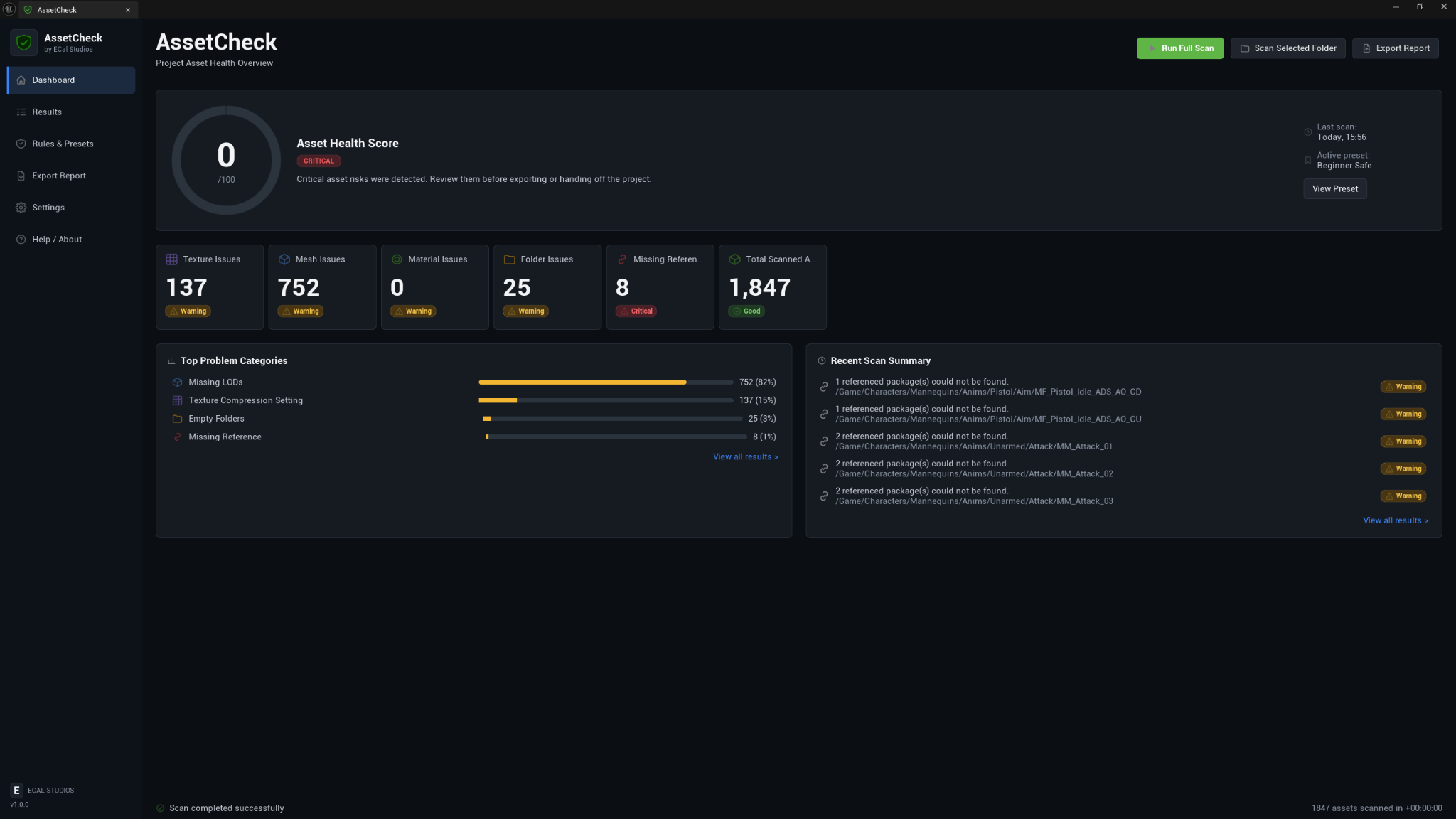
- Review the Asset Health Score and issue category cards.
- Open Results and select findings for details and suggested fixes.
- Use Export Report to create an HTML or CSV report.
Core features
-
Dashboard score
A clear project health overview with score ring, scan summary, issue cards, and top problem categories.
-
Detailed scan results
Search, filter, sort, and inspect detected issues in one focused table.
-
Configurable rules
Adjust texture, mesh, folder, reference, and general scan rules through presets.
-
Full or folder scans
Scan the full
/Gamecontent area or focus on the folder selected in the Content Browser. -
Exportable reports
Save CSV or HTML reports with optional summary, score breakdown, issue list, suggested fixes, ignored issues, and timestamp.
-
Read-only by design
AssetCheck reports issues but does not edit or remove assets.
What AssetCheck checks
AssetCheck 1.0.0 focuses on practical asset-health checks:
| Area | Examples |
|---|---|
| Textures | Oversized textures, non-power-of-two textures, missing mip maps, default compression settings |
| Static meshes | Missing LODs, high triangle count, high vertex count, material slot count |
| Materials | Null material slots and mesh-level material assignment issues |
| Folders | Empty folders and assets outside recommended roots |
| References | Missing package dependencies and redirector-related risks |
Built-in presets
AssetCheck includes six preset slots:
- Beginner Safe — conservative checks for new projects.
- Marketplace Seller — useful when preparing content for Fab-style review.
- Packaging Prep — focuses on issues that can become packaging or handoff problems.
- Migration Prep — useful before moving assets between projects.
- Performance Aware — stricter limits for runtime-conscious content.
- Custom — your own rules and thresholds.
Export formats
| Format | Best for |
|---|---|
| HTML | Human-readable reviews, cleanup notes, client/team handoff |
| CSV | Spreadsheets, filtering, data analysis, issue tracking |
Reports are saved locally. AssetCheck does not upload project information.
Safety notes
AssetCheck is read-only:
- No asset deletion.
- No asset moving or renaming.
- No automatic reimporting.
- No online upload.
- No runtime gameplay impact.
The score and findings are meant to guide review work. They do not replace normal packaging tests, platform testing, performance profiling, or marketplace review requirements.
Support
Email: [email protected]
Website: www.ecalstudios.com
When reporting an issue, include the AssetCheck version, Unreal Engine version, operating system, what you scanned, and relevant Output Log lines containing LogAssetCheck.
Copyright (c) 2026 ECal Studios. All Rights Reserved.