TickCheck User Manual
Welcome to TickCheck, an Unreal Engine editor tool for reviewing Tick usage in your project.
TickCheck is built for Unreal developers who want a quick, beginner-friendly way to find Tick usage that may be unnecessary, risky, or worth cleaning up before release.
1. What is TickCheck?
TickCheck scans your project and shows Tick-related findings in a clean dashboard.
It helps answer questions like:
- Which Blueprints use Event Tick?
- Which actors or components are ticking?
- Are any objects ticking every frame with a Tick Interval of 0?
- Are hidden actors still ticking?
- Which findings should I review first?
- Is my project’s Tick usage healthy overall?
TickCheck does not tell you that all Tick usage is bad. Instead, it helps you find places worth reviewing.
2. Opening the plugin
Open TickCheck from the Unreal Editor menu:
Tools > ECal Studios > TickCheck
The main window opens as a dashboard.
3. The dashboard
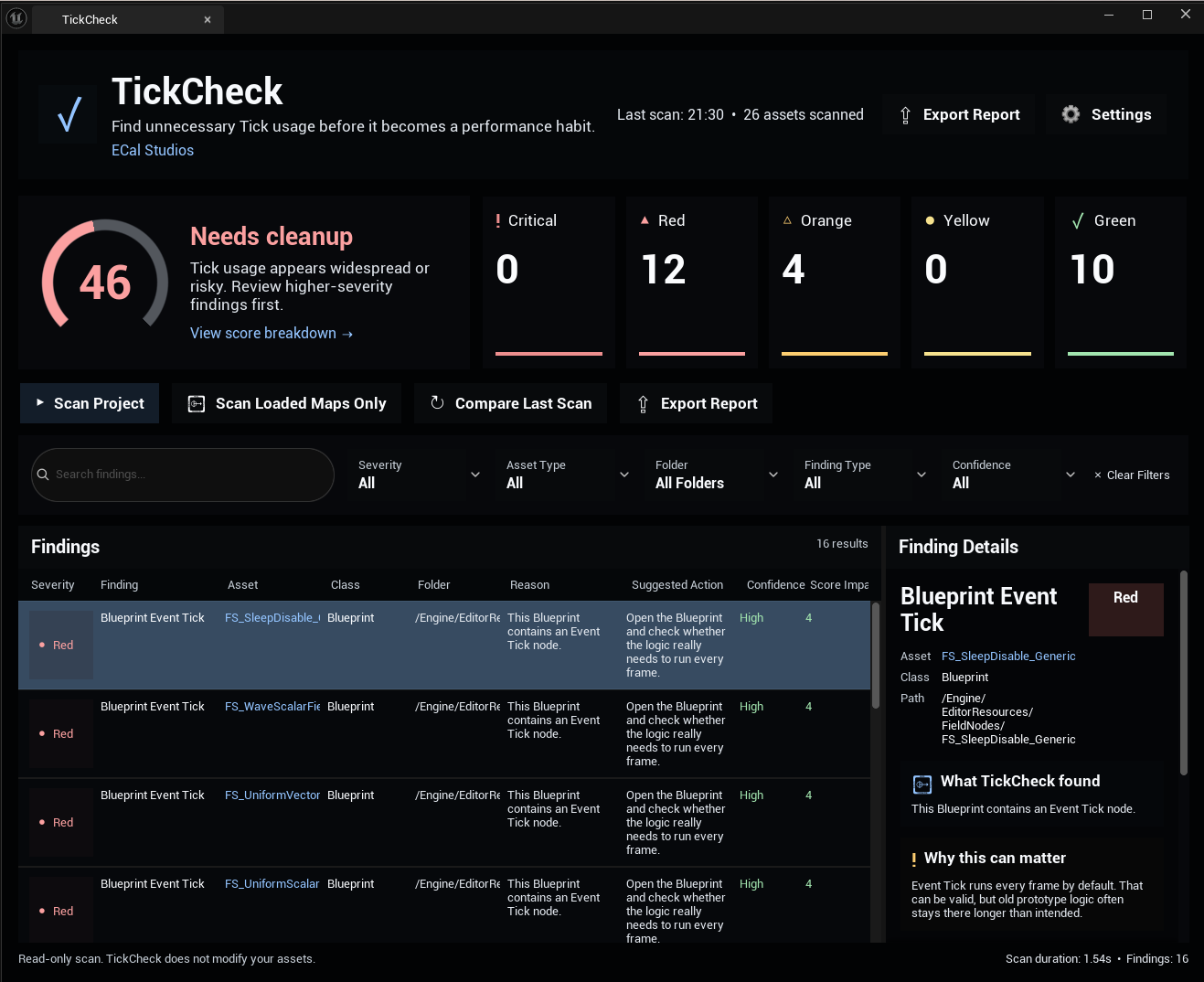
The 1.1.0 dashboard is split into several clear areas:
Header
The header shows:
- Plugin name
- Short description
- ECal Studios branding
- Last scan information
- Export Report button
- Settings button
Tick Health Score
The large score card shows your project’s current Tick Health Score.
The score ranges from:
- 90 to 100: Excellent
- 75 to 89: Good with notes
- 55 to 74: Review recommended
- 30 to 54: Needs cleanup
- 0 to 29: High risk
The score is a review guide. It is not a runtime performance measurement.
Severity cards
The dashboard includes cards for:
- Critical
- Red
- Orange
- Yellow
- Green
Clicking a severity card filters the results list.
Action buttons
The action row includes:
- Scan Project
- Scan Loaded Maps Only
- Compare Last Scan
- Export Report
Filters
The filter row includes:
- Search
- Severity filter
- Asset Type filter
- Folder filter
- Finding Type filter
- Confidence filter
- Clear Filters button
Use these controls to quickly narrow a large result list.
Findings list
The findings table shows:
- Severity
- Finding type
- Asset
- Class
- Folder
- Reason
- Suggested action
- Confidence
- Score impact
Select a row to see more detail on the right side.
Finding details panel
The details panel explains the selected finding in a beginner-friendly way.
It includes:
- What TickCheck found
- Why this can matter
- When it might be okay
- Safe next step
It also includes buttons for:
- Open Asset
- Browse to Folder
- Ignore Finding (planned for a future update; currently read-only)
4. Running a scan
Scan Project
Use Scan Project when you want to review project assets and relevant loaded content.
This is the normal scan mode for most users.
Scan Loaded Maps Only
Use Scan Loaded Maps Only when you want to focus on actors and components in the currently loaded map.
This is helpful when reviewing a specific test map, gameplay arena, main level, or benchmark scene.
5. Understanding severity
TickCheck uses severity to help you prioritize.
Critical
Critical findings are the highest priority. These should usually be reviewed first.
Example situations:
- Tick usage that is likely to be expensive
- Repeated Tick patterns
- Strong signs of unnecessary every-frame work
Red
Red findings are important and worth checking soon.
Example situations:
- Blueprint Event Tick usage
- Actors or systems ticking every frame without clear need
Orange
Orange findings are medium-priority review candidates.
Example situations:
- Tick may be valid, but the pattern deserves a closer look
- Tick usage may become expensive as the project grows
Yellow
Yellow findings are lower-priority notes.
Example situations:
- Tick usage that may be acceptable
- Soft warnings that are still useful during cleanup
Green
Green represents clean or no-finding areas in the scan summary.
6. Understanding confidence
Each finding has a confidence level.
High
TickCheck is confident the finding is worth reviewing.
Medium
The finding is likely useful, but context matters.
Low
The finding is softer and may be harmless depending on your project.
Low-confidence findings can still be useful, especially during deep cleanup passes.
7. Using filters
The filters are designed to help when a project has many findings.
Search
Search looks across finding type, asset path, object name, class, folder, reason, and suggested action.
Use it to find:
- A specific Blueprint
- A specific folder
- A class name
- Event Tick findings
- Component Tick findings
Severity filter
Use this to focus on one priority level.
A good cleanup workflow is:
- Critical
- Red
- Orange
- Yellow
Asset Type filter
Use this to focus on specific classes or asset types found in the scan.
Folder filter
Use this to review one content area at a time.
This is useful for projects with folders like:
- Characters
- Enemies
- UI
- Weapons
- TestMaps
- Marketplace imports
Finding Type filter
Use this to focus on one kind of issue, such as Blueprint Event Tick or Component Tick.
Confidence filter
Use this to focus on high-confidence findings first.
8. Opening assets
Select a finding and use:
Open Asset
Opens the selected asset in the appropriate editor when possible.
Browse to Folder
Syncs the Content Browser to the selected asset.
Double-click
Double-clicking a finding opens the asset directly.
9. Exporting reports
Click Export Report to export scan results.
Reports are useful for:
- QA passes
- Release preparation
- Optimization planning
- Before and after cleanup comparisons
- Sharing tasks with collaborators
10. Settings
Click the Settings button in the TickCheck header.
The settings page is built into the plugin window in version 1.1.0.
Available settings include:
- Scan project content
- Scan plugin content
- Scan engine content
- Allow loaded map scanning
- Include low-confidence findings
Settings are saved per project.
11. Recommended cleanup process
A safe cleanup process looks like this:
- Run Scan Project.
- Check the Tick Health Score.
- Filter to Critical findings.
- Open each asset and confirm whether Tick is needed.
- Replace unnecessary Tick with a safer alternative.
- Continue with Red and Orange findings.
- Re-run TickCheck.
- Export a report.
Common alternatives to Tick include:
- Events
- Timers
- Delegates
- Animation notifies
- Collision callbacks
- Input events
- State changes
- AI perception events
12. When Tick is okay
Tick can be completely valid.
Examples:
- Character movement systems
- Camera logic
- Animation-driven updates
- Time-sensitive gameplay systems
- Short-lived prototype logic
- Systems that truly need per-frame updates
TickCheck helps you review Tick usage. It does not mean every finding must be removed.
13. Troubleshooting
The scan finds too many results
Try disabling engine content scanning and plugin content scanning in Settings.
Then run the scan again.
I clicked Open Asset and nothing happened
Some findings may point to map actors, generated objects, or component paths that cannot be opened as standalone assets.
Use Browse to Folder or inspect the related map manually.
The score seems low
A low score means TickCheck found patterns worth reviewing.
It does not automatically mean your game performs badly. Use Unreal Insights for runtime profiling.
The plugin does not modify assets
This is expected. TickCheck 1.1.0 is intentionally read-only.
Compare Last Scan is limited
Compare Last Scan currently compares the current session’s previous scan result. More advanced scan history is planned for a future update.
14. Best practices
- Do not remove Tick blindly.
- Review high-severity findings first.
- Keep valid Tick usage when it is needed.
- Prefer events or timers where possible.
- Re-scan after cleanup.
- Use reports to track progress.
15. Version 1.1.0 notes
Version 1.1.0 focuses on UI clarity, better workflow, and a more professional dashboard.
The scan logic remains focused on safe read-only review.
16. Support
Documentation: TickCheck Documentation
Support: [email protected]
Copyright (c) 2026 ECal Studios. All Rights Reserved.