AccessCheck README
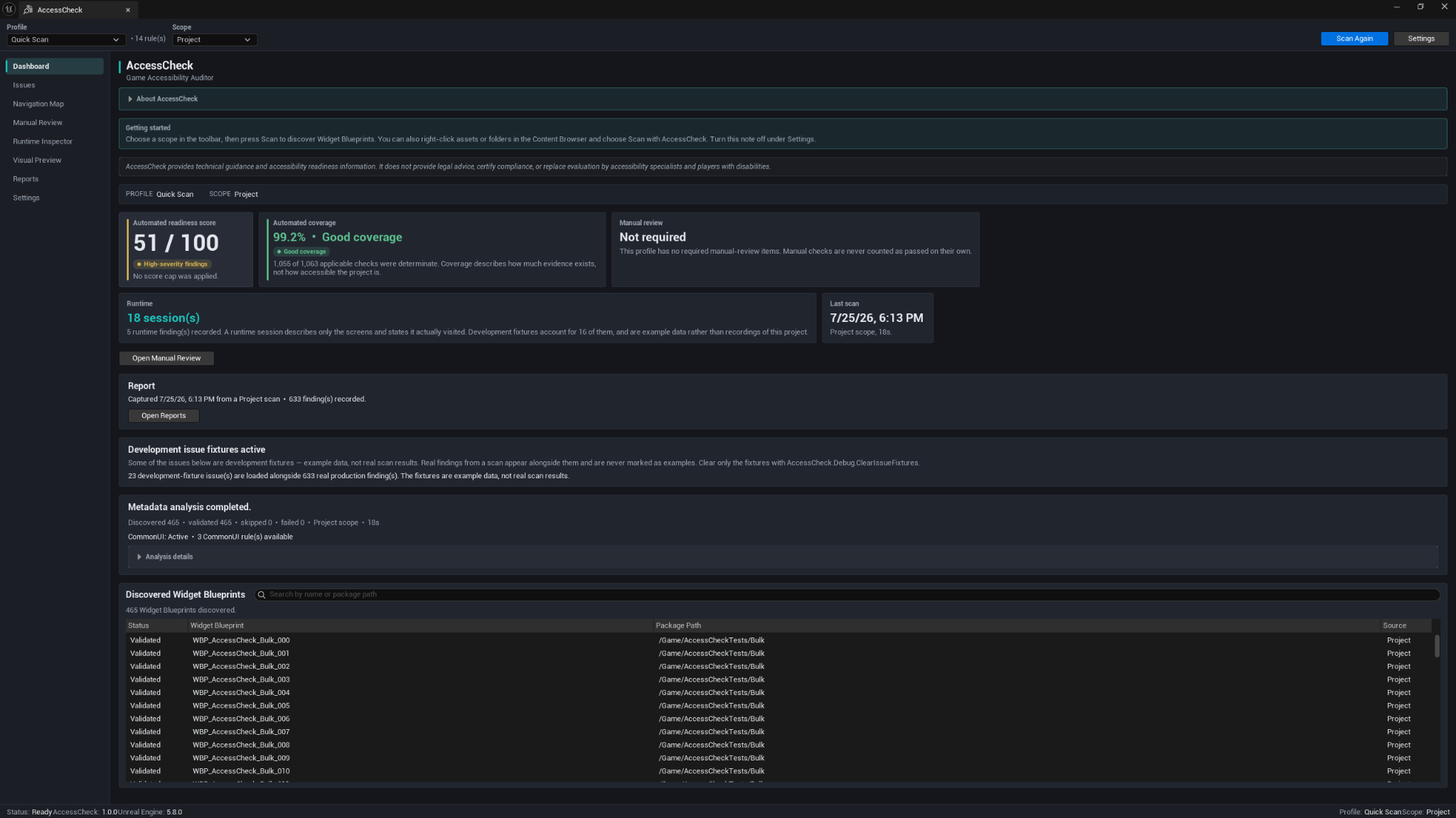
AccessCheck is an editor-only accessibility auditing tool for Unreal Engine. It scans Widget Blueprints, explains common accessibility risks, helps you review focus and navigation, records Play-In-Editor evidence, organizes manual checks, and creates reports for production and release workflows.
Accessibility guidance, not certification
AccessCheck provides technical guidance and accessibility-readiness information. It does not provide legal advice, certify compliance, or replace evaluation by accessibility specialists and players with disabilities.
Compatibility
| Item | Support |
|---|---|
| Plugin version | 1.0.0 |
| Unreal Engine | 5.5, 5.6, 5.7, 5.8 |
| Supported editor platforms | Windows, macOS, Linux |
| Module type | Editor-only C++ plugin |
| Packaged-game impact | None |
| CommonUI | Optional |
| External services | None required |
| Fab listing | Open AccessCheck on Fab |
Prebuilt Win64 binaries are included where provided. macOS and Linux compile the plugin from the included source and require a working C++ toolchain.
Installation
- Close Unreal Engine.
- Install the plugin build that matches the Unreal Engine version used by the project.
- For a manual installation, copy the complete
AccessCheckfolder into the project'sPluginsfolder:
YourProject/
  Plugins/
    AccessCheck/
      AccessCheck.uplugin
      Source/
      Resources/
      ...
- For a source package, regenerate project files and allow Unreal Engine to compile the plugin.
- Open Edit → Plugins, search for AccessCheck, and enable it if required.
- Restart the editor when prompted.
Binaries built for one Unreal Engine version are not interchangeable with another version.
Opening AccessCheck
Open the tool from:
Tools → ECal Studios → AccessCheck
AccessCheck opens as a dockable editor tab with Profile and Scope controls in the toolbar and the main workflow pages in the left navigation.
Five-minute quick start
- Choose Quick Scan.
- Choose the Project scope.
- Click Scan.
- Review the automated score and coverage on the Dashboard.
- Open Issues and select a finding.
- Use the finding details to open the affected Widget Blueprint or review the recommended steps.
- Open Reports and create a report snapshot.
For a smaller scan, select assets or a folder in the Content Browser and use Scan with AccessCheck from the context menu.
Main pages
| Page | Purpose |
|---|---|
| Dashboard | Scan summary, score, coverage, manual-review status, runtime sessions, reports, and discovered Widget Blueprints. |
| Issues | Search, filter, group, sort, inspect, and triage findings. |
| Navigation Map | Review focus nodes, explicit navigation, predicted paths, dead ends, and unreachable controls. |
| Manual Review | Record human checks, decisions, notes, reviewer information, and evidence. |
| Runtime Inspector | Passively record evidence from Play-In-Editor sessions and named screen states. |
| Visual Preview | Inspect captured frames, element crops, contrast evidence, and review previews. |
| Reports | Create frozen report snapshots, manage baselines, compare scans, and export files. |
| Settings | Configure defaults, scan paths, thresholds, report behavior, baselines, runtime capture, and privacy options. |
Understanding the results
AccessCheck intentionally keeps different kinds of evidence separate:
- Automated readiness score summarizes active static findings.
- Automation coverage shows how much applicable automated evidence was determinate.
- Manual review completion shows whether required human checks are finished.
- Runtime evidence describes only the sessions and states that were observed.
A high score or high coverage does not guarantee that a game is accessible. An Indeterminate result means AccessCheck could not reach a reliable automatic conclusion.
Issue review
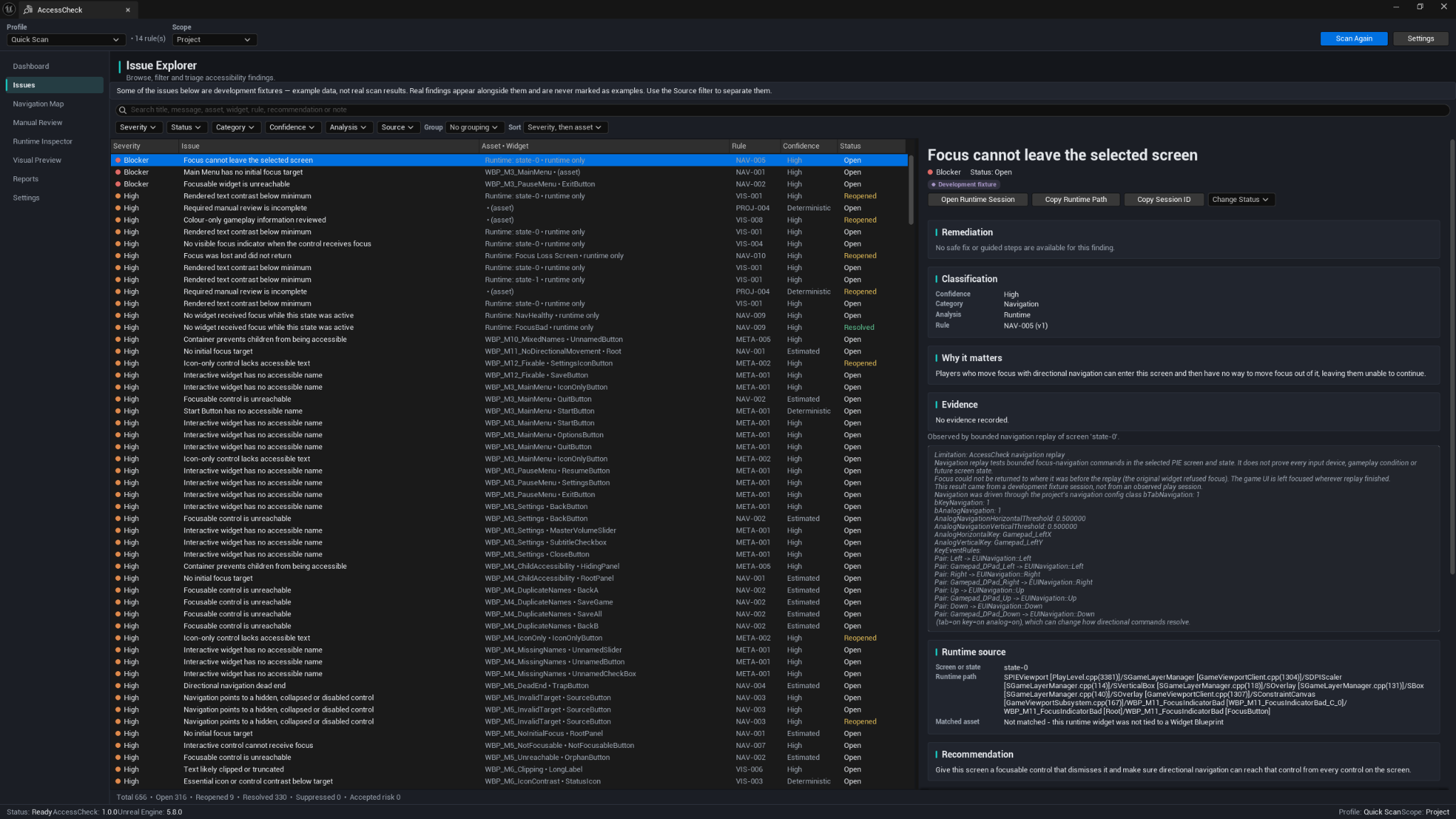
The Issue Explorer supports filtering by severity, status, category, confidence, analysis mode, and source. Selecting a finding shows its evidence, why it matters, classification, affected source, recommendation, and available remediation options.
Finding decisions can include Open, Reopened, Resolved, Suppressed, Accepted Risk, Needs Manual Review, and Not Applicable. Suppression and Accepted Risk decisions can include rationale, owner, ticket, and expiry information.
Profiles
AccessCheck includes profiles for different review goals:
- Quick Scan — a fast, high-confidence first pass.
- Full Accessibility Audit — the broadest implemented static review.
- Controller & Keyboard — focus, navigation, and input-related checks.
- Screen Reader Readiness — accessible metadata and focus-flow prerequisites.
- Visual Accessibility — contrast, text size, color reliance, and focus appearance.
- Shipping Gate — release-focused checks and CI policy evaluation.
The exact rule count can change with the selected profile, project content, engine version, and CommonUI availability, so AccessCheck shows the active count inside the tool.
Runtime and manual evidence
The Runtime Inspector never starts or stops Play-In-Editor for you and never sends input. Arm a session, start Play-In-Editor, mark named states, capture the available evidence, then stop and finalize the session.
Manual Review is used for questions that require judgment, such as whether important audio has a visual alternative or whether difficulty options are meaningful. Manual completion remains separate from the automated score.
Reports and local files
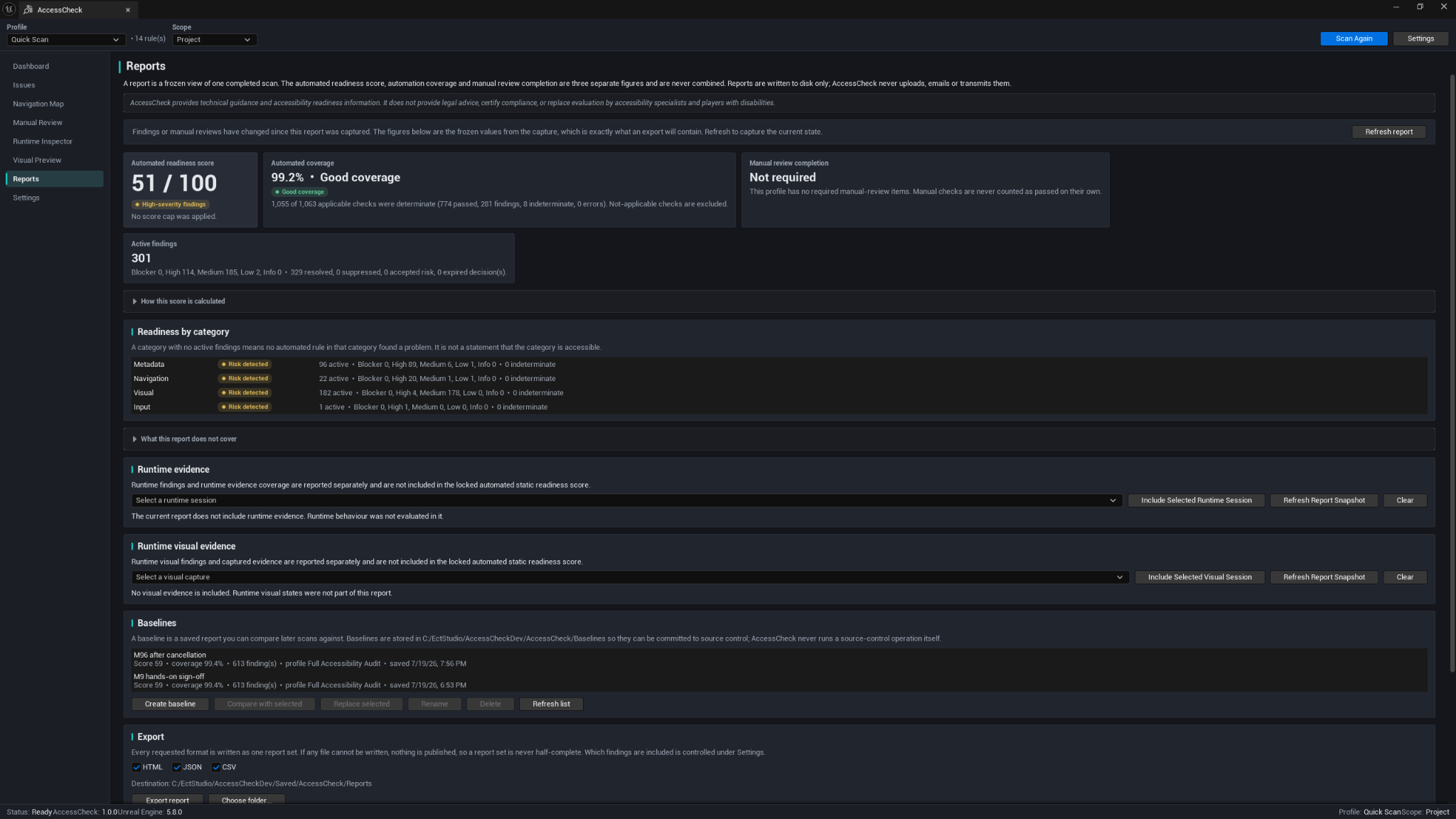
Reports can be exported as:
- HTML
- JSON
- CSV
Reports, runtime sessions, visual evidence, and applied-fix records are stored under:
<Project>/Saved/AccessCheck/
Baselines are stored under the project-level AccessCheck/Baselines/ folder by default so they can be committed to source control when appropriate.
AccessCheck makes no network calls and does not upload project data.
Shipping Gate commandlet
Run a headless project scan with:
UnrealEditor-Cmd "<ProjectPath>" -run=AccessCheck -Profile=ShippingGate -Scope=Project -Output="<OutputPath>" -unattended -nop4 -nosplash -nullrhi
The process exit code is the gate result. Helper PowerShell and batch scripts are included under the plugin's CI/ folder. See the User Manual for policy options and exit codes.
Safe Fix and Guided Fix
AccessCheck only offers a Safe Fix when the change can be previewed, applied through one Unreal transaction, and verified with a targeted rescan. Version 1.0.0 includes one narrowly defined Safe Fix provider for accessible-name repair.
Most issues use Guided Fix instead: AccessCheck opens the best available source and provides practical steps, while you remain in control of the project change.
Limitations
- AccessCheck focuses on UI accessibility risks, not every accessibility feature in a complete game.
- Static rules cannot validate every runtime condition.
- Runtime evidence covers only observed states and sessions.
- Visual previews do not simulate every person's vision.
- CommonUI-specific checks require CommonUI to be enabled.
- AccessCheck does not certify legal or standards compliance.
Support
Email [email protected] with the AccessCheck version, Unreal Engine version, operating system, active profile and scope, CommonUI status, reproduction steps, and relevant logs or reports.
Review screenshots and reports for private project content before sharing them.
Copyright © ECal Studios 2026. All rights reserved.