PerfCheck
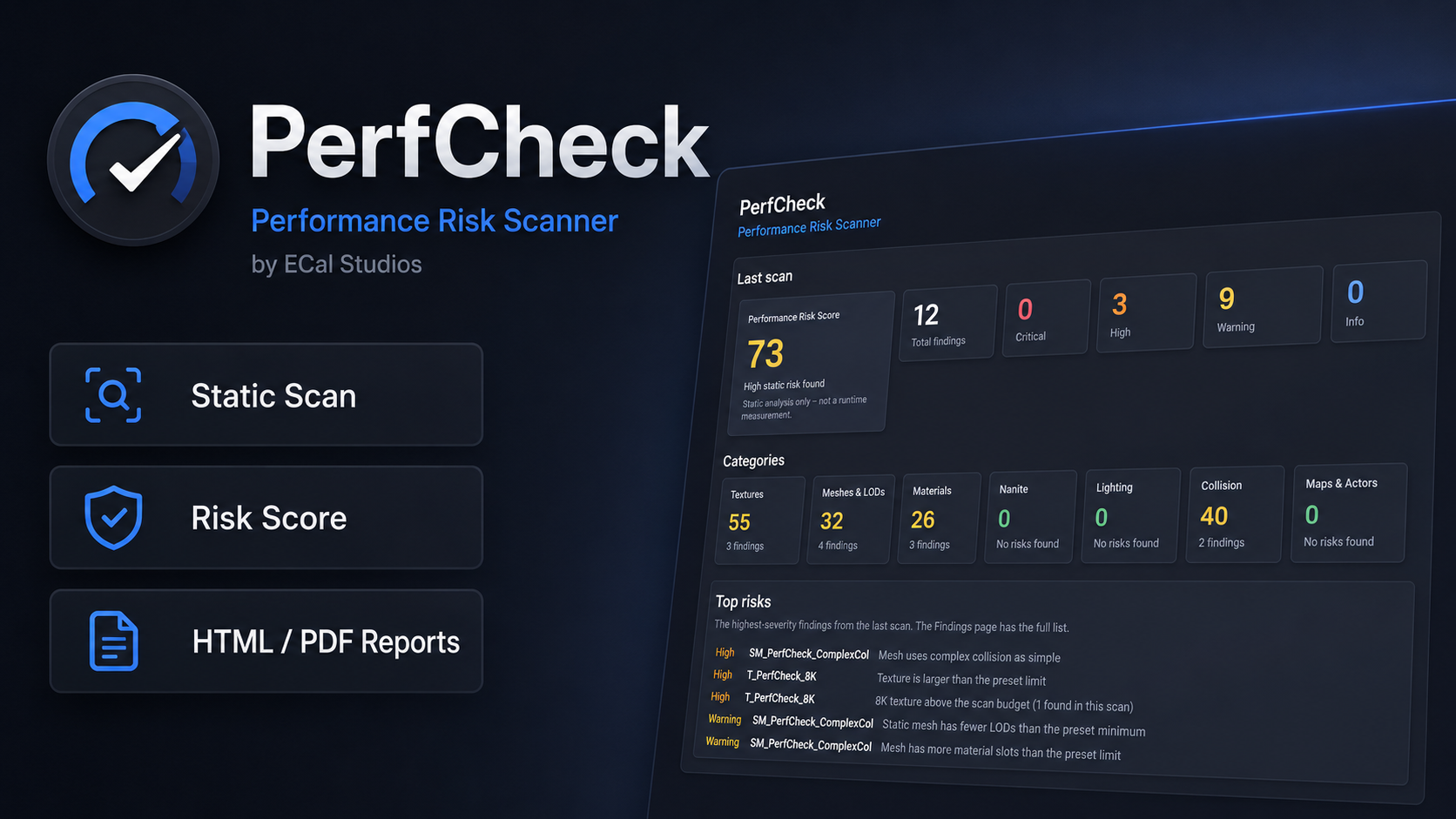
PerfCheck is an editor-only static performance risk scanner for Unreal Engine. It reviews project content for common patterns that may carry runtime cost, then brings the results together in a clear dashboard with scores, finding details, configurable rules, scan history, comparisons, and shareable reports.
PerfCheck does not run your game, measure FPS, or change assets. It helps you find items worth reviewing before optimization, QA, handoff, or release.
Version covered by this documentation
This documentation covers PerfCheck 1.0.0 for Unreal Engine 5.5, 5.6, 5.7, and 5.8. PerfCheck is an editor-only C++ plugin.
What PerfCheck helps with
-
Static project scans
Scan the whole project or selected Content Browser assets and folders without running the game.
-
Performance Risk Score
Review one overall score plus category scores for textures, meshes, materials, Nanite, lighting, collision, and maps.
-
Practical findings
See the measured value, preset threshold, severity, why the pattern matters, and a suggested next step.
-
Rules and presets
Start with built-in presets, or duplicate one to create project-specific thresholds, severities, and score weights.
-
History and comparison
Save local scan snapshots and compare two scans to see new, resolved, changed, and persisting findings.
-
Shareable reports
Export single-scan and before/after reports as Markdown, CSV, HTML, or PDF.
Dashboard overview
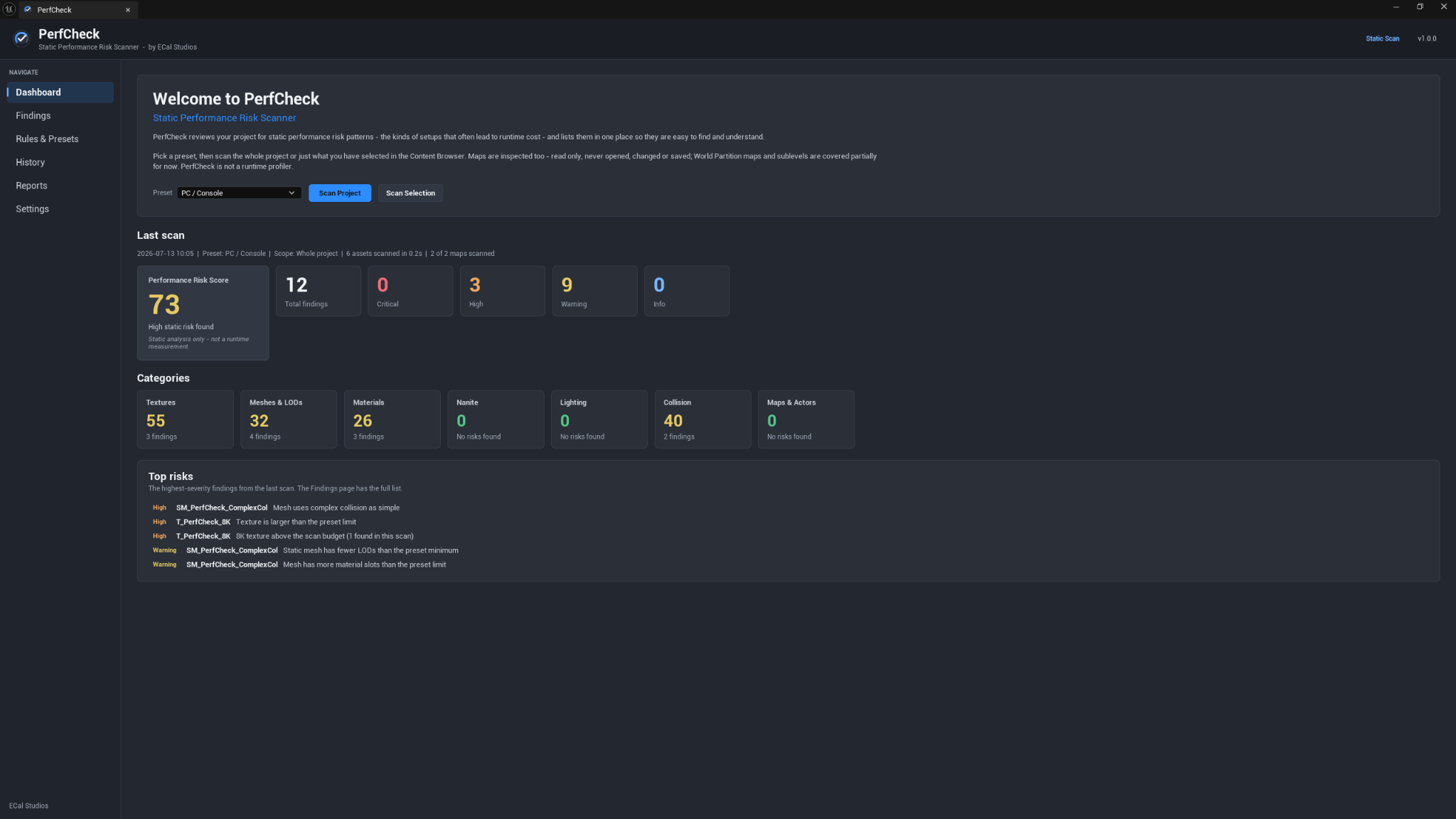
The Dashboard is the starting point for a scan and the fastest way to understand the current result. It shows:
- The active preset and scan controls.
- The latest scan scope, duration, and scanned asset/map count.
- The overall Performance Risk Score.
- Finding counts by severity.
- Per-category scores and finding counts.
- A short list of the highest-severity risks.
The score is a static review aid. A lower score means fewer or less severe configured findings; it is not a measured FPS improvement.
Main workflow
- Open Tools → ECal Studios → PerfCheck.
- Choose a preset, such as PC / Console.
- Run Scan Project, or select assets/folders and use Scan Selection.
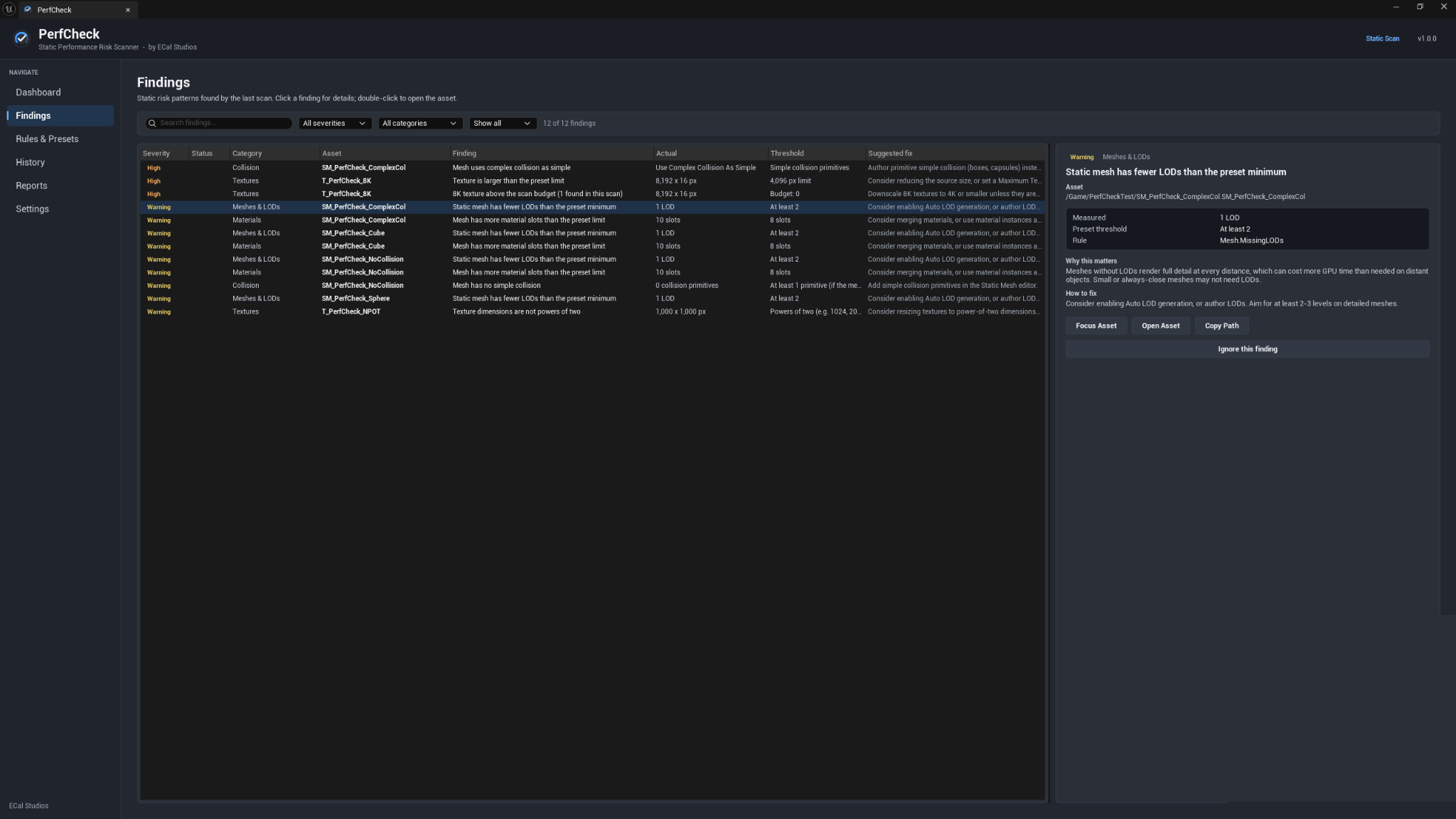
- Review the Dashboard and open the Findings page.
- Inspect the measured value, threshold, explanation, and suggested fix.
- Ignore intentional findings or tune a duplicated preset when needed.
- Scan again and compare snapshots on the History page.
- Export a Markdown, CSV, HTML, or PDF report from Reports.
Compatibility and product details
| Item | Details |
|---|---|
| Plugin | PerfCheck |
| Version | 1.0.0 |
| Developer | ECal Studios |
| Unreal Engine | 5.5, 5.6, 5.7, 5.8 |
| Type | Editor-only C++ plugin |
| Editor platforms | Windows, macOS, and Linux editors |
| Runtime impact | None; PerfCheck does not run in packaged builds |
| Fab listing | Open PerfCheck on Fab |
Safety and privacy
PerfCheck is designed as a review tool, not an automatic optimizer.
- It never modifies, optimizes, or deletes project assets.
- Maps are inspected read-only and are not opened, changed, or saved by the scanner.
- It has no runtime module and adds nothing to packaged builds.
- It makes no network requests and uses no telemetry.
- Presets, scan history, ignore data, and reports stay on the local machine.
Performance guidance, not a profiler
PerfCheck highlights static risk patterns. It does not measure FPS, frame time, memory usage, or actual runtime cost, and it cannot guarantee a performance improvement.
Known limitations
- Closed World Partition maps are covered only partially and may be skipped.
- Sublevel coverage is partial.
- Fixes are always applied manually by the user.
- PDF export uses standard font encoding; unsupported characters may be replaced with a safe placeholder. Use HTML or Markdown when full non-Latin text fidelity is important.
Documentation
| Page | Use it for |
|---|---|
| README | Installation, opening the plugin, and the quickest path to a first scan |
| User Manual | Complete guide to scanning, findings, rules, history, reports, settings, troubleshooting, and FAQ |
| Changelog | Version history and known limitations |
Support
For help, email [email protected] and include the PerfCheck version, Unreal Engine version, operating system, scan scope, active preset, and any useful LogPerfCheck Output Log lines.
Copyright © ECal Studios 2026. All rights reserved.