AssetCheck User Manual
Fab listing: Open AssetCheck on Fab
Version: 1.0.0
Developer: ECal Studios
Support: [email protected]
1. Overview
AssetCheck is an Unreal Engine editor plugin that scans your project assets for common health and organization risks. It gives you a score, shows detailed findings, and exports reports you can use during cleanup, packaging preparation, migration checks, or Fab submission preparation.
The plugin is intentionally practical. It does not try to replace a full technical art audit, profiling pass, or marketplace review. Instead, it gives you a focused first pass over common asset issues that are easy to miss in a busy project.
2. Important safety behavior
AssetCheck 1.0.0 is read-only.
It does not:
- Delete assets.
- Rename assets.
- Move folders.
- Reimport textures or meshes.
- Change materials.
- Modify Blueprint content.
- Upload project data.
- Add runtime systems to packaged builds.
You can scan freely without AssetCheck changing your project files. Findings are reports and review helpers, not automatic fixes.
3. Installation
- Close Unreal Engine.
- Copy the
AssetCheckplugin folder into your projectPluginsfolder. - Reopen your project.
- Enable the plugin if Unreal does not enable it automatically.
- Restart the editor if prompted.
Expected folder layout:
YourProject/
  Plugins/
    AssetCheck/
      AssetCheck.uplugin
      Source/
      Resources/
4. Opening the plugin
Open AssetCheck from:
Tools → ECal Studios → AssetCheck
The window is dockable. You can place it beside the Content Browser while cleaning up findings, or keep it as a larger dashboard during project review.
5. Dashboard
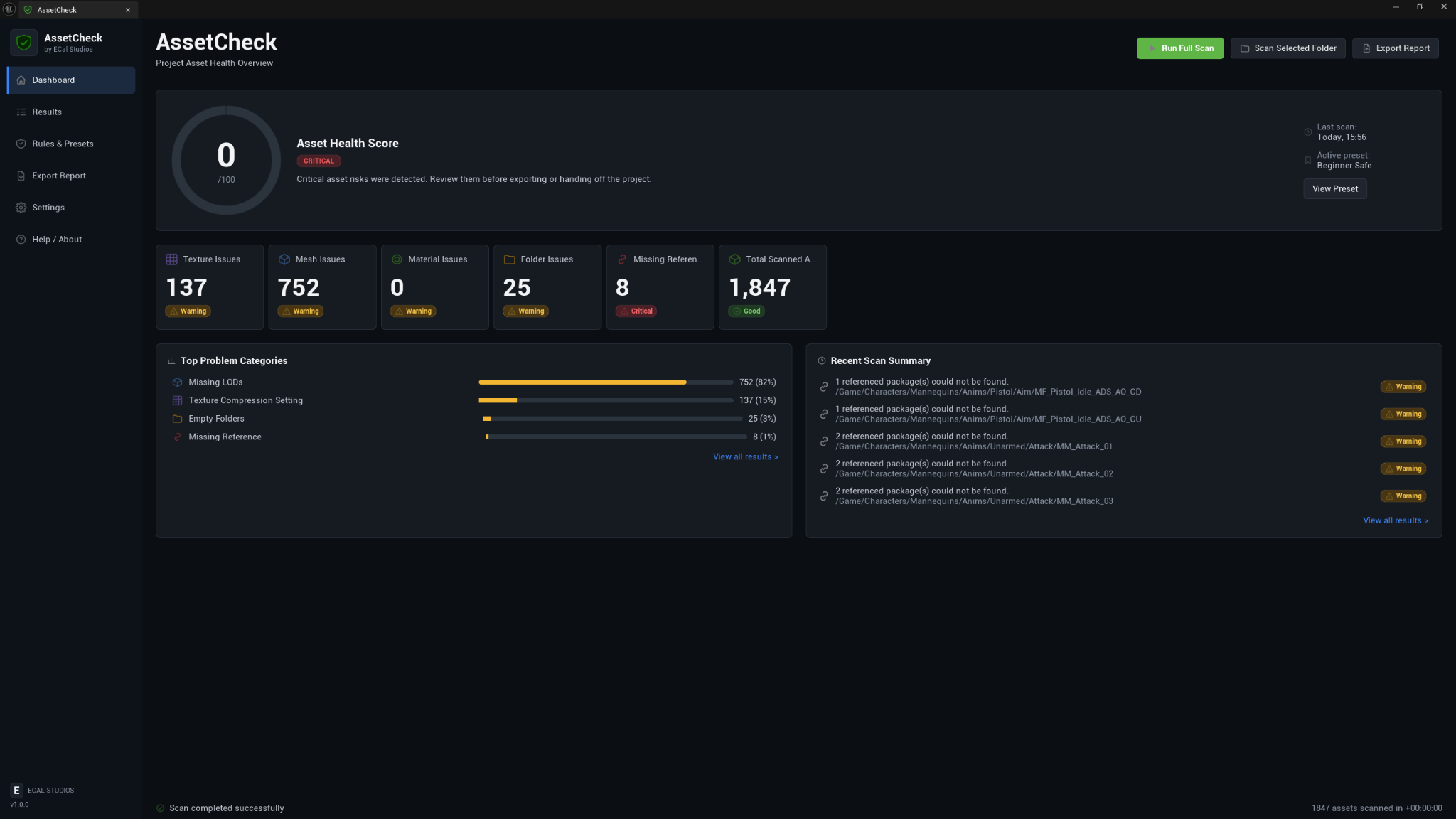
The Dashboard is the main overview page.
Header actions
| Button | What it does |
|---|---|
| Run Full Scan | Scans the project content area using the active preset. |
| Scan Selected Folder | Scans the folder currently selected in the Content Browser. |
| Export Report | Opens the report export page. |
Asset Health Score
The score ring shows a 0-100 project health score. A higher score means fewer detected issues based on the active preset. The score is affected by severity and configurable score weights.
Typical interpretation:
| Score range | Meaning |
|---|---|
| 90-100 | Very clean scan result. Still review warnings before release. |
| 75-89 | Generally healthy, with some cleanup recommended. |
| 55-74 | Several issues need review. |
| 35-54 | Risky enough to investigate before packaging or handoff. |
| 0-34 | Critical review recommended before sharing or submitting. |
Note
The score is a guide. A perfect score does not guarantee Fab approval, shipping performance, or project correctness.
Metric cards
The Dashboard shows separate cards for:
- Texture issues
- Mesh issues
- Material issues
- Folder issues
- Missing references
- Total scanned assets
These cards help you see whether the project has one specific problem area or a wider cleanup need.
Top problem categories
This panel ranks the most common issue categories from the scan. It is useful when a project has many findings and you want to fix the biggest category first.
Recent scan summary
This panel lists recent important findings so you can quickly jump into review without opening the full table first.
6. Scan Results
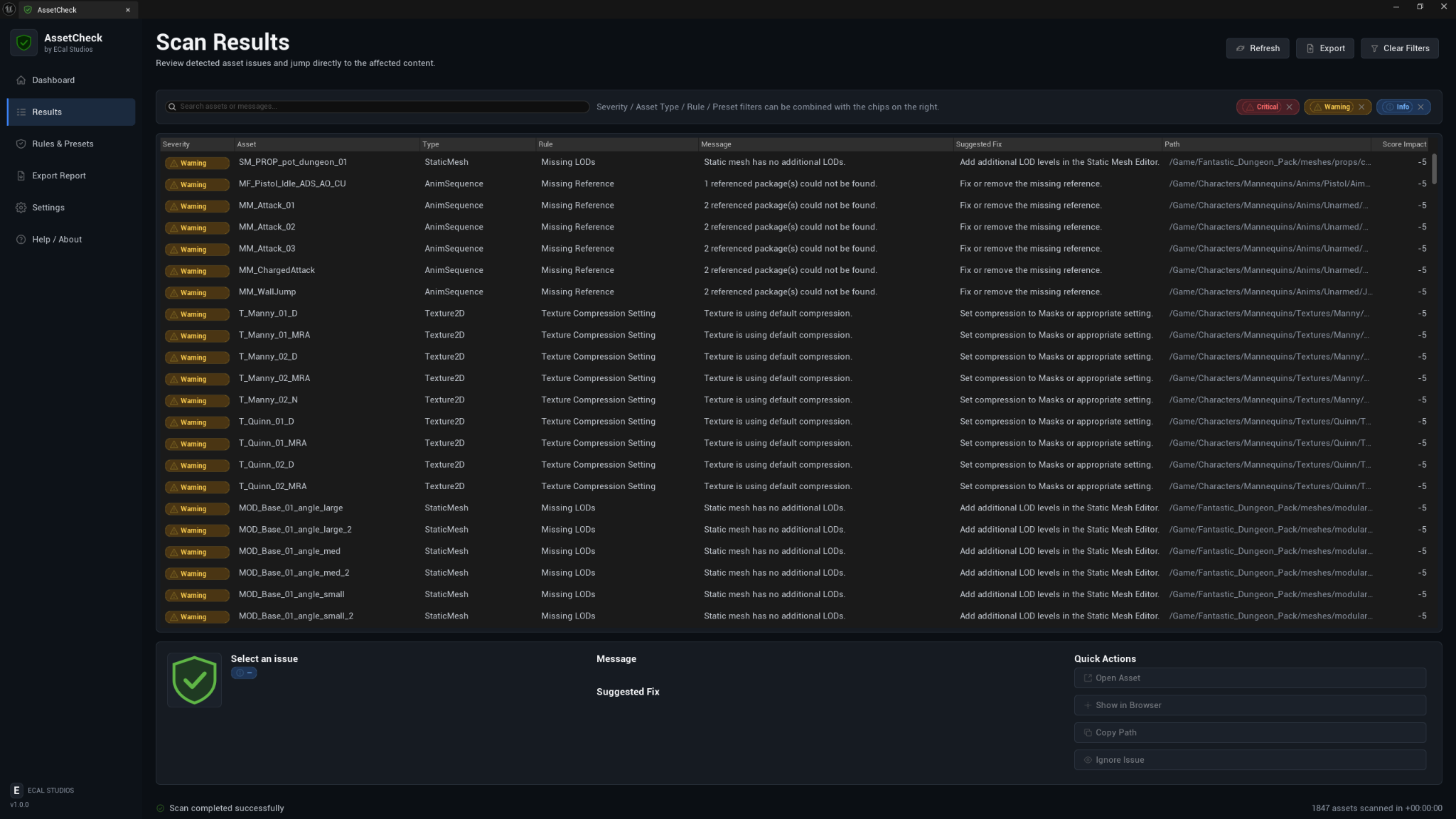
The Results page is where you review individual findings.
Search
Use the search bar to filter by asset name, path, rule, message, or suggested fix.
Severity filters
Use the severity chips to show or hide:
- Critical findings
- Warning findings
- Info findings
This is helpful when you want to deal with critical issues first, then return to lower-priority cleanup later.
Result columns
| Column | Meaning |
|---|---|
| Severity | How important the issue is. |
| Asset | The asset name. |
| Type | The Unreal asset class or category. |
| Rule | The rule that created the finding. |
| Message | What AssetCheck detected. |
| Suggested Fix | A practical next step. |
| Path | The asset package path. |
| Score Impact | How much this issue affects the score. |
Selecting an issue
Selecting a row shows more detail in the lower panel. This is the best place to read the full message, confirm the asset path, and decide what to do next.
Quick Actions
Depending on the selected issue, AssetCheck can help you:
- Open the asset.
- Show the asset in the Content Browser.
- Copy the asset path.
- Ignore the issue.
Ignoring an issue only affects AssetCheck's review list. It does not change the asset.
7. Rules & Presets
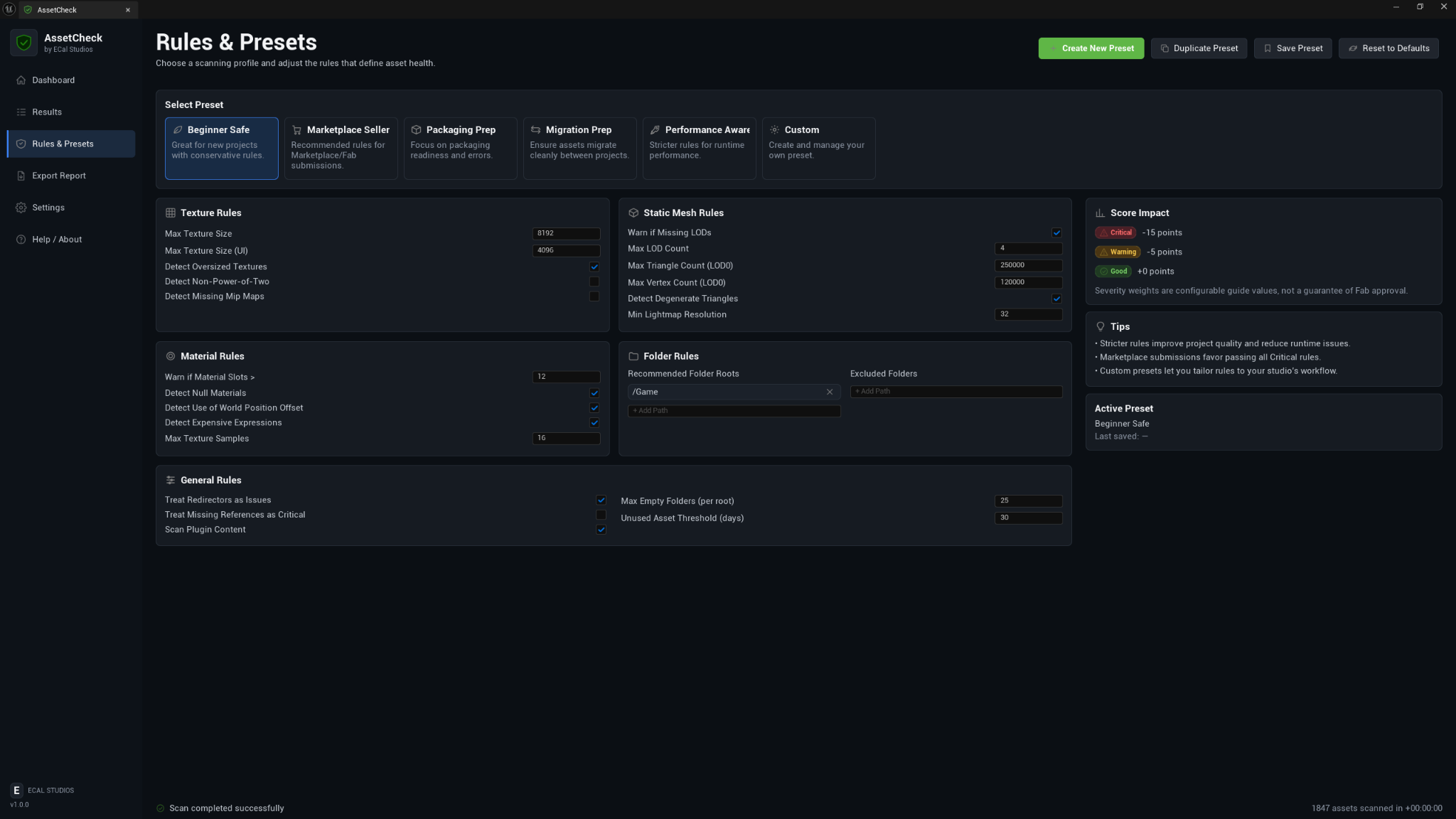
Rules control what AssetCheck looks for and how strict the scan should be.
Built-in presets
| Preset | Recommended use |
|---|---|
| Beginner Safe | A gentle scan for early projects. |
| Marketplace Seller | Review before preparing marketplace or Fab content. |
| Packaging Prep | Find issues before packaging or sending a build. |
| Migration Prep | Check content before moving it to another project. |
| Performance Aware | Stricter thresholds for projects that care about runtime cost. |
| Custom | Your own studio/project rules. |
Texture rules
Texture rules can flag oversized textures, UI texture limits, non-power-of-two textures, missing mip maps, and default compression settings.
Static mesh rules
Static mesh rules can flag missing LODs, high LOD0 triangle counts, high vertex counts, too many material slots, and related mesh-health risks.
Material rules
Material rules focus on mesh-level material problems in version 1.0.0, such as too many material slots or missing/null material assignments.
Folder rules
Folder rules help you keep project content organized. You can define recommended roots and excluded folders depending on your workflow.
General rules
General rules cover redirectors, missing references, plugin-content scanning, empty-folder limits, and related scan behavior.
8. Export Report
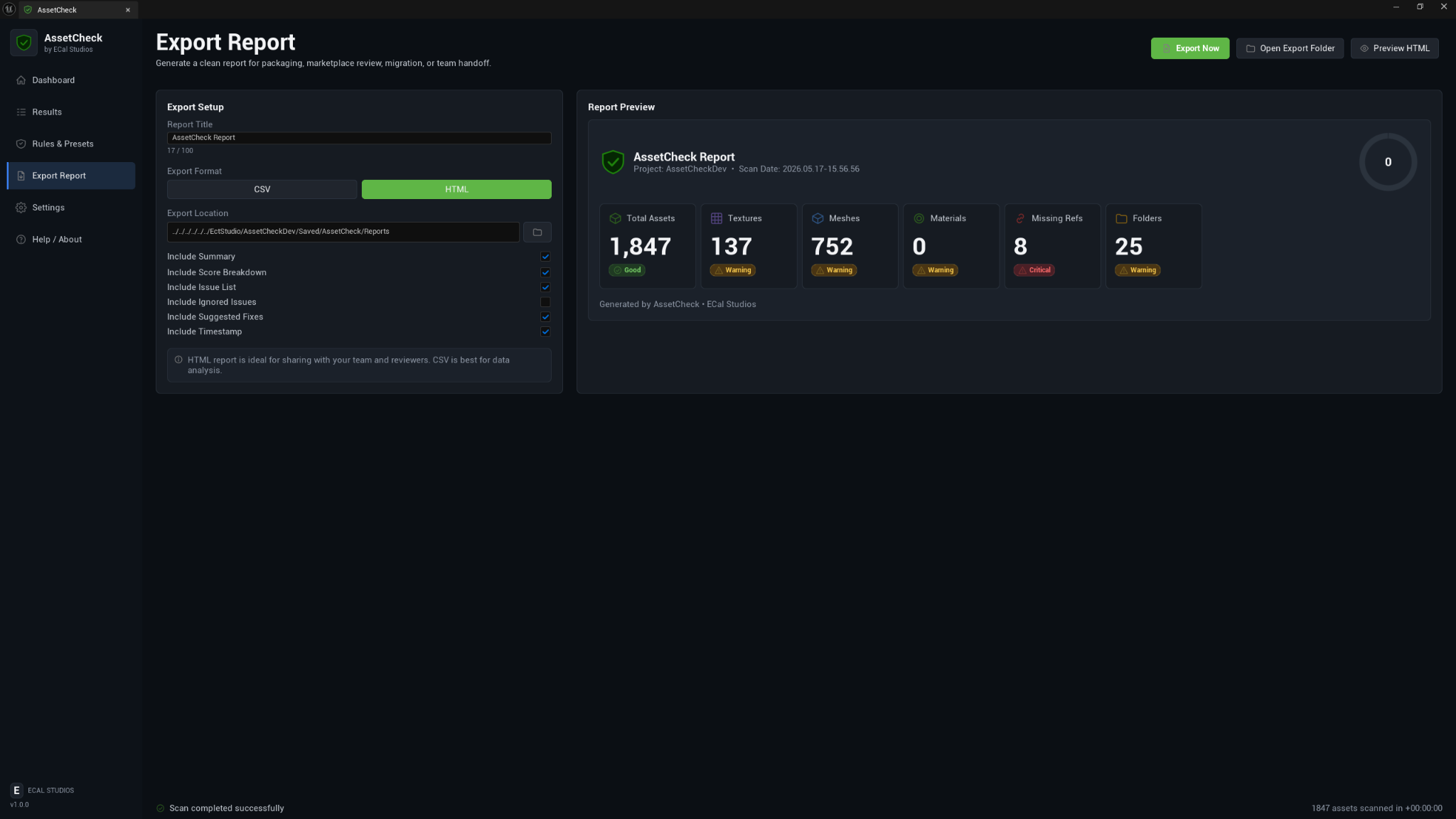
Use the Export Report page when you want a file outside Unreal Engine.
Report options
You can set:
- Report title
- Export format
- Export location
- Include summary
- Include score breakdown
- Include issue list
- Include ignored issues
- Include suggested fixes
- Include timestamp
CSV reports
CSV is best when you want to filter, sort, or track findings in a spreadsheet.
HTML reports
HTML is best when you want a readable report for another person. It can be opened in a browser and shared with teammates, clients, or reviewers.
9. Settings
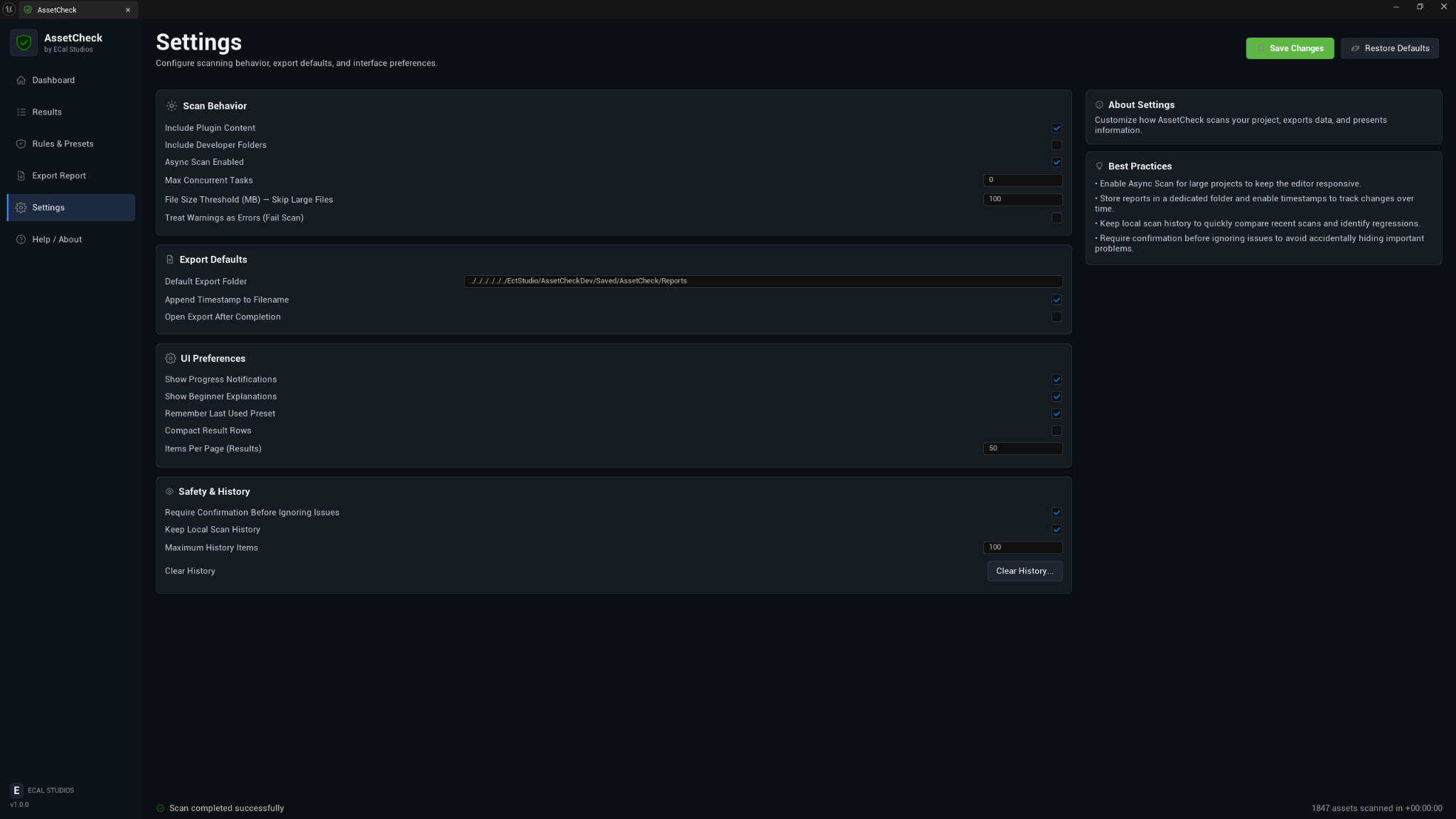
The Settings page contains project-level preferences for scanning and reporting.
Scan behavior
Settings may include whether to scan plugin content, include developer folders, enable async scans, set maximum concurrent tasks, skip large files, and treat warnings as errors for stricter review.
Export defaults
You can set the default report folder and whether report filenames should include timestamps.
UI preferences
You can adjust progress notifications, beginner explanations, last-used preset behavior, compact rows, and results-per-page style preferences.
Safety and history
You can require confirmation before ignoring issues and clear local AssetCheck review history when needed.
10. Recommended workflows
Before packaging
- Select Packaging Prep.
- Run a full scan.
- Review missing references, redirectors, and critical findings first.
- Export an HTML report if you want a cleanup checklist.
- Package the project normally and review Unreal's own packaging logs.
Before Fab or marketplace submission
- Select Marketplace Seller.
- Run a full scan.
- Review texture, mesh, folder, and reference warnings.
- Fix anything that could confuse a buyer or reviewer.
- Export a report for your own records.
Before migration or handoff
- Select Migration Prep.
- Scan the folder or project you plan to move.
- Review missing references and organization issues.
- Export a report and include it with handoff notes if useful.
For performance cleanup
- Select Performance Aware.
- Review oversized textures and high-poly mesh findings.
- Use the results as a starting point for deeper profiling and technical art review.
11. Troubleshooting
AssetCheck does not appear in the menu
Check that the plugin is enabled in Edit → Plugins, then restart Unreal Engine. Also confirm that the plugin folder is inside your project's Plugins directory.
Scan results look empty
Confirm you are scanning the correct project or selected folder. If you scan a folder that contains no supported assets, the result may be clean or empty.
Some findings look stricter than expected
Check the active preset. A stricter preset, especially Performance Aware or a custom preset, may flag assets that are acceptable for your project.
Quick Actions do not open an asset
The asset may have moved, been deleted, or failed to load in Unreal. Use Show in Content Browser or copy the path to investigate manually.
Export fails
Check that the export folder exists and is writable. If the folder is inside a protected location, choose a different output path.
12. FAQ
Does AssetCheck fix assets automatically?
No. Version 1.0.0 is read-only. It reports issues and suggests fixes, but you decide what to change.
Does it replace Unreal's packaging log?
No. AssetCheck is a pre-review tool. You should still package the project and check Unreal's build and packaging logs.
Can I use it on a marketplace asset pack?
Yes. AssetCheck is useful for reviewing an asset pack before submission or delivery, especially when checking folder structure, missing references, texture sizes, and mesh setup.
Does it affect packaged builds?
No. AssetCheck is editor-only and has no runtime gameplay impact.
Does AssetCheck upload my project data?
No. Reports are generated locally and no online service is required.
13. Known limitations
- AssetCheck does not auto-fix findings.
- Some checks depend on available Unreal Asset Registry metadata.
- Deep material graph analysis is not the main focus of version 1.0.0.
- Some rule toggles may be intentionally inactive or reserved for later versions.
- Custom project systems may require manual review if they store references or data in unusual ways.
14. Support
For help, email [email protected].
Please include:
- AssetCheck version
- Unreal Engine version
- Operating system
- What you scanned
- What happened
- Relevant Output Log lines containing
LogAssetCheck
15. Compatibility
| Item | Support |
|---|---|
| Unreal Engine | 5.5, 5.6, 5.7 |
| Platforms | Windows, macOS, Linux |
| Runtime impact | None |
| Product type | Unreal Engine editor plugin |