Features
This page brings the main MkLume features together in one place. The goal is simple: help you write, organize, check, and publish documentation with fewer repetitive steps.
Images and assets
MkLume helps keep images inside your documentation project instead of scattered across your desktop.

Typical image workflow:
- Drag an image into the editor.
- MkLume copies it into the project asset folder.
- A Markdown image reference is inserted into the page.
- You edit the alt text so the image is understandable.
Example:

Use helpful alt text
Alt text should describe the image, not just repeat the filename. This helps accessibility, search, and future you when cleaning docs later.
Internal links
Internal links are where docs can become annoying fast. MkLume is designed to help you link pages without memorizing every path.
Good internal links should:
- Point to real pages.
- Use readable link text.
- Avoid absolute local computer paths.
- Keep working after the project is moved.
Example:
Read the [build and publish guide](build-and-publish.md).
Site settings
Site Settings gives you a friendlier way to adjust common mkdocs.yml values.
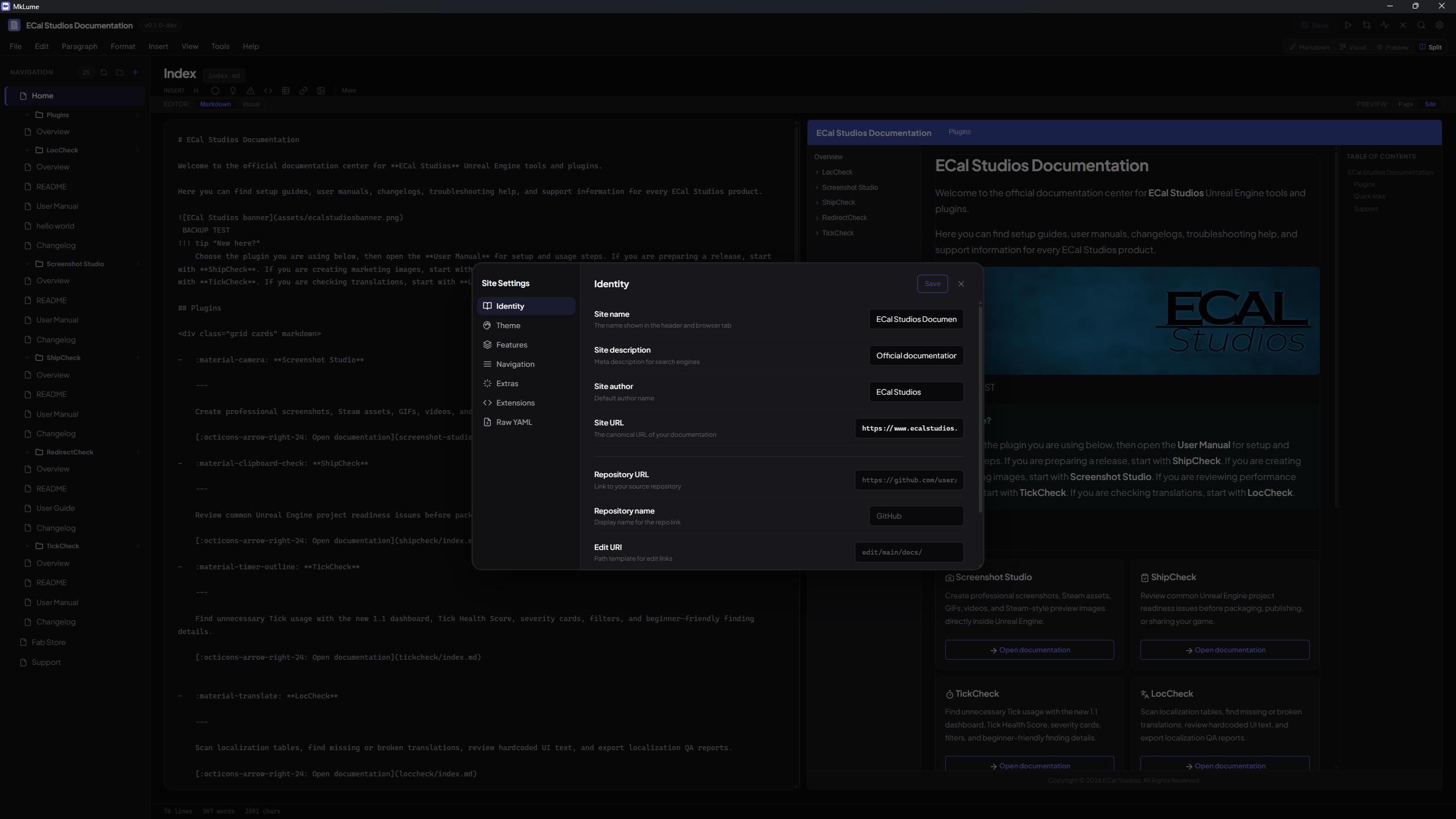
Use it for settings like:
- Site name.
- Site description.
- Theme options.
- Palette choices.
- Extra CSS/JavaScript references.
- Common MkDocs Material features.
Be careful with custom YAML
MkDocs projects can contain advanced custom configuration. If your mkdocs.yml has unusual plugin settings or custom extensions, review changes before committing.
Navigation editor
The navigation editor helps you control the page structure of your documentation.
Use it to:
- Add pages to the sidebar.
- Reorder sections.
- Group related pages.
- Keep the site easier to browse.
A clean navigation is especially important when your docs grow from a few pages into a full product manual.
Extras and integrations
MkLume can help manage common extras such as analytics snippets, custom CSS, and custom JavaScript references.
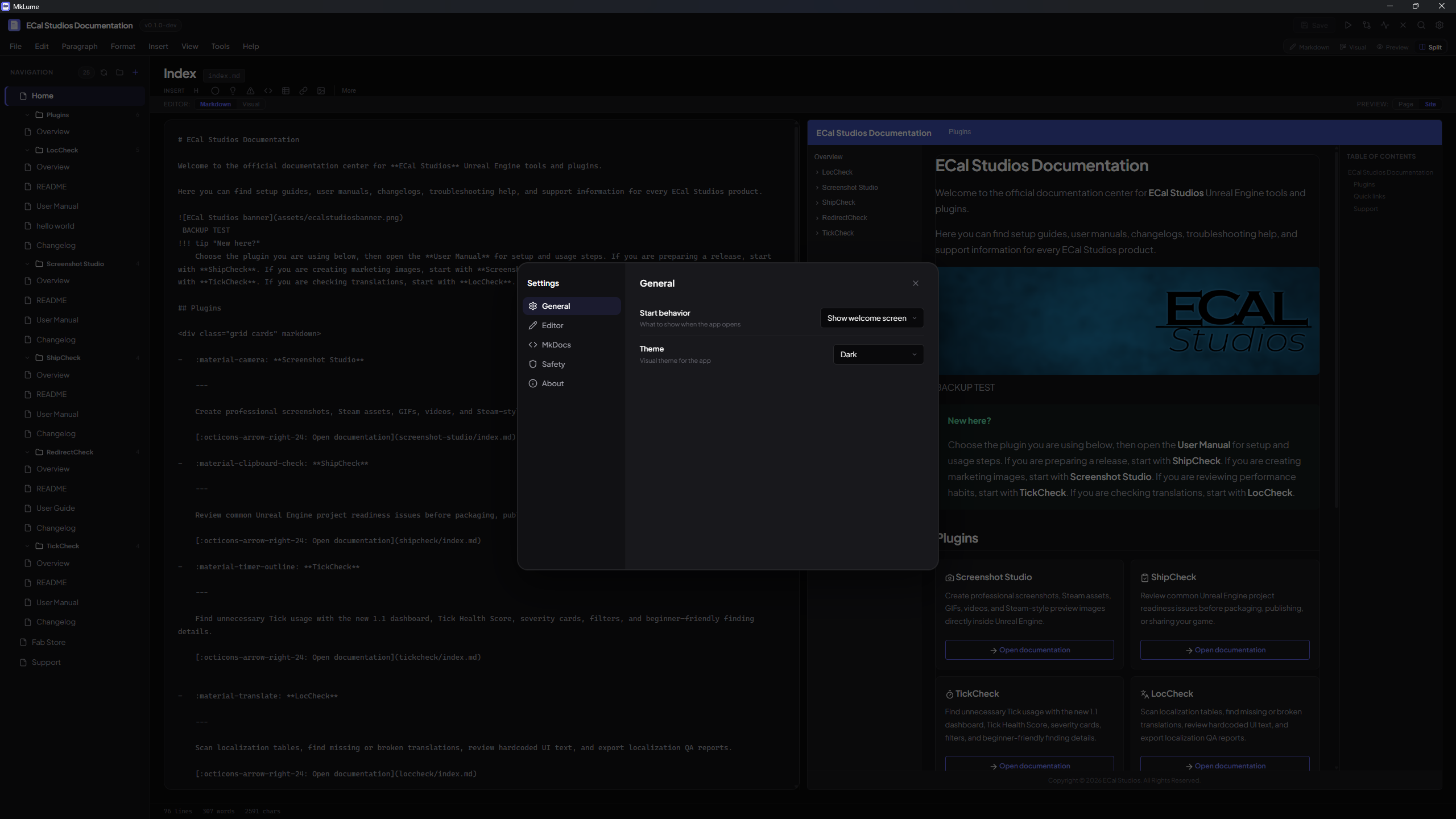
Use extras carefully. A documentation site should stay fast, readable, and simple to maintain.
Project Health
Project Health checks for common problems before you publish.
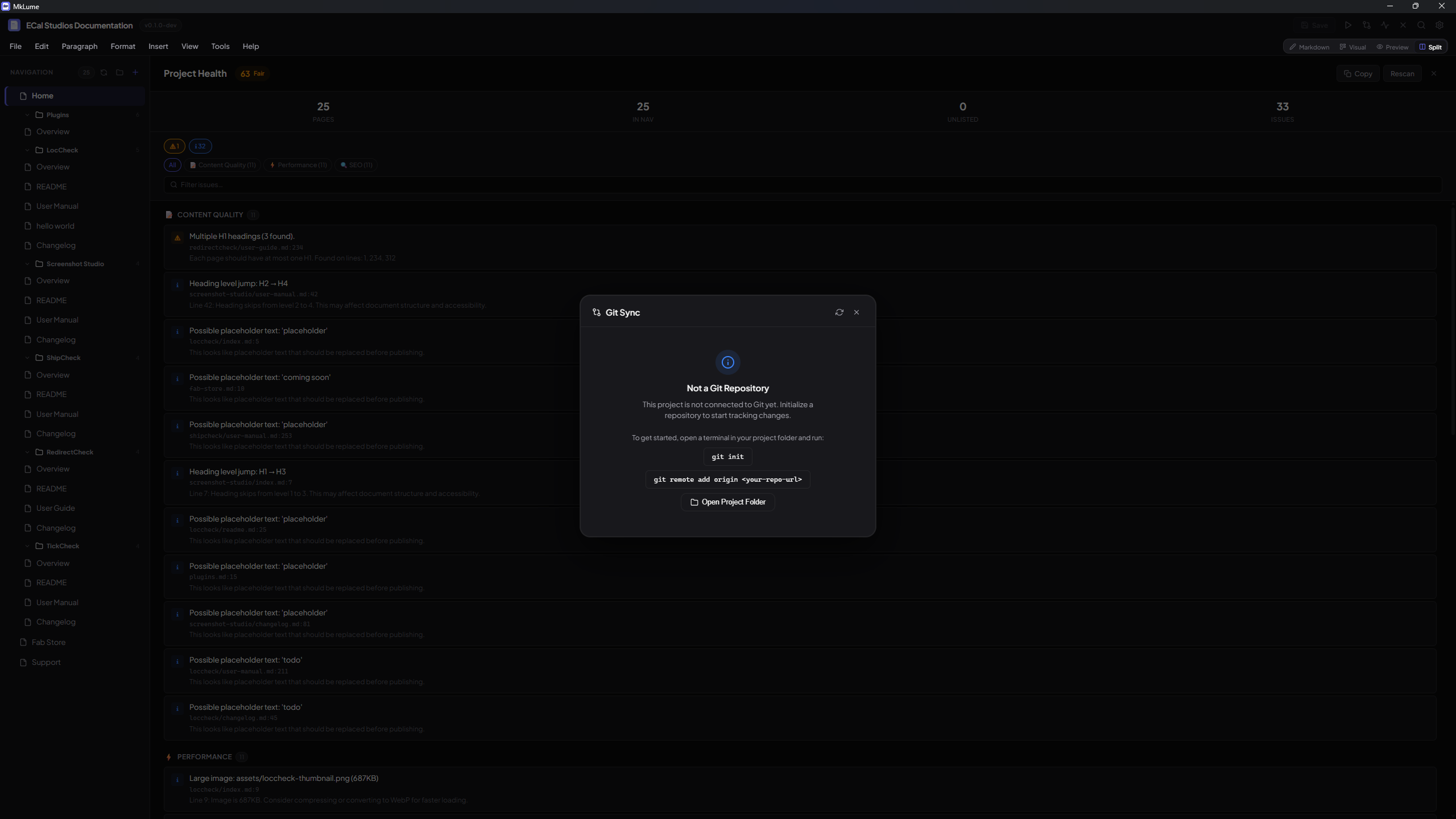
It can help you notice things like:
- Missing images.
- Broken internal links.
- Pages not included in navigation.
- Common project structure issues.
Run it before publishing
Project Health is not a replacement for reading your docs, but it is a very good final check before uploading the site.
Build panel
The Build panel is where you prepare the final static website output.
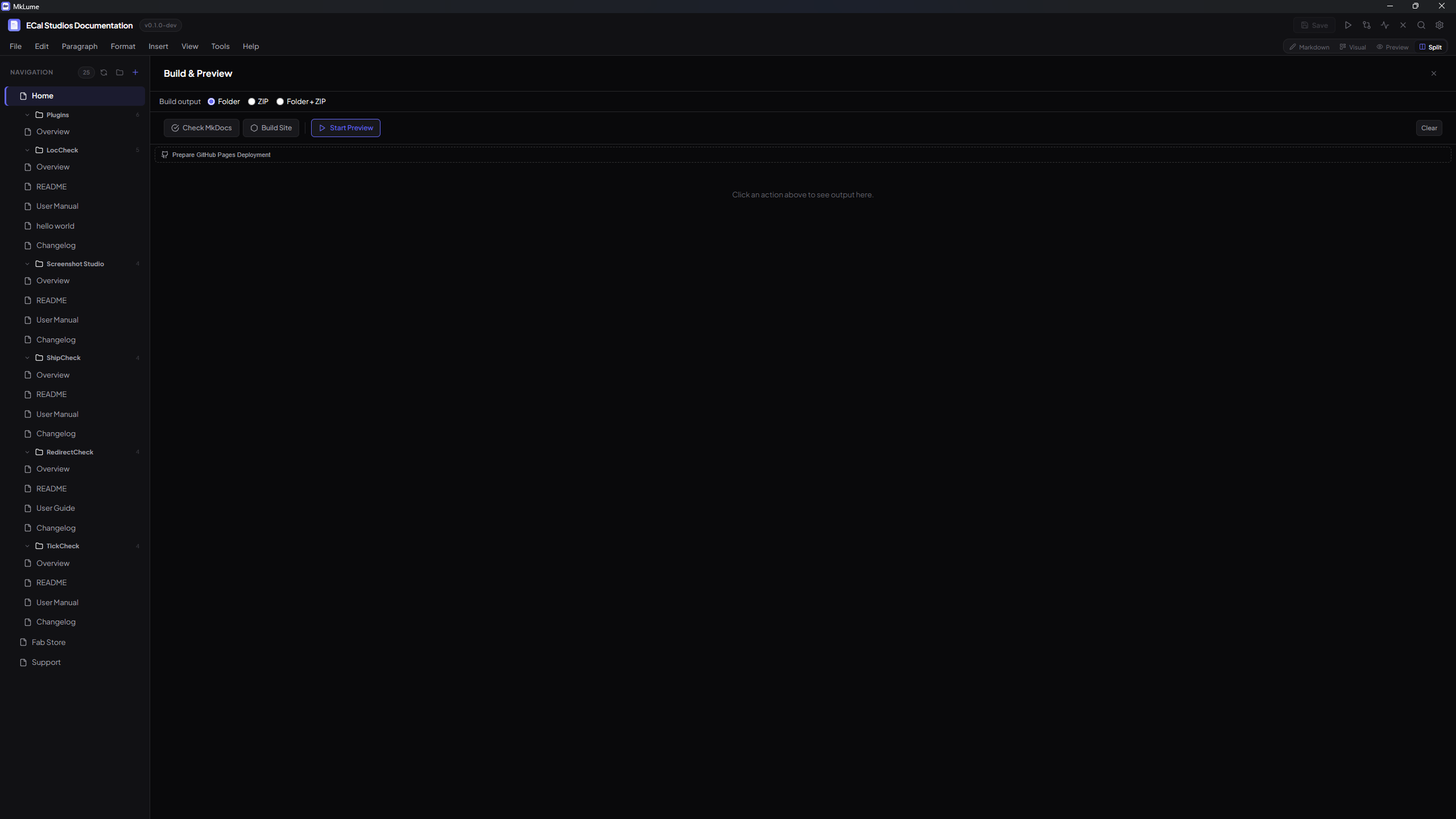
Depending on your setup, you can build a folder, export a zip, or prepare files for manual deployment.
Git Sync
Git Sync is for projects that already use Git.
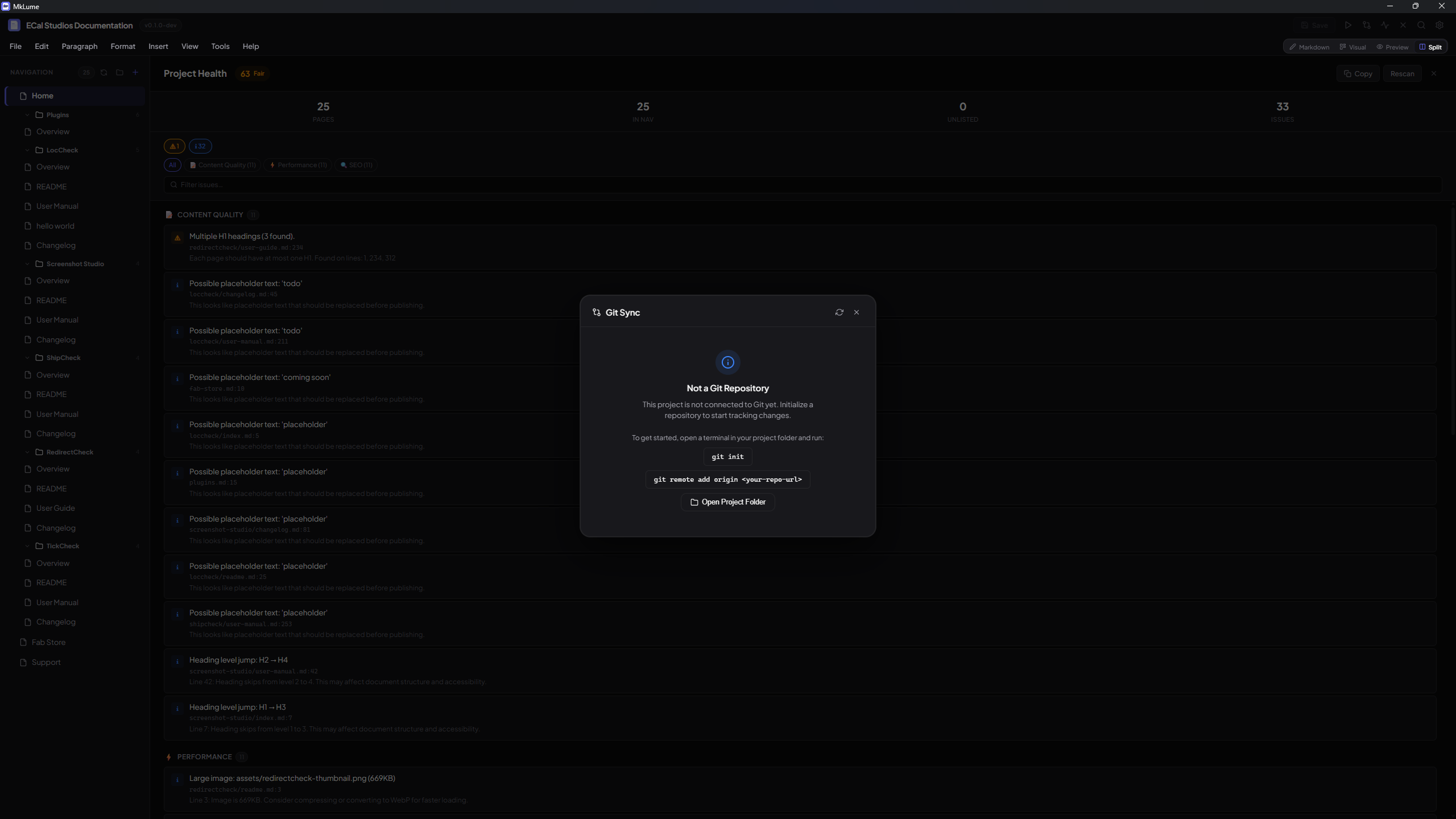
Use it for simple documentation commits, pulls, and pushes. You still need Git installed locally, and your repository must already be configured.
Recommended commit message style:
Update documentation
or, when the change is specific:
Add MkLume getting started guide
Backups and recovery
MkLume uses autosave and backup behavior to reduce the chance of losing work. This is helpful, but it should not replace proper project backups.
Recommended safety habits:
- Keep your project in Git.
- Build before major deployments.
- Commit before big rewrites.
- Keep a copy before changing a large
mkdocs.ymlfile.
Offline quick help
MkLume includes an offline help idea so users can still get basic guidance when they are not online.
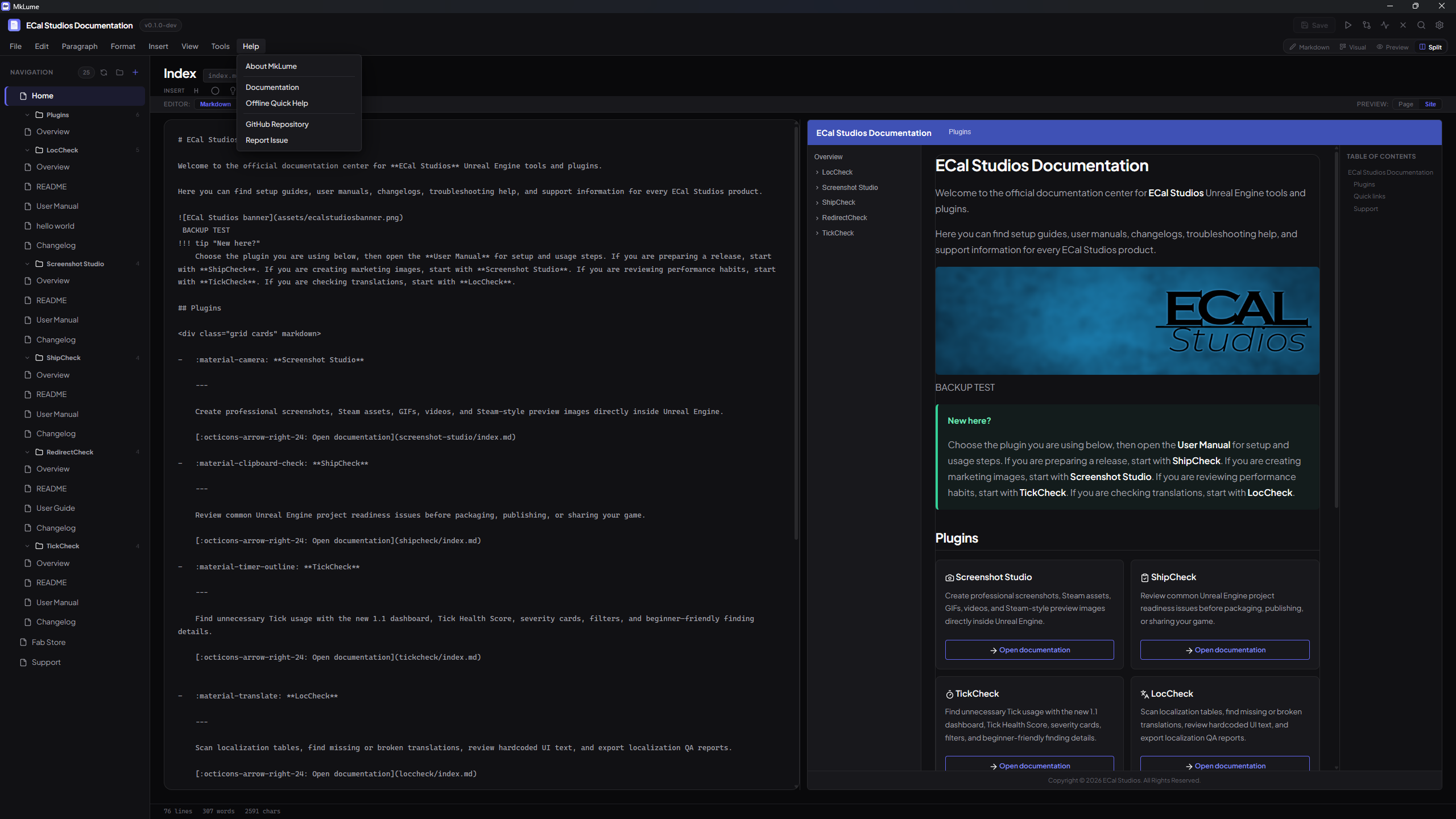
For v1, the practical approach is:
- Help > Documentation opens the online docs.
- Help > Offline Quick Help opens a bundled local help page with the basics.
That keeps the app useful without duplicating the entire website inside the installer.