Editor Workflow
MkLume gives you different ways to work because documentation days are not always the same. Sometimes you want a visual editor. Sometimes you want raw Markdown. Sometimes you only want to preview the result and clean small details.
Editor modes overview
| Mode | Best for |
|---|---|
| Visual Editor | Writing normal pages without thinking about Markdown syntax all the time. |
| Markdown Mode | Editing exact Markdown, code blocks, admonitions, links, and advanced formatting. |
| Preview Mode | Checking how the current page will read. |
| Split View | Writing on one side while seeing the result on the other side. |
Visual Editor
Visual Editor is the most comfortable mode for writing normal documentation. It is useful when you want to focus on the message instead of every Markdown character.

Use it for:
- Drafting new pages.
- Cleaning paragraphs.
- Adding headings and basic formatting.
- Reviewing text like a reader instead of like a coder.
Best use
Visual Editor is great for first passes and human rewrites. For advanced MkDocs Material blocks, switch to Markdown Mode and make the final formatting precise.
Markdown Mode
Markdown Mode is for full control. It is the right place for admonitions, tabs, tables, code blocks, custom attributes, and anything that needs exact syntax.
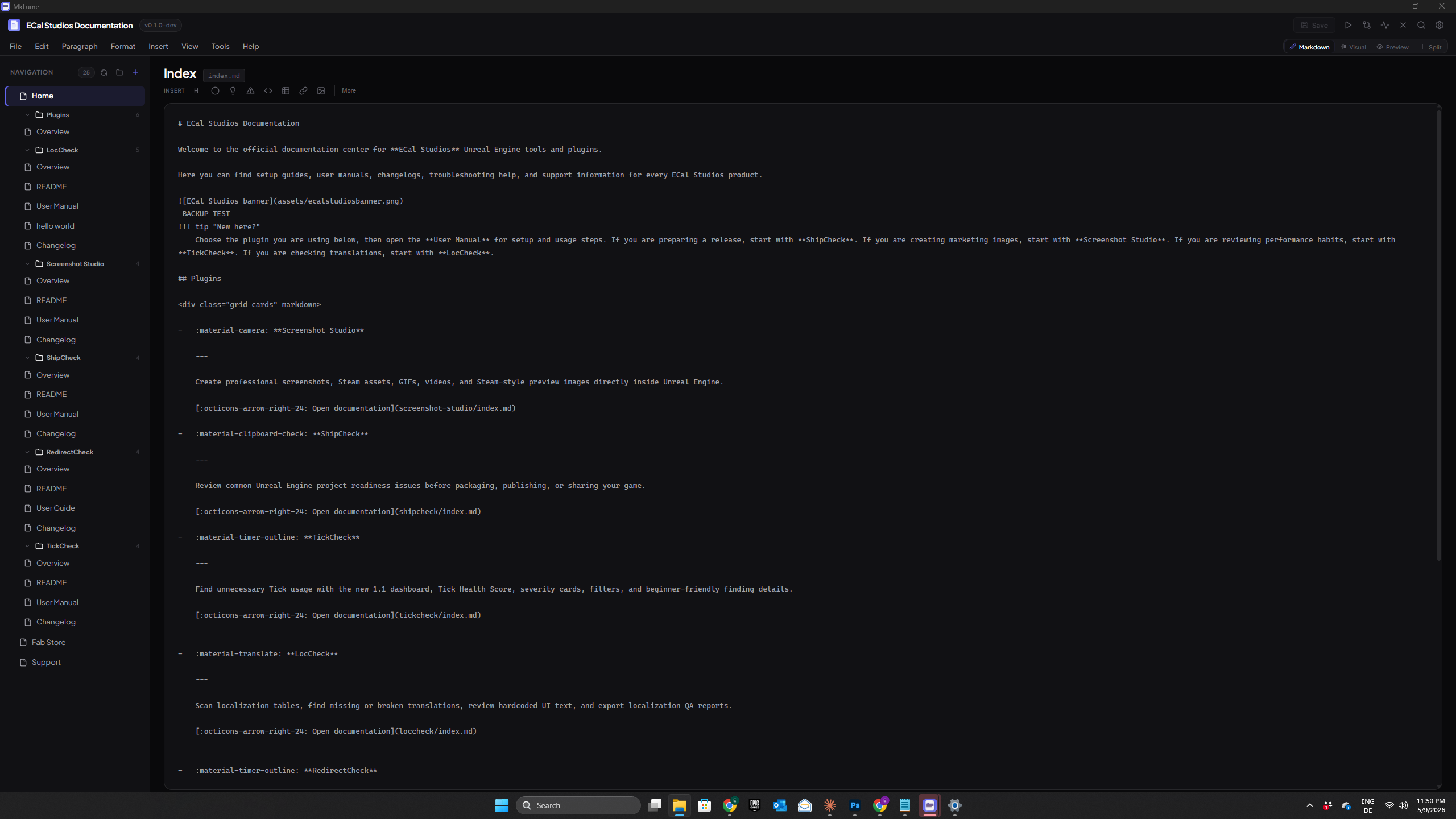
Use it when you need to edit things like this:
!!! tip "Good documentation"
    Keep it clear, practical, and easy to follow.
Markdown Mode is also the safest place to work when you are editing pages that already use advanced MkDocs Material features.
Preview Mode
Preview Mode shows how the current page reads after rendering. It helps catch issues that are hard to see in raw Markdown, like broken image spacing, awkward headings, or sections that feel too long.
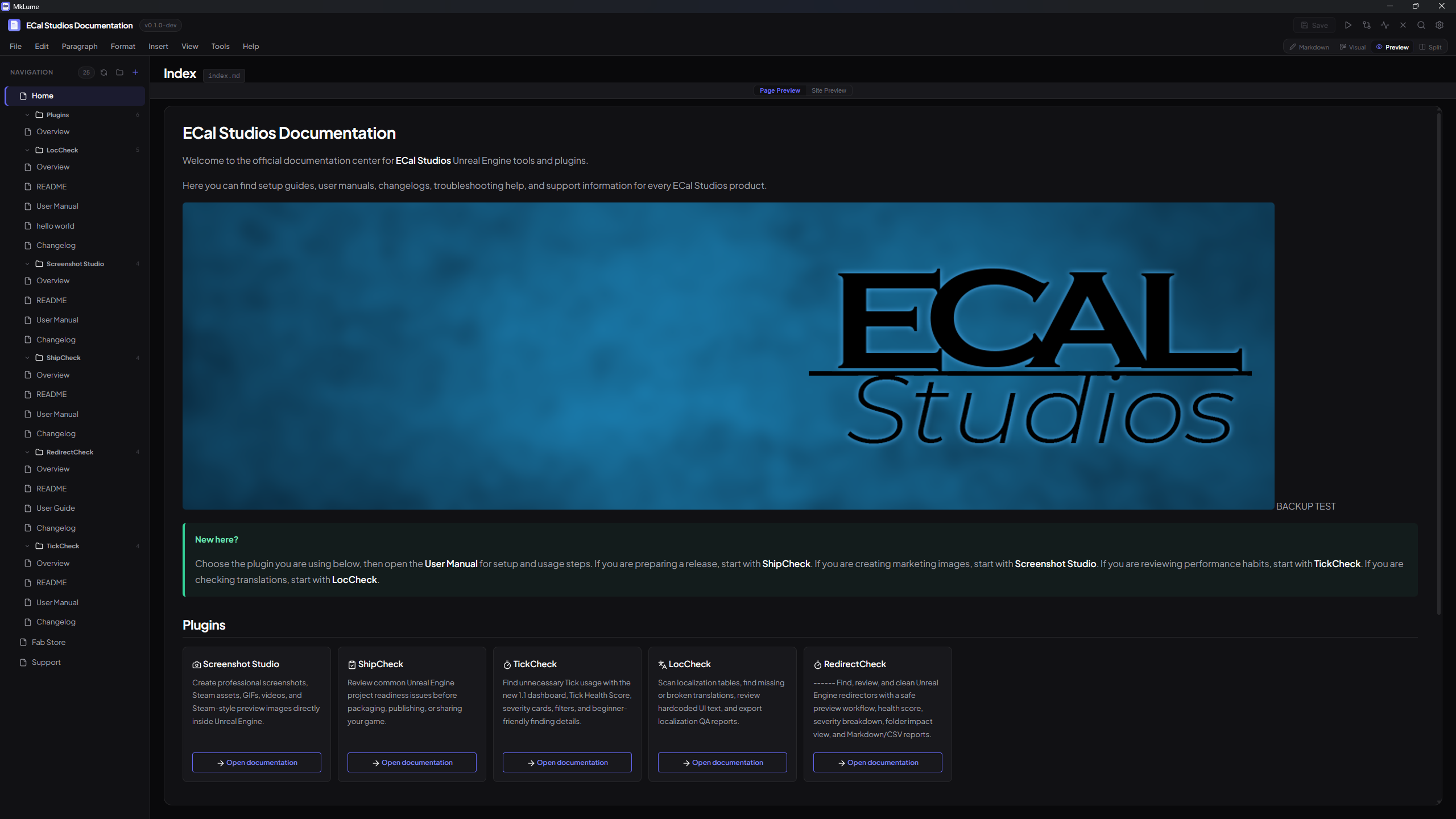
Use Preview Mode before publishing any important page.
Site Preview
Site Preview is for checking the documentation as a real website, not only as one rendered page.
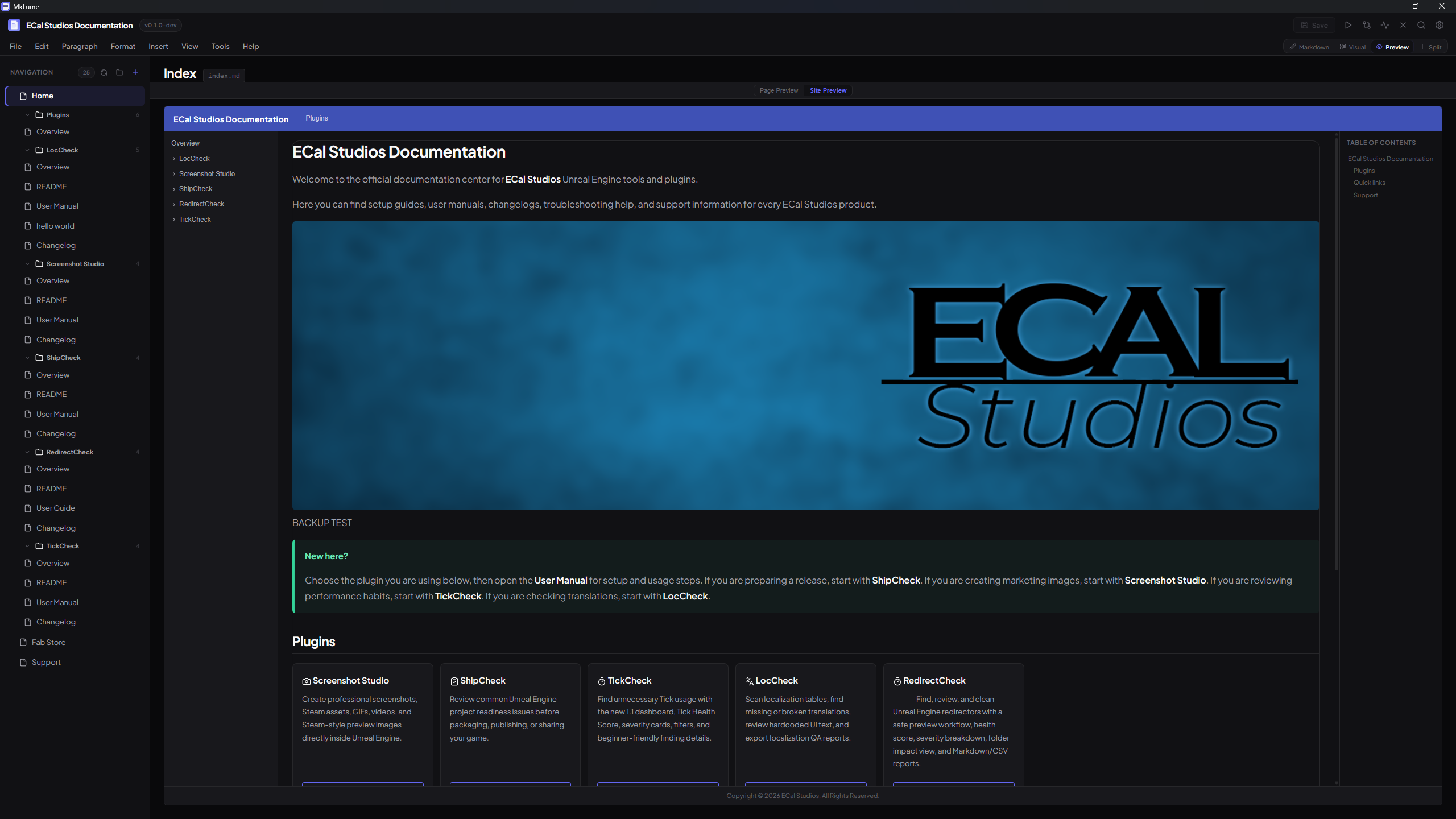
Use it to confirm:
- Navigation feels right.
- Pages open from the sidebar.
- Images resolve correctly.
- Theme changes look good.
- The site feels ready to share.
Split View
Split View is one of the most useful everyday modes. You can edit and preview at the same time, which is perfect for cleaning pages with images, cards, admonitions, and longer guides.
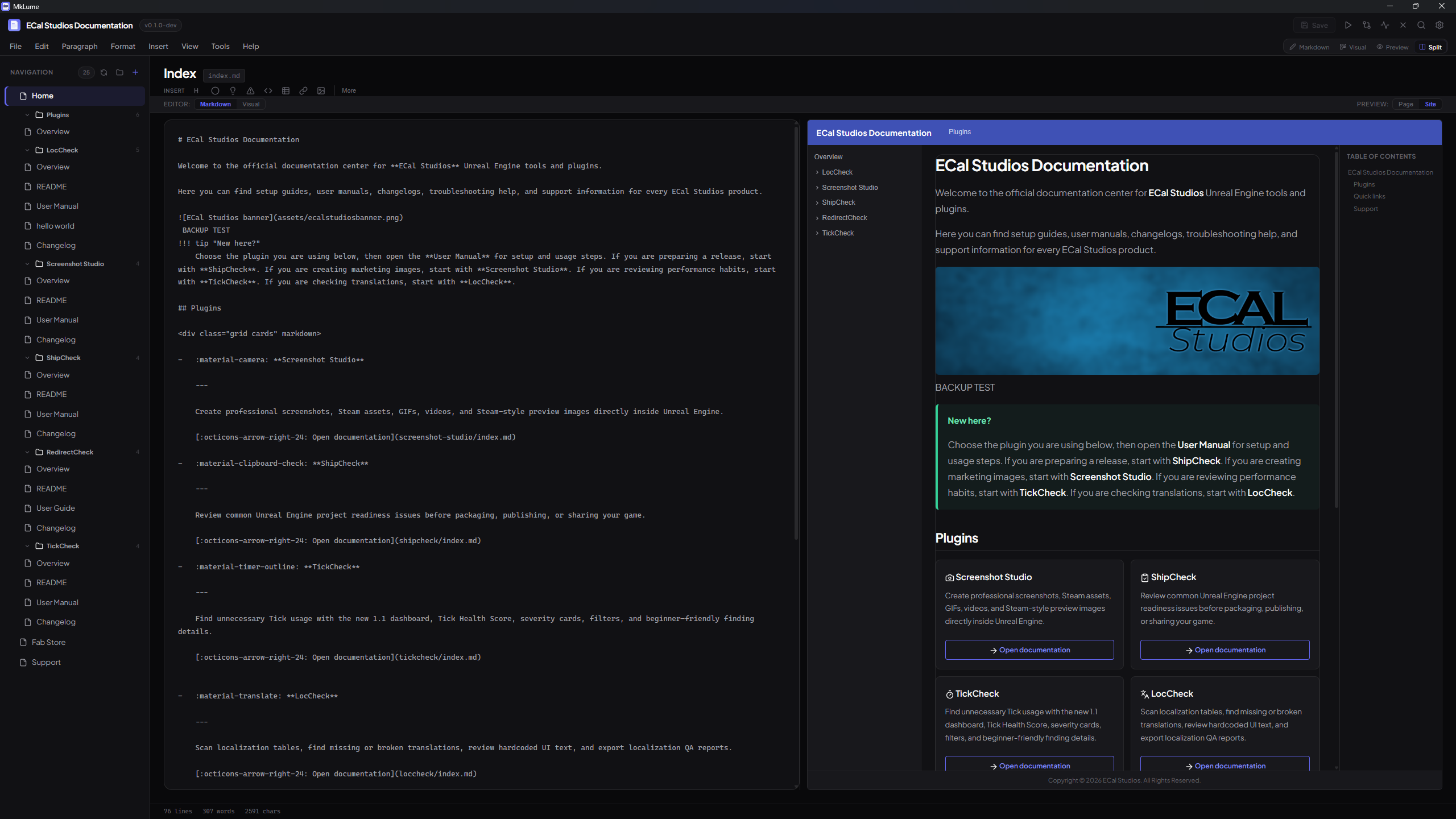
Use Split View when:
- You are adjusting page structure.
- You are checking how images sit between paragraphs.
- You are rewriting existing docs and want instant feedback.
- You want to avoid building the full site after every small change.
Command palette
The command palette gives you a faster way to access common actions without searching through menus.
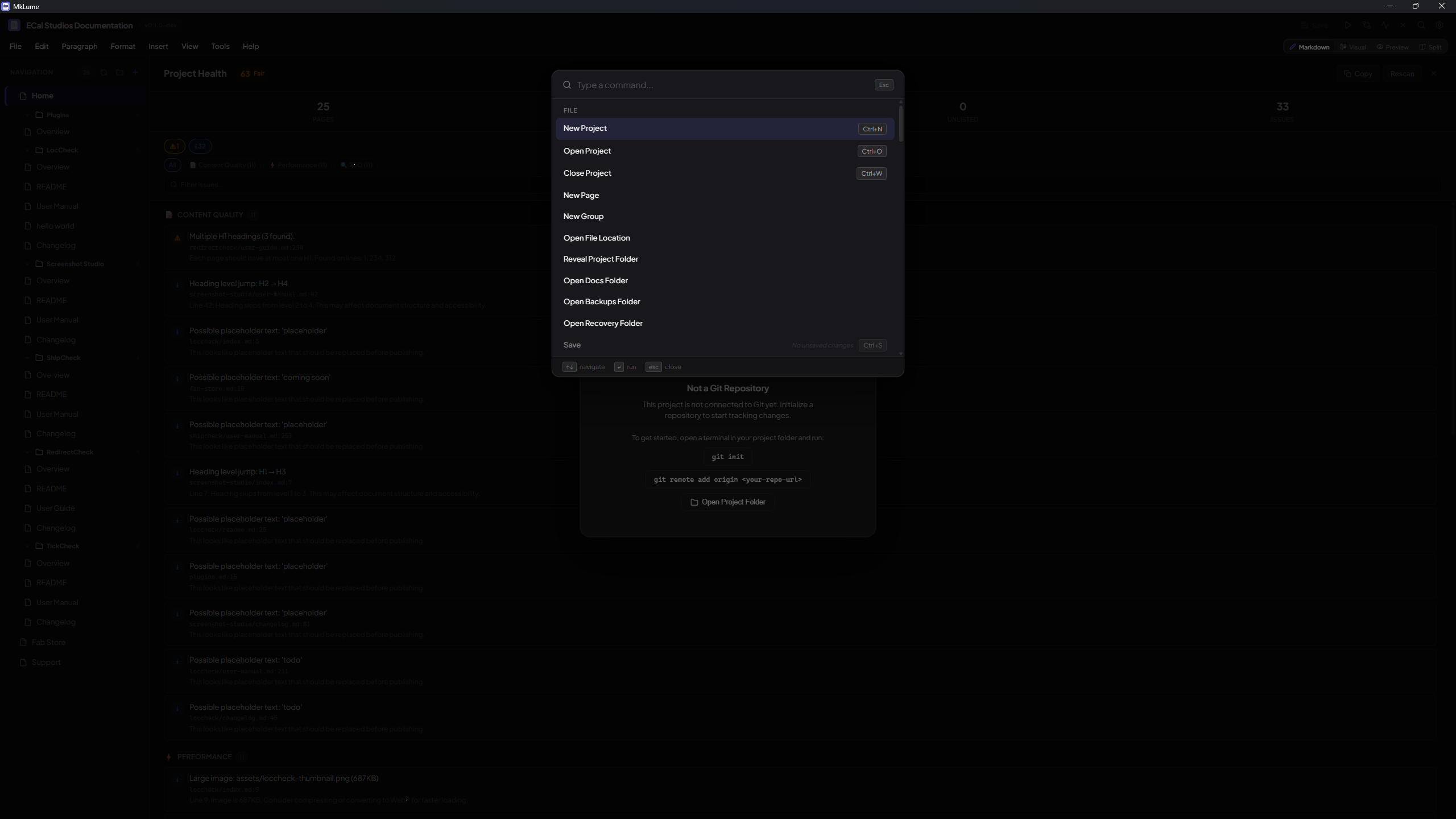
Typical actions include opening panels, switching modes, running checks, and accessing project tools.
Practical editing tips
- Use short headings that describe the actual task.
- Put screenshots close to the step they explain.
- Prefer one clear page over five tiny pages.
- Use tables for comparisons, not for every list.
- Preview before building.
- Run Project Health before deploying.
Advanced Markdown
Visual editors can sometimes simplify formatting. If a page uses complex MkDocs Material syntax, keep an eye on it in Markdown Mode before saving major changes.